# Réglages spécifiques selon le type de question

Ce chapitre explique les paramétrages spécifiques pour chaque type de question.

# Questions de type "Choix multiple" ou "QCM"

<div id="bkmrk-les-questions-de-typ"><span style="color: #000080;"><span style="color: #000000;">Les questions de type<span style="color: rgb(239, 131, 29);"> **« Choix Multiple »**</span> regroupent :</span></span></div>- <span style="color: #000080;"><span style="color: #000000;">Réponse Unique</span></span>
- <span style="color: #000080;"><span style="color: #000000;">Réponses Multiples</span></span>
- <span style="color: #000080;"><span style="color: #000000;">Vrai / Faux</span></span>
- <span style="color: #000080;"><span style="color: #000000;">Oui / Non</span></span>
- <span style="color: #000080;"><span style="color: #000000;">Échelle de Likert</span></span>

#### <span style="color: rgb(0, 0, 0);">**Visuels**</span>

##### <span style="color: rgb(128, 128, 128);">**Questions à choix multiple**</span>

Ce type de question se distingue par les cases à cocher.
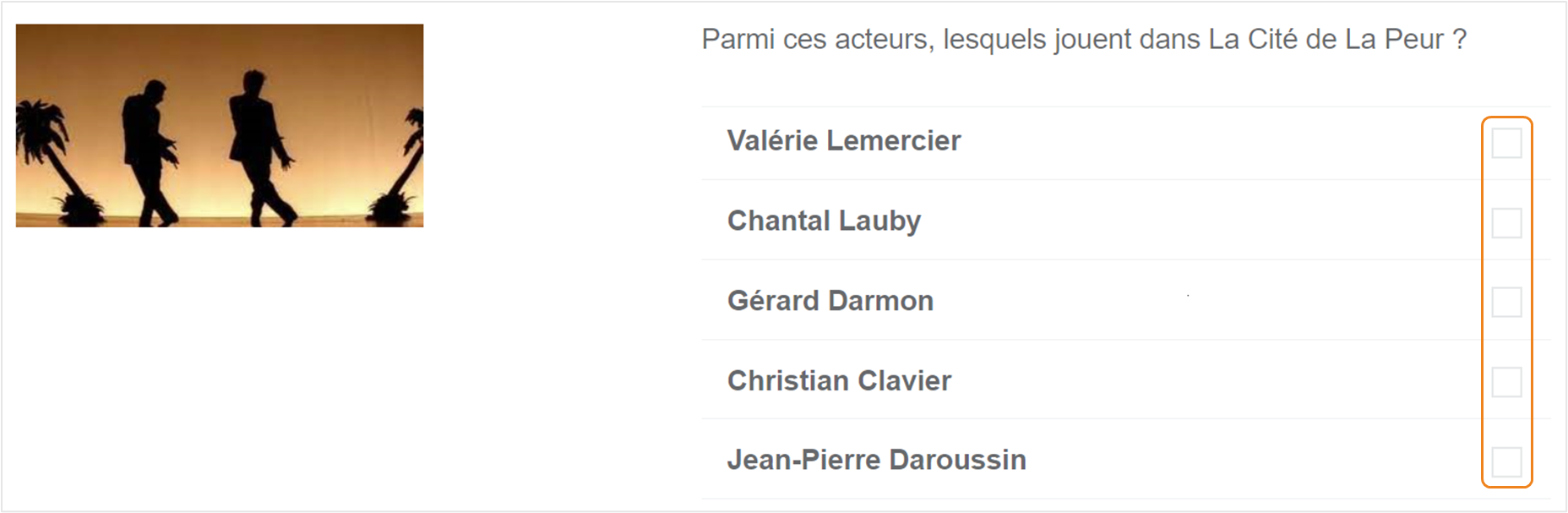
![](https://documentation.xperteam.net/uploads/images/gallery/2024-03/embedded-image-i1c9yvnv.png)

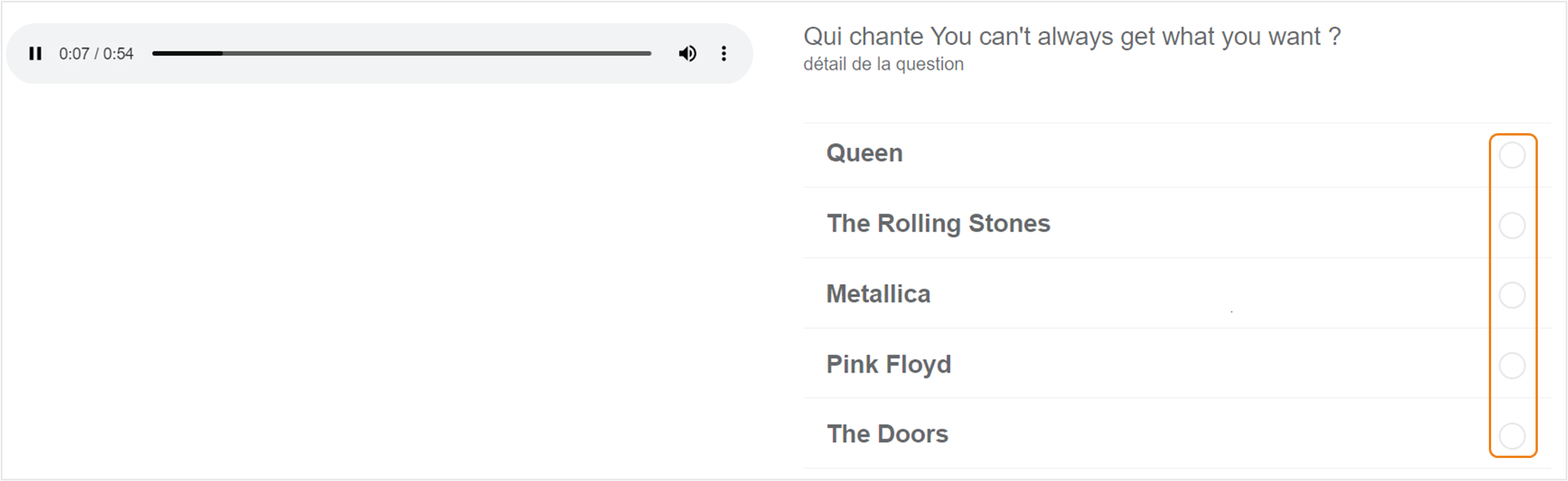
##### <span style="color: rgb(128, 128, 128);">**Question à choix unique**</span>

Ce type de question se distingue par les boutons radio.
![](https://documentation.xperteam.net/uploads/images/gallery/2024-03/embedded-image-jlbuawsc.png)

#### **Réglages spécifiques**

<div id="bkmrk-dans-la-page-propri%C3%A9"><span style="color: #000000;">Sur la page</span> <span style="color: rgb(239, 131, 29);">**Propriétés &gt; Réglages**</span> <span style="color: #000000;">de la question :</span></div>- <span style="color: #000080;"><span style="color: rgb(239, 131, 29);">**Réponse multiple :** </span><span style="color: #000000;">permet de basculer à tout moment le type de question vers Choix Multiple / Choix Unique.</span></span>
- <span style="color: #000000;"><span style="color: rgb(239, 131, 29);">**Nombre de réponses autorisées**</span> (lorsque la case **<span style="color: rgb(239, 131, 29);">Réponse multiple</span>** est cochée) : permet de limiter le nombre de propositions de réponses sélectionnées par l'apprenant. Pour ne pas limiter le nombre de proposition de réponses sélectionnées, mettez la limite à <span style="color: rgb(239, 131, 29);">0</span>.</span>

![](https://documentation.xperteam.net/uploads/images/gallery/2024-03/embedded-image-xu1bcyke.png)

---

#### **<span style="color: rgb(0, 0, 0);">Réponses</span>**

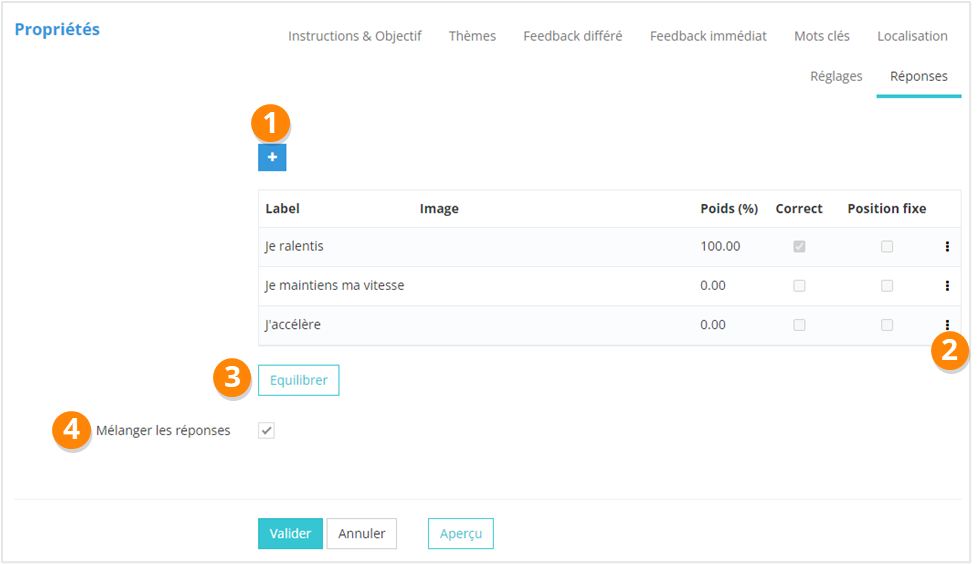
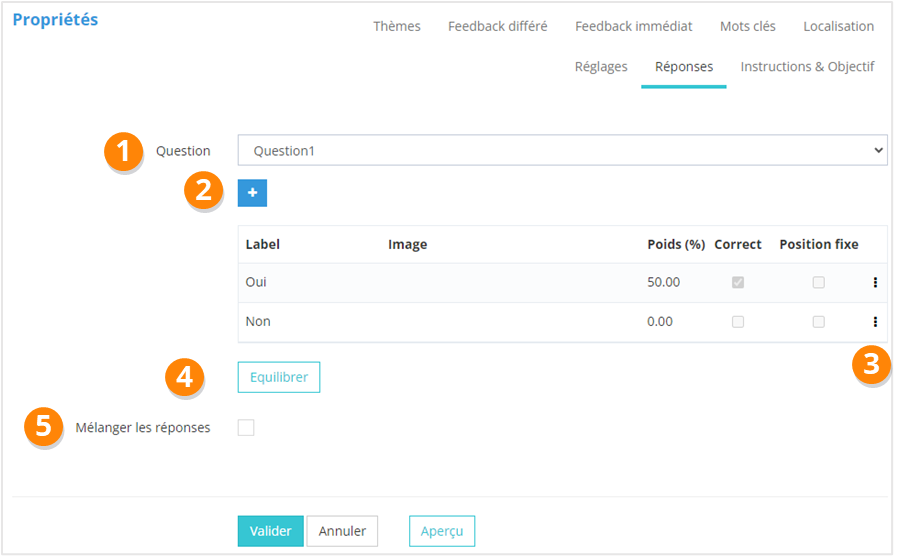
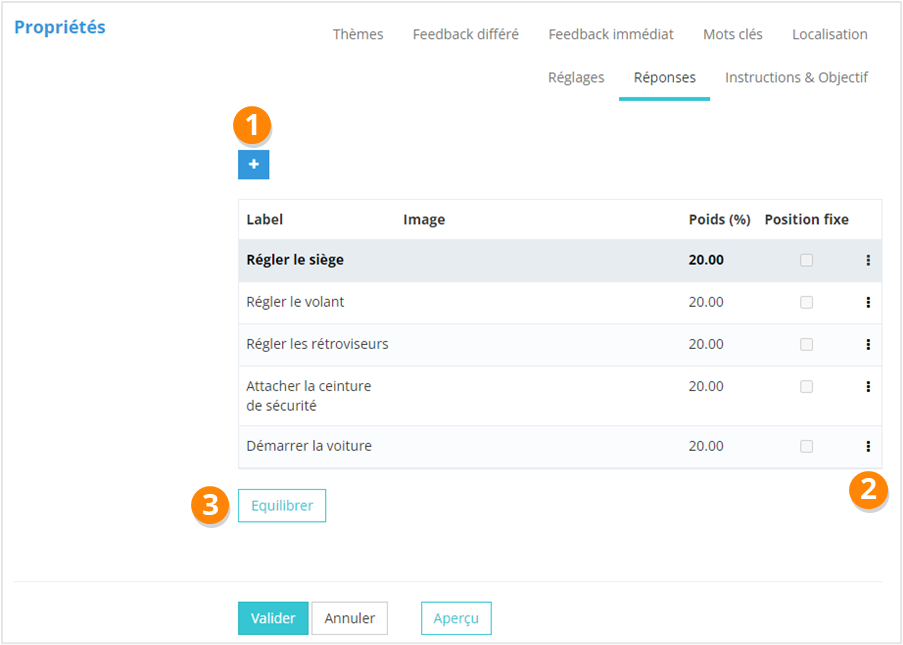
<div id="bkmrk-dans-la-page-r%C3%A9ponse">Sur la page <span style="color: rgb(239, 131, 29);">**Propriétés &gt; Réponses**</span> de la question, vous pouvez :</div>1. **<span style="color: rgb(239, 131, 29);">Ajouter </span>**des propositions de réponse
2. <span style="color: rgb(239, 131, 29);">**Éditer** </span>/ <span style="color: rgb(239, 131, 29);">**repositionner** </span>/ <span style="color: rgb(239, 131, 29);">**supprimer** </span>les réponses
3. <span style="color: rgb(239, 131, 29);">**Équilibrer** </span>le poids des réponses correctes
4. <span style="color: rgb(239, 131, 29);">**Mélanger** </span>les réponses

![](https://documentation.xperteam.net/uploads/images/gallery/2024-03/embedded-image-gvtuflsi.png)

<p class="callout warning">Pour les questions <span style="color: rgb(239, 131, 29);">**VRAI / FAUX**</span> et <span style="color: rgb(239, 131, 29);">**OUI / NON**</span>, les réponses définies comme étant correctes par défaut sont **VRAI** et **OUI**. N’oubliez pas de modifier ce point-là si besoin.  
</p>

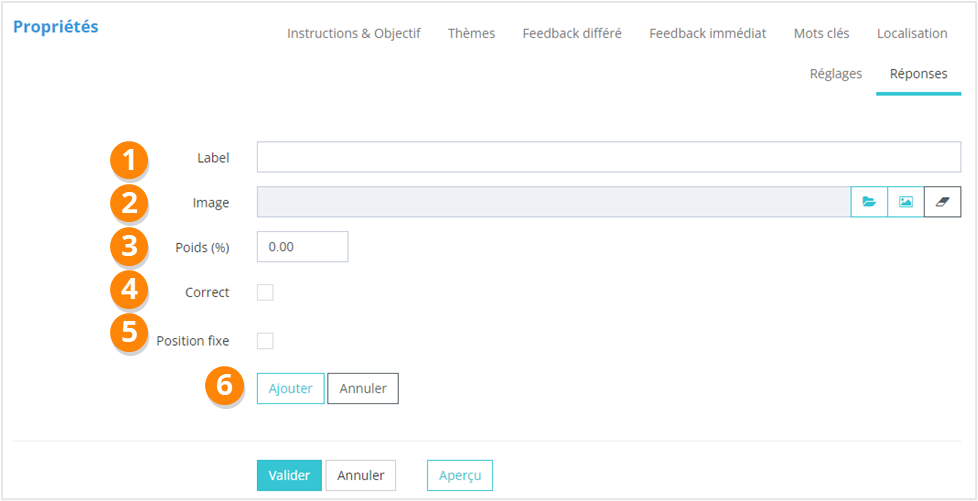
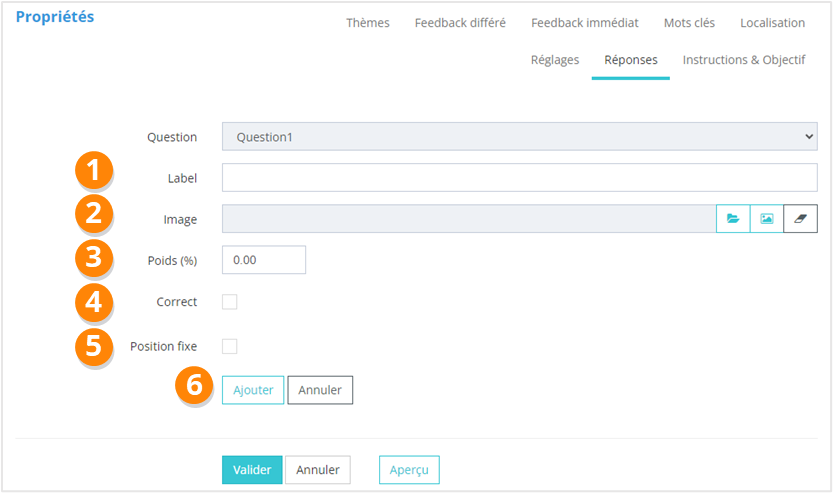
<div id="bkmrk-lors-de-la-cr%C3%A9ation-">Lors de la création de nouvelles propositions de réponses, vous renseignerez :</div>1. Le <span style="color: rgb(239, 131, 29);">**texte** </span>de la réponse
2. Éventuellement une <span style="color: rgb(239, 131, 29);">**image** </span>associée
3. Le <span style="color: rgb(239, 131, 29);">**poids** </span>de la réponse (facultatif si vous utilisez le bouton <span style="color: rgb(239, 131, 29);">**Équilibrer** </span>sur la page des réponses)
4. Si la proposition est une <span style="color: rgb(239, 131, 29);">**réponse correcte**</span> ou non
5. Si la position de cette réponse doit être <span style="color: rgb(239, 131, 29);">**fixe** </span>ou non
6. Enfin, cliquez sur <span style="color: rgb(239, 131, 29);">**Ajouter**</span>

![](https://documentation.xperteam.net/uploads/images/gallery/2024-03/embedded-image-ugzpekea.png)

# Question double

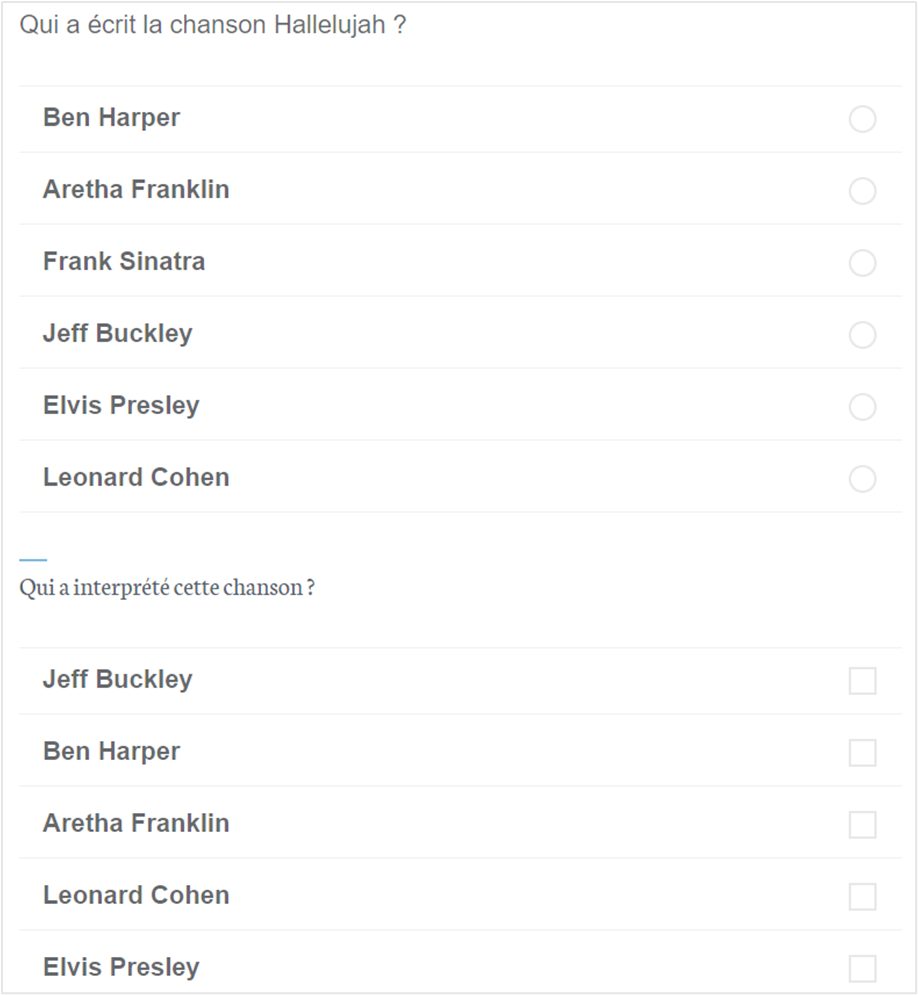
Les « <span style="color: rgb(239, 131, 29);">**Questions doubles**</span> » permettent de poser deux questions de type Choix multiple ou Choix unique en même temps.

<p class="callout warning">Ces deux questions compteront **pour une seule question** dans le calcul du score.   
Ainsi, le total des poids sur les bonnes réponses doit être de **100%**.</p>

---

#### **Visuel**

![](https://documentation.xperteam.net/uploads/images/gallery/2024-03/embedded-image-vimq9j2u.png)

---

#### **Informations générales**

<div id="bkmrk-sur-la-page-informat">Sur la page <span style="color: rgb(239, 131, 29);">**Informations générales** <span style="color: rgb(0, 0, 0);">:</span></span></div>1. Vous ajouterez un **<span style="color: rgb(239, 131, 29);">texte de question</span>** pour chacune de vos deux questions ;
2. Vous pouvez également ajouter un <span style="color: rgb(239, 131, 29);">**détail pour chaque question**</span>.

---

#### **Réglages spécifiques**

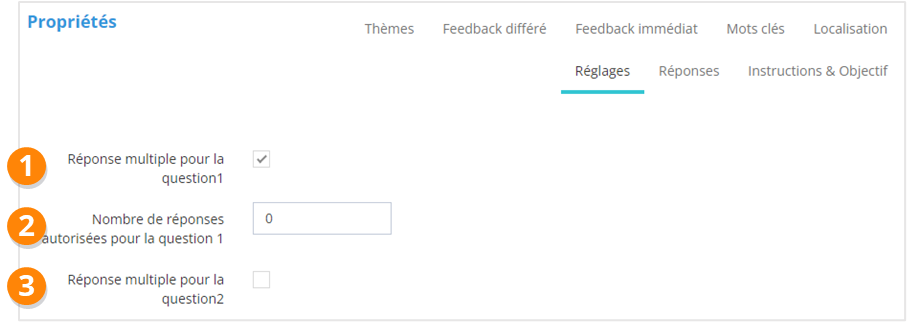
<div id="bkmrk-sur-la-page-r%C3%A9glages">Sur la page <span style="color: rgb(239, 131, 29);">**Propriétés &gt; Réglages**</span>, vous pouvez :</div>1. Définir si <span style="text-decoration: underline;">chaque question</span> admet des <span style="color: rgb(239, 131, 29);">**réponses multiples**</span> ou non, indépendamment l’une de l’autre ;
2. En cas de réponse multiple, <span style="color: rgb(239, 131, 29);">**limiter le nombre de réponses choisies**</span> par l’apprenant.

![](https://documentation.xperteam.net/uploads/images/gallery/2024-03/embedded-image-unkgkfsw.png)

---

#### **Réponses**

<div id="bkmrk-sur-la-page-r%C3%A9ponses">Sur la page <span style="color: rgb(239, 131, 29);">**Propriétés &gt; Réponses** </span>:</div>1. Sélectionnez la <span style="color: rgb(239, 131, 29);">**question** </span>voulue
2. Ajoutez les **<span style="color: rgb(239, 131, 29);">propositions de réponses</span>** pour cette question ;
3. Le <span style="color: rgb(239, 131, 29);">**menu contextuel**</span> vous permet de : <span style="color: rgb(239, 131, 29);">**Éditer** </span>/ <span style="color: rgb(239, 131, 29);">**Supprimer** </span>/ <span style="color: rgb(239, 131, 29);">**Monter** </span>/ <span style="color: rgb(239, 131, 29);">**Descendre** </span>une réponse ;
    
    <p class="callout info">Vous pouvez également modifier l'ordre des réponses par *glisser-déposer*.</p>
4. Vous pouvez <span style="color: rgb(239, 131, 29);">**équilibrer** </span>le poids des réponses ;
5. Vous pouvez également choisir de <span style="color: rgb(239, 131, 29);">**mélanger** </span>ou non les réponses proposées.

![](https://documentation.xperteam.net/uploads/images/gallery/2024-03/embedded-image-oc6kwef4.png)

<div id="bkmrk-lors-de-la-cr%C3%A9ation-">Lors de la création de nouvelles propositions de réponses, vous renseignerez :</div><div id="bkmrk-le-texte-de-la-r%C3%A9pon">1. Le <span style="color: rgb(239, 131, 29);">**texte** </span>de la réponse ;
2. Éventuellement une <span style="color: rgb(239, 131, 29);">**image** </span>associée ;
3. Le <span style="color: rgb(239, 131, 29);">**poids** </span>de la réponse (facultatif si vous utilisez le bouton Équilibrer sur la page des réponses) ;
4. Si la proposition est une <span style="color: rgb(239, 131, 29);">**réponse correcte**</span> ou non ;
5. Si la position de cette réponse doit être <span style="color: rgb(239, 131, 29);">**fixe** </span>ou non ;
6. Enfin, cliquez sur <span style="color: rgb(239, 131, 29);">**Ajouter**<span style="color: rgb(0, 0, 0);">.</span></span>

</div><p class="callout info"><span style="color: rgb(239, 131, 29);"><span style="color: rgb(0, 0, 0);">La <span style="color: rgb(239, 131, 29);"><span style="color: rgb(0, 0, 0);">question sélectionnée</span></span> n'est pas modifiable.</span></span></p>

![](https://documentation.xperteam.net/uploads/images/gallery/2024-03/embedded-image-tr3iev3r.png)

# Questions de type « Phrase à trous »

<div id="bkmrk-les-questions-de-typ"><span style="color: #000080;"><span style="color: #000000;">Les questions de type<span style="color: rgb(239, 131, 29);"> **« Phrases à trous »**</span> proposent deux options :</span></span></div>- <span style="color: #000080;"><span style="color: #000000;">Réponse à sélectionner parmi un choix ;</span></span>
- <span style="color: #000080;"><span style="color: #000000;">Réponse de type champ libre, où l'utilisateur saisit lui-même sa réponse .</span></span><p class="callout warning">**Attention aux phrases à trous de type Saisie manuelle :** même si vous paramétrez une longue liste de réponses acceptées, il est possible que vous n'ayez pas songé à des orthographes alternatives que vos apprenants donneront, à des synonymes, à des contournements *(ex : au lieu d'écrire "table", un apprenant pourrait écrire "meuble sur lequel on mange")*...  
    **Bonne pratique :** Nous ne saurions que trop vous recommander de n'utiliser ce type de réponse que pour des données chiffrées, des sigles, des unités... en résumé, des réponses ne donnant que peu d'alternatives pour l'apprenant !</p>

---

#### <span style="color: rgb(0, 0, 0);">**Visuels**</span>

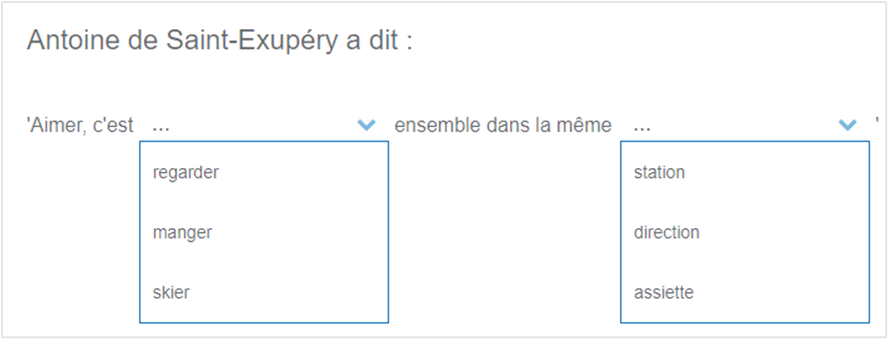
##### <span style="color: rgb(128, 128, 128);">**Phrase à trous &gt; Sélection**</span>

Ce type de question se distingue par le menu déroulant avec les propositions de réponses.
![](https://documentation.xperteam.net/uploads/images/gallery/2024-03/embedded-image-dgimw7ln.png)

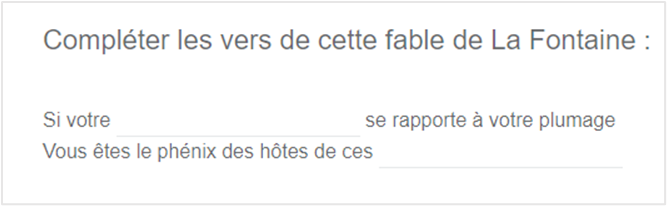
##### <span style="color: rgb(128, 128, 128);">**Phrase à trous &gt; Saisie**</span>

Ce type de question se distingue par les champs textes à remplir.

#### ![](https://documentation.xperteam.net/uploads/images/gallery/2024-03/embedded-image-v74xltnr.png)
---

#### **Informations générales**

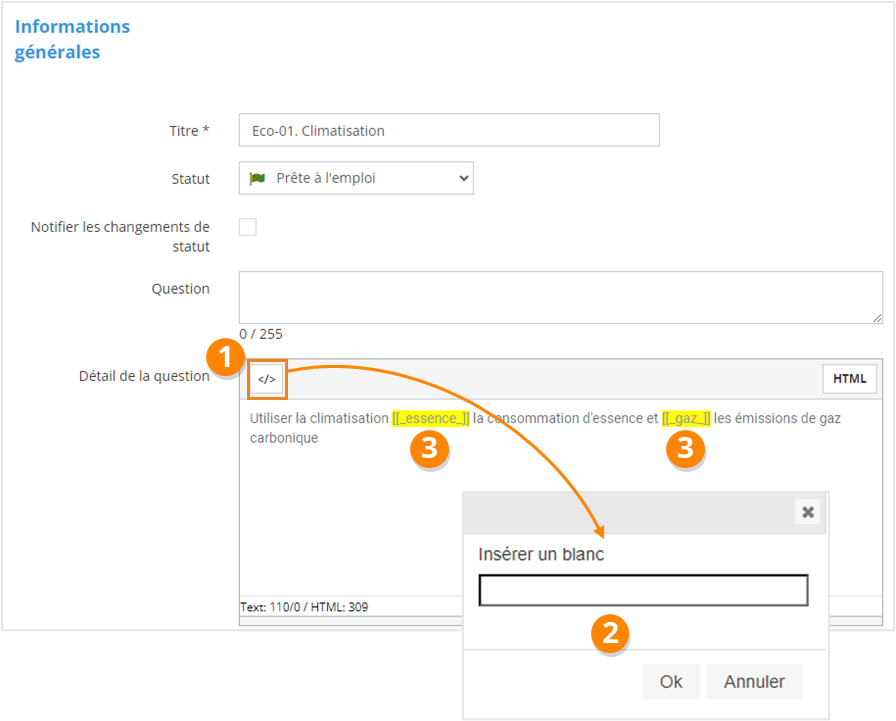
<div id="bkmrk-dans-la-page-propri%C3%A9"><span style="color: #000000;">Sur la page</span> <span style="color: rgb(239, 131, 29);">**Informations générales**</span> <span style="color: #000000;">de la question :</span></div>1. <span style="color: #000000;">Vous insérerez les « <span style="color: rgb(239, 131, 29);">**blancs**</span> » en cliquant sur le bouton **\[<span style="color: rgb(239, 131, 29);">&lt;/&gt;</span>\] ;**</span>
2. <span style="color: #000000;">Dans la pop-up qui s'ouvre, <span style="color: rgb(239, 131, 29);">**nommez le blanc**</span> (sans accents ni caractères particuliers) puis cliquez sur **<span style="color: rgb(239, 131, 29);">OK </span>**;</span>
3. <span style="color: #000000;">Le blanc créé sera reconnaissable par son **<span style="color: rgb(239, 131, 29);">surlignage jaune</span>** et les <span style="color: rgb(239, 131, 29);">**\[\[\_ \_\]\]**</span> qui l'entourent. </span>

![](https://documentation.xperteam.net/uploads/images/gallery/2024-03/embedded-image-gg6rth3c.png)

---

#### **Réglages spécifiques**

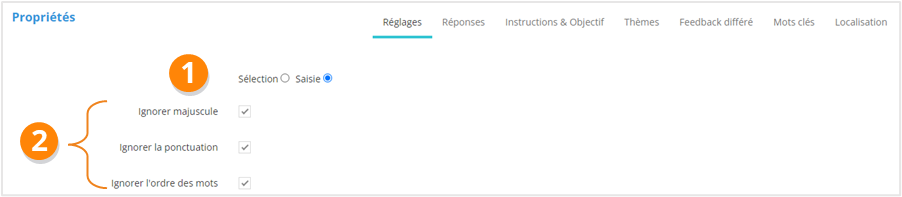
<div id="bkmrk-sur-la-page-propri%C3%A9t">Sur la page <span style="color: rgb(239, 131, 29);">**Propriétés &gt;**</span> **<span style="color: rgb(239, 131, 29);">Réglages</span>**, vous pouvez :</div>1. Définir si la réponse sera à sélectionner parmi un choix de propositions (<span style="color: rgb(239, 131, 29);">**Sélection**</span>) ou à rédiger (<span style="color: rgb(239, 131, 29);">**Saisie**</span>) ;
2. En cas de réponse saisie, vous choisissez si l'on doit ignorer ou non les <span style="color: rgb(239, 131, 29);">**majuscules**</span>, la <span style="color: rgb(239, 131, 29);">**ponctuation** </span>et l’**<span style="color: rgb(239, 131, 29);">ordre des mots</span>**.

![](https://documentation.xperteam.net/uploads/images/gallery/2024-03/embedded-image-x4csfbwc.png)

---

#### **<span style="color: rgb(0, 0, 0);">Réponses</span>**

<div id="bkmrk-dans-la-page-r%C3%A9ponse">Sur la page <span style="color: rgb(239, 131, 29);">**Propriétés &gt; Réponses**</span> de la question :</div>1. Sélectionnez le <span style="color: rgb(239, 131, 29);">**blanc** </span>de votre question ;
2. Ajoutez les <span style="color: rgb(239, 131, 29);">**propositions de réponses**</span> pour ce blanc.
3. Le <span style="color: rgb(239, 131, 29);">**menu contextuel**</span> vous permet de : <span style="color: rgb(239, 131, 29);">**Éditer** </span>/ <span style="color: rgb(239, 131, 29);">**Supprimer** </span>/ <span style="color: rgb(239, 131, 29);">**Monter** </span>/ <span style="color: rgb(239, 131, 29);">**Descendre** </span>une réponse ;
    
    <p class="callout info">Vous pouvez également modifier l'ordre des réponses par *glisser-déposer*.</p>
4. Vous pouvez également <span style="color: rgb(239, 131, 29);">**équilibrer** </span>le poids des réponses.

![](https://documentation.xperteam.net/uploads/images/gallery/2024-03/embedded-image-gvtuflsi.png)

<div id="bkmrk-lors-de-la-cr%C3%A9ation-">Lors de la création de nouvelles propositions de réponses :</div>1. Le <span style="color: rgb(239, 131, 29);">**texte** </span>de la réponse ;
2. Le <span style="color: rgb(239, 131, 29);">**poids** </span>de la réponse (facultatif si vous utilisez le bouton <span style="color: rgb(239, 131, 29);">**Équilibrer** </span>sur la page des réponses) ;
3. Si la proposition est une <span style="color: rgb(239, 131, 29);">**réponse correcte**</span> ou non ;
4. Si la position de cette réponse doit être <span style="color: rgb(239, 131, 29);">**fixe** </span>ou non ;
5. Enfin, cliquez sur <span style="color: rgb(239, 131, 29);">**Ajouter.**</span>

<p class="callout info"><span style="color: rgb(0, 0, 0);">Le <span style="color: rgb(239, 131, 29);">**blanc** </span>sélectionné n'est pas modifiable.</span></p>

![](https://documentation.xperteam.net/uploads/images/gallery/2024-03/embedded-image-erbt2wpw.png)

# Questions de type « Graphique »

<div id="bkmrk-les-questions-de-typ">Les questions de type <span style="color: rgb(239, 131, 29);">**« Graphique »**</span> regroupent :</div><div id="bkmrk-les-questions-de-typ-1">- les questions de type <span style="color: rgb(239, 131, 29);">**Zone Sensible**</span> ;
- les questions de type <span style="color: rgb(239, 131, 29);">**Glisser-Déposer**</span><span style="color: rgb(0, 0, 0);">.</span>

</div><details id="bkmrk-zone-sensible-visuel"><summary>Zone Sensible</summary>

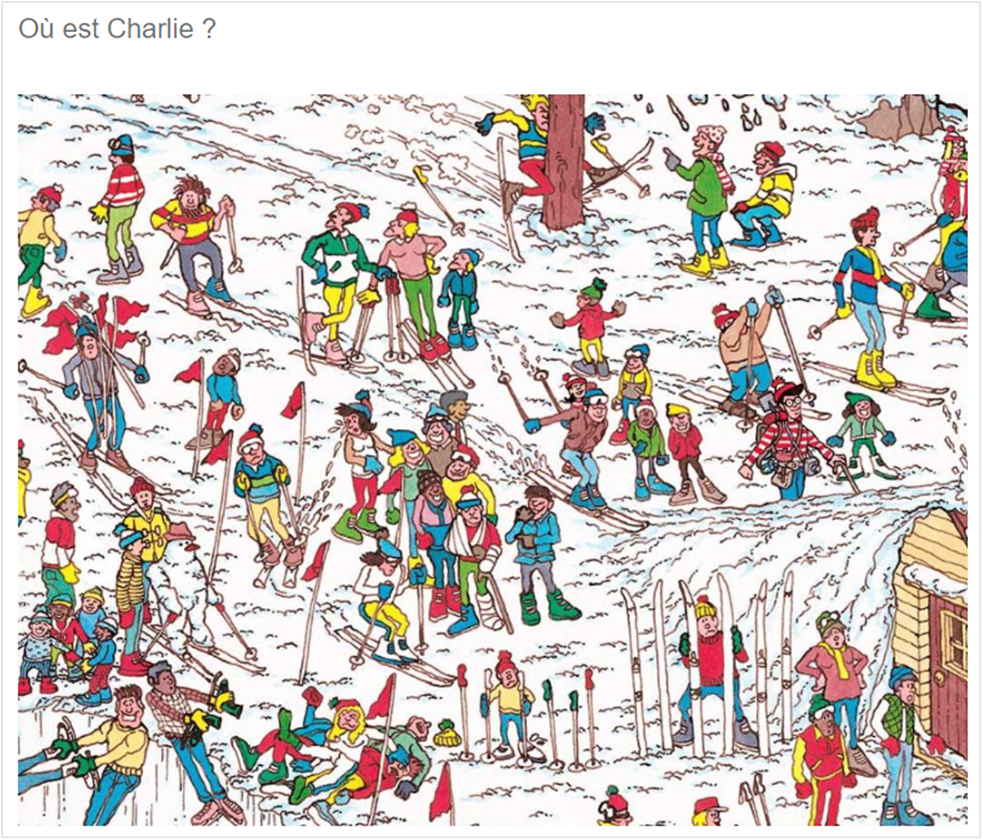
#### **Visuel**

Les questions de type **<span style="color: rgb(239, 131, 29);">« Zone Sensible »</span>** appellent l'utilisateur à cliquer sur une image pour donner leur réponse.
![](https://documentation.xperteam.net/uploads/images/gallery/2024-03/embedded-image-oq4f0oym.png)

---

#### **Informations générales**

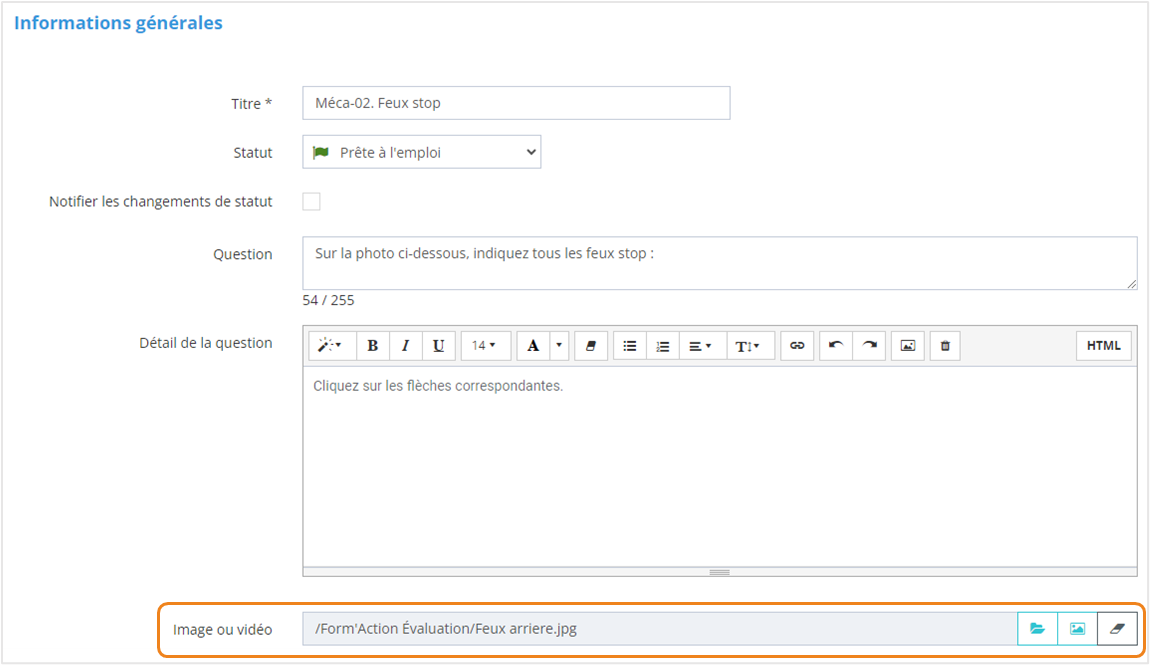
<p class="callout danger">Sur la page **Informations générales,** vous ajouterez <span style="text-decoration: underline;">obligatoirement</span> une **image.**</p>

![](https://documentation.xperteam.net/uploads/images/gallery/2024-03/embedded-image-rlufw3c1.png)

---

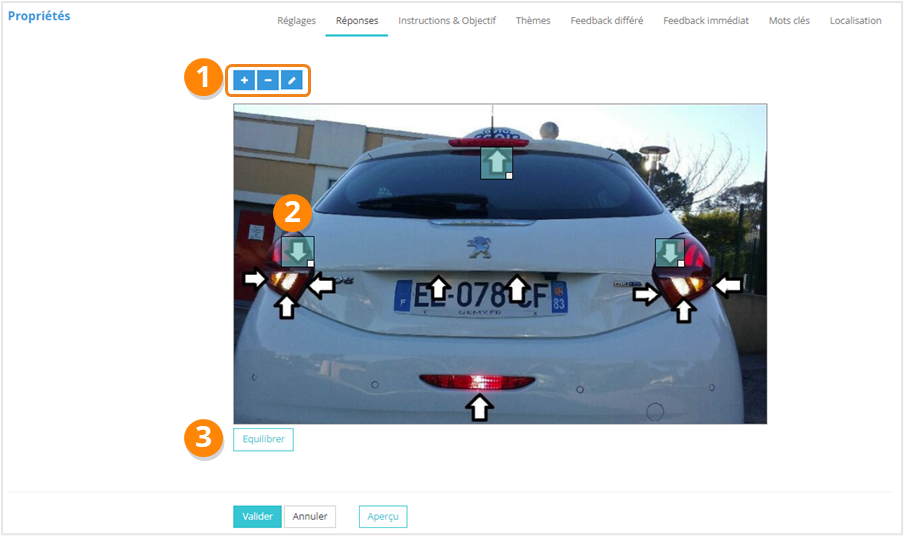
#### **Réponses**

<div>Sur la page <span style="color: rgb(239, 131, 29);">**Propriétés &gt; Réponses**</span>, vous pouvez :</div><div>1. <span style="color: rgb(239, 131, 29);">**Ajouter** </span>/ **<span style="color: rgb(239, 131, 29);">Supprimer </span>**/ <span style="color: rgb(239, 131, 29);">**Éditer** </span>les zones sur lesquelles il faut cliquer en guise de réponse ;
2. <span style="color: rgb(239, 131, 29);">**Déplacer** </span>/ <span style="color: rgb(239, 131, 29);">**Redimensionner** </span>les zones réponses ;
3. <span style="color: rgb(239, 131, 29);">**Équilibrer** </span>le poids des réponses<span style="color: rgb(239, 131, 29);"><span style="color: rgb(0, 0, 0);">.</span></span>

</div>![](https://documentation.xperteam.net/uploads/images/gallery/2024-03/embedded-image-jsmj0loj.png)

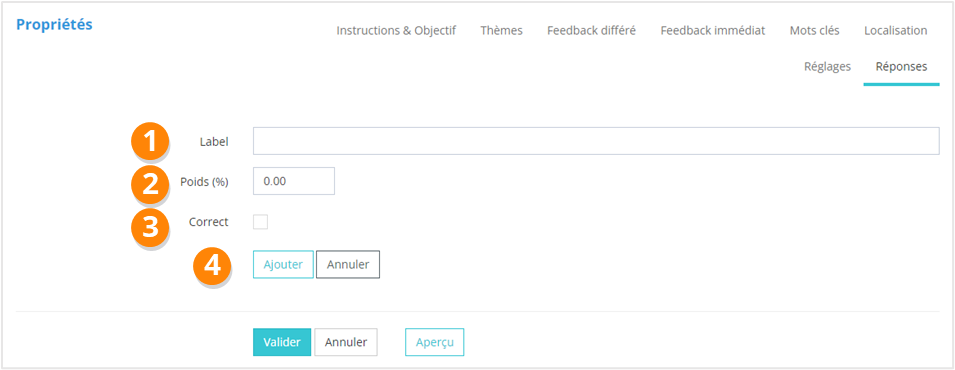
<div>Lors de la création de nouvelles propositions de réponses, vous renseignerez :</div><div>1. Le <span style="color: rgb(239, 131, 29);">**texte** </span>de la réponse ;
2. Le <span style="color: rgb(239, 131, 29);">**poids** </span>de la réponse (facultatif si vous utilisez le bouton Équilibrer sur la page des réponses) ;
3. Si la proposition est une <span style="color: rgb(239, 131, 29);">**réponse correcte**</span> ou non ;
4. Enfin, cliquez sur <span style="color: rgb(239, 131, 29);">**Ajouter**<span style="color: rgb(0, 0, 0);">.</span></span>

</div>![](https://documentation.xperteam.net/uploads/images/gallery/2024-03/embedded-image-bmylnssv.png)

</details><details id="bkmrk-glisser-d%C3%A9poser-visu"><summary>Glisser-Déposer</summary>

#### **Visuel**

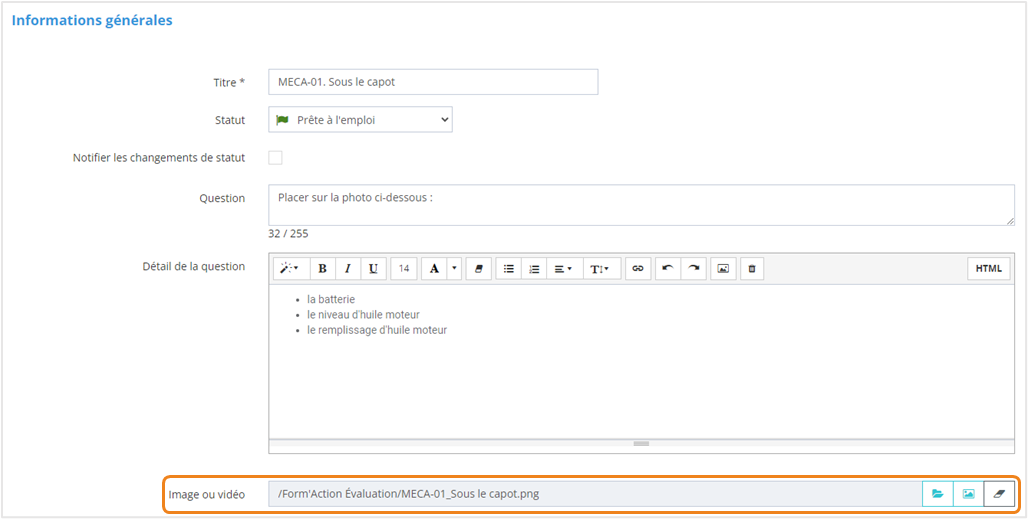
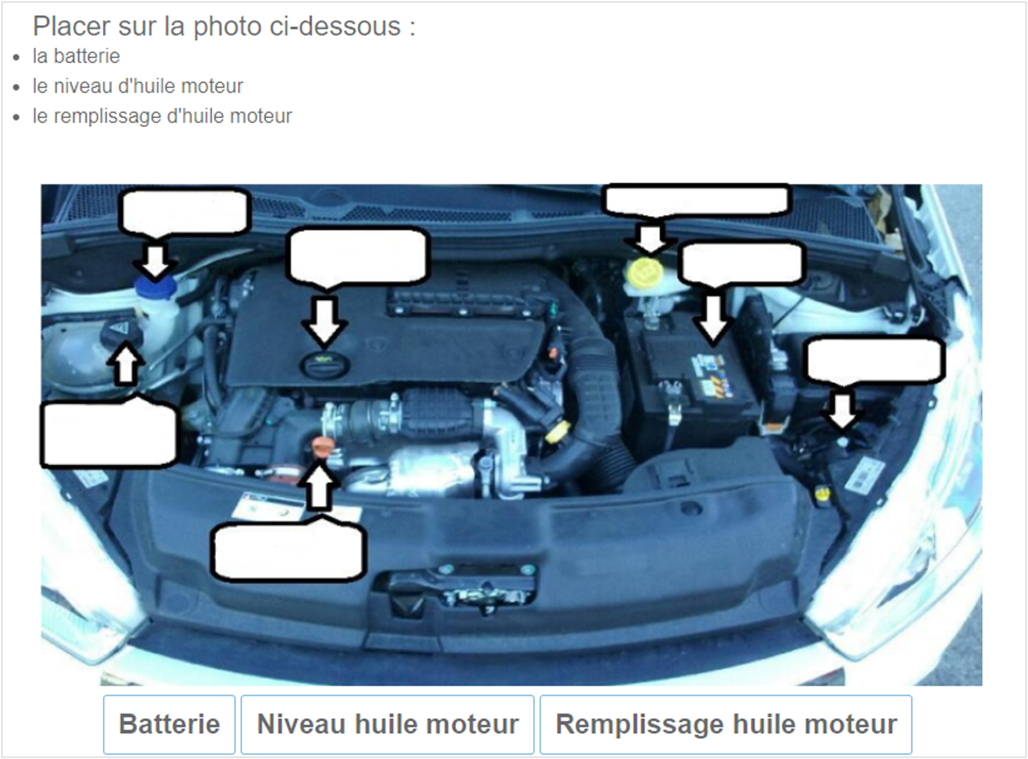
Les questions de type **<span style="color: rgb(239, 131, 29);">« Glisser-Déposer »</span>** demandent à l'utilisateur de positionner des étiquettes-images sur une image présentant des zones de dépôt.
![](https://documentation.xperteam.net/uploads/images/gallery/2024-03/embedded-image-zre6f9sq.png)

---

#### **Informations générales**

<p class="callout danger">Sur la page **Informations générales,** vous ajouterez <span style="text-decoration: underline;">obligatoirement</span> une **image.**</p>

![](https://documentation.xperteam.net/uploads/images/gallery/2024-03/embedded-image-ykys7wig.png)

---

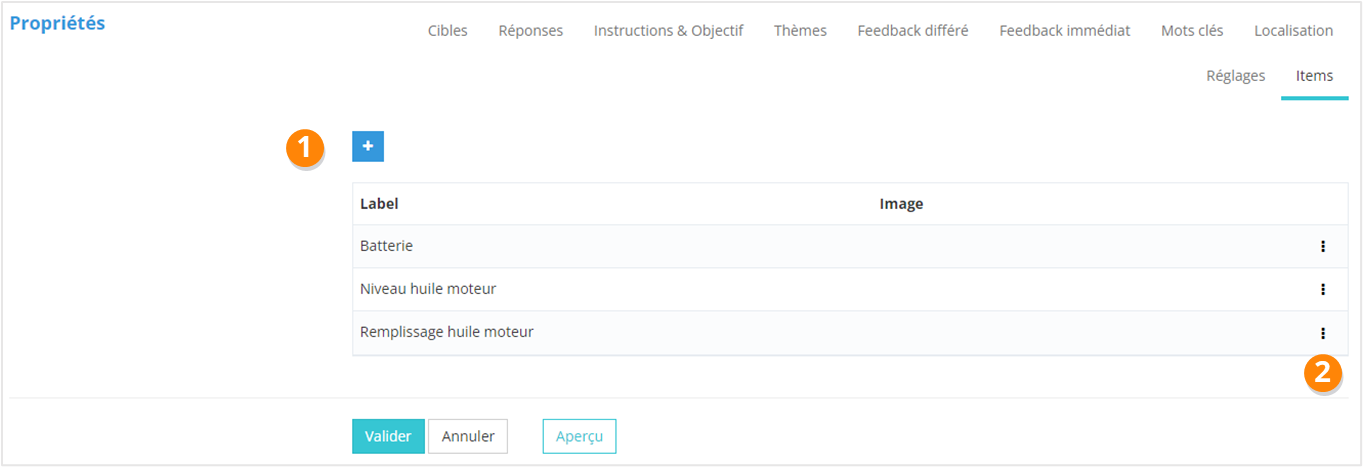
#### **Items**

<div>Sur la page <span style="color: rgb(239, 131, 29);">**Propriétés &gt; Items**</span>, vous pouvez :</div><div>1. <span style="color: rgb(239, 131, 29);">**Ajouter**</span><span style="color: rgb(239, 131, 29);"> </span>un item ;
2. <span style="color: rgb(239, 131, 29);"><span style="color: rgb(0, 0, 0);">Utiliser le</span> **menu contextuel** <span style="color: rgb(0, 0, 0);">pour : </span>**Éditer**</span>/ <span style="color: rgb(239, 131, 29);">**Supprimer** </span>un item.

</div>![](https://documentation.xperteam.net/uploads/images/gallery/2024-03/embedded-image-dpvt4hlm.png)

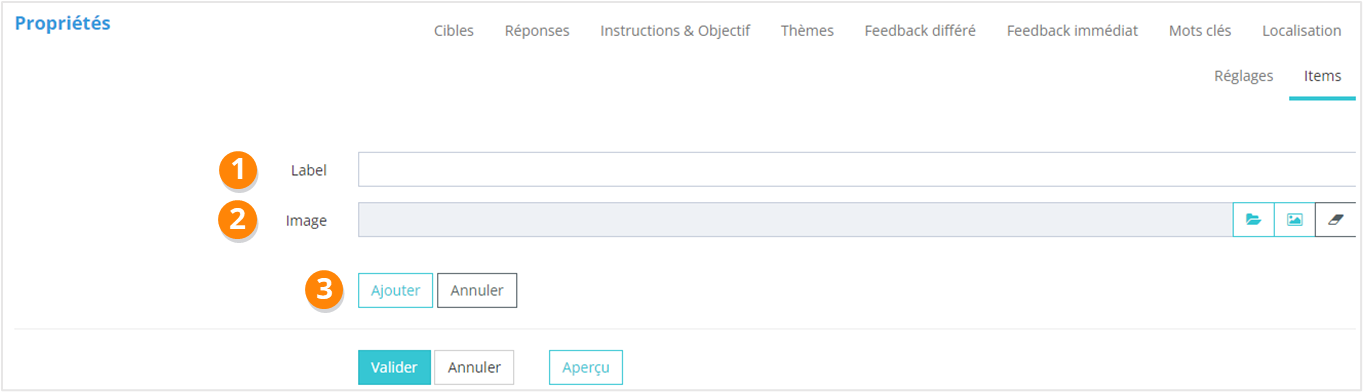
<div>Lors de la création d'un <span style="color: rgb(239, 131, 29);">**item**</span>, vous renseignerez :</div><div>1. Son <span style="color: rgb(239, 131, 29);">**label** </span>;
2. Son <span style="color: rgb(239, 131, 29);">**image** </span>(**obligatoire**) ;
3. Enfin, cliquez sur <span style="color: rgb(239, 131, 29);">**Ajouter**<span style="color: rgb(0, 0, 0);">.</span></span>

</div>![](https://documentation.xperteam.net/uploads/images/gallery/2024-03/embedded-image-jz2hkqdw.png)

---

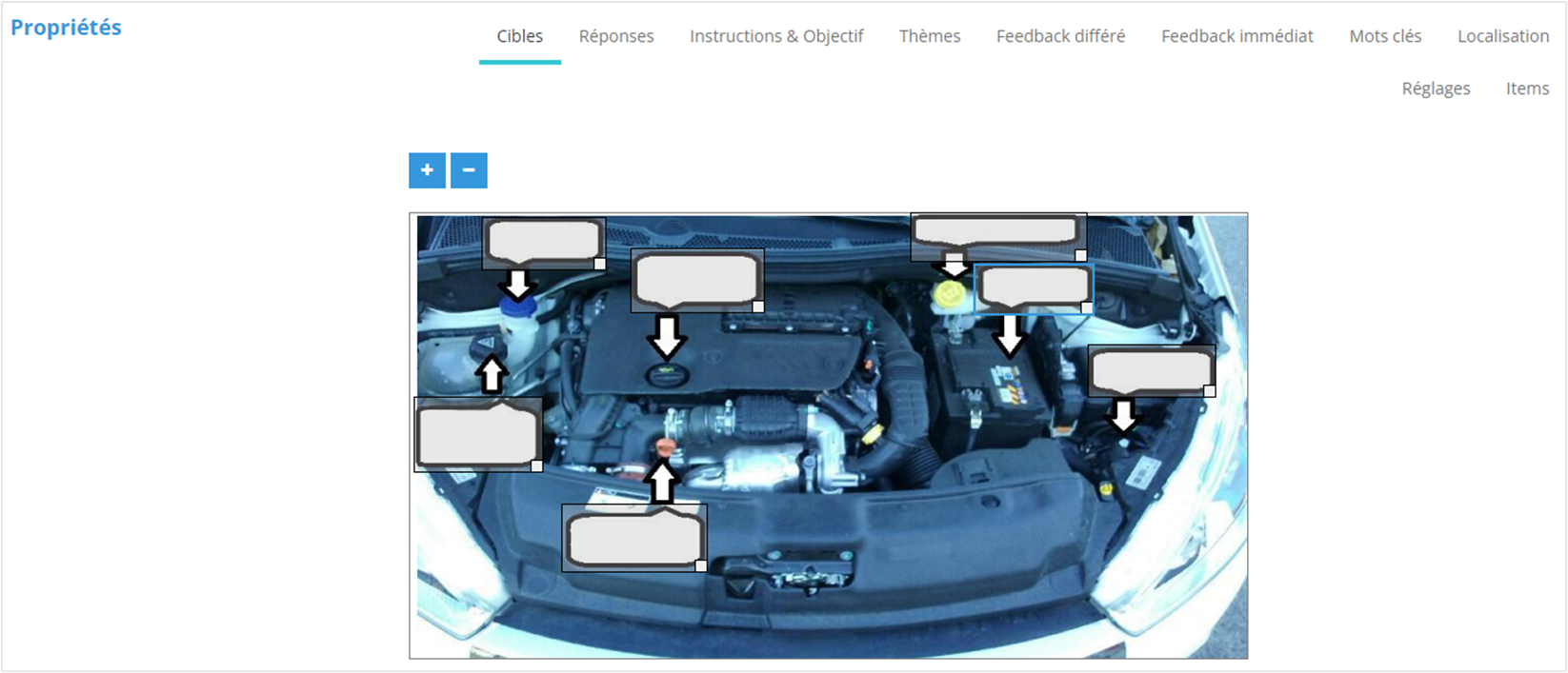
#### **Cibles**

<div>Sur la page <span style="color: rgb(239, 131, 29);">**Propriétés &gt;**</span> <span style="color: rgb(239, 131, 29);">**Cibles**</span>, vous pouvez :</div><div>1. <span style="color: rgb(239, 131, 29);">**Ajouter**</span><span style="color: rgb(239, 131, 29);"> </span>/ <span style="color: rgb(239, 131, 29);">**Supprimer** </span>une cible ;
2. <span style="color: rgb(239, 131, 29);">**Visualiser** </span>/ <span style="color: rgb(239, 131, 29);">**Redimensionner**</span> / <span style="color: rgb(239, 131, 29);">**Repositionner </span>les cibles.

</div>![](https://documentation.xperteam.net/uploads/images/gallery/2024-03/embedded-image-nvybezg7.png)

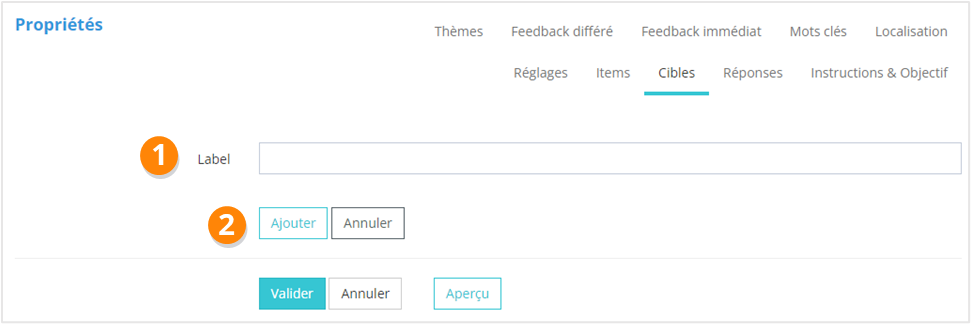
<div>Lors de la création d'une cible, vous renseignerez :</div><div>1. Son <span style="color: rgb(239, 131, 29);">**label** </span>;
2. Cliquez sur <span style="color: rgb(239, 131, 29);">**Ajouter**<span style="color: rgb(0, 0, 0);">.</span></span>

</div>![](https://documentation.xperteam.net/uploads/images/gallery/2024-03/embedded-image-ki9tyzmu.png)

---

#### **Réponses**

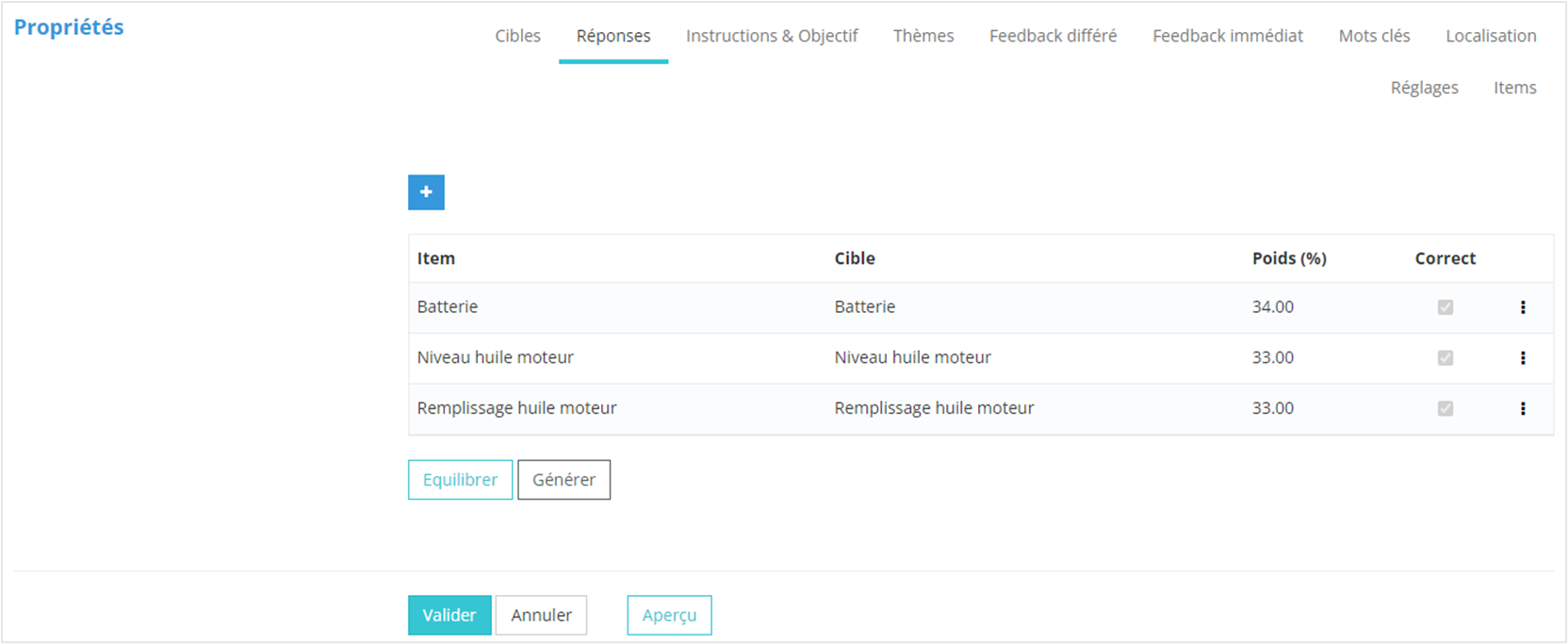
<div>Sur la page <span style="color: rgb(239, 131, 29);">**Propriétés &gt; Réponses**</span>, vous pouvez :</div><div>1. <span style="color: rgb(239, 131, 29);">**Ajouter** </span>une réponse, qui consistera en l’association d’un item avec une cible<span style="color: rgb(239, 131, 29);"> </span>;
2. <span style="color: rgb(239, 131, 29);"><span style="color: rgb(0, 0, 0);">Utiliser le menu</span> **contextuel** <span style="color: rgb(0, 0, 0);">pour : </span>**Éditer** </span>/ <span style="color: rgb(239, 131, 29);">**Supprimer** </span>une réponse ;
3. <span style="color: rgb(239, 131, 29);">**Équilibrer**</span> le poids des réponses ;
4. Générer la <span style="color: rgb(239, 131, 29);">**matrice des réponses**</span>, c’est-à-dire toutes les associations possibles item / cible. <p class="callout info">Il faudra ensuite éditer les lignes pour cocher la case « **Correct** » et ajouter un poids si besoin.</p>

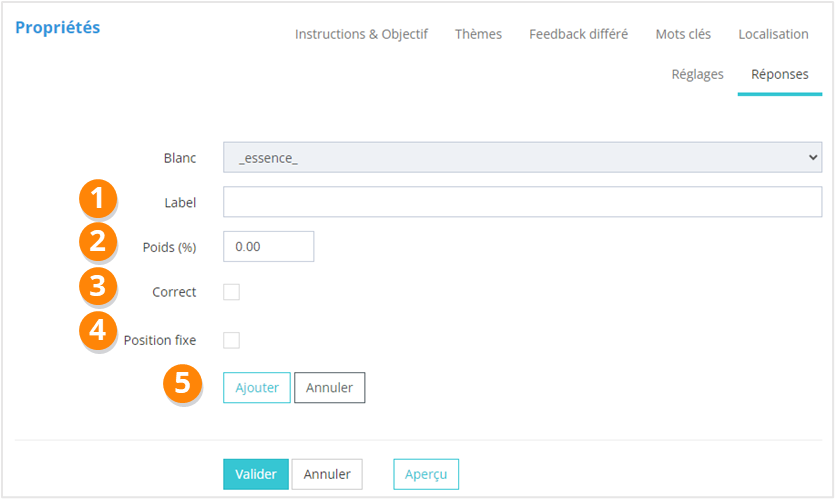
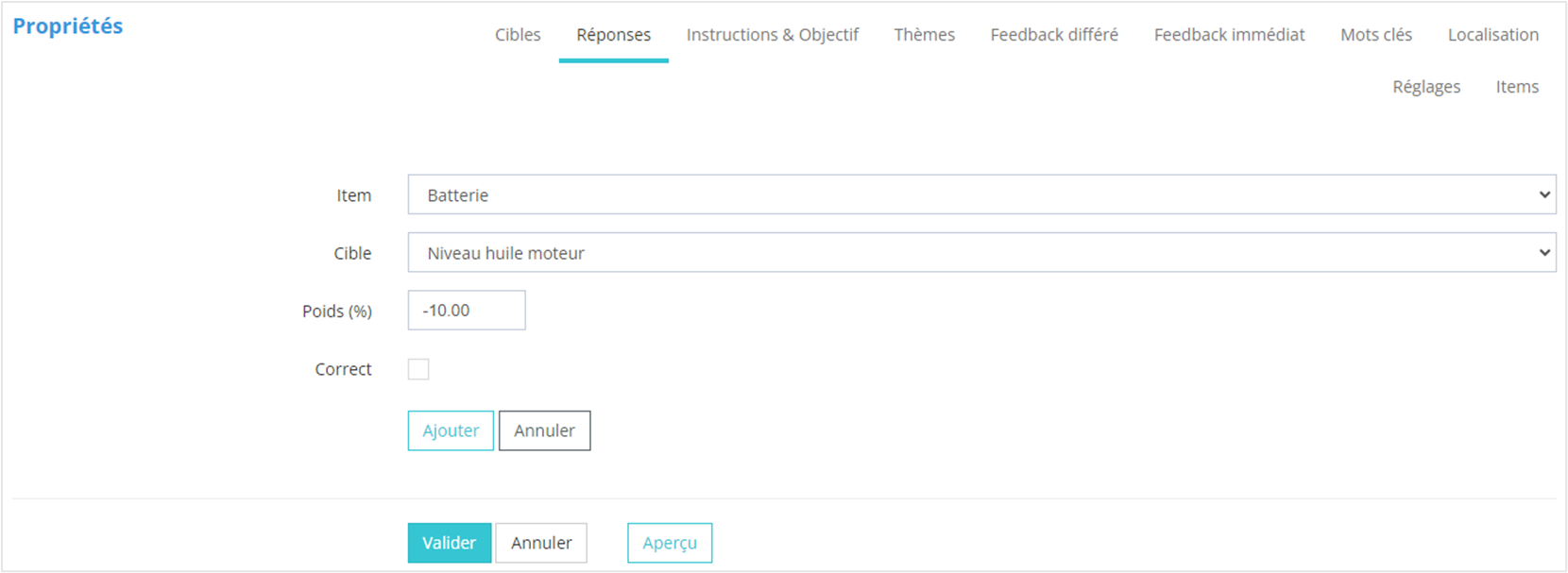
![](https://documentation.xperteam.net/uploads/images/gallery/2024-03/embedded-image-k76k47c0.png)</div><div>Lors de la création d’une <span style="color: rgb(239, 131, 29);">**réponse** </span>(= association d’un item avec une cible), vous renseignerez :</div><div>1. <span style="color: rgb(239, 131, 29);">**L'item** </span>;
2. <span style="color: #000000;">La <span style="color: rgb(239, 131, 29);">**cible**</span></span><span style="color: rgb(239, 131, 29);"> </span>;
3. Le <span style="color: rgb(239, 131, 29);">**poids** </span>de la réponse (facultatif si vous utilisez le bouton Équilibrer sur la page des réponses) ;
4. Si la proposition est une <span style="color: rgb(239, 131, 29);">**réponse correcte**</span> ou non ;
5. Enfin, cliquez sur <span style="color: rgb(239, 131, 29);">**Ajouter**</span>.

</div>![](https://documentation.xperteam.net/uploads/images/gallery/2024-03/embedded-image-cogjussa.png)

</details>

# Les autres types de questions - à relire

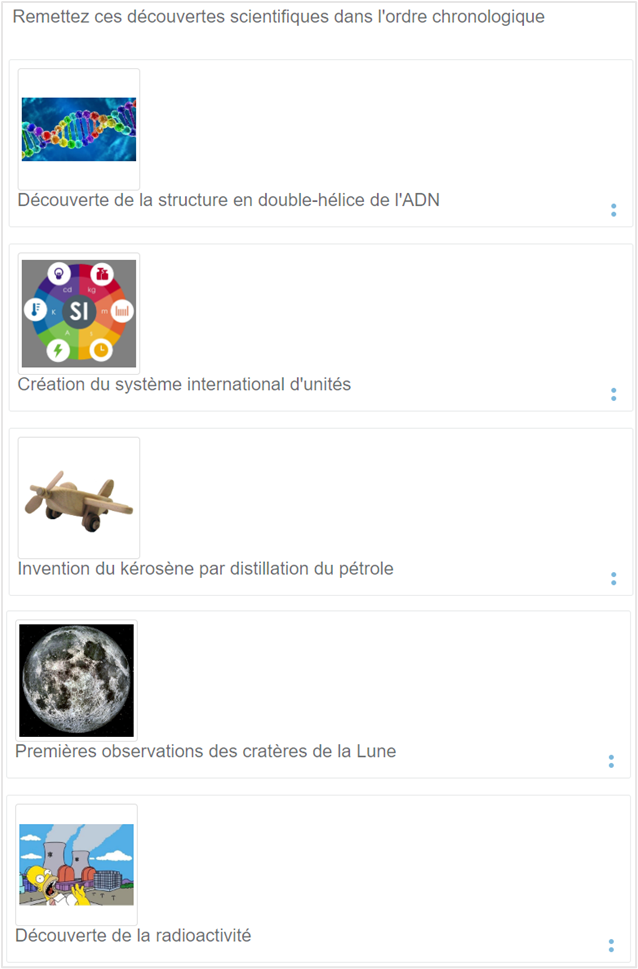
<div id="bkmrk-en-dehors-des-questi">En dehors des questions de type « Choix multiple », « Phrase à trous » et « Graphique », vous avez également la possibilité de créer des questions de type :</div>- <span style="color: rgb(239, 131, 29);">**Ordonnancemen<span style="color: rgb(239, 131, 29);">t</span> :** </span>l'apprenant doit remettre des propositions dans le bon ordre ;
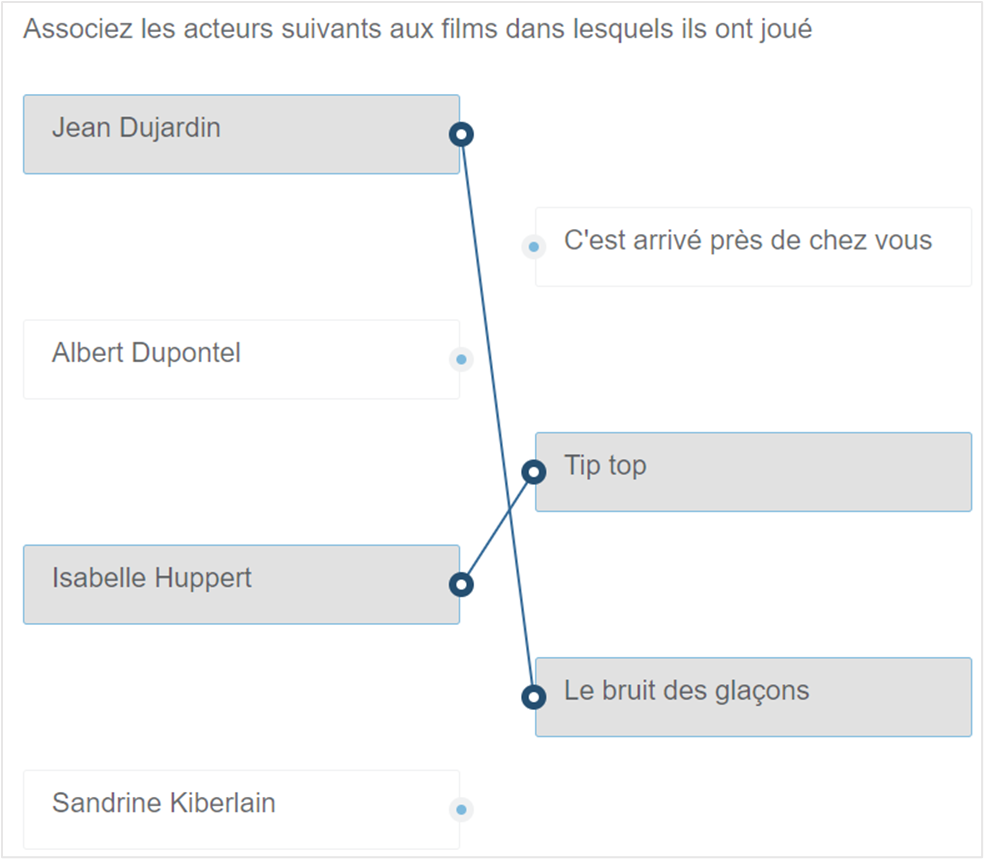
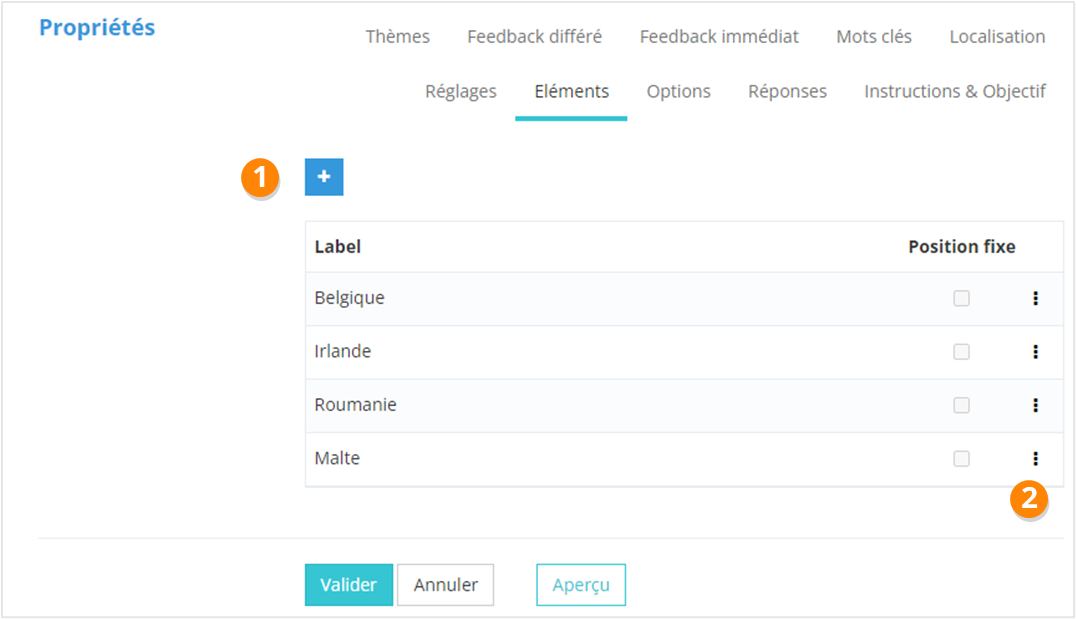
- <span style="color: rgb(239, 131, 29);">**Appariement :**</span> l'apprenant doit relier des éléments à gauche à des éléments à droite ;
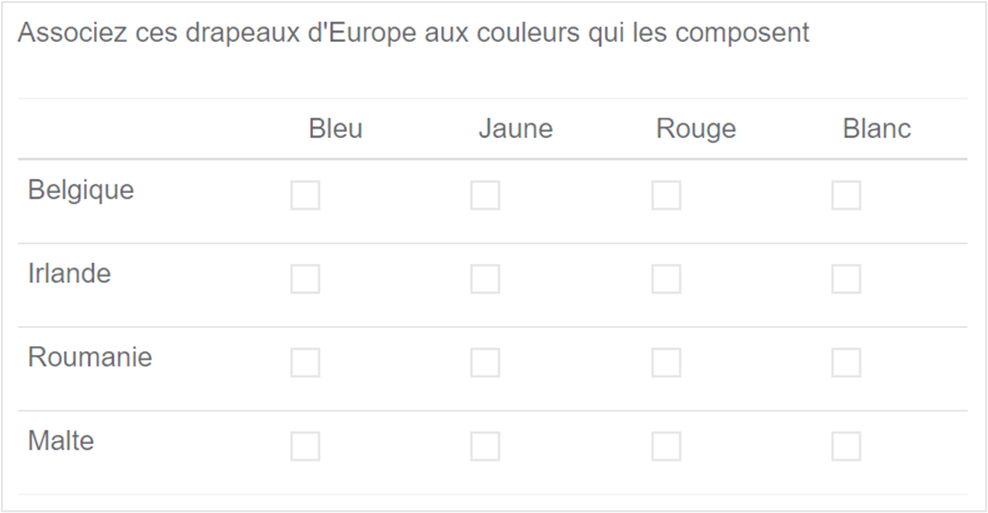
- <span style="color: rgb(239, 131, 29);">**Matrice :**</span> l'apprenant doit sélectionner des bonnes réponses dans un tableau à double entrée ;
- <span style="color: rgb(239, 131, 29);">**Rédaction :** </span>l'apprenant doit rédiger lui-même sa réponse ; <div class="callout warning">Une question de type Rédaction ne peut pas faire l'objet d'une correction automatisée par la plateforme. Elle nécessitera donc l'intervention d'un correcteur qui passera en back-office pour apposer un score à la question.</div><div>  
    </div><div class="callout info"> Pour plus d'informations concernant la correction d'une question de type **Rédaction**, se référer à la fiche technique ***Évaluation &gt; Assistant épreuve***.</div>
- <span style="color: rgb(239, 131, 29);">**Titre :**</span> il ne s'agit pas d'une question à proprement parler, mais une « Question Titre » permet d'ajouter une sorte de diapositive à son épreuve.

<details id="bkmrk-ordonnancement-%C2%A0"><summary>Ordonnancement</summary>

#### **Visuel**

#### ![](https://documentation.xperteam.net/uploads/images/gallery/2024-03/embedded-image-hnccg53i.png)

---

#### **Réponses**

<div id="bkmrk-dans-la-page-r%C3%A9ponse">Sur la page <span style="color: rgb(239, 131, 29);">**Propriétés &gt; Réponses**</span>, vous pouvez :</div>1. <span style="color: rgb(239, 131, 29);">**Ajouter** </span>une réponse ;
2. Utiliser le <span style="color: rgb(239, 131, 29);">**menu contextuel**</span> pour : <span style="color: rgb(239, 131, 29);">**Éditer** </span>/ <span style="color: rgb(239, 131, 29);">**Supprimer** </span>/ <span style="color: rgb(239, 131, 29);">**Monter** </span>/ <span style="color: rgb(239, 131, 29);">**Descendre** </span>une réponse ;
    
    <p class="callout info">Vous pouvez également modifier l'ordre des réponses par *glisser-déposer*.</p>
3. <span style="color: rgb(239, 131, 29);">**<span style="color: rgb(239, 131, 29);">É</span>quilibrer** </span>le poids des réponses.

<div class="callout danger">**ATTENTION :** **L’ordre des réponses indiqué dans ce tableau doit correspondre à la réponse correcte !**  
Sur la capture ci-dessous, les éléments devront être positionnés par l’apprenant dans cet ordre pour qu’il obtienne tous les points :  
 *1. Régler le volant*  
 *2. Régler les rétroviseurs*  
 *3. Attacher la ceinture de sécurité*  
 *4. Démarrer la voiture*</div>![](https://documentation.xperteam.net/uploads/images/gallery/2024-03/embedded-image-r0cnvwt4.png)

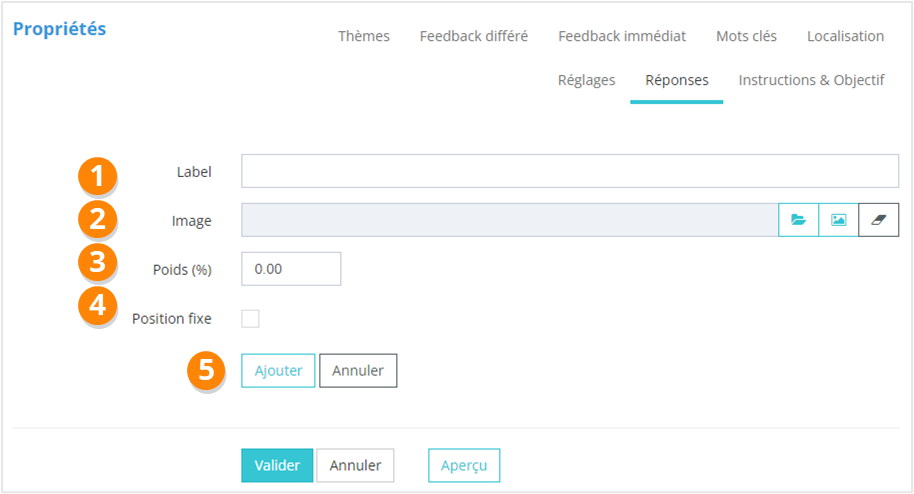
<div>Lors de la création d'une <span style="color: rgb(239, 131, 29);">**réponse**</span>, vous renseignerez :</div>1. Le <span style="color: rgb(239, 131, 29);">**texte** </span>de la réponse ;
2. Éventuellement une <span style="color: rgb(239, 131, 29);">**image** </span>associée ;
3. Le <span style="color: rgb(239, 131, 29);">**poids** </span>de la réponse (facultatif si vous utilisez le bouton <span style="color: rgb(239, 131, 29);">**Équilibrer** </span>sur la page des réponses) ;
4. Si la position de cette réponse doit être <span style="color: rgb(239, 131, 29);">**fixe** </span>ou non ;
5. Enfin, cliquez sur <span style="color: rgb(239, 131, 29);">**Ajouter**<span style="color: rgb(0, 0, 0);">.</span></span>

<span style="color: rgb(239, 131, 29);">![](https://documentation.xperteam.net/uploads/images/gallery/2024-03/embedded-image-61od71cc.png)</span>

</details><details id="bkmrk-appariement-%C2%A0"><summary>Appariement</summary>

#### **Visuel**

![](https://documentation.xperteam.net/uploads/images/gallery/2024-03/embedded-image-vlppeakw.png)

---

#### **Éléments à gauche – Éléments à droite**

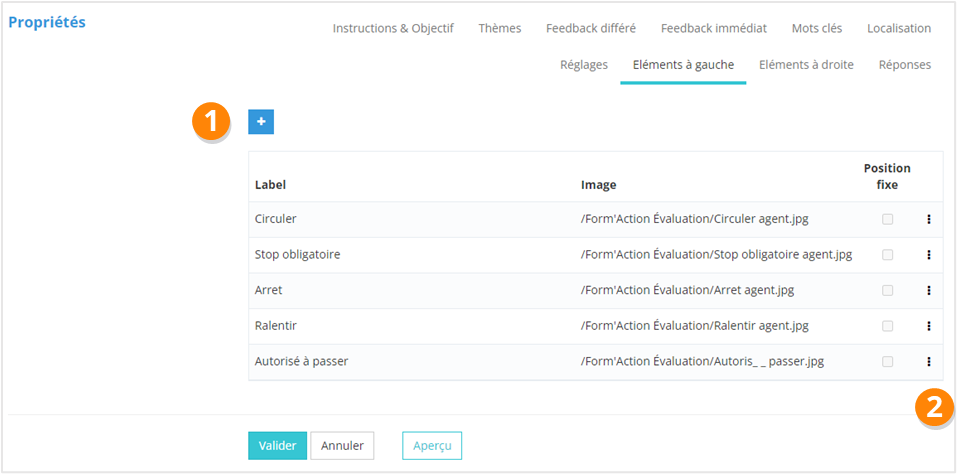
<div id="bkmrk-sur-les-pages-propri">Sur les pages <span style="color: rgb(239, 131, 29);">**Propriétés &gt; Éléments à gauche** <span style="color: rgb(0, 0, 0);">et</span> **Propriétés &gt; Éléments à droite**</span>, vous pouvez :</div>1. <span style="color: rgb(239, 131, 29);">**Ajouter** </span>un élément à gauche ou à droite ;
2. Utiliser le <span style="color: rgb(239, 131, 29);">**menu contextuel**</span> pour : <span style="color: rgb(239, 131, 29);">**Éditer** </span>/ <span style="color: rgb(239, 131, 29);">**Supprimer** </span>/ <span style="color: rgb(239, 131, 29);">**Monter** </span>/ <span style="color: rgb(239, 131, 29);">**Descendre** </span>une réponse.
    
    <p class="callout info">Vous pouvez également modifier l'ordre des réponses par *glisser-déposer*.</p>

<div>![](https://documentation.xperteam.net/uploads/images/gallery/2024-03/embedded-image-hpbld2oi.png)</div><div>  
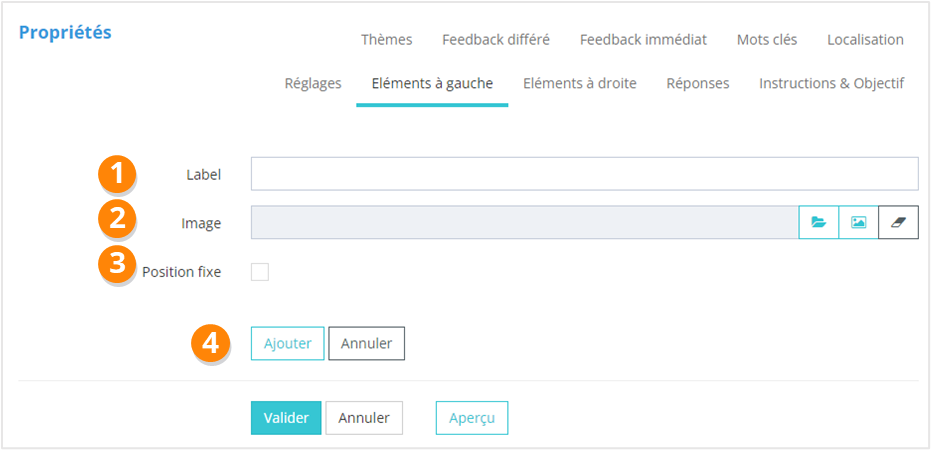
</div><div id="bkmrk-lors-de-la-cr%C3%A9ation--1">Lors de la création d'un **<span style="color: rgb(239, 131, 29);">élément de gauche</span>** ou d'un **<span style="color: rgb(239, 131, 29);">élément de droite</span>**, vous renseignerez :</div>1. Son <span style="color: rgb(239, 131, 29);">**label**</span> ;
2. Éventuellement une <span style="color: rgb(239, 131, 29);">**image** </span>associée ;
3. Si la position de cet élément doit être <span style="color: rgb(239, 131, 29);">**fixe** </span>ou non ;
4. Enfin, cliquez sur <span style="color: rgb(239, 131, 29);">**Ajouter**<span style="color: rgb(0, 0, 0);">.</span></span>

<span style="color: rgb(239, 131, 29);">![](https://documentation.xperteam.net/uploads/images/gallery/2024-03/embedded-image-ci85rvco.png)</span>

---

##### **Réponses**

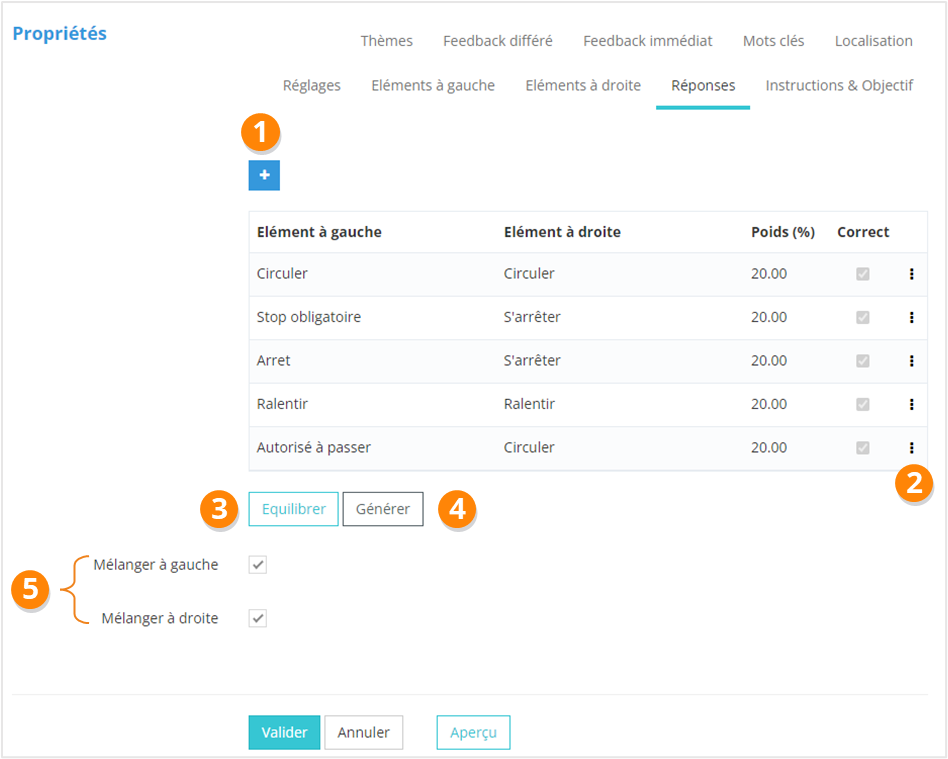
<div id="bkmrk-sur-la-page%C2%A0propri%C3%A9t">Sur la page <span style="color: rgb(239, 131, 29);">**Propriétés &gt; Réponses**</span>, vous pouvez :</div>1. <span style="color: rgb(239, 131, 29);">**Ajouter** </span>une réponse, qui consistera en l’association d’un élément de gauche avec un élément de droite ;
2. Utiliser le <span style="color: rgb(239, 131, 29);">**menu contextuel**</span> pour : <span style="color: rgb(239, 131, 29);">**Éditer** </span>/ <span style="color: rgb(239, 131, 29);">**Supprimer** </span>une réponse ;
3. <span style="color: rgb(239, 131, 29);">**Équilibrer** </span>le poids des réponses ;
4. Générer la **<span style="color: rgb(239, 131, 29);">matrice des réponses</span>**, c’est-à-dire toutes les associations possibles élément de gauche / élément de droite. Il faudra ensuite éditer les lignes pour cocher la case « Correct » et ajouter un poids si besoin ;
5. <span style="color: rgb(239, 131, 29);">**Mélanger** </span>ou non les éléments de gauche et les éléments de droite.
![](https://documentation.xperteam.net/uploads/images/gallery/2024-03/embedded-image-9hcotc0d.png)

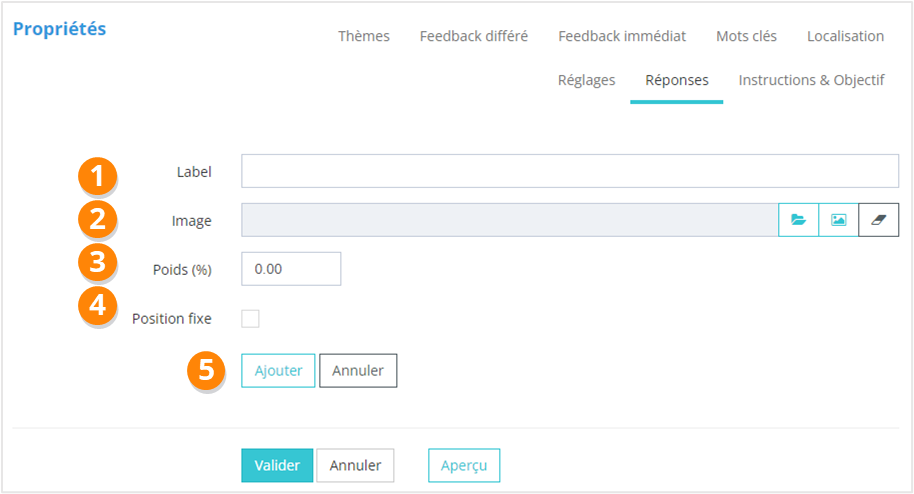
<div>Lors de la création d'une <span style="color: rgb(239, 131, 29);">**réponse** </span>(= association d'un élément de gauche avec un élément de droite), vous renseignerez :</div>1. L'<span style="color: rgb(239, 131, 29);">**élément de gauche**</span> ;
2. L'**<span style="color: rgb(239, 131, 29);">élément de droite</span>** ;
3. Le <span style="color: rgb(239, 131, 29);">**poids** </span>de la réponse (facultatif si vous utilisez le bouton <span style="color: rgb(239, 131, 29);">**Équilibrer** </span>sur la page des réponses) ;
4. Si la proposition est une <span style="color: rgb(239, 131, 29);">**réponse correcte** </span>ou non ;
5. Enfin, cliquez sur <span style="color: rgb(239, 131, 29);">**Ajouter**<span style="color: rgb(0, 0, 0);">.</span></span>

<span style="color: rgb(239, 131, 29);">![](https://documentation.xperteam.net/uploads/images/gallery/2024-03/embedded-image-qchaqidf.png)</span>

</details><details id="bkmrk-matrice-%C2%A0"><summary>Matrice</summary>

#### **Visuel**

![](https://documentation.xperteam.net/uploads/images/gallery/2024-03/embedded-image-tomekbm6.png)

---

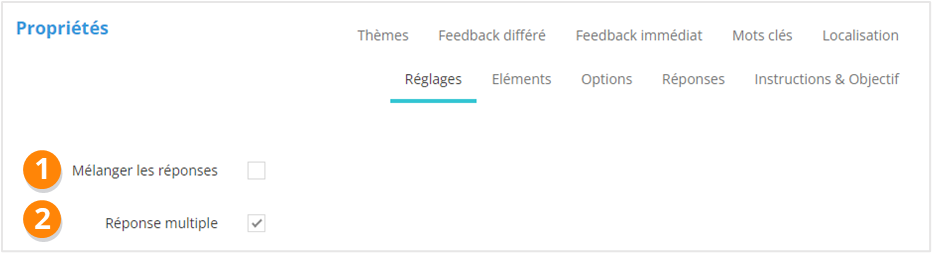
#### **Réglages spécifiques**

<div id="bkmrk-sur-la-page-propri%C3%A9t">Sur la page <span style="color: rgb(239, 131, 29);">**Propriétés &gt; Réglages**</span>, vous pouvez :</div>1. <div><span style="color: rgb(239, 131, 29);">**Mélanger** </span>les réponses ;</div><p class="callout info">Cela ne mélangera que les <span style="color: rgb(0, 0, 0);">éléments</span>, c'est-à-dire les en-têtes de lignes.</p>
2. Autoriser des <span style="color: rgb(239, 131, 29);">**réponses multiples, ligne par ligne**</span>.

<div>![](https://documentation.xperteam.net/uploads/images/gallery/2024-03/embedded-image-jz1zfhqw.png)</div>---

#### **Éléments**

<div>Sur la page <span style="color: rgb(239, 131, 29);">**Éléments** </span>de la question (= en-têtes de lignes), vous pouvez :</div>1. <span style="color: rgb(239, 131, 29);">**Ajouter**</span> un élément ;
2. Utiliser le <span style="color: rgb(239, 131, 29);">**menu contextuel**</span> pour : <span style="color: rgb(239, 131, 29);">**Éditer** </span>/ <span style="color: rgb(239, 131, 29);">**Supprimer** </span>/ <span style="color: rgb(239, 131, 29);">**Monter** </span>/ <span style="color: rgb(239, 131, 29);">**Descendre** </span>un élément.
    
    <p class="callout info">Vous pouvez également modifier l'ordre des réponses par *glisser-déposer*.</p>

<div>![](https://documentation.xperteam.net/uploads/images/gallery/2024-03/embedded-image-9acdvigm.png)  
</div><div><div>Lors de la création d'un <span style="color: rgb(239, 131, 29);">**élément**</span>, vous renseignerez :</div>1. Son <span style="color: rgb(239, 131, 29);">**label**</span> ;
2. Si la position de cet élément doit être <span style="color: rgb(239, 131, 29);">**fixe** </span>ou non ;
3. Enfin, cliquez sur <span style="color: rgb(239, 131, 29);">**Ajouter**<span style="color: rgb(0, 0, 0);">.</span></span>

</div><span style="color: rgb(239, 131, 29);">![](https://documentation.xperteam.net/uploads/images/gallery/2024-03/embedded-image-rduoqdnr.png)</span>

---

#### **Options**

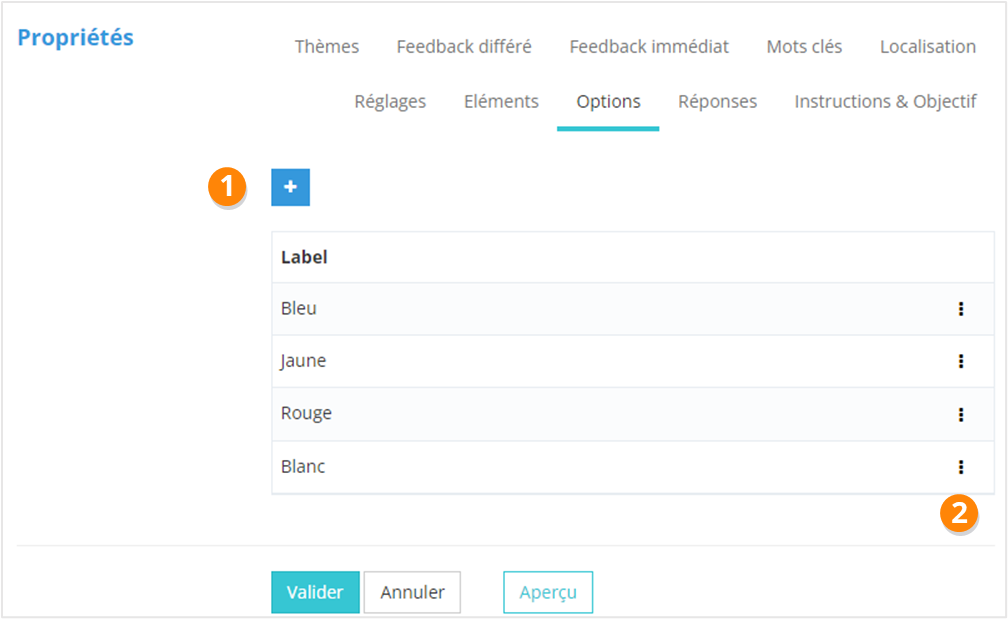
<div>Sur la page <span style="color: rgb(239, 131, 29);">**Options** </span>de la question (= en-têtes de colonnes), vous pouvez :</div>1. <span style="color: rgb(239, 131, 29);">**Ajouter**</span> une option ;
2. Utiliser le <span style="color: rgb(239, 131, 29);">**menu contextuel**</span> pour : <span style="color: rgb(239, 131, 29);">**Éditer** </span>/ <span style="color: rgb(239, 131, 29);">**Supprimer** </span>/ <span style="color: rgb(239, 131, 29);">**Monter** </span>/ <span style="color: rgb(239, 131, 29);">**Descendre** </span>une option.
    
    <p class="callout info">Vous pouvez également modifier l'ordre des réponses par *glisser-déposer*.</p>

<p class="callout info">**Bon à savoir :** les options apparaîtront dans la matrice, dans le même ordre que sur le tableau récapitulatif des options ci-dessus. Il n'y a pas de possibilité de mélanger les options.  
</p>

<div>![](https://documentation.xperteam.net/uploads/images/gallery/2024-03/embedded-image-l5i69oqw.png)  
</div><div><div>Lors de la création d'une <span style="color: rgb(239, 131, 29);">**option**</span>, vous renseignerez :</div>1. Son <span style="color: rgb(239, 131, 29);">**label**</span> ;
2. Puis cliquez sur <span style="color: rgb(239, 131, 29);">**Ajouter**<span style="color: rgb(0, 0, 0);">.</span></span>

</div><span style="color: rgb(239, 131, 29);">![](https://documentation.xperteam.net/uploads/images/gallery/2024-03/embedded-image-ptzdpkh4.png)</span>

---

#### **Réponses**

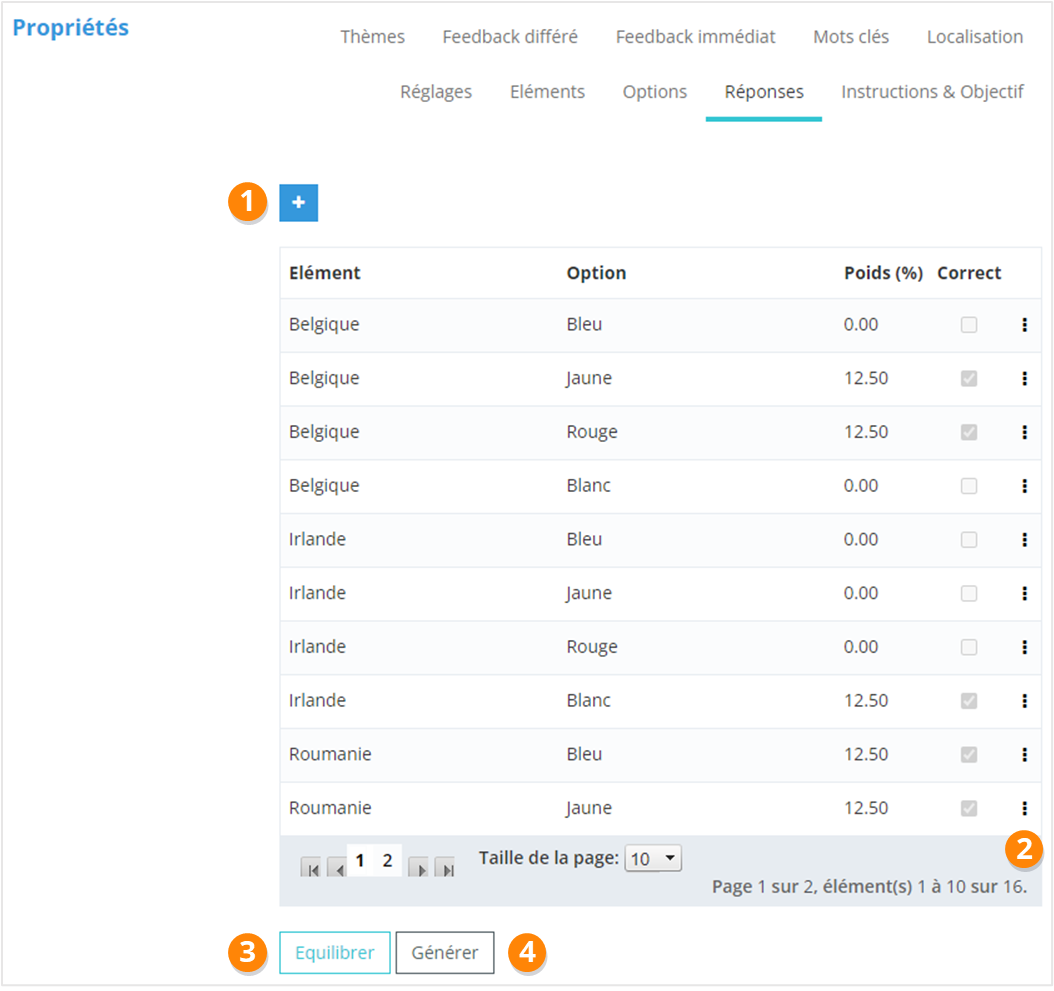
<div id="bkmrk-sur-la-page%C2%A0propri%C3%A9t-1">Sur la page <span style="color: rgb(239, 131, 29);">**Propriétés &gt; Réponses**</span>, vous pouvez :</div>1. <span style="color: rgb(239, 131, 29);">**Ajouter** </span>une réponse, qui consistera en l’association d’un élément avec une option ;
2. Utiliser le <span style="color: rgb(239, 131, 29);">**menu contextuel**</span> pour : <span style="color: rgb(239, 131, 29);">**Éditer** </span>/ <span style="color: rgb(239, 131, 29);">**Supprimer** </span>une réponse ;
3. <span style="color: rgb(239, 131, 29);">**Équilibrer** </span>le poids des réponses ;
4. Générer la **<span style="color: rgb(239, 131, 29);">matrice des réponses</span>**, c’est-à-dire toutes les associations possibles élément / option. Il faudra ensuite éditer les lignes pour cocher la case « Correct » et ajouter un poids si besoin.
![](https://documentation.xperteam.net/uploads/images/gallery/2024-03/embedded-image-vwr2r4kk.png)

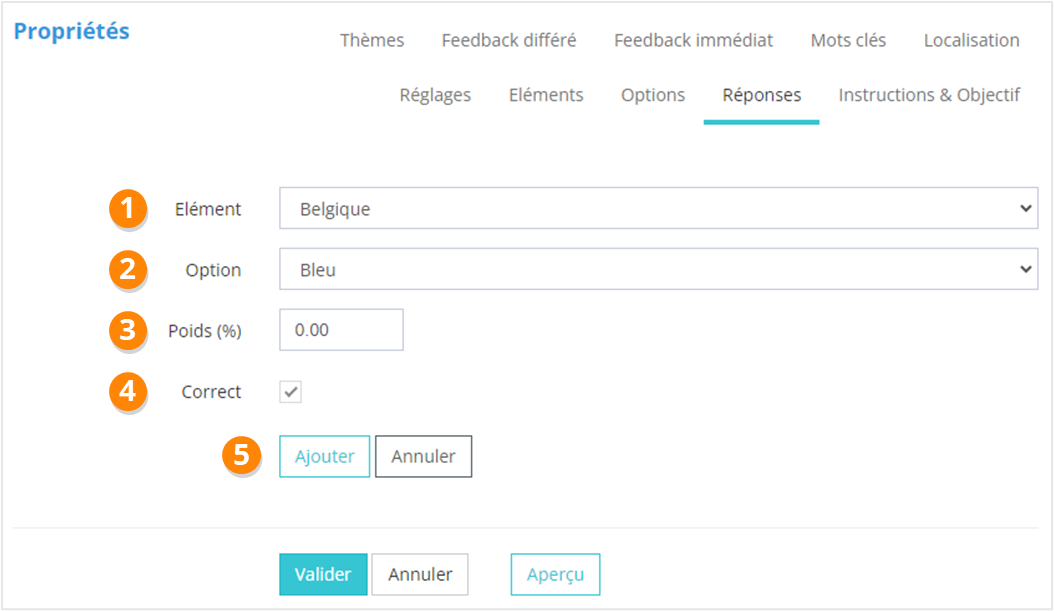
<div>Lors de la création d'une <span style="color: rgb(239, 131, 29);">**réponse** </span>(= association d'un élément avec une option), vous renseignerez :</div>1. L'<span style="color: rgb(239, 131, 29);">**élément**</span> ;
2. L'**<span style="color: rgb(239, 131, 29);">option</span>** ;
3. Le <span style="color: rgb(239, 131, 29);">**poids** </span>de la réponse (facultatif si vous utilisez le bouton <span style="color: rgb(239, 131, 29);">**Équilibrer** </span>sur la page des réponses) ;
4. Si l'association de cet élément avec cette option est une <span style="color: rgb(239, 131, 29);">**réponse correcte** </span>ou non ;
5. Enfin, cliquez sur <span style="color: rgb(239, 131, 29);">**Ajouter**<span style="color: rgb(0, 0, 0);">.</span></span>

<span style="color: rgb(239, 131, 29);">![](https://documentation.xperteam.net/uploads/images/gallery/2024-03/embedded-image-aqmdytxx.png)</span>

</details><details id="bkmrk-r%C3%A9daction-%C2%A0"><summary>Rédaction</summary>

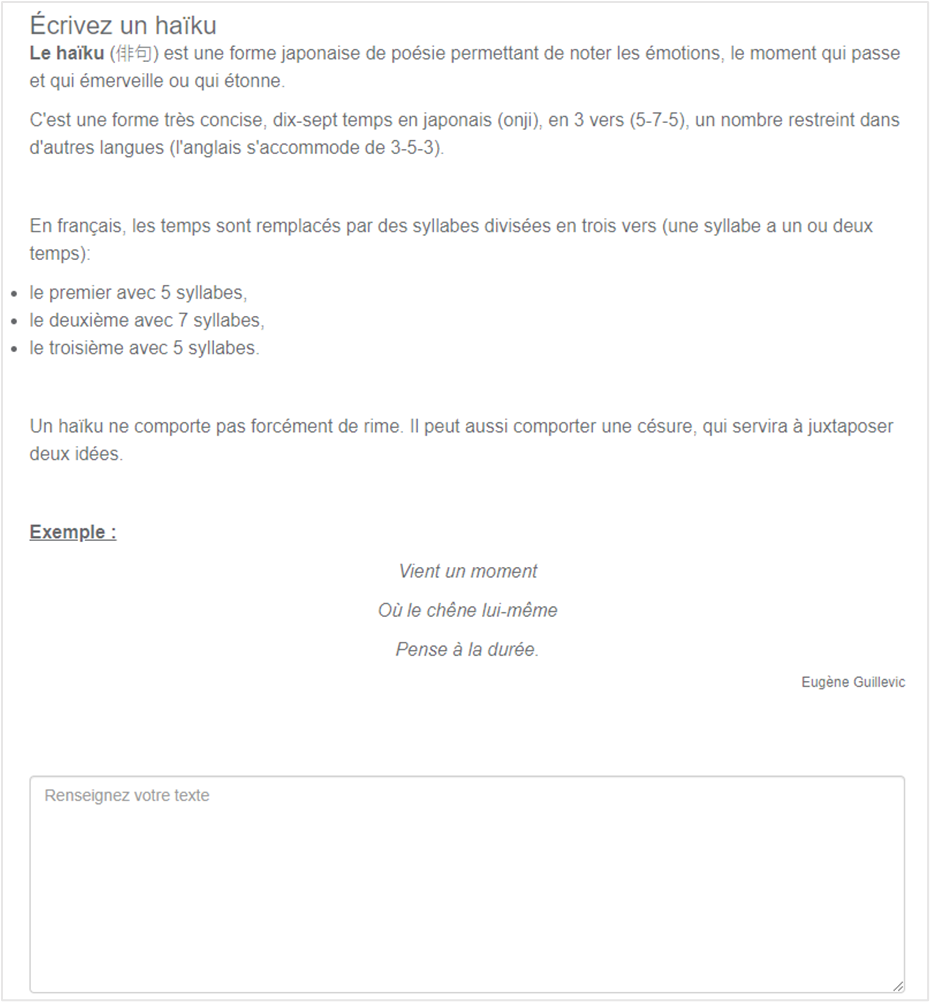
#### **Visuel**

![](https://documentation.xperteam.net/uploads/images/gallery/2024-03/embedded-image-cjeo2zpj.png)

---

#### **Réglages spécifiques**

Pour les questions de type <span style="color: rgb(239, 131, 29);">**Rédaction**</span>, il n’y a pas de spécificités par rapport aux paramétrages communs présentés dans la fiche [***Évaluation &gt; Créer des questions - Paramétrages communs &gt; Paramétrer une question***](https://documentation.xperteam.net/books/creer-des-epreuves-quiz-sondage-observations-adaptatif/page/parametrer-une-question).

En revanche, il n’y a pas non plus d’onglet **<span style="color: rgb(239, 131, 29);">Réponses </span>**car ce type de question nécessitera l’action d’un administrateur en back-office pour valider la réponse de l’apprenant et lui octroyer des points.

<p class="callout info">**Bon à savoir :**  • L’apprenant peut continuer son quiz même s’il n’y a pas eu de correction apportée en back-office.  
 • Son score d’épreuve sera recalculé après correction : l’apprenant peut donc passer d’un statut « Échoué » à un statut « Réussi ».</p>

</details><details id="bkmrk-titre-%C2%A0"><summary>Titre</summary>

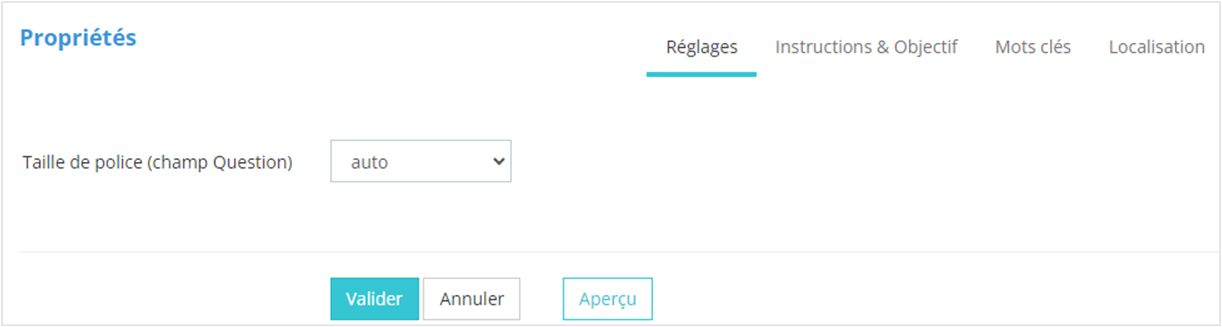
Pour les questions de type <span style="color: rgb(239, 131, 29);">**Titre**</span>, le seul réglage disponible est celui de la taille de police.
![](https://documentation.xperteam.net/uploads/images/gallery/2024-03/embedded-image-serhazni.png)

</details>