# Questions de type « Graphique »

<div id="bkmrk-les-questions-de-typ">Les questions de type <span style="color: rgb(239, 131, 29);">**« Graphique »**</span> regroupent :</div><div id="bkmrk-les-questions-de-typ-1">- les questions de type <span style="color: rgb(239, 131, 29);">**Zone Sensible**</span> ;
- les questions de type <span style="color: rgb(239, 131, 29);">**Glisser-Déposer**</span><span style="color: rgb(0, 0, 0);">.</span>

</div><details id="bkmrk-zone-sensible-visuel"><summary>Zone Sensible</summary>

#### **Visuel**

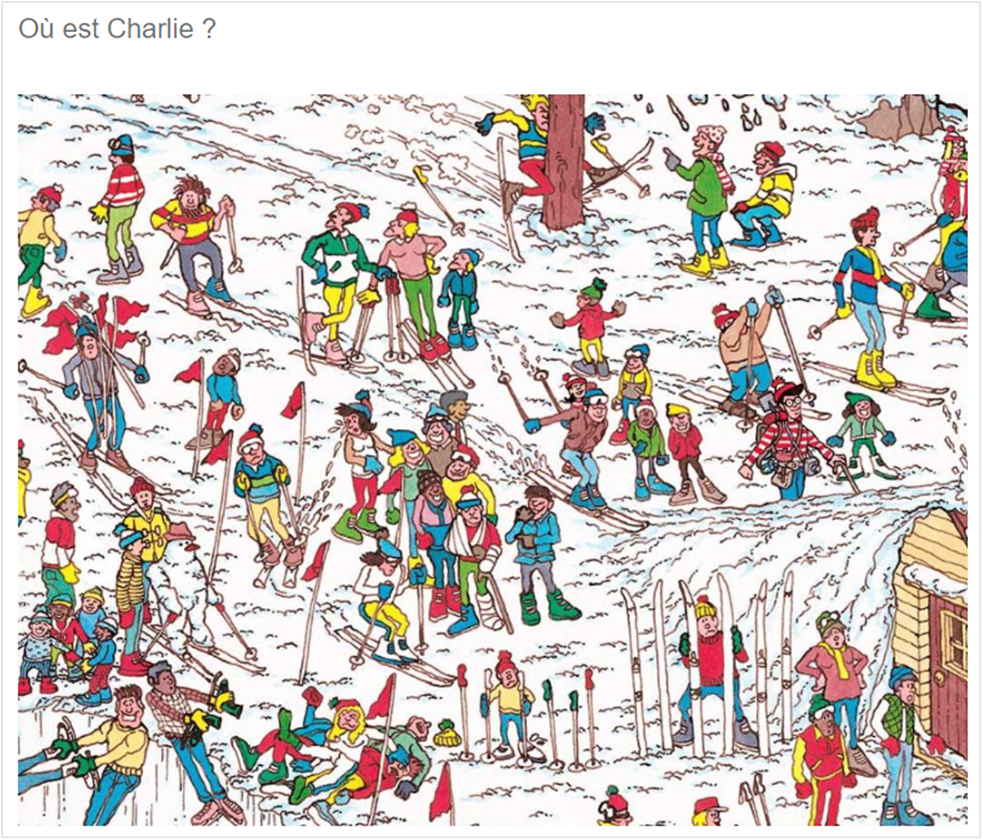
Les questions de type **<span style="color: rgb(239, 131, 29);">« Zone Sensible »</span>** appellent l'utilisateur à cliquer sur une image pour donner leur réponse.
![](https://documentation.xperteam.net/uploads/images/gallery/2024-03/embedded-image-oq4f0oym.png)

---

#### **Informations générales**

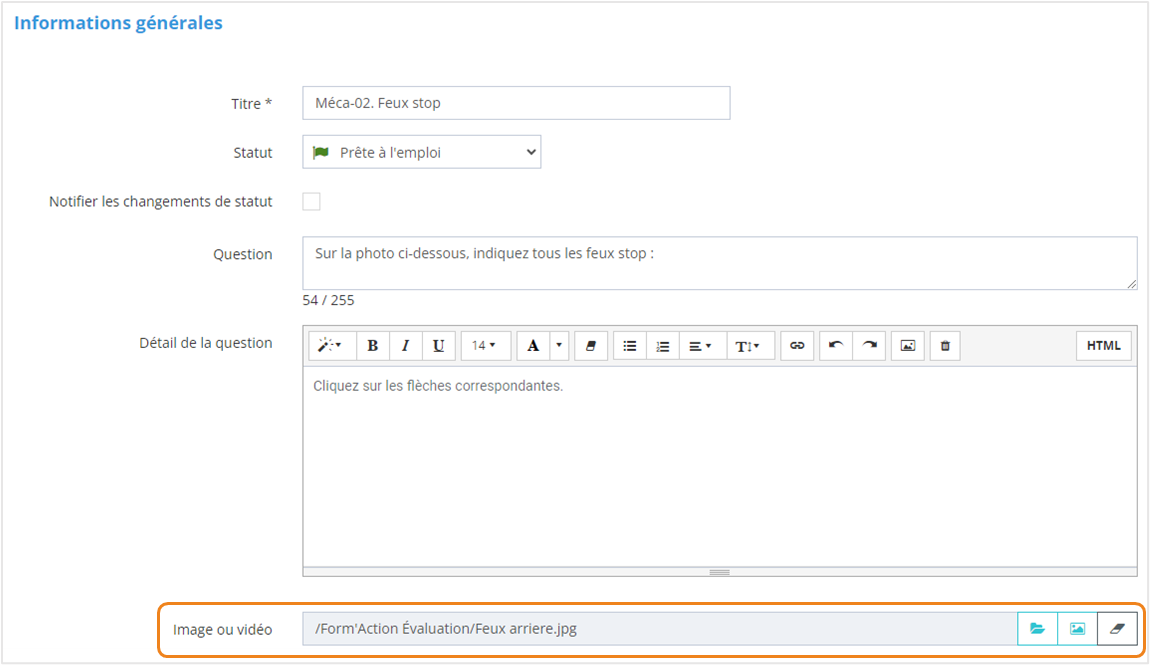
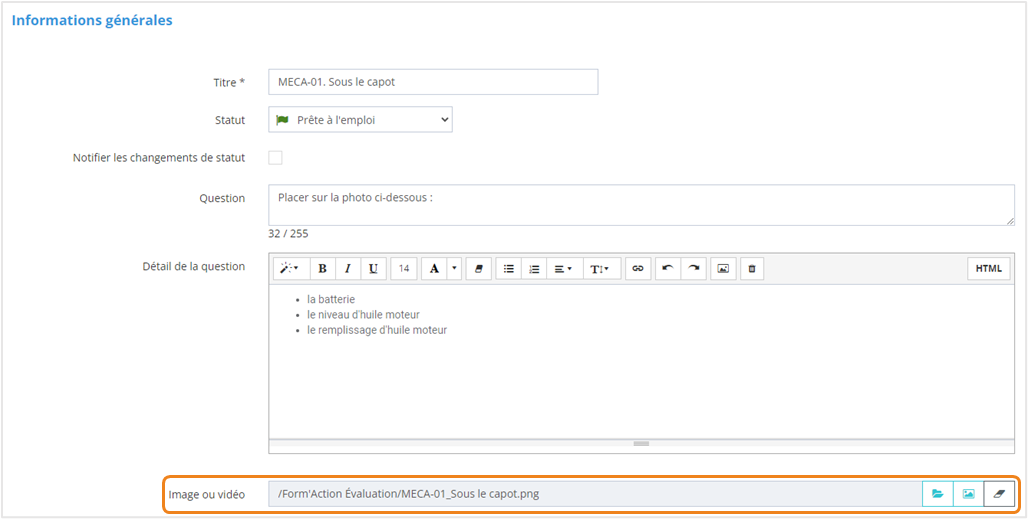
<p class="callout danger">Sur la page **Informations générales,** vous ajouterez <span style="text-decoration: underline;">obligatoirement</span> une **image.**</p>

![](https://documentation.xperteam.net/uploads/images/gallery/2024-03/embedded-image-rlufw3c1.png)

---

#### **Réponses**

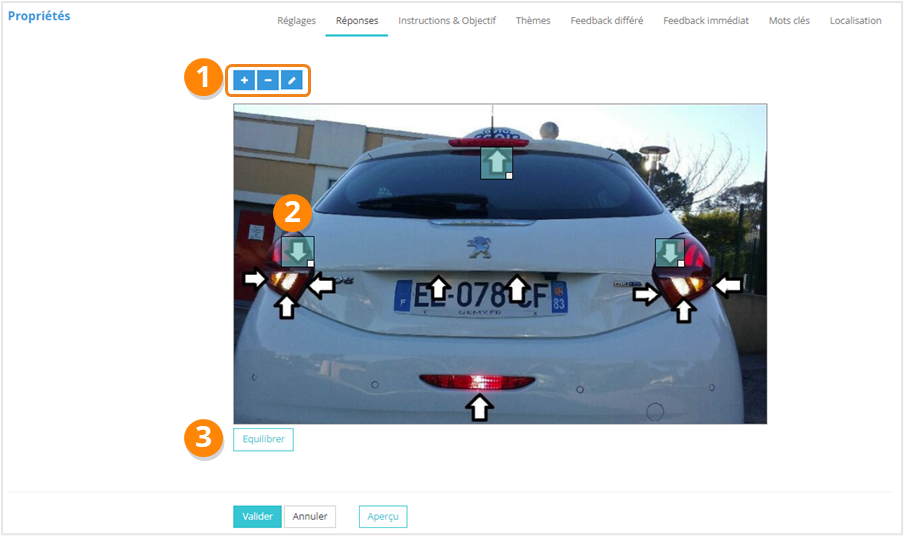
<div>Sur la page <span style="color: rgb(239, 131, 29);">**Propriétés &gt; Réponses**</span>, vous pouvez :</div><div>1. <span style="color: rgb(239, 131, 29);">**Ajouter** </span>/ **<span style="color: rgb(239, 131, 29);">Supprimer </span>**/ <span style="color: rgb(239, 131, 29);">**Éditer** </span>les zones sur lesquelles il faut cliquer en guise de réponse ;
2. <span style="color: rgb(239, 131, 29);">**Déplacer** </span>/ <span style="color: rgb(239, 131, 29);">**Redimensionner** </span>les zones réponses ;
3. <span style="color: rgb(239, 131, 29);">**Équilibrer** </span>le poids des réponses<span style="color: rgb(239, 131, 29);"><span style="color: rgb(0, 0, 0);">.</span></span>

</div>![](https://documentation.xperteam.net/uploads/images/gallery/2024-03/embedded-image-jsmj0loj.png)

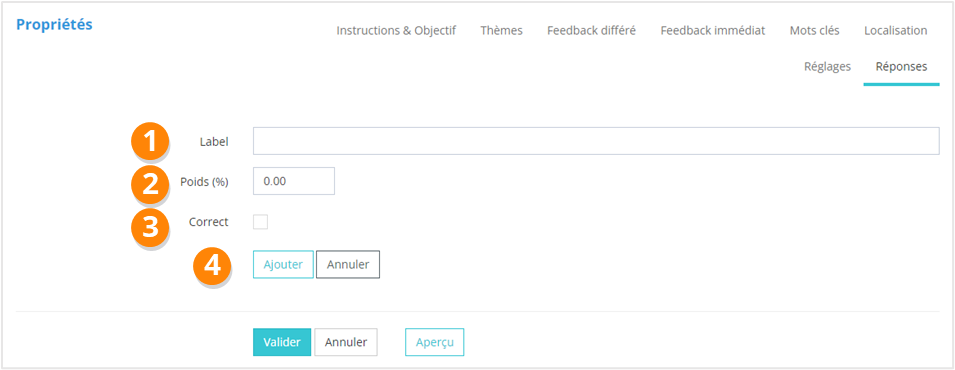
<div>Lors de la création de nouvelles propositions de réponses, vous renseignerez :</div><div>1. Le <span style="color: rgb(239, 131, 29);">**texte** </span>de la réponse ;
2. Le <span style="color: rgb(239, 131, 29);">**poids** </span>de la réponse (facultatif si vous utilisez le bouton Équilibrer sur la page des réponses) ;
3. Si la proposition est une <span style="color: rgb(239, 131, 29);">**réponse correcte**</span> ou non ;
4. Enfin, cliquez sur <span style="color: rgb(239, 131, 29);">**Ajouter**<span style="color: rgb(0, 0, 0);">.</span></span>

</div>![](https://documentation.xperteam.net/uploads/images/gallery/2024-03/embedded-image-bmylnssv.png)

</details><details id="bkmrk-glisser-d%C3%A9poser-visu"><summary>Glisser-Déposer</summary>

#### **Visuel**

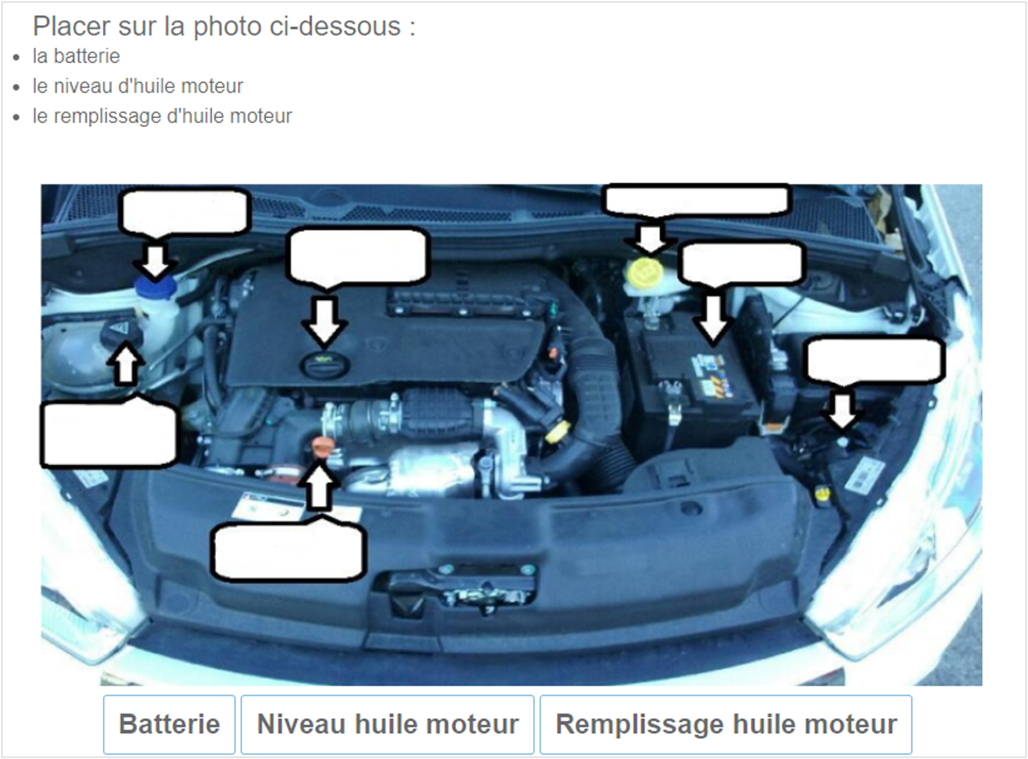
Les questions de type **<span style="color: rgb(239, 131, 29);">« Glisser-Déposer »</span>** demandent à l'utilisateur de positionner des étiquettes-images sur une image présentant des zones de dépôt.
![](https://documentation.xperteam.net/uploads/images/gallery/2024-03/embedded-image-zre6f9sq.png)

---

#### **Informations générales**

<p class="callout danger">Sur la page **Informations générales,** vous ajouterez <span style="text-decoration: underline;">obligatoirement</span> une **image.**</p>

![](https://documentation.xperteam.net/uploads/images/gallery/2024-03/embedded-image-ykys7wig.png)

---

#### **Items**

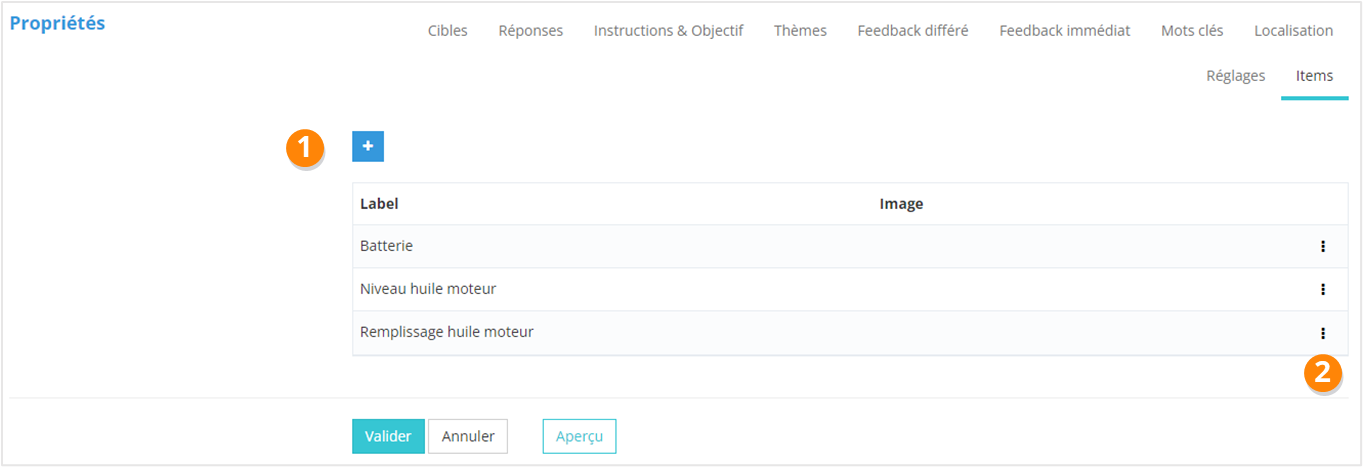
<div>Sur la page <span style="color: rgb(239, 131, 29);">**Propriétés &gt; Items**</span>, vous pouvez :</div><div>1. <span style="color: rgb(239, 131, 29);">**Ajouter**</span><span style="color: rgb(239, 131, 29);"> </span>un item ;
2. <span style="color: rgb(239, 131, 29);"><span style="color: rgb(0, 0, 0);">Utiliser le</span> **menu contextuel** <span style="color: rgb(0, 0, 0);">pour : </span>**Éditer**</span>/ <span style="color: rgb(239, 131, 29);">**Supprimer** </span>un item.

</div>![](https://documentation.xperteam.net/uploads/images/gallery/2024-03/embedded-image-dpvt4hlm.png)

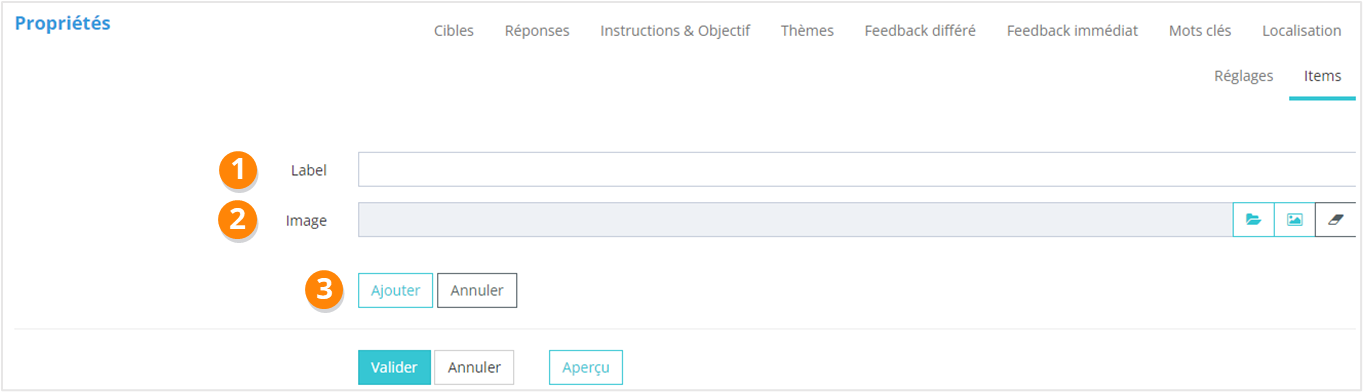
<div>Lors de la création d'un <span style="color: rgb(239, 131, 29);">**item**</span>, vous renseignerez :</div><div>1. Son <span style="color: rgb(239, 131, 29);">**label** </span>;
2. Son <span style="color: rgb(239, 131, 29);">**image** </span>(**obligatoire**) ;
3. Enfin, cliquez sur <span style="color: rgb(239, 131, 29);">**Ajouter**<span style="color: rgb(0, 0, 0);">.</span></span>

</div>![](https://documentation.xperteam.net/uploads/images/gallery/2024-03/embedded-image-jz2hkqdw.png)

---

#### **Cibles**

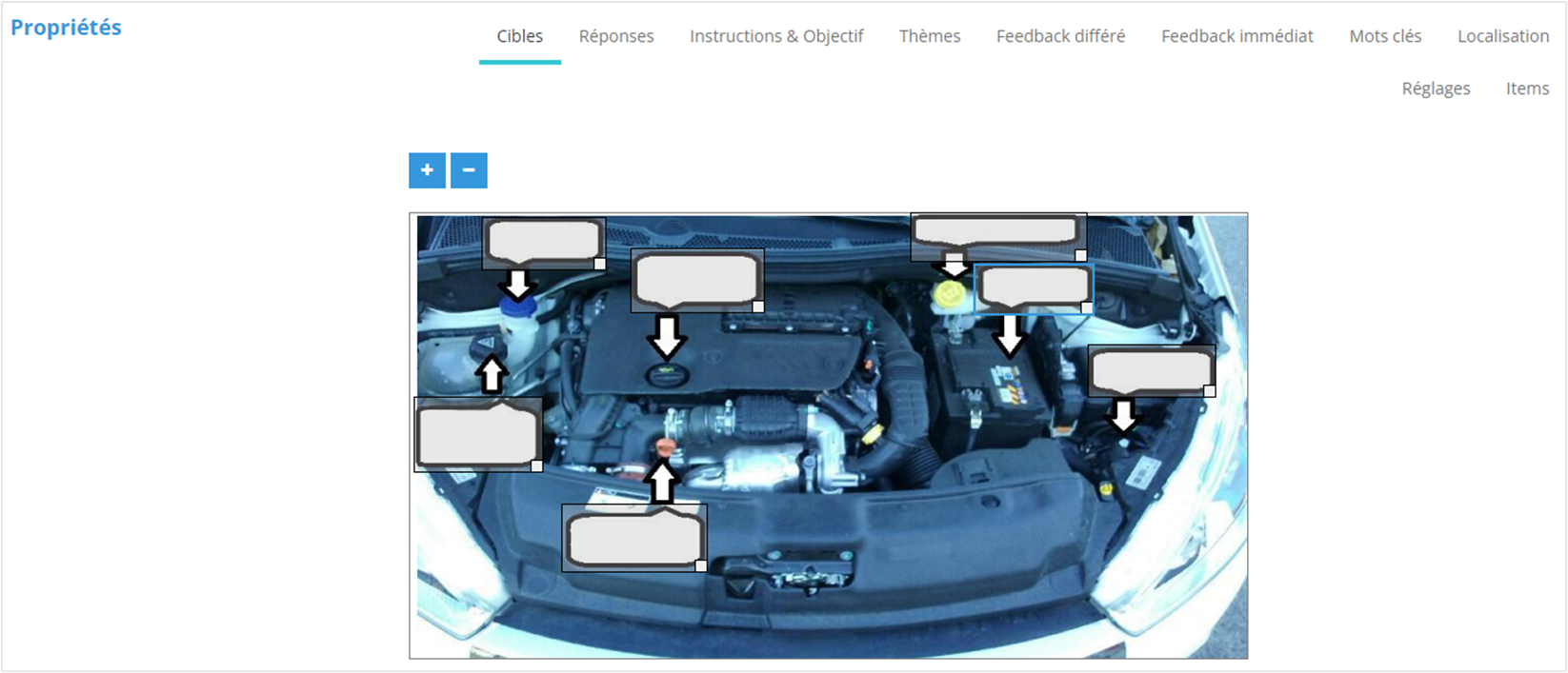
<div>Sur la page <span style="color: rgb(239, 131, 29);">**Propriétés &gt;**</span> <span style="color: rgb(239, 131, 29);">**Cibles**</span>, vous pouvez :</div><div>1. <span style="color: rgb(239, 131, 29);">**Ajouter**</span><span style="color: rgb(239, 131, 29);"> </span>/ <span style="color: rgb(239, 131, 29);">**Supprimer** </span>une cible ;
2. <span style="color: rgb(239, 131, 29);">**Visualiser** </span>/ <span style="color: rgb(239, 131, 29);">**Redimensionner**</span> / <span style="color: rgb(239, 131, 29);">**Repositionner </span>les cibles.

</div>![](https://documentation.xperteam.net/uploads/images/gallery/2024-03/embedded-image-nvybezg7.png)

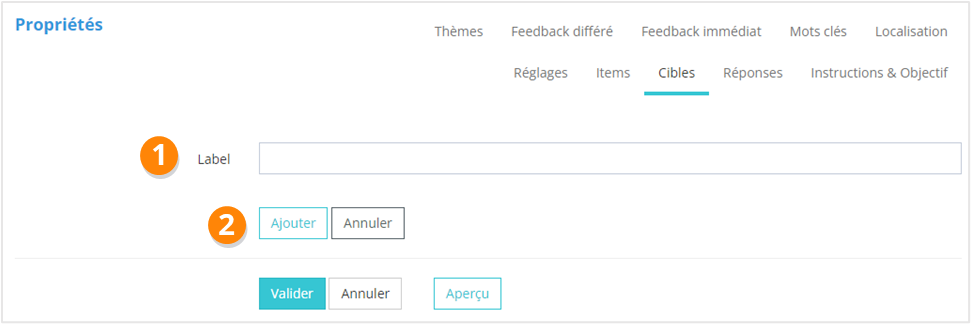
<div>Lors de la création d'une cible, vous renseignerez :</div><div>1. Son <span style="color: rgb(239, 131, 29);">**label** </span>;
2. Cliquez sur <span style="color: rgb(239, 131, 29);">**Ajouter**<span style="color: rgb(0, 0, 0);">.</span></span>

</div>![](https://documentation.xperteam.net/uploads/images/gallery/2024-03/embedded-image-ki9tyzmu.png)

---

#### **Réponses**

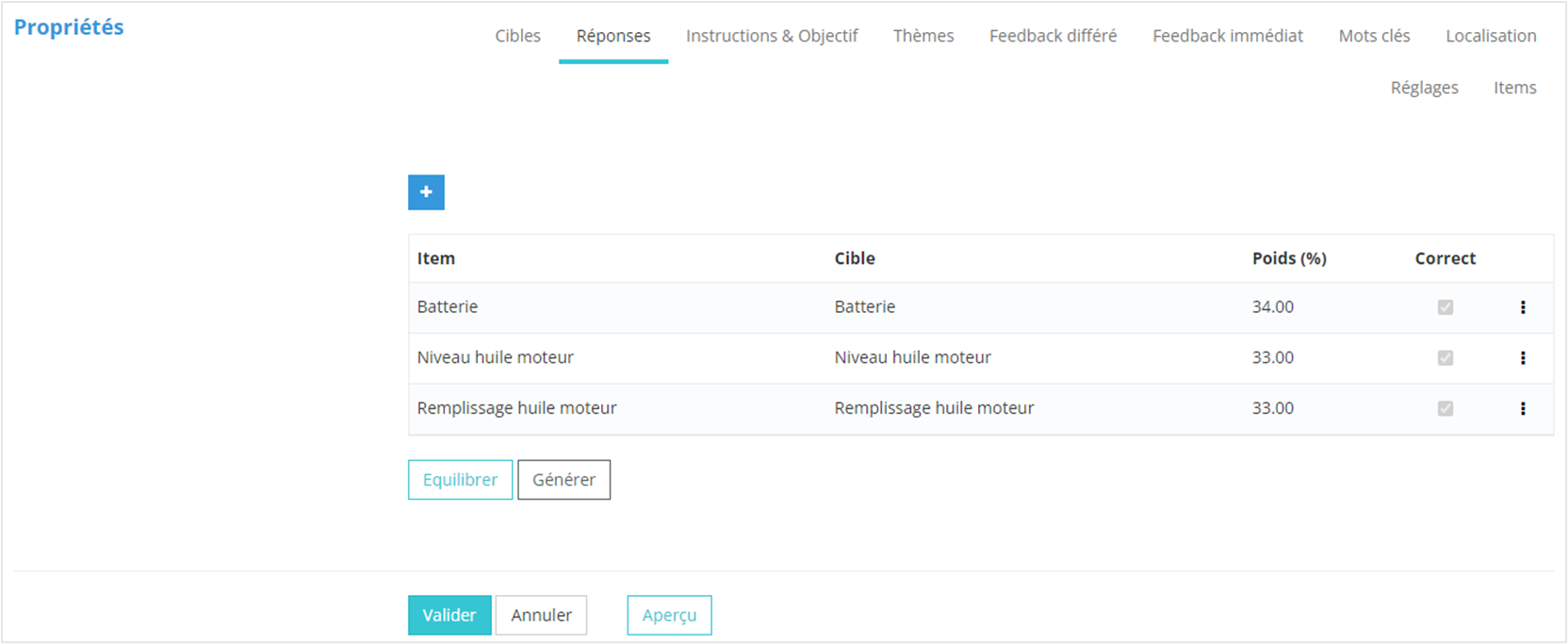
<div>Sur la page <span style="color: rgb(239, 131, 29);">**Propriétés &gt; Réponses**</span>, vous pouvez :</div><div>1. <span style="color: rgb(239, 131, 29);">**Ajouter** </span>une réponse, qui consistera en l’association d’un item avec une cible<span style="color: rgb(239, 131, 29);"> </span>;
2. <span style="color: rgb(239, 131, 29);"><span style="color: rgb(0, 0, 0);">Utiliser le menu</span> **contextuel** <span style="color: rgb(0, 0, 0);">pour : </span>**Éditer** </span>/ <span style="color: rgb(239, 131, 29);">**Supprimer** </span>une réponse ;
3. <span style="color: rgb(239, 131, 29);">**Équilibrer**</span> le poids des réponses ;
4. Générer la <span style="color: rgb(239, 131, 29);">**matrice des réponses**</span>, c’est-à-dire toutes les associations possibles item / cible. <p class="callout info">Il faudra ensuite éditer les lignes pour cocher la case « **Correct** » et ajouter un poids si besoin.</p>

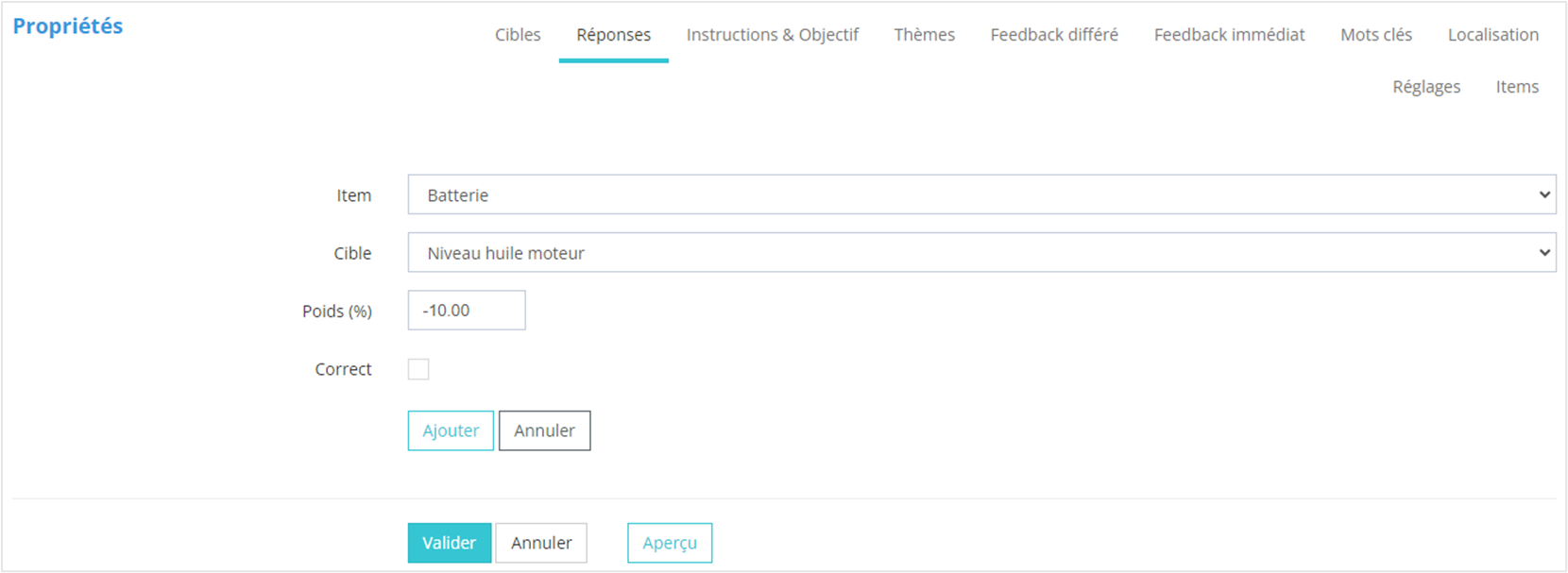
![](https://documentation.xperteam.net/uploads/images/gallery/2024-03/embedded-image-k76k47c0.png)</div><div>Lors de la création d’une <span style="color: rgb(239, 131, 29);">**réponse** </span>(= association d’un item avec une cible), vous renseignerez :</div><div>1. <span style="color: rgb(239, 131, 29);">**L'item** </span>;
2. <span style="color: #000000;">La <span style="color: rgb(239, 131, 29);">**cible**</span></span><span style="color: rgb(239, 131, 29);"> </span>;
3. Le <span style="color: rgb(239, 131, 29);">**poids** </span>de la réponse (facultatif si vous utilisez le bouton Équilibrer sur la page des réponses) ;
4. Si la proposition est une <span style="color: rgb(239, 131, 29);">**réponse correcte**</span> ou non ;
5. Enfin, cliquez sur <span style="color: rgb(239, 131, 29);">**Ajouter**</span>.

</div>![](https://documentation.xperteam.net/uploads/images/gallery/2024-03/embedded-image-cogjussa.png)

</details>