# Gestion des organisations

Ce chapitre détaille comment :
- créer un dossier d'organisations
- créer une organisation
- importer des organisations

# Les organisations apprenants

### <span style="color: rgb(128, 128, 128);">**Définition**</span>

Une <span style="color: rgb(239, 131, 29);">**organisation** </span>est un dossier contenant des **<span style="color: rgb(239, 131, 29);">utilisateurs</span>**.

<p class="callout info">**Bon à savoir :** Sur la plateforme, le terme "Niveau hiérarchique" est parfois employé pour désigner une organisation.</p>

---

### <span style="color: rgb(128, 128, 128);">**Accéder aux organisations**</span>

Pour accéder aux organisations :

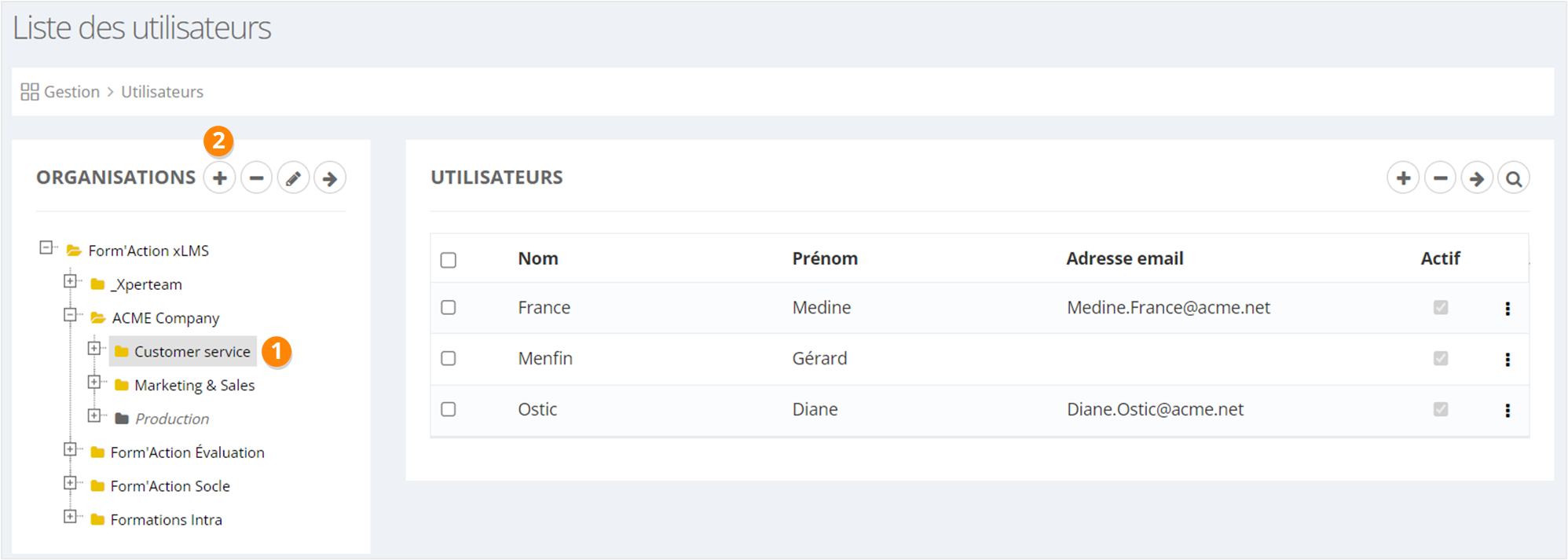
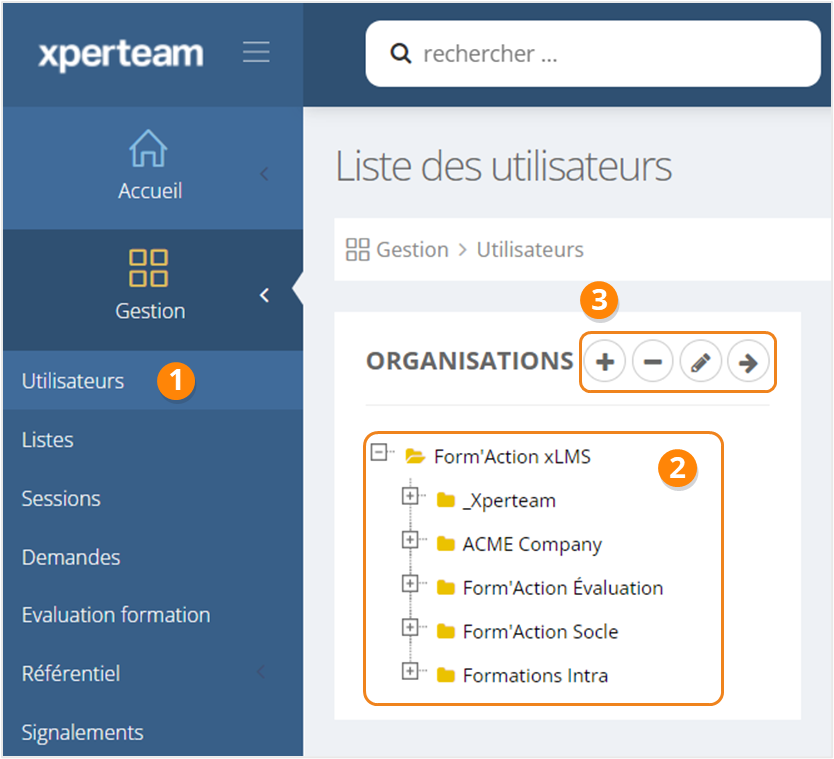
1. Allez dans **<span style="color: rgb(239, 131, 29);">Gestion &gt; Utilisateurs</span>**.
2. Les <span style="color: rgb(239, 131, 29);">**organisations**</span> sont présentées dans l'arborescence : vous pouvez créer <span style="color: rgb(239, 131, 29);">**autant de niveaux**</span> que vous le souhaitez dans cette arborescence. <p class="callout warning">Une arborescence complexe peut ralentir le chargement de certaines pages ou l'exécution de certaines tâches.</p>
3. Pour **<span style="color: rgb(239, 131, 29);">créer</span>**, **<span style="color: rgb(239, 131, 29);">supprimer</span>**, **<span style="color: rgb(239, 131, 29);">éditer </span>**ou **<span style="color: rgb(239, 131, 29);">déplacer</span>**<span style="color: rgb(239, 131, 29);"> </span>une organisation, cliquez sur le bouton correspondant.
![](https://documentation.xperteam.net/uploads/images/gallery/2024-04/embedded-image-w9cidxry.png)

---

### <span style="color: rgb(128, 128, 128);">**Créer une organisation**</span>

Pour créer une organisation :

1. Sélectionnez l'**<span style="color: rgb(239, 131, 29);">organisation mère</span>** de celle que vous souhaitez créer.
2. Cliquez sur le <span style="color: rgb(239, 131, 29);">**bouton \[+\]**</span>.

#### ![](https://documentation.xperteam.net/uploads/images/gallery/2024-04/embedded-image-z1iovkyh.png)

#### <span style="color: rgb(0, 0, 0);">**Informations générales**</span>

##### <span style="color: rgb(128, 128, 128);">**Informations**</span>

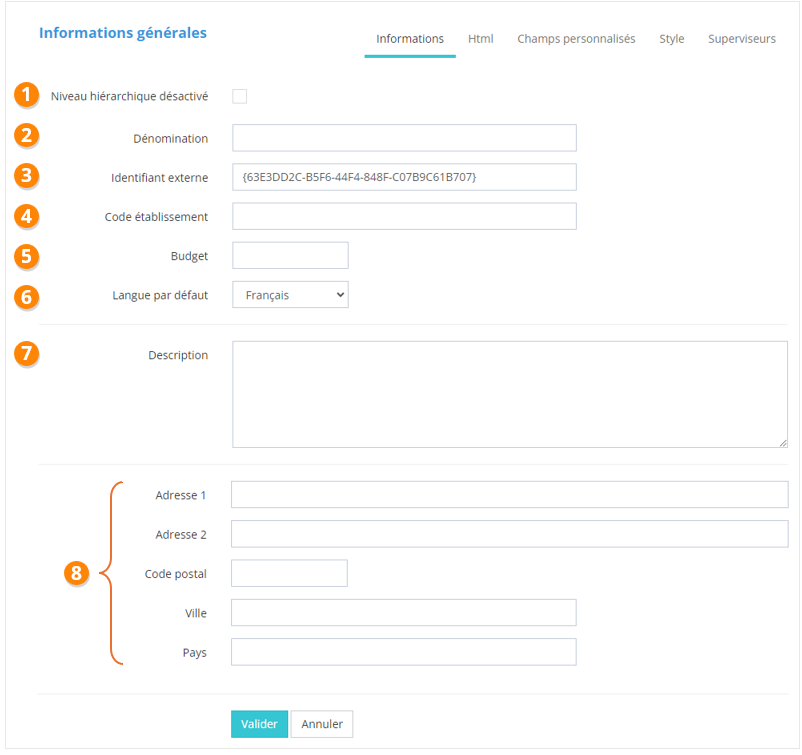
Sur la page <span style="color: rgb(239, 131, 29);">**Informations générales &gt; Informations**</span>, vous pouvez :

1. <span style="color: rgb(239, 131, 29);">**Activer** </span>/ **<span style="color: rgb(239, 131, 29);">Désactiver</span>** l'organisation. <p class="callout warning">Les utilisateurs appartenant à une organisation désactivée **ne peuvent pas se connecter**.</p>
    
    <span style="font-size: tiny;">  
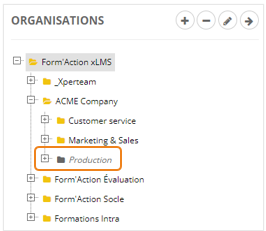
    </span><p class="callout info"><span style="color: rgb(239, 131, 29);"><span style="color: rgb(0, 0, 0);">Une organisation désactivée se repère par sa couleur grise et l'écriture en italique.</span></span></p>
    
    <span class="align-center">[![image.png](https://documentation.xperteam.net/uploads/images/gallery/2024-04/scaled-1680-/BUximage.png)](https://documentation.xperteam.net/uploads/images/gallery/2024-04/BUximage.png)</span>
2. <span style="color: rgb(239, 131, 29);">**Nommer** </span>l'organisation <span style="color: rgb(239, 131, 29);">**\[obligatoire\]**</span>.
3. Renseigner un <span style="color: rgb(239, 131, 29);">**identifiant externe**<span style="color: rgb(0, 0, 0);">.</span></span><p class="callout danger"><span style="color: rgb(239, 131, 29);"><span style="color: rgb(0, 0, 0);">L'identifiant externe d'une organisation doit être **unique**.</span></span></p>
    
    <span style="font-size: tiny;">  
    </span><p class="callout info"><span style="color: rgb(239, 131, 29);"><span style="color: rgb(0, 0, 0);">Cet identifiant externe sera nécessaire pour un import d'organisations ou un import d'utilisateurs.</span></span></p>
4. <span style="color: rgb(239, 131, 29);"><span style="color: rgb(0, 0, 0);">Ajouter un <span style="color: rgb(239, 131, 29);">**code établissement**</span>.</span></span>
5. <span style="color: rgb(239, 131, 29);"><span style="color: rgb(0, 0, 0);">Préciser son <span style="color: rgb(239, 131, 29);">**budget**</span>.</span></span>
6. <span style="color: rgb(239, 131, 29);"><span style="color: rgb(0, 0, 0);">Sélectionner la <span style="color: rgb(239, 131, 29);">**langue par défaut**</span>. Celle-ci sera attribuée à tout utilisateur nouvellement créé dans cette organisation.</span></span><p class="callout info"><span style="color: rgb(239, 131, 29);"><span style="color: rgb(0, 0, 0);">Il est possible de modifier ensuite la langue d'un utilisateur depuis sa fiche apprenant.</span></span></p>
7. <span style="color: rgb(239, 131, 29);"><span style="color: rgb(0, 0, 0);">Ajouter une <span style="color: rgb(239, 131, 29);">**description**</span>. Celle-ci ne sera visible qu'en back-office.</span></span>
8. <span style="color: rgb(239, 131, 29);"><span style="color: rgb(0, 0, 0);">Renseigner l'<span style="color: rgb(239, 131, 29);">**adresse complète**</span> de l'organisation.</span></span>

[![image.png](https://documentation.xperteam.net/uploads/images/gallery/2024-04/scaled-1680-/19nimage.png)](https://documentation.xperteam.net/uploads/images/gallery/2024-04/19nimage.png)

##### <span style="color: rgb(128, 128, 128);">**Html**</span>

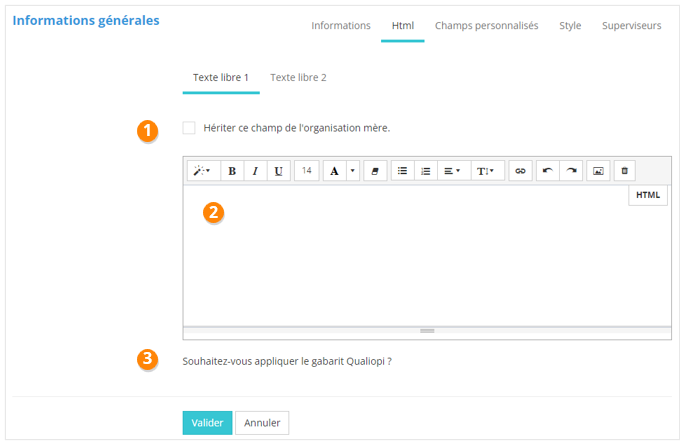
Sur la page <span style="color: rgb(239, 131, 29);">**Informations générales &gt; Html**</span>, vous pouvez décrire votre organisation à l'aide de deux textes libres. Ces descriptions apparaîtront en front-office si vous utilisez le widget 0301 - Champ html de l'organisation (pour plus d'informations concernant les widgets, se référer au chapitre correspondant).

Pour chaque onglet de texte libre, vous pouvez :

1. décider s'il doit être <span style="color: rgb(239, 131, 29);">**identiques ou non à celui de l'organisation mère**</span> ; <span class="callout info">Si vous cochez cette case, l'éditeur de texte sera désactivé.</span>
2. formater votre texte dans l'éditeur HTML
3. le calibrer ou non avec un <span style="color: rgb(239, 131, 29);">**gabarit Qualiopi**</span>.

[![image.png](https://documentation.xperteam.net/uploads/images/gallery/2024-04/scaled-1680-/eopimage.png)](https://documentation.xperteam.net/uploads/images/gallery/2024-04/eopimage.png)

##### <span style="color: rgb(128, 128, 128);">**Champs personnalisés**</span>

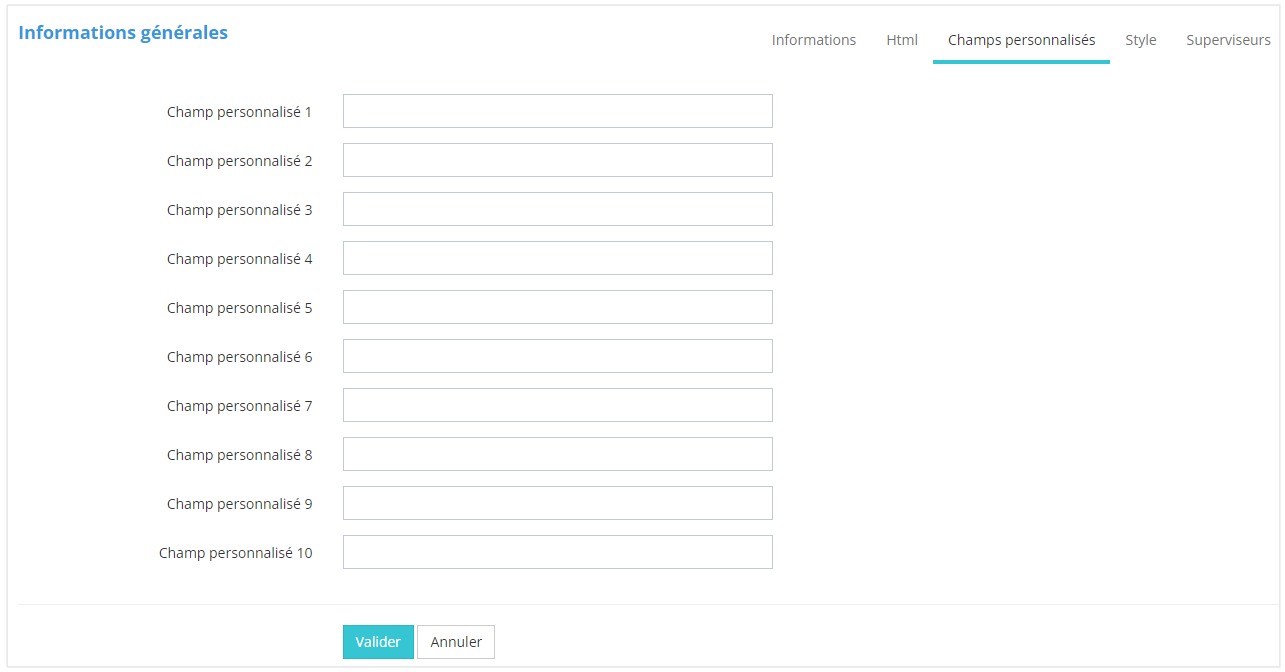
Vous pouvez ajouter jusqu'à **<span style="color: rgb(239, 131, 29);">10 champs personnalisés</span>** pour qualifier vos organisations.

[![image.png](https://documentation.xperteam.net/uploads/images/gallery/2024-04/scaled-1680-/Xzlimage.png)](https://documentation.xperteam.net/uploads/images/gallery/2024-04/Xzlimage.png)

<p class="callout info">Ces champs personnalisés peuvent être utilisés lors d'une recherche d'organisation avec des filtres de recherche.</p>

##### <span style="color: rgb(128, 128, 128);">**Style**</span>

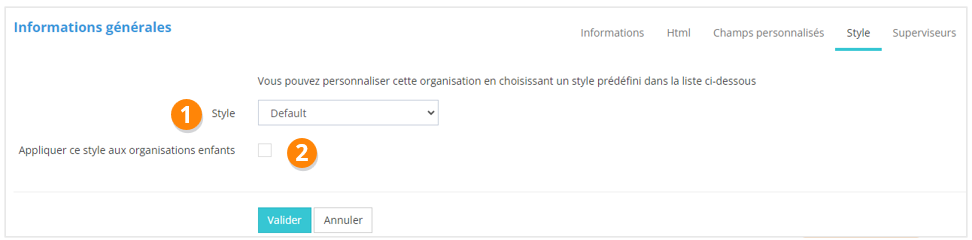
<p class="callout warning">De façon générique, il existe un seul style pour les organisations, nommé Default.</p>

Lorsque vous possédez d'autres styles, vous pouvez :

1. <span style="color: rgb(239, 131, 29);">**choisir le style**</span> de l'organisation dans le menu déroulant;
2. décider d'<span style="color: rgb(239, 131, 29);">**appliquer ou non ce même style aux organisations enfants**</span> de celle que vous êtes en train de créer / éditer.[![image.png](https://documentation.xperteam.net/uploads/images/gallery/2024-04/scaled-1680-/gJDimage.png)](https://documentation.xperteam.net/uploads/images/gallery/2024-04/gJDimage.png)
##### <span style="color: rgb(128, 128, 128);">**Superviseurs**</span>

Pour chaque organisation, vous pouvez définir des superviseurs. Ceux-ci auront accès au suivi des formations pour tous les utilisateurs de l'organisation, notamment via la Page Superviseurs à ajouter au front-office via le front-designer.

<p class="callout info">Pour plus d'informations, se référer aux chapitres **Personnalisation du front-office** et **Page Superviseurs**.</p>

#### **Cours et Parcours**

Pour plus d'informations sur cet onglet, se référer au chapitre Affecter des cours et des parcours à une organisation.