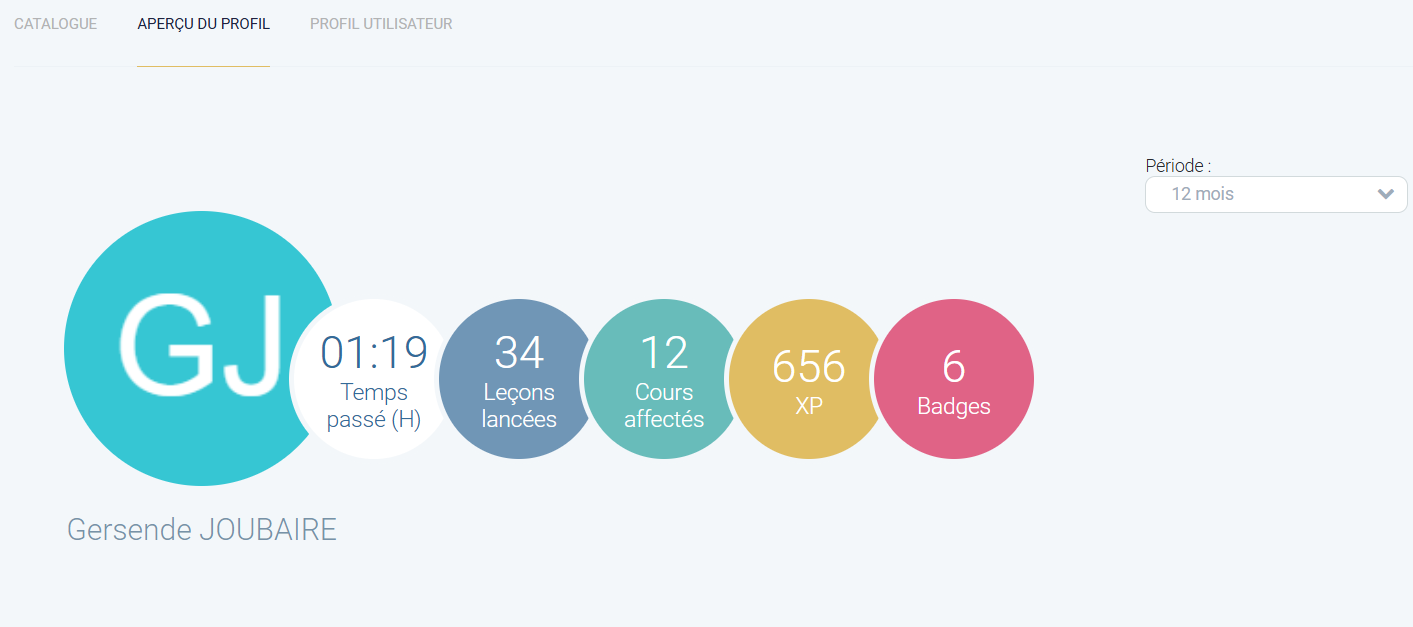
# La page aperçu du profil

Cela permet d'afficher l'aperçu du profil comme une page du site et non comme un aperçu du profil dans le catalogue.

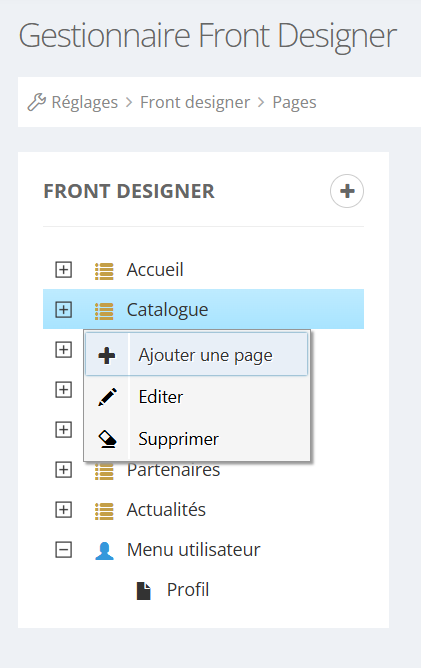
<table border="1" id="bkmrk-%C2%A0-au-niveau-de-l%27ong" style="border-collapse: collapse; width: 100%;"><colgroup><col style="width: 21.0043%;"></col><col style="width: 78.9513%;"></col></colgroup><tbody><tr><td>Au niveau de l'onglet Réglages, Front Designer, Pages, après avoir sélectionné la section où l'on souhaite ajouter cette page, on clique doit sur la souris et "ajouter une page".

</td><td class="align-center">[![Capture d'écran 2025-07-08 135429.png](https://documentation.xperteam.net/uploads/images/gallery/2025-07/scaled-1680-/DXScapture-decran-2025-07-08-135429.png)](https://documentation.xperteam.net/uploads/images/gallery/2025-07/DXScapture-decran-2025-07-08-135429.png)

</td></tr></tbody></table>

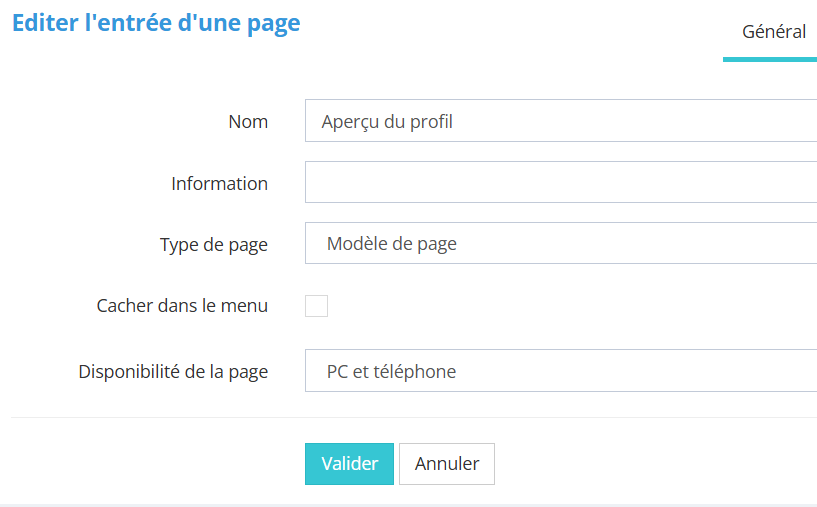
<table border="1" id="bkmrk-%C2%A0-%C2%A0-%C2%A0-%C2%A0-%C2%A0-dans-l%27ong" style="border-collapse: collapse; width: 100%;"><colgroup><col style="width: 22.2618%;"></col><col style="width: 77.8173%;"></col></colgroup><tbody><tr><td>Dans l'onglet général, on choisit le nom et on sélectionne le "modèle de page".

</td><td>[![image.png](https://documentation.xperteam.net/uploads/images/gallery/2025-07/scaled-1680-/qG2image.png)](https://documentation.xperteam.net/uploads/images/gallery/2025-07/qG2image.png)

</td></tr></tbody></table>

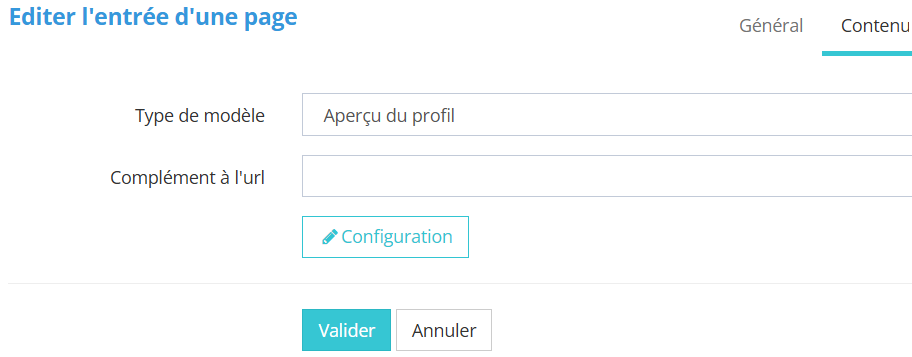
<table border="1" id="bkmrk-dans-l%27onglet-conten" style="border-collapse: collapse; width: 100%;"><colgroup><col style="width: 22.6321%;"></col><col style="width: 77.4469%;"></col></colgroup><tbody><tr><td>Dans l'onglet contenu, on choisit parmi la liste le type de modèle

 "Aperçu du profil "

</td><td>[![image.png](https://documentation.xperteam.net/uploads/images/gallery/2025-07/scaled-1680-/uzGimage.png)](https://documentation.xperteam.net/uploads/images/gallery/2025-07/uzGimage.png)

</td></tr></tbody></table>

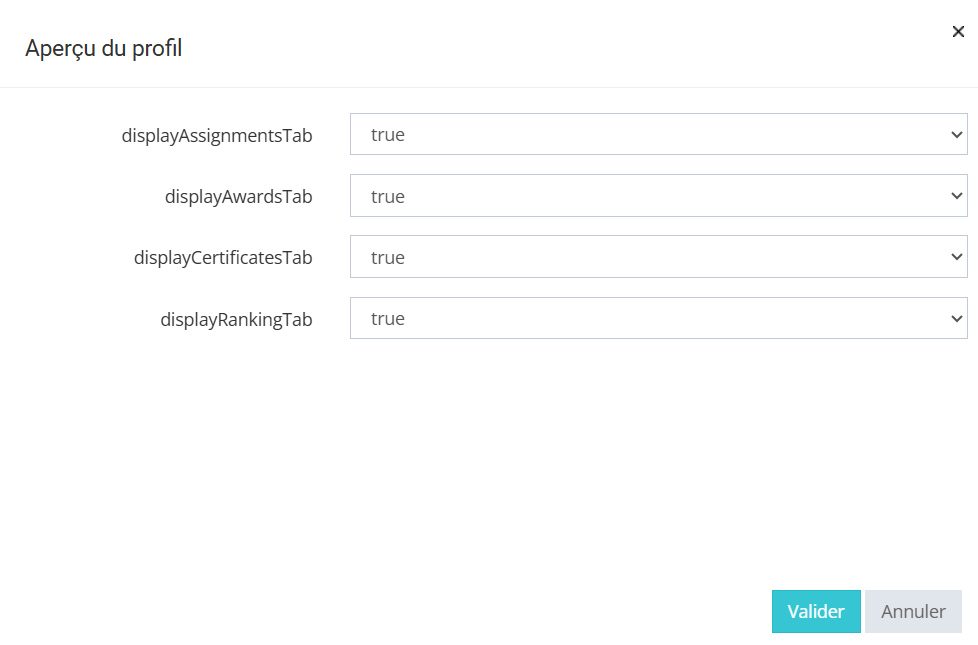
<table border="1" id="bkmrk-une-fois-le-mod%C3%A8le-s" style="border-collapse: collapse; width: 100%;"><colgroup><col style="width: 22.5087%;"></col><col style="width: 77.5704%;"></col></colgroup><tbody><tr><td>Une fois le modèle sélectionné, on clique sur "configuration".

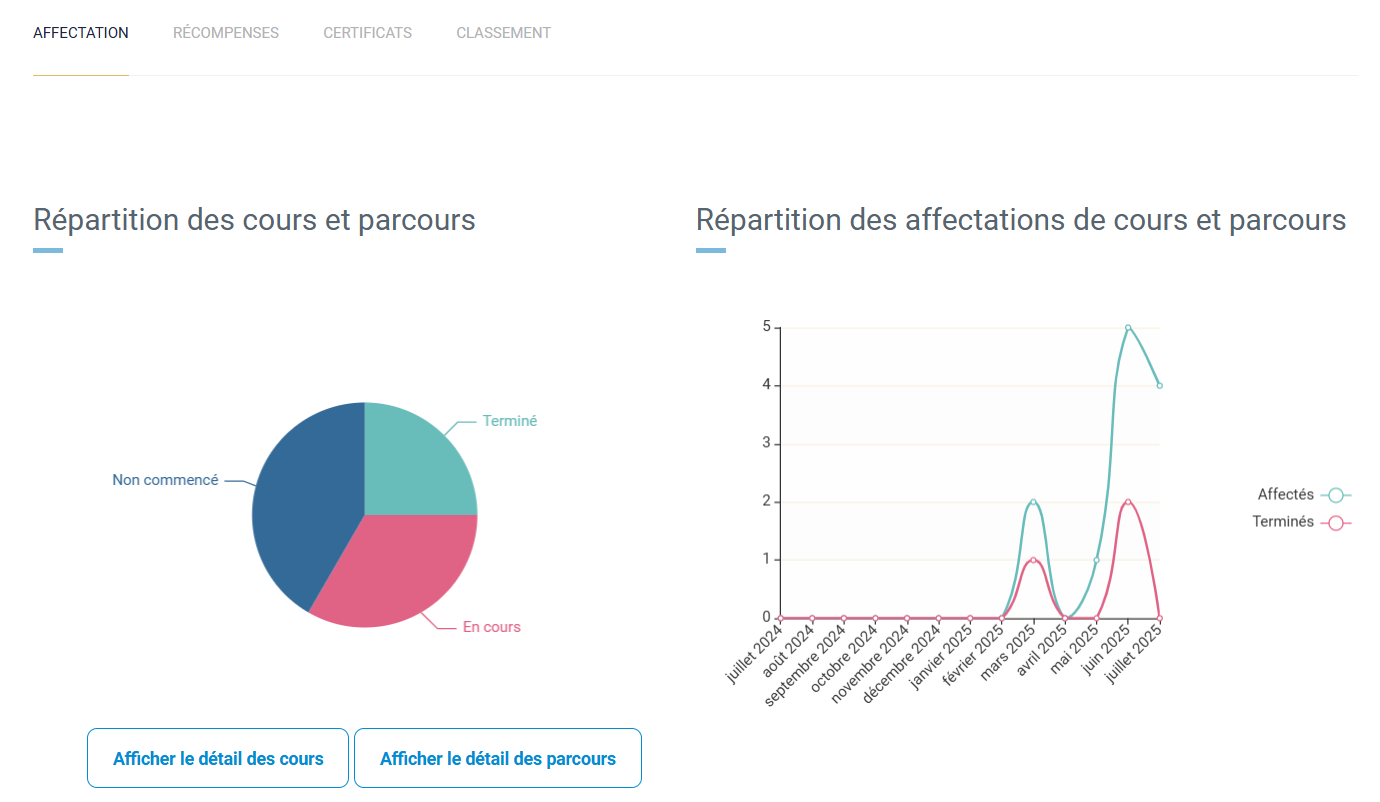
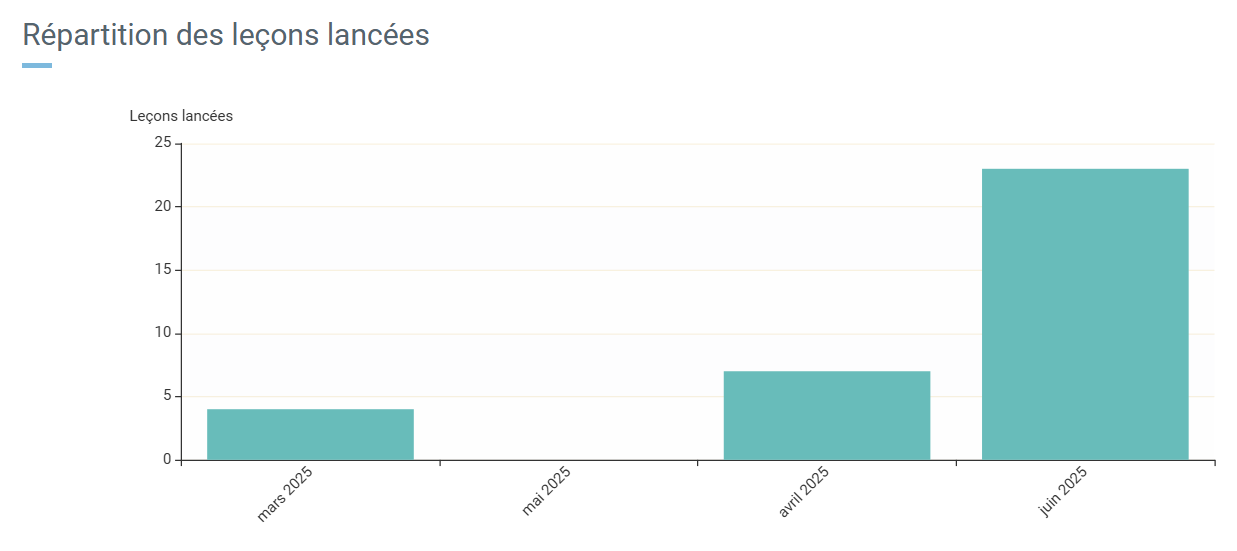
Pour que les catégories apparaissent sur la page en front office, il faut sélectionné "true".

</td><td>[![image.png](https://documentation.xperteam.net/uploads/images/gallery/2025-07/scaled-1680-/rJGimage.png)](https://documentation.xperteam.net/uploads/images/gallery/2025-07/rJGimage.png)

</td></tr></tbody></table>

<table border="1" id="bkmrk-" style="border-collapse: collapse; width: 100%;"><colgroup><col style="width: 100%;"></col></colgroup><tbody><tr><td>[![image.png](https://documentation.xperteam.net/uploads/images/gallery/2025-07/scaled-1680-/BbBimage.png)](https://documentation.xperteam.net/uploads/images/gallery/2025-07/BbBimage.png)

[![image.png](https://documentation.xperteam.net/uploads/images/gallery/2025-07/scaled-1680-/ipTimage.png)](https://documentation.xperteam.net/uploads/images/gallery/2025-07/ipTimage.png)
[![image.png](https://documentation.xperteam.net/uploads/images/gallery/2025-07/scaled-1680-/mm5image.png)](https://documentation.xperteam.net/uploads/images/gallery/2025-07/mm5image.png)
</td></tr></tbody></table>