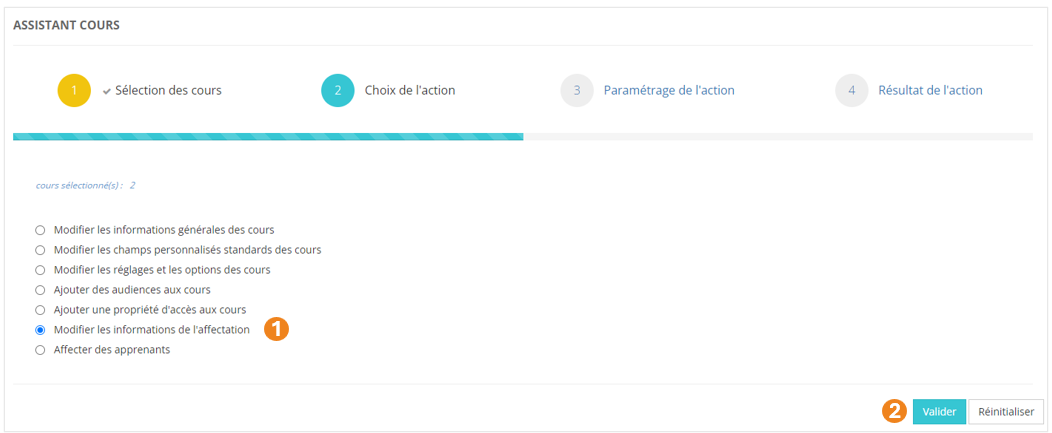
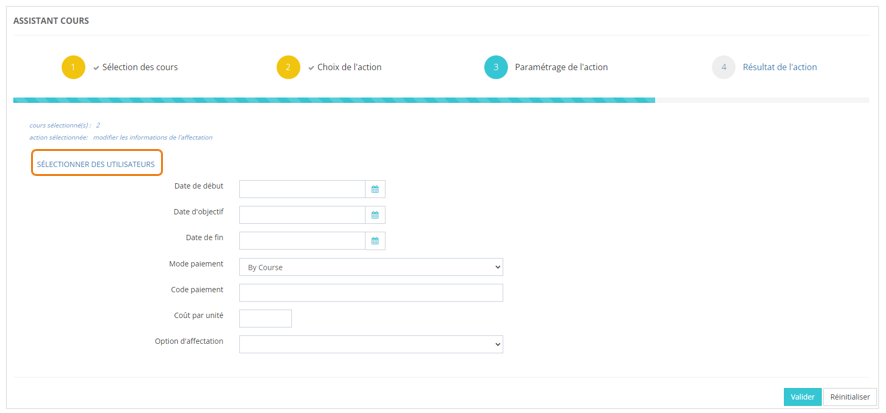
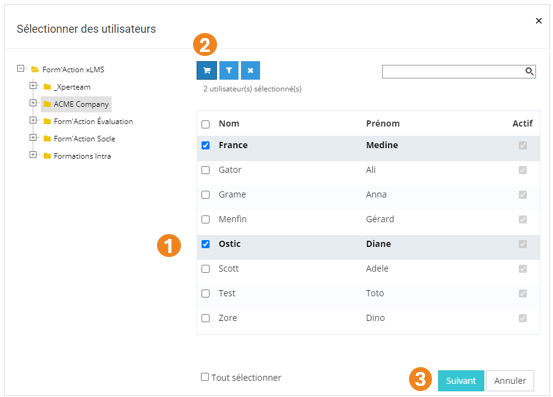
# Menu « Assistants »

# Les différents Assistants

Ce chapitre explique comment utiliser les Assistants.

# L'assistant Utilisateurs

L'assistant Utilisateurs vous permet d'effectuer, après avoir sélectionné des apprenants, un certains nombre de tâches d'administration. Vous trouverez la liste de toutes les actions possibles plus loin dans la fiche.

### <span style="color: rgb(128, 128, 128);">**Sélection des utilisateurs**</span>

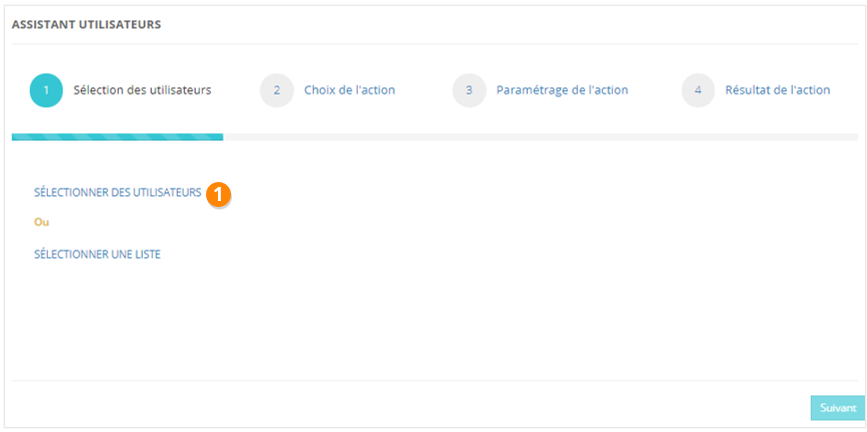
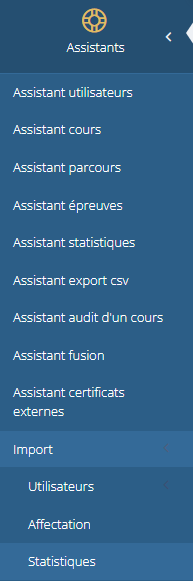
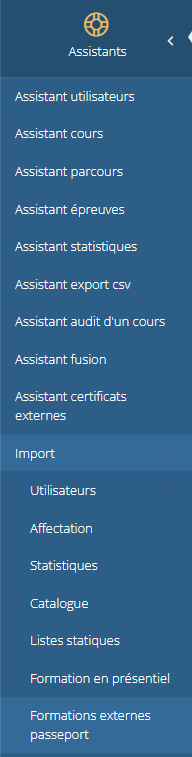
Dans le menu <span style="color: rgb(239, 131, 29);">**Assistants &gt; Assistant utilisateur**</span>, vous pouvez sélectionner, au choix :

- des utilisateurs répartis dans différentes organisations
- ou une liste d'utilisateurs

#### **Option Sélectionner des utilisateurs**

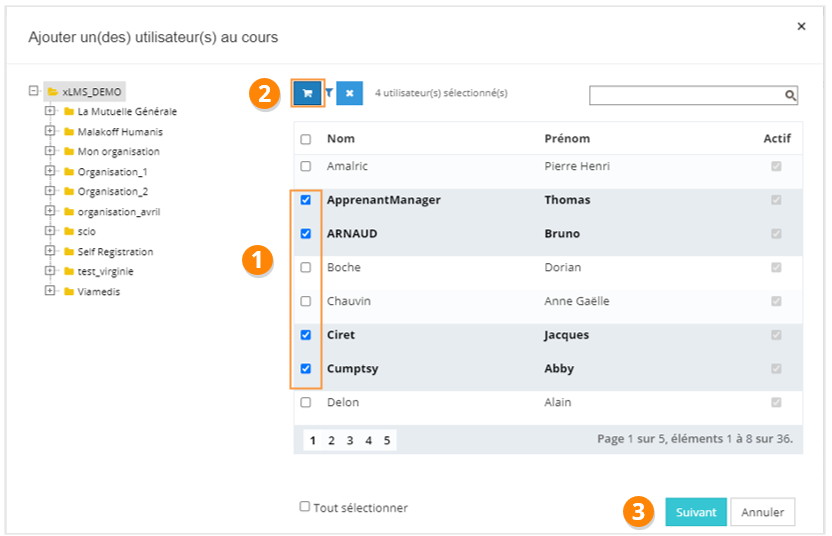
1. Cliquez sur <span style="color: rgb(239, 131, 29);">**Sélectionner des utilisateurs**</span> ;
2. Choisissez les <span style="color: rgb(239, 131, 29);">**utilisateurs** </span>qui vous intéressent (vous pouvez vous aider de l'arborescence des organisations) ;
3. <span style="color: rgb(239, 131, 29);">**Ajoutez au panier**</span> avant chaque changement de page ou de dossier ;
4. Cliquez sur <span style="color: rgb(239, 131, 29);">**Valider**</span>.

[![image.png](https://documentation.xperteam.net/uploads/images/gallery/2024-05/scaled-1680-/Asiimage.png)](https://documentation.xperteam.net/uploads/images/gallery/2024-05/Asiimage.png)

[![image.png](https://documentation.xperteam.net/uploads/images/gallery/2024-05/scaled-1680-/xbZimage.png)](https://documentation.xperteam.net/uploads/images/gallery/2024-05/xbZimage.png)
<details id="bkmrk-le-filtre-d%27utilisat"><summary>Le filtre d'utilisateurs</summary>

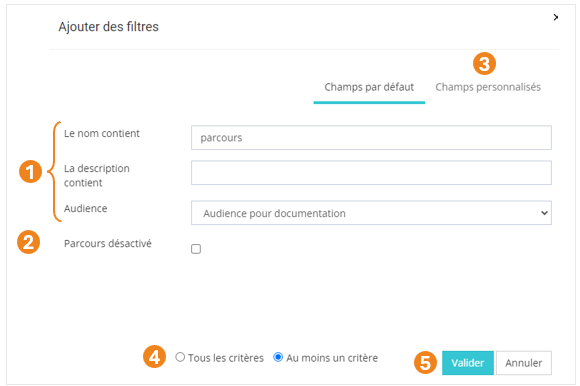
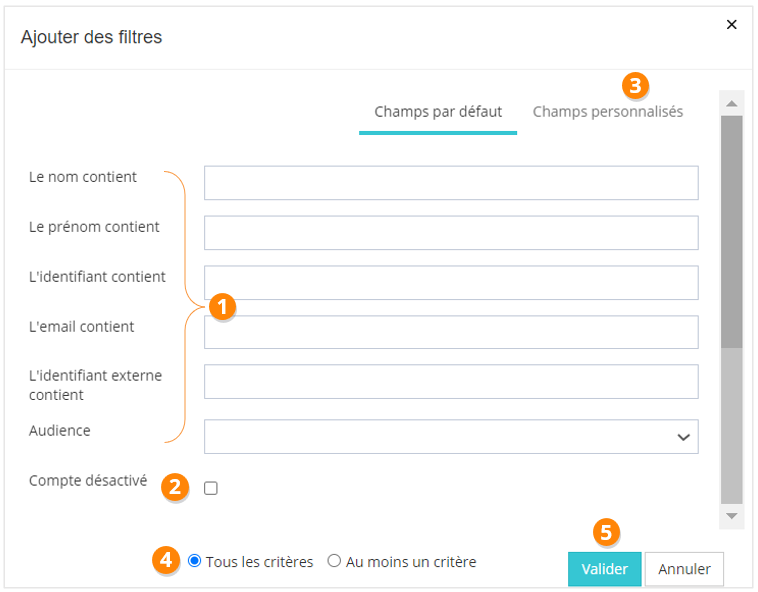
1. <span style="color: rgb(128, 128, 128);">Vous pouvez <span style="color: rgb(239, 131, 29);">**filtrer** </span>votre recherche grâce : au <span style="color: rgb(239, 131, 29);">**nom** </span>de l'utilisateur, son <span style="color: rgb(239, 131, 29);">**prénom**</span>, son <span style="color: rgb(239, 131, 29);">**identifiant**</span>, son a<span style="color: rgb(239, 131, 29);">**dresse email**</span>, son <span style="color: rgb(239, 131, 29);">**identifiant externe**</span>, son <span style="color: rgb(239, 131, 29);">**audience**</span></span><span style="color: rgb(128, 128, 128);">.</span>
2. <span style="color: rgb(128, 128, 128);">Si vous cherchez parmi les <span style="color: rgb(239, 131, 29);">**utilisateurs désactivés**</span>, cochez cette case.</span>
3. <span style="color: rgb(128, 128, 128);">Vous pouvez également filtrer votre recherche à l'aide des <span style="color: rgb(239, 131, 29);">**champs personnalisés**</span> des utilisateurs.</span>
4. <span style="color: rgb(128, 128, 128);">Choisissez si les <span style="color: rgb(239, 131, 29);">**critères** </span>doivent tous être valides ou s'il suffit qu'un des critères soit valide pour proposer un résultat.</span> <span class="callout success"><span style="color: rgb(128, 128, 128);">Dans l'exemple ci-dessous, si vous choisissez :  
    </span><span style="color: rgb(128, 128, 128);">**-** **Tous les critères :** vous obtiendrez toutes les personnes dont le nom contient la chaîne de caractères 'DUP' et le champ personnalisé 1 contient la chaîne de caractères '2024' ;  
    **-** **Au moins un critère :** vous obtiendrez l'ensemble de tous les utilisateurs dont le nom contient la chaîne de caractères 'DUP', ainsi que tous les utilisateurs dont le champ personnalisé 1 contient la chaîne de caractères '2024'.</span></span>
5. <span style="color: rgb(128, 128, 128);">Cliquez sur <span style="color: rgb(239, 131, 29);">**Valider**</span>.</span>
6. Sélectionnez les <span style="color: rgb(239, 131, 29);">**utilisateurs** </span>qui vous intéressent parmi les utilisateurs trouvés par filtrage.

[![image.png](https://documentation.xperteam.net/uploads/images/gallery/2024-05/scaled-1680-/KScimage.png)](https://documentation.xperteam.net/uploads/images/gallery/2024-05/KScimage.png)
</details>---

#### **Option Sélectionner une liste**

1. Cliquez sur <span style="color: rgb(239, 131, 29);">**Sélectionner une liste**</span> ;
2. Choisissez la <span style="color: rgb(239, 131, 29);">**liste**</span> qui vous intéresse ;
3. Cliquez sur **<span style="color: rgb(239, 131, 29);">Valider</span>**.

[![image.png](https://documentation.xperteam.net/uploads/images/gallery/2024-05/scaled-1680-/AG6image.png)](https://documentation.xperteam.net/uploads/images/gallery/2024-05/AG6image.png)

[![image.png](https://documentation.xperteam.net/uploads/images/gallery/2024-05/scaled-1680-/aE9image.png)](https://documentation.xperteam.net/uploads/images/gallery/2024-05/aE9image.png)

<details id="bkmrk-le-filtre-de-liste-v"><summary>Le filtre de liste</summary>

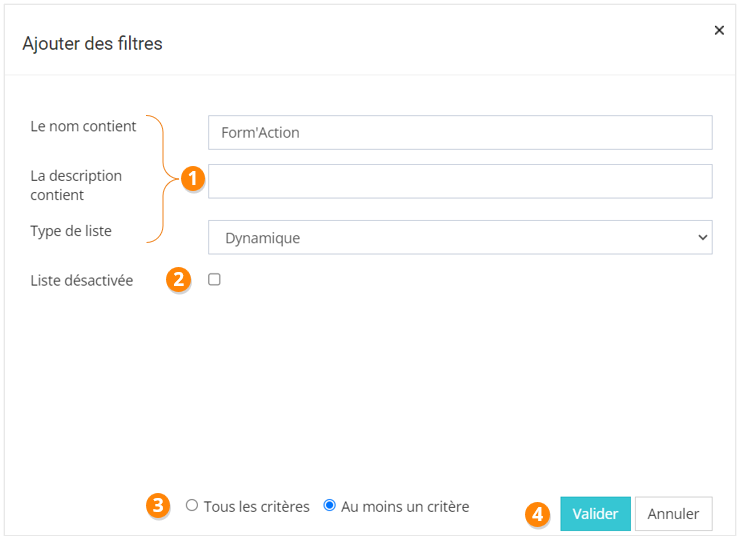
1. <span style="color: rgb(0, 0, 0);">Vous pouvez <span style="color: rgb(239, 131, 29);">**filtrer** </span>votre recherche grâce au <span style="color: rgb(239, 131, 29);">**nom** </span>de la liste, à sa <span style="color: rgb(239, 131, 29);">**description** </span>et à son <span style="color: rgb(239, 131, 29);">**type** </span>(dynamique ou statique).</span>
2. <span style="color: rgb(0, 0, 0);">Si vous cherchez une <span style="color: rgb(239, 131, 29);">**liste désactivée**</span>, cochez cette case</span>
3. <span style="color: rgb(0, 0, 0);">Choisissez si les <span style="color: rgb(239, 131, 29);">**critères** </span>doivent tous être valides ou s'il suffit qu'un des critères soit valide pour proposer un résultat. <span class="callout success">Dans l'exemple ci-dessous, si vous choisissez :  
    **-** **Tous les critères :** vous obtiendrez toutes les listes dynamiques dont le nom contient le mot Form'Action ;  
    **-** **Au moins un critère :** vous obtiendrez l'ensemble de toutes les listes dynamiques et de toutes les listes dont le nom contient Form'Action.</span></span>
4. <span style="color: rgb(0, 0, 0);">Cliquez sur <span style="color: rgb(239, 131, 29);">**Valider**</span>.</span>
5. <span style="color: rgb(0, 0, 0);">Sélectionnez la <span style="color: rgb(239, 131, 29);">**liste** </span>qui vous intéresse parmi les listes trouvées par filtrage.</span>

[![image.png](https://documentation.xperteam.net/uploads/images/gallery/2024-05/scaled-1680-/jLoimage.png)](https://documentation.xperteam.net/uploads/images/gallery/2024-05/jLoimage.png)

</details>---

#### **Validation des utilisateurs**

Dans la nouvelle pop-up :

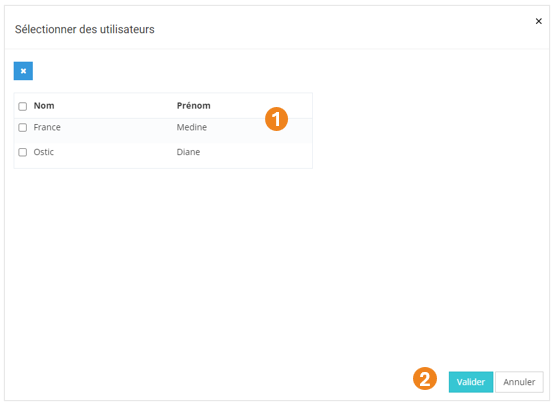
1. Retrouvez le <span style="color: rgb(239, 131, 29);">**récapitulatif des utilisateurs** </span>que vous avez sélectionnés ; <span class="callout info">À ce niveau, vous pouvez supprimer des utilisateurs en les sélectionnant dans le tableau puis en cliquant sur le **bouton \[x\]**.</span>
2. Cliquez sur <span style="color: rgb(239, 131, 29);">**Valider** </span>lorsque vous êtes satisfait de la sélection des utilisateurs.

[![image.png](https://documentation.xperteam.net/uploads/images/gallery/2024-05/scaled-1680-/2mFimage.png)](https://documentation.xperteam.net/uploads/images/gallery/2024-05/2mFimage.png)

---

### <span style="color: rgb(128, 128, 128);">**Sélection et paramétrage de l'action**</span>

<details id="bkmrk-modifier-une-valeur-"><summary>Modifier une valeur</summary>

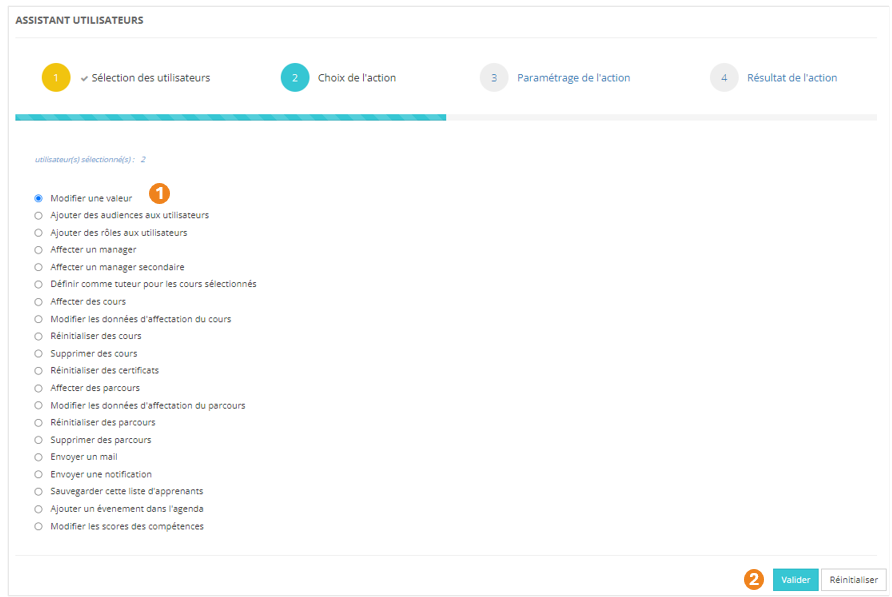
1. Sélectionnez l'action <span style="color: rgb(239, 131, 29);">**Modifier une valeur**</span> ;
2. Cliquez sur <span style="color: rgb(239, 131, 29);">**Valider**</span>.

[![image.png](https://documentation.xperteam.net/uploads/images/gallery/2024-05/scaled-1680-/Cd4image.png)](https://documentation.xperteam.net/uploads/images/gallery/2024-05/Cd4image.png)

#### **Paramétrage de l'action**

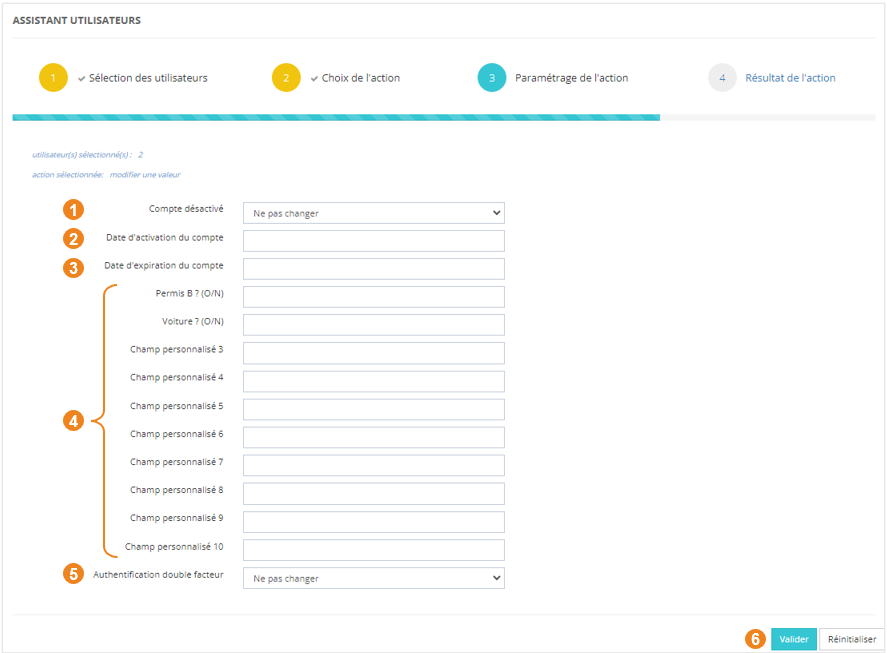
Vous avez la possibilité de modifier une ou plusieurs des valeurs ci-dessous :

1. Le <span style="color: rgb(239, 131, 29);">**statut**</span> du compte : désactivé ou non (*<span style="color: rgb(239, 131, 29);">Ne pas changer</span> / <span style="color: rgb(239, 131, 29);">Oui</span> / <span style="color: rgb(239, 131, 29);">Non</span>*) ;
2. La <span style="color: rgb(239, 131, 29);">**date d'activation**</span> du compte ;
3. La <span style="color: rgb(239, 131, 29);">**date d'expiration**</span> du compte ;
4. Les valeurs dans les <span style="color: rgb(239, 131, 29);">**champs personnalisés**</span> 1 à 10 ;
5. L'option de <span style="color: rgb(239, 131, 29);">**double authentification**</span> (*<span style="color: rgb(239, 131, 29);">Ne pas changer</span> / <span style="color: rgb(239, 131, 29);">Par défaut</span> / <span style="color: rgb(239, 131, 29);">Jamais </span>/ <span style="color: rgb(239, 131, 29);">Première connexion de la journée</span> / <span style="color: rgb(239, 131, 29);">Toujours</span>*)
6. Lorsque vous avez effectué les modifications souhaitées, cliquez sur <span style="color: rgb(239, 131, 29);">**Valider**</span>.

[![image.png](https://documentation.xperteam.net/uploads/images/gallery/2024-05/scaled-1680-/pvEimage.png)](https://documentation.xperteam.net/uploads/images/gallery/2024-05/pvEimage.png)

</details><details id="bkmrk-ajouter-des-audience"><summary>Ajouter des audiences aux utilisateurs</summary>

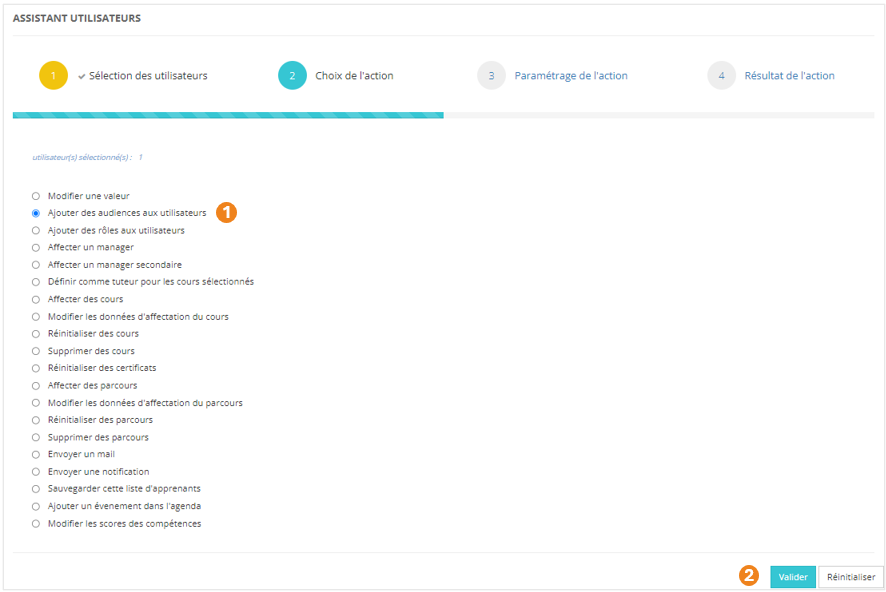
1. Sélectionnez l'action <span style="color: rgb(239, 131, 29);">**Ajouter des audiences aux utilisateurs**</span> ;
2. Cliquez sur <span style="color: rgb(239, 131, 29);">**Valider**</span>.

[![image.png](https://documentation.xperteam.net/uploads/images/gallery/2024-05/scaled-1680-/VX7image.png)](https://documentation.xperteam.net/uploads/images/gallery/2024-05/VX7image.png)

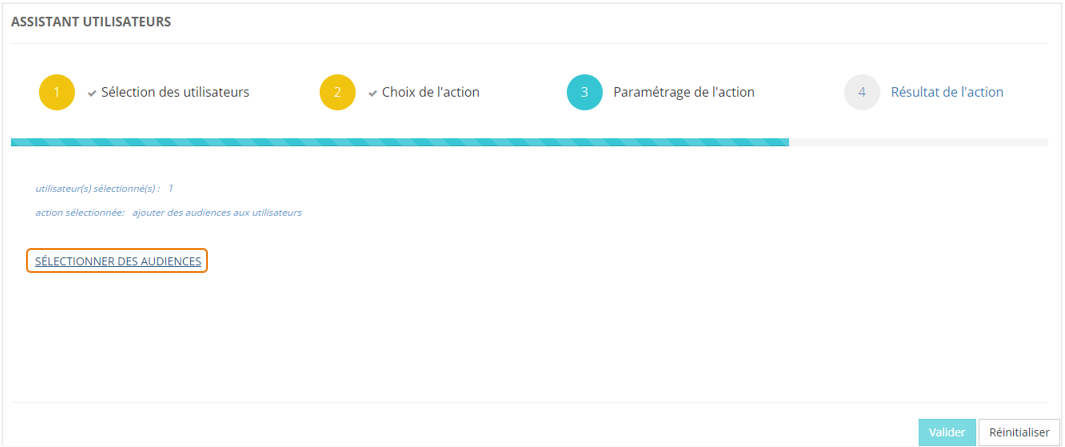
#### **Paramétrage de l'action**

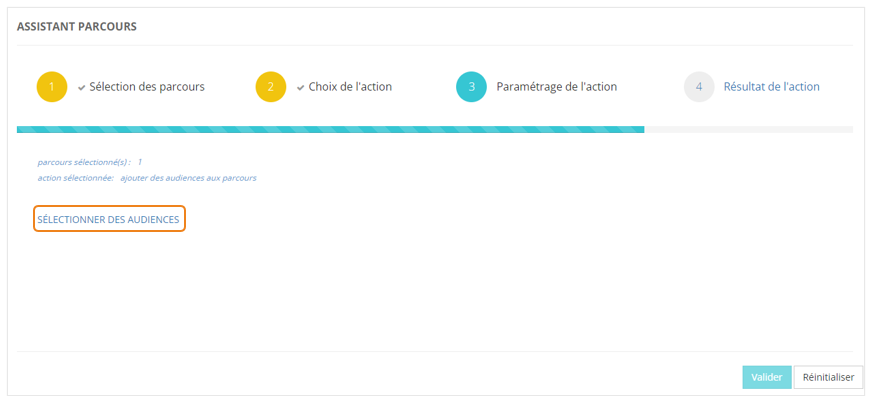
Cliquez sur **<span style="color: rgb(239, 131, 29);">SÉLECTIONNER DES AUDIENCES</span>**<span style="color: rgb(0, 0, 0);">.</span>

[![image.png](https://documentation.xperteam.net/uploads/images/gallery/2024-05/scaled-1680-/R4Cimage.png)](https://documentation.xperteam.net/uploads/images/gallery/2024-05/R4Cimage.png)

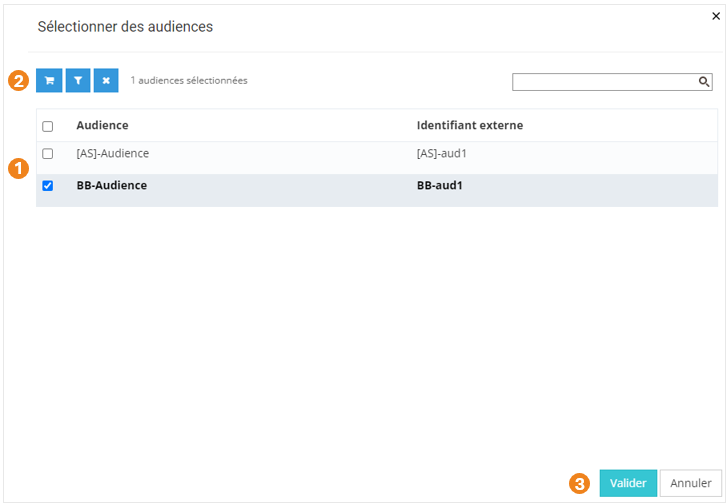
Dans la pop-up qui s'ouvre :

1. Sélectionnez la ou les <span style="color: rgb(239, 131, 29);">**audience(s)**</span> à ajouter aux utilisateurs ;
2. Cliquez sur le <span style="color: rgb(239, 131, 29);">**chariot** </span>;
3. Cliquez sur <span style="color: rgb(239, 131, 29);">**Valider**</span>.

[![image.png](https://documentation.xperteam.net/uploads/images/gallery/2024-05/scaled-1680-/P9Mimage.png)](https://documentation.xperteam.net/uploads/images/gallery/2024-05/P9Mimage.png)

<span style="color: rgb(0, 0, 0);">**Le filtre d'audiences**</span>

<span style="color: rgb(0, 0, 0);">Le filtre d'audiences fonctionne sur le même principe que le filtre d'utilisateurs (voir plus haut).</span>

---

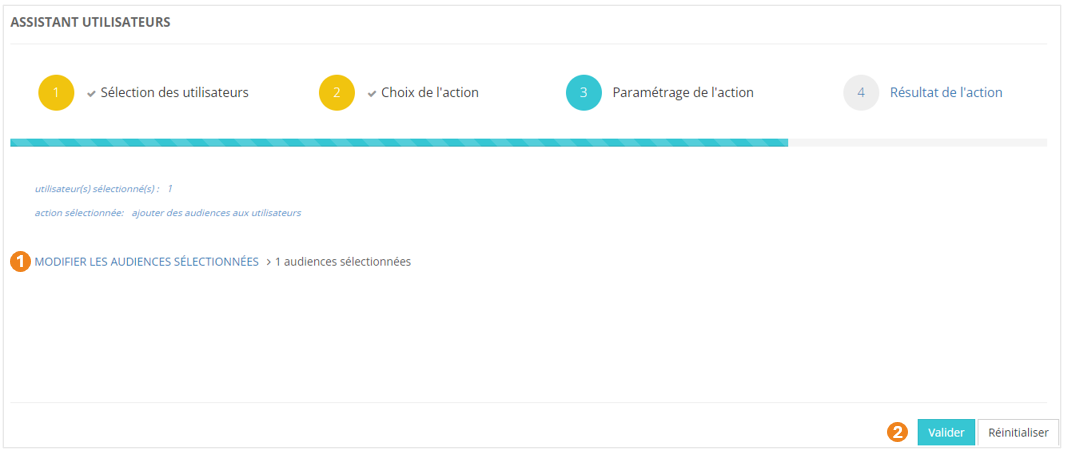
De retour sur l'écran principal, vous pouvez :

1. <span style="color: rgb(239, 131, 29);">**Modifier**</span> les audiences sélectionnées ;
2. <span style="color: rgb(239, 131, 29);">**Valider** </span>l'action lorsque vous êtes satisfait de la sélection des audiences.

[![image.png](https://documentation.xperteam.net/uploads/images/gallery/2024-05/scaled-1680-/A0Oimage.png)](https://documentation.xperteam.net/uploads/images/gallery/2024-05/A0Oimage.png)
</details><details id="bkmrk-ajouter-des-r%C3%B4les-au"><summary>Ajouter des rôles aux utilisateurs</summary>

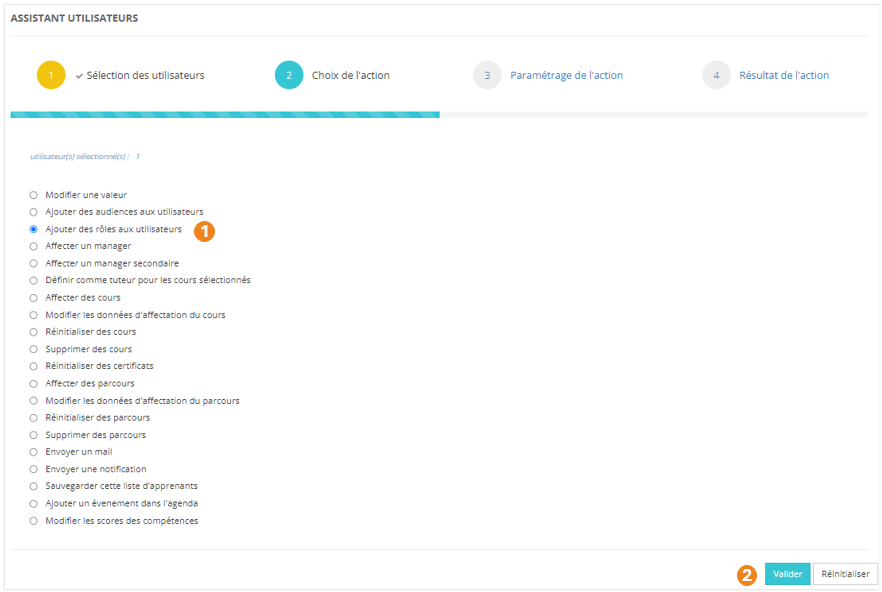
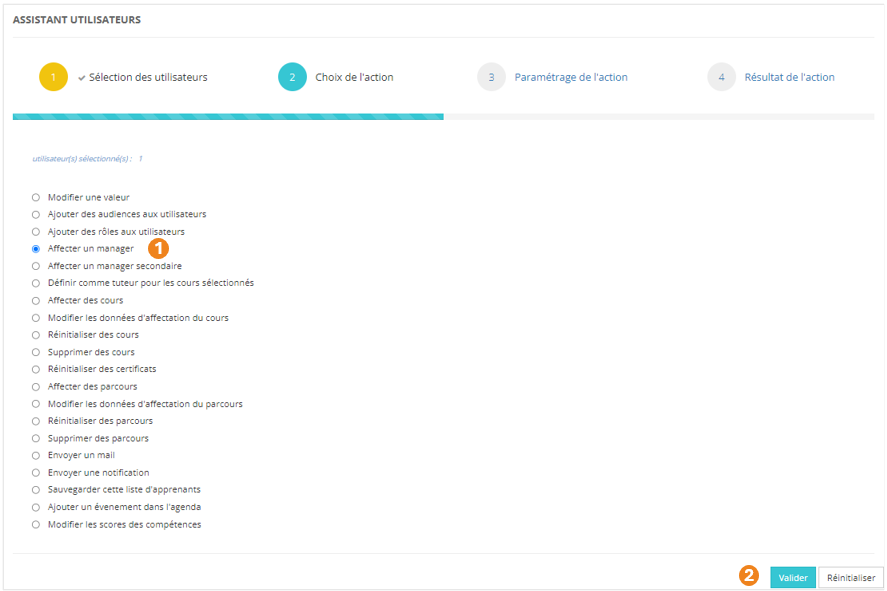
1. Sélectionnez l'action **<span style="color: rgb(239, 131, 29);">Ajouter des rôles aux utilisateurs</span>** ;
2. Cliquez sur <span style="color: rgb(239, 131, 29);">**Valider**</span>.

[![image.png](https://documentation.xperteam.net/uploads/images/gallery/2024-05/scaled-1680-/hJKimage.png)](https://documentation.xperteam.net/uploads/images/gallery/2024-05/hJKimage.png)

#### **Paramétrage de l'action**

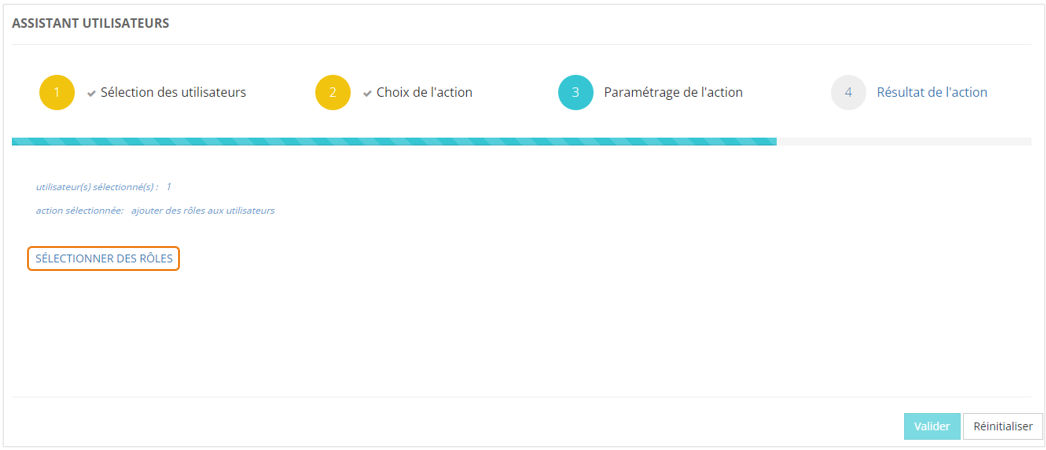
Cliquez sur **<span style="color: rgb(239, 131, 29);">SÉLECTIONNER DES RÔLES</span>**<span style="color: rgb(0, 0, 0);">.</span>

[![image.png](https://documentation.xperteam.net/uploads/images/gallery/2024-05/scaled-1680-/vRMimage.png)](https://documentation.xperteam.net/uploads/images/gallery/2024-05/vRMimage.png)

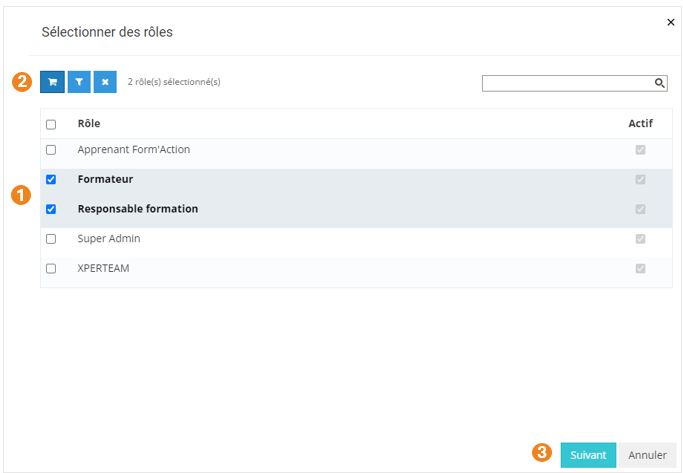
Dans la pop-up qui s'ouvre :

1. Sélectionnez le ou les <span style="color: rgb(239, 131, 29);">**rôle(s)**</span> à ajouter aux utilisateurs ;
2. Cliquez sur le <span style="color: rgb(239, 131, 29);">**chariot** </span>;
3. Cliquez sur <span style="color: rgb(239, 131, 29);">**Suivant**<span style="color: rgb(0, 0, 0);">.</span></span>[![image.png](https://documentation.xperteam.net/uploads/images/gallery/2024-05/scaled-1680-/mU1image.png)](https://documentation.xperteam.net/uploads/images/gallery/2024-05/mU1image.png)

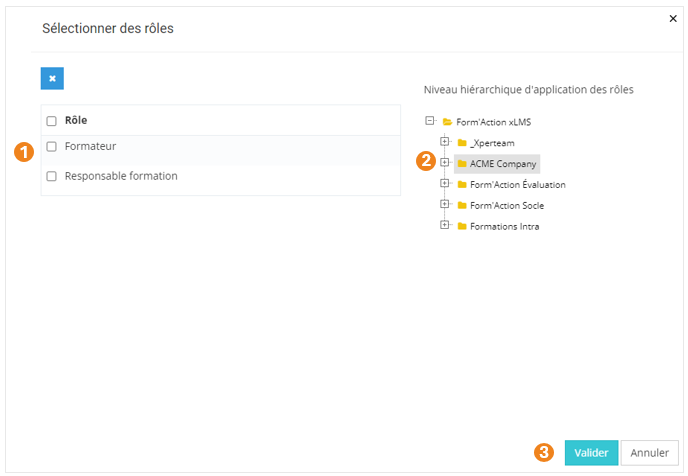
Dans la nouvelle pop-up :

1. Retrouvez le <span style="color: rgb(239, 131, 29);">**récapitulatif des rôles**</span> que vous avez sélectionnés ; <span class="callout info">À ce niveau, vous pouvez supprimer des rôles en les sélectionnant dans le tableau puis en cliquant sur le **bouton \[x\]**.</span>
2. Sélectionnez leur <span style="color: rgb(239, 131, 29);">**périmètre d'action**</span>, c'est-à-dire le <span style="color: rgb(239, 131, 29);">**niveau hiérarchique**</span> sur lequel ces rôles s'appliqueront ; <span class="callout warning">Si plusieurs rôles sont sélectionnés, le périmètre d'action s'appliquera à tous ces rôles, pour toutes les personnes sélectionnées à la première étape. Pour différencier les périmètres d'actions, il vous faudra recommencer le processus depuis le début.</span>
3. Cliquez sur <span style="color: rgb(239, 131, 29);">**Valider**</span>.

[![image.png](https://documentation.xperteam.net/uploads/images/gallery/2024-05/scaled-1680-/Ustimage.png)](https://documentation.xperteam.net/uploads/images/gallery/2024-05/Ustimage.png)

<span style="color: rgb(0, 0, 0);">**Le filtre de rôles**</span>

<span style="color: rgb(0, 0, 0);">Le filtre de rôles fonctionne sur le même principe que le filtre d'utilisateurs (voir plus haut).</span>

---

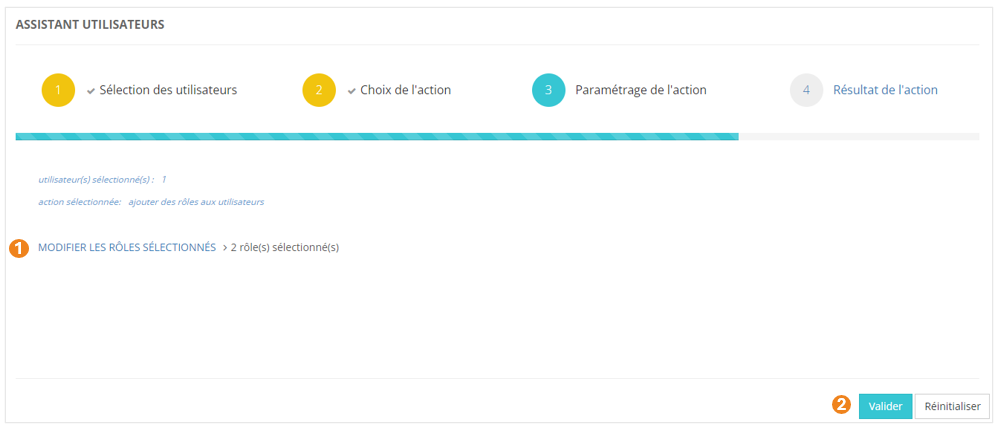
De retour sur l'écran principal, vous pouvez :

1. <span style="color: rgb(239, 131, 29);">**Modifier**</span> les rôles sélectionnés ;
2. <span style="color: rgb(239, 131, 29);">**Valider** </span>l'action lorsque vous êtes satisfait de la sélection des rôles.

[![image.png](https://documentation.xperteam.net/uploads/images/gallery/2024-05/scaled-1680-/UENimage.png)](https://documentation.xperteam.net/uploads/images/gallery/2024-05/UENimage.png)
</details><details id="bkmrk-affecter-un-manager-"><summary>Affecter un manager</summary>

1. Sélectionnez l'action **<span style="color: rgb(239, 131, 29);">Affecter un manager</span>** ;
2. Cliquez sur <span style="color: rgb(239, 131, 29);">**Valider**</span>.

[![image.png](https://documentation.xperteam.net/uploads/images/gallery/2024-05/scaled-1680-/LCFimage.png)](https://documentation.xperteam.net/uploads/images/gallery/2024-05/LCFimage.png)

#### **Paramétrage de l'action**

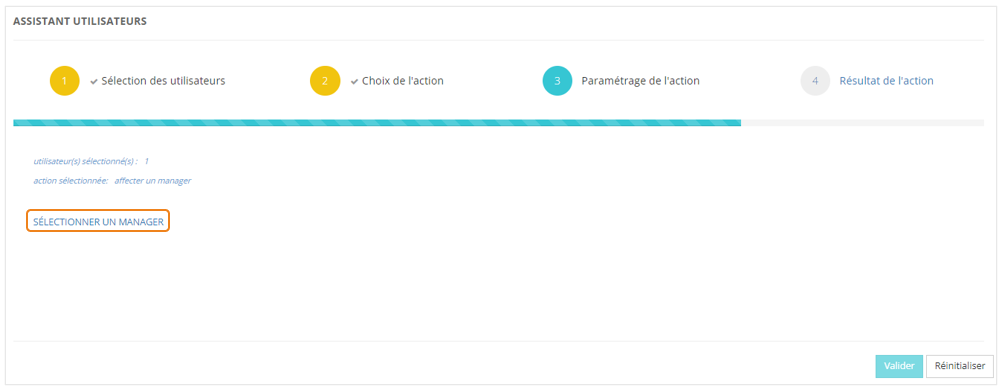
Cliquez sur <span style="color: rgb(239, 131, 29);">**SÉLECTIONNER UN MANAGER**</span>.

[![image.png](https://documentation.xperteam.net/uploads/images/gallery/2024-05/scaled-1680-/9T2image.png)](https://documentation.xperteam.net/uploads/images/gallery/2024-05/9T2image.png)

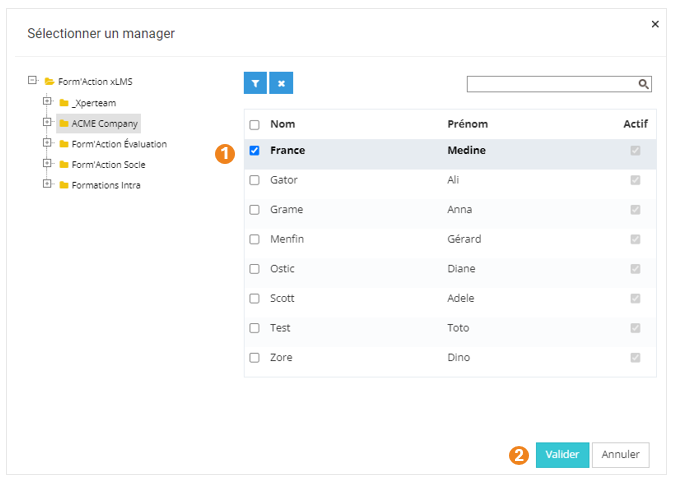
Dans la pop-up qui s'ouvre :

1. Sélectionnez le <span style="color: rgb(239, 131, 29);">**manager** </span>à ajouter aux utilisateurs sélectionnés à l'étape précédente ; <span class="callout info">**Un seul manager** peut être attribué à un utilisateur. Il est cependant possible d'ajouter un manager secondaire (voir section suivante pour le faire via les assistants).</span>
2. Cliquez sur <span style="color: rgb(239, 131, 29);">**Valider**</span>.

[![image.png](https://documentation.xperteam.net/uploads/images/gallery/2024-05/scaled-1680-/Fihimage.png)](https://documentation.xperteam.net/uploads/images/gallery/2024-05/Fihimage.png)

---

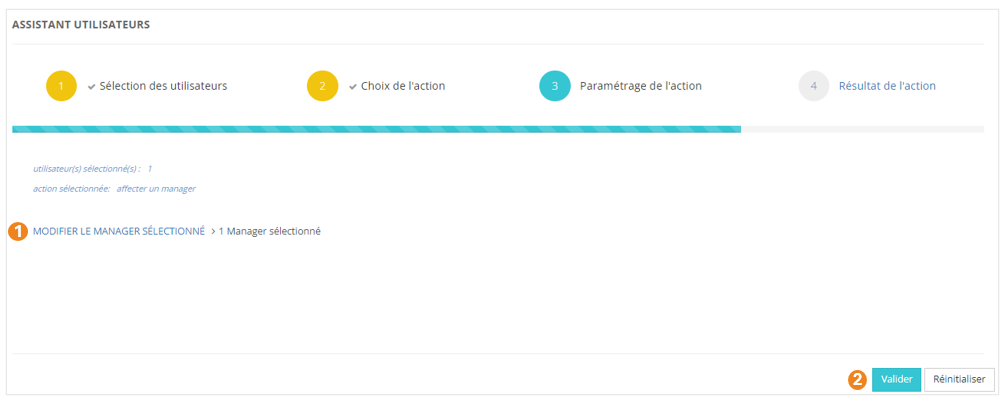
De retour sur l'écran principal, vous pouvez :

1. <span style="color: rgb(239, 131, 29);">**Modifier**</span> le manager sélectionné ;
2. <span style="color: rgb(239, 131, 29);">**Valider** </span>l'action lorsque vous êtes satisfait de la sélection du manager.

[![image.png](https://documentation.xperteam.net/uploads/images/gallery/2024-05/scaled-1680-/URNimage.png)](https://documentation.xperteam.net/uploads/images/gallery/2024-05/URNimage.png)
</details><details id="bkmrk-affecter-un-manager--1"><summary>Affecter un manager secondaire</summary>

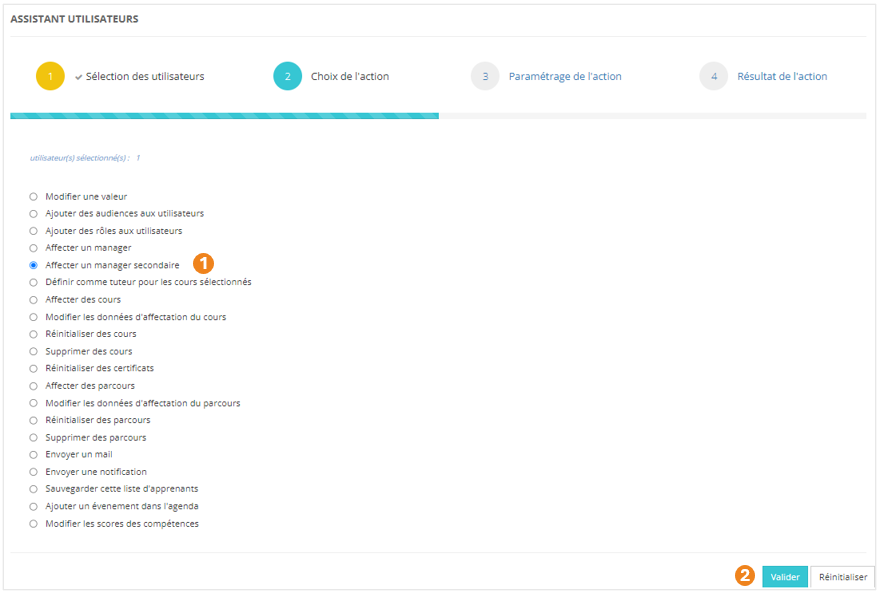
1. Sélectionnez l'action **<span style="color: rgb(239, 131, 29);">Affecter un manager secondaire</span>** ;
2. Cliquez sur <span style="color: rgb(239, 131, 29);">**Valider**</span>.

[![image.png](https://documentation.xperteam.net/uploads/images/gallery/2024-05/scaled-1680-/F2Fimage.png)](https://documentation.xperteam.net/uploads/images/gallery/2024-05/F2Fimage.png)

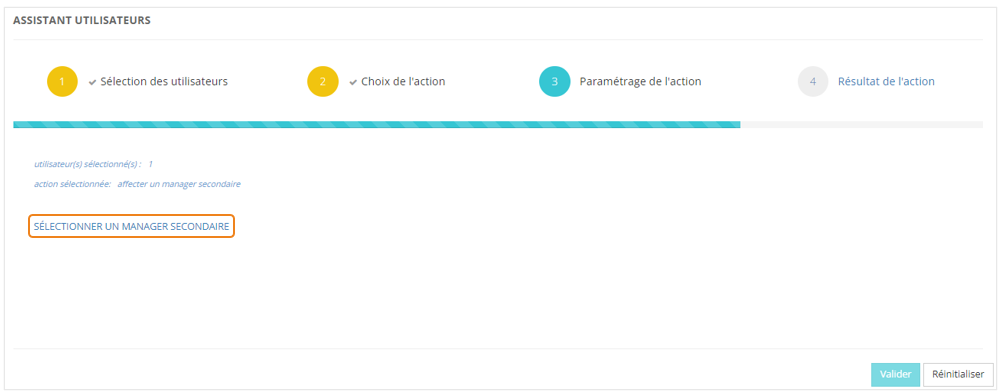
#### **Paramétrage de l'action**

Cliquez sur <span style="color: rgb(239, 131, 29);">**SÉLECTIONNER UN MANAGER SECONDAIRE**</span>.

[![image.png](https://documentation.xperteam.net/uploads/images/gallery/2024-05/scaled-1680-/Npeimage.png)](https://documentation.xperteam.net/uploads/images/gallery/2024-05/Npeimage.png)

Dans la pop-up qui s'ouvre :

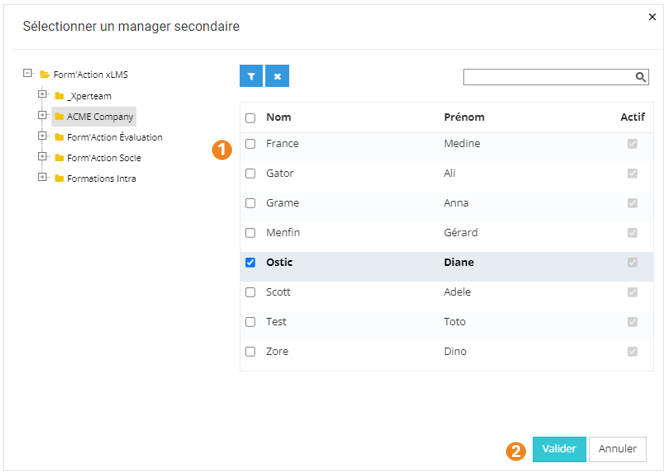
1. Sélectionnez le <span style="color: rgb(239, 131, 29);">**manager secondaire** </span>à ajouter aux utilisateurs sélectionnés à l'étape précédente ; <span class="callout info">**Un seul manager secondaire** peut être attribué à un utilisateur. </span>
2. Cliquez sur <span style="color: rgb(239, 131, 29);">**Valider**</span>.

[![image.png](https://documentation.xperteam.net/uploads/images/gallery/2024-05/scaled-1680-/3rGimage.png)](https://documentation.xperteam.net/uploads/images/gallery/2024-05/3rGimage.png)

---

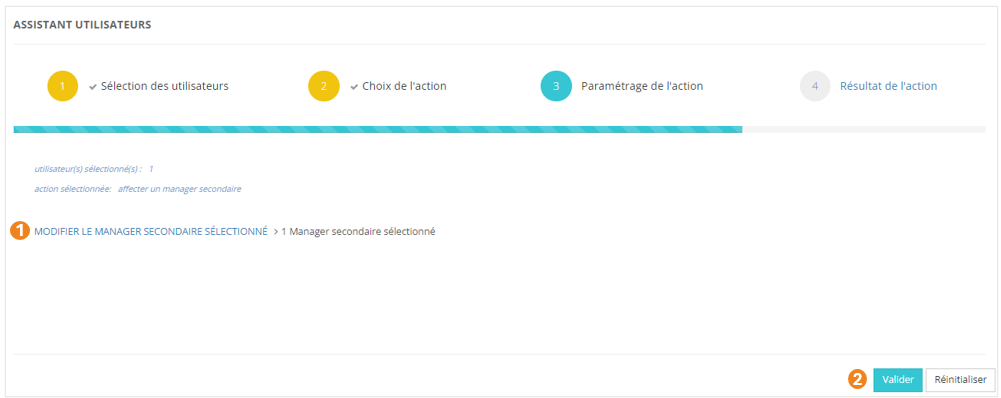
De retour sur l'écran principal, vous pouvez :

1. <span style="color: rgb(239, 131, 29);">**Modifier**</span> le manager secondaire sélectionné ;
2. <span style="color: rgb(239, 131, 29);">**Valider** </span>l'action lorsque vous êtes satisfait de la sélection du manager secondaire.

[![image.png](https://documentation.xperteam.net/uploads/images/gallery/2024-05/scaled-1680-/uOVimage.png)](https://documentation.xperteam.net/uploads/images/gallery/2024-05/uOVimage.png)
</details><details id="bkmrk-d%C3%A9finir-comme-tuteur"><summary>Définir comme tuteur pour les cours sélectionnés</summary>

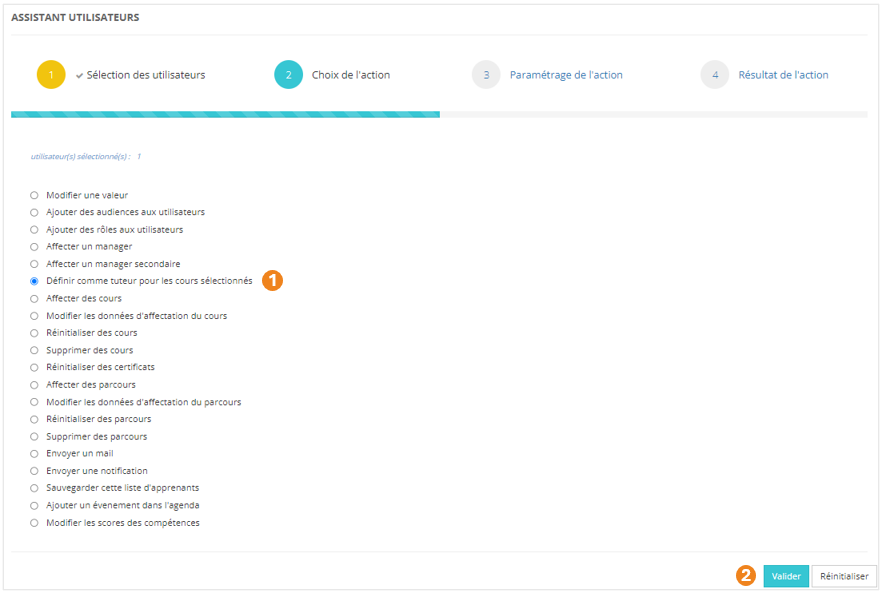
1. Sélectionnez l'action **<span style="color: rgb(239, 131, 29);">Définir comme tuteur pour les cours sélectionnés</span>** ;
2. Cliquez sur <span style="color: rgb(239, 131, 29);">**Valider**</span>.

[![image.png](https://documentation.xperteam.net/uploads/images/gallery/2024-05/scaled-1680-/Soyimage.png)](https://documentation.xperteam.net/uploads/images/gallery/2024-05/Soyimage.png)

#### **Paramétrage de l'action**

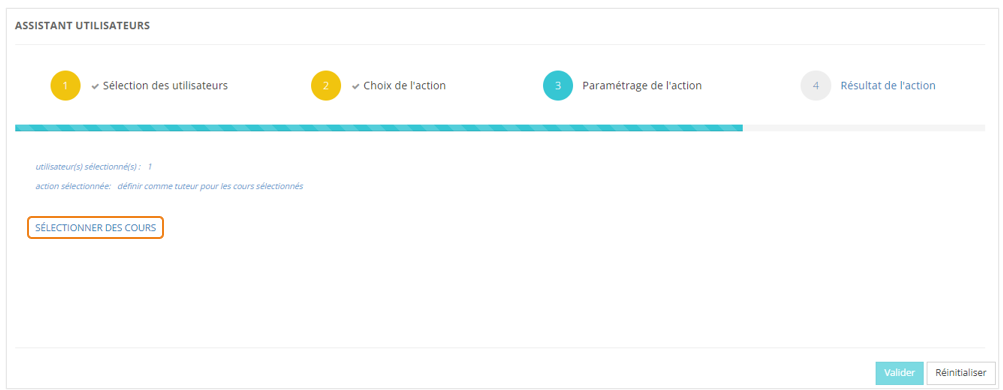
Cliquez sur <span style="color: rgb(239, 131, 29);">**SÉLECTIONNER DES COURS**</span>.

[![image.png](https://documentation.xperteam.net/uploads/images/gallery/2024-05/scaled-1680-/Bnlimage.png)](https://documentation.xperteam.net/uploads/images/gallery/2024-05/Bnlimage.png)

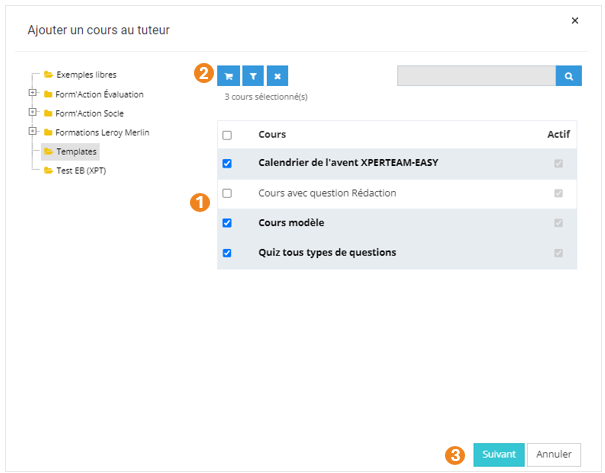
Dans la pop-up qui s'ouvre :

1. Sélectionnez le ou les **<span style="color: rgb(239, 131, 29);">cours</span>** dont le certificat doit être réinitialisé ;
2. Cliquez sur le <span style="color: rgb(239, 131, 29);">**chariot** </span>;
3. Cliquez sur <span style="color: rgb(239, 131, 29);">**Suivant**</span>.

[![image.png](https://documentation.xperteam.net/uploads/images/gallery/2024-05/scaled-1680-/u0qimage.png)](https://documentation.xperteam.net/uploads/images/gallery/2024-05/u0qimage.png)

Dans la nouvelle pop-up :

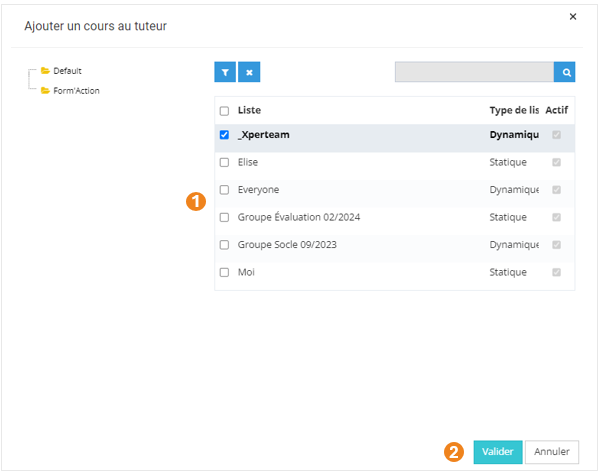
1. Cliquez sur la <span style="color: #ef831d;">**liste**</span> pour laquelle les utilisateurs sélectionnés seront tuteurs des cours sélectionnés à l'étape précédente ;
2. Cliquez sur <span style="color: rgb(239, 131, 29);">**Valider**</span>.

[![image.png](https://documentation.xperteam.net/uploads/images/gallery/2024-05/scaled-1680-/d4nimage.png)](https://documentation.xperteam.net/uploads/images/gallery/2024-05/d4nimage.png)

---

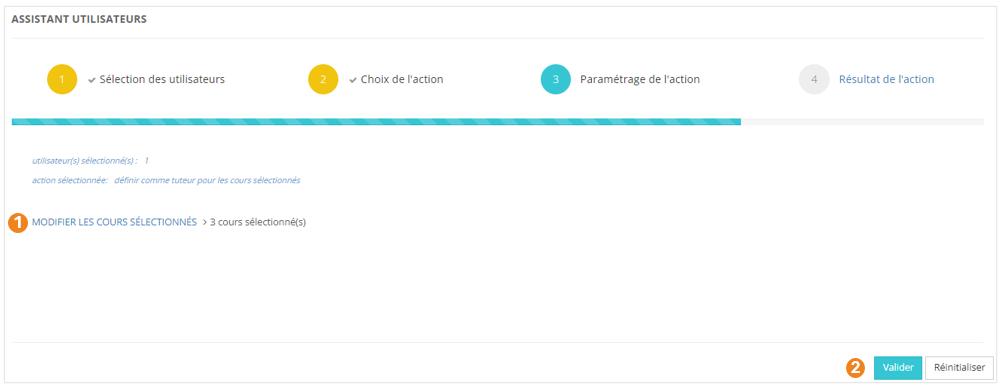
De retour sur l'écran principal, vous pouvez :

1. <span style="color: rgb(239, 131, 29);">**Modifier**</span> les cours sélectionnés ;
2. <span style="color: rgb(239, 131, 29);">**Valider** </span>l'action lorsque vous êtes satisfait de la sélection des cours.

[![image.png](https://documentation.xperteam.net/uploads/images/gallery/2024-05/scaled-1680-/HIdimage.png)](https://documentation.xperteam.net/uploads/images/gallery/2024-05/HIdimage.png)
</details><details id="bkmrk-affecter-des-cours-%C2%A0"><summary>Affecter des cours</summary>

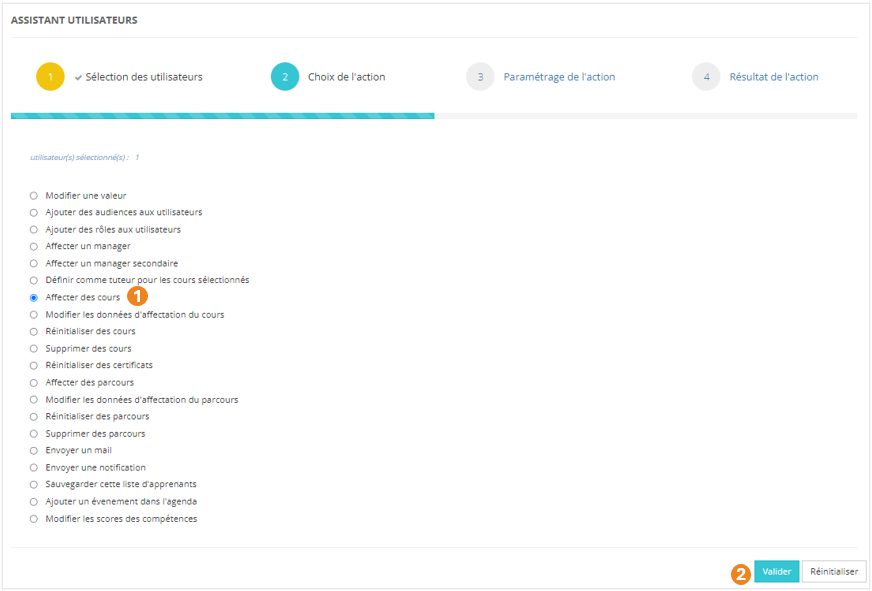
1. Sélectionnez l'action **<span style="color: rgb(239, 131, 29);">Affecter des cours</span>** ;
2. Cliquez sur <span style="color: rgb(239, 131, 29);">**Valider**</span>.

[![image.png](https://documentation.xperteam.net/uploads/images/gallery/2024-05/scaled-1680-/nOSimage.png)](https://documentation.xperteam.net/uploads/images/gallery/2024-05/nOSimage.png)

#### **Paramétrage de l'action**

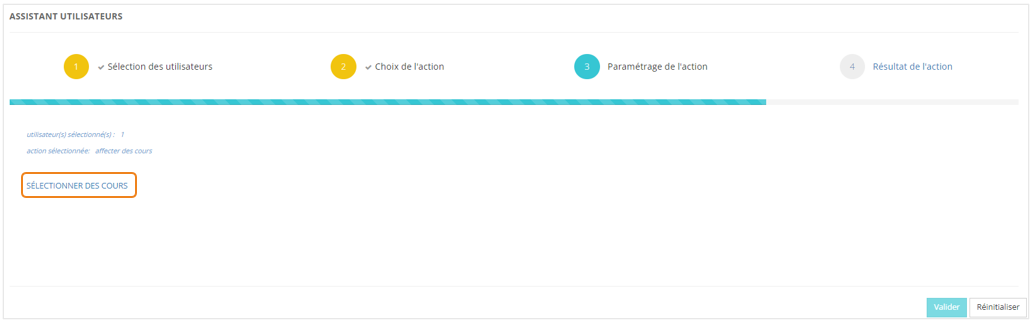
Cliquez sur **<span style="color: rgb(239, 131, 29);">SÉLECTIONNER DES COURS</span>**.

[![image.png](https://documentation.xperteam.net/uploads/images/gallery/2024-05/scaled-1680-/bf2image.png)](https://documentation.xperteam.net/uploads/images/gallery/2024-05/bf2image.png)

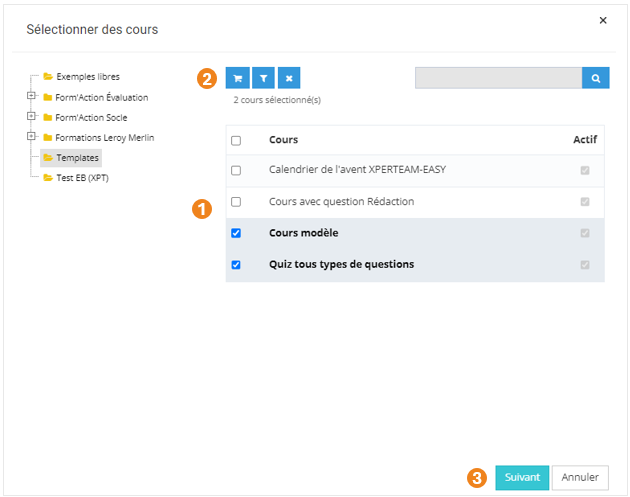
Dans la pop-up qui s'ouvre :

1. Sélectionnez le ou les <span style="color: rgb(239, 131, 29);">**cours**</span> à ajouter aux utilisateurs ;
2. Cliquez sur le <span style="color: rgb(239, 131, 29);">**chariot** </span>;
3. Cliquez sur <span style="color: rgb(239, 131, 29);">**Suivant**</span>.

[![image.png](https://documentation.xperteam.net/uploads/images/gallery/2024-05/scaled-1680-/TKoimage.png)](https://documentation.xperteam.net/uploads/images/gallery/2024-05/TKoimage.png)

Dans la nouvelle pop-up :

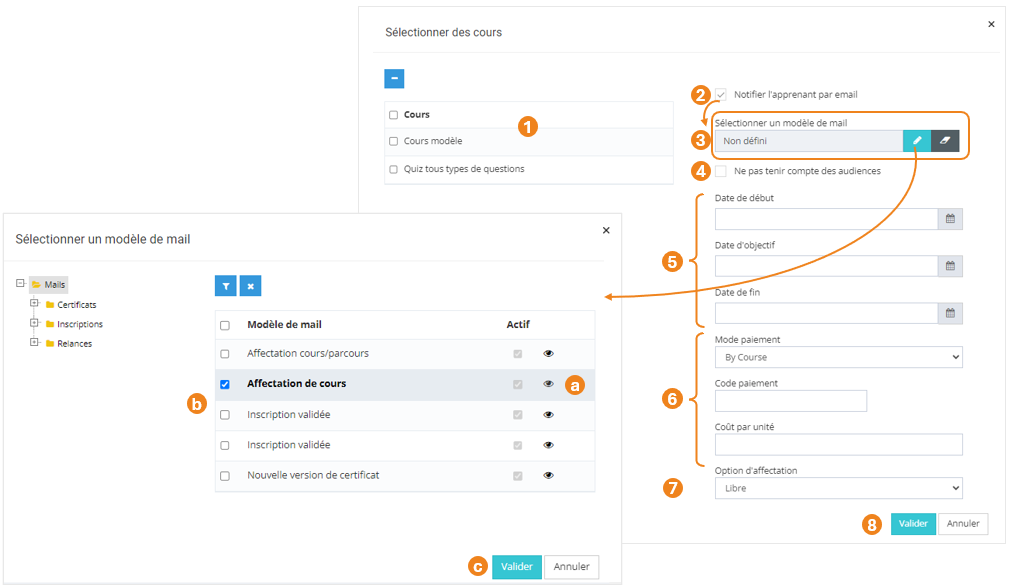
1. Retrouvez le <span style="color: rgb(239, 131, 29);">**récapitulatif des cours**</span> que vous avez sélectionnés ; <span class="callout info">À ce niveau, vous pouvez supprimer des cours en les sélectionnant dans le tableau puis en cliquant sur le **bouton \[x\]**.</span>
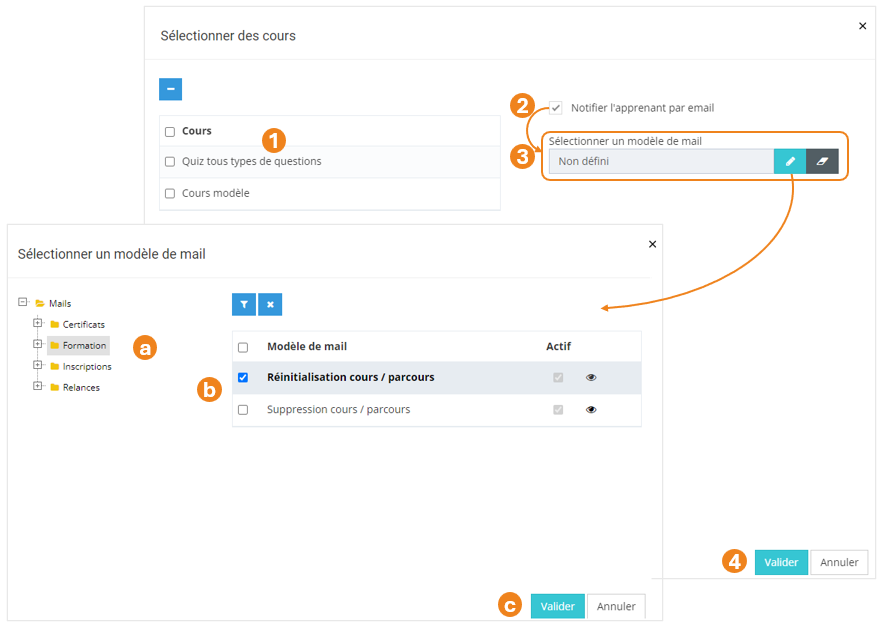
2. Cochez cette case si vous souhaitez <span style="color: rgb(239, 131, 29);">**informer les apprenants qu'un cours leur a été affecté**</span> ;
3. Si la case est cochée, un nouveau champ apparaît pour renseigner le <span style="color: rgb(239, 131, 29);">**modèle de mail**</span> qui sera envoyé ;  
    \- Cliquez sur le <span style="color: rgb(239, 131, 29);">**bouton Crayon**</span> pour sélectionner un modèle de mail ;  
     Une nouvelle pop-up s'ouvre :   
     (a) Vous pouvez utiliser le <span style="color: rgb(239, 131, 29);">**bouton Œil**</span><span style="font-family: -apple-system, BlinkMacSystemFont, 'Segoe UI', Oxygen, Ubuntu, Roboto, Cantarell, 'Fira Sans', 'Droid Sans', 'Helvetica Neue', sans-serif; font-size: 14px; font-style: normal; font-variant-ligatures: normal; font-variant-caps: normal; font-weight: 400;"> pour visualiser les modèles de mails ;</span>  
     (b) Sélectionnez le **<span style="color: rgb(239, 131, 29);">modèle de mail</span>** ;  
     (c) Cliquez sur <span style="color: rgb(239, 131, 29);">**Valider**</span>.  
    \- Cliquez sur le <span style="color: rgb(239, 131, 29);">**bouton Gomme**</span> pour supprimer le modèle de mail sélectionné.
4. Cochez cette case si vous souhaitez <span style="color: rgb(239, 131, 29);"><span style="color: rgb(0, 0, 0);">affecter le cours aux apprenants </span>**même s'ils n'appartiennent pas aux éventuelles audiences**</span> rattachées au cours ;
5. Renseignez éventuellement une date de début, une date d'objectif et une date de fin d'affectation du cours ;
6. Renseignez éventuellement un <span style="color: rgb(239, 131, 29);">**mode de paiement**</span>, un <span style="color: rgb(239, 131, 29);">**code de paiement**</span> (champ libre) et un <span style="color: rgb(239, 131, 29);">**coût par unité**</span> (champ libre) ;
7. Choisissez l'<span style="color: rgb(239, 131, 29);">**option d'affectation**</span> du cours (<span style="color: rgb(239, 131, 29);">Libre </span>/ <span style="color: rgb(239, 131, 29);">Recommandé </span>/ <span style="color: rgb(239, 131, 29);">Obligatoire</span>) ;
8. Cliquez sur <span style="color: rgb(239, 131, 29);">**Valider**</span>.

[![image.png](https://documentation.xperteam.net/uploads/images/gallery/2024-05/scaled-1680-/Mxyimage.png)](https://documentation.xperteam.net/uploads/images/gallery/2024-05/Mxyimage.png)

---

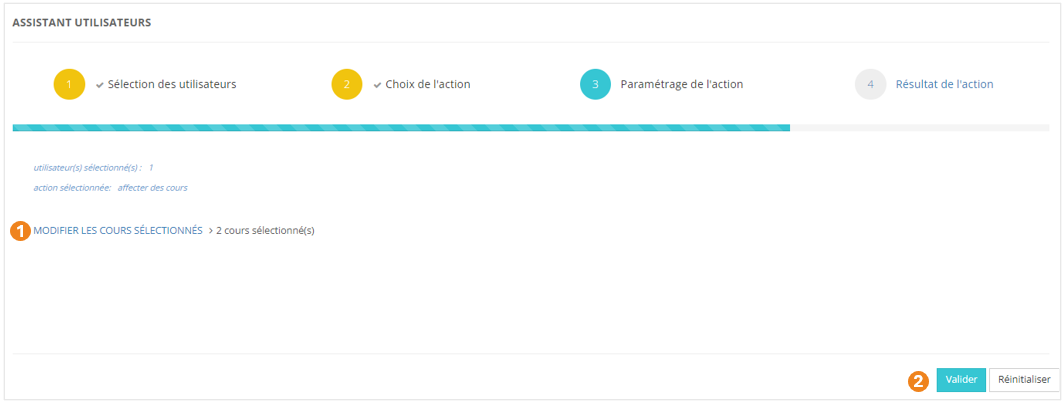
De retour sur l'écran principal, vous pouvez :

1. <span style="color: rgb(239, 131, 29);">**Modifier**</span> les cours sélectionnés ;
2. <span style="color: rgb(239, 131, 29);">**Valider** </span>l'action lorsque vous êtes satisfait de la sélection des cours.

[![image.png](https://documentation.xperteam.net/uploads/images/gallery/2024-05/scaled-1680-/evKimage.png)](https://documentation.xperteam.net/uploads/images/gallery/2024-05/evKimage.png)
</details><details id="bkmrk-modifier-les-donn%C3%A9es"><summary>Modifier les données d'affectation du cours</summary>

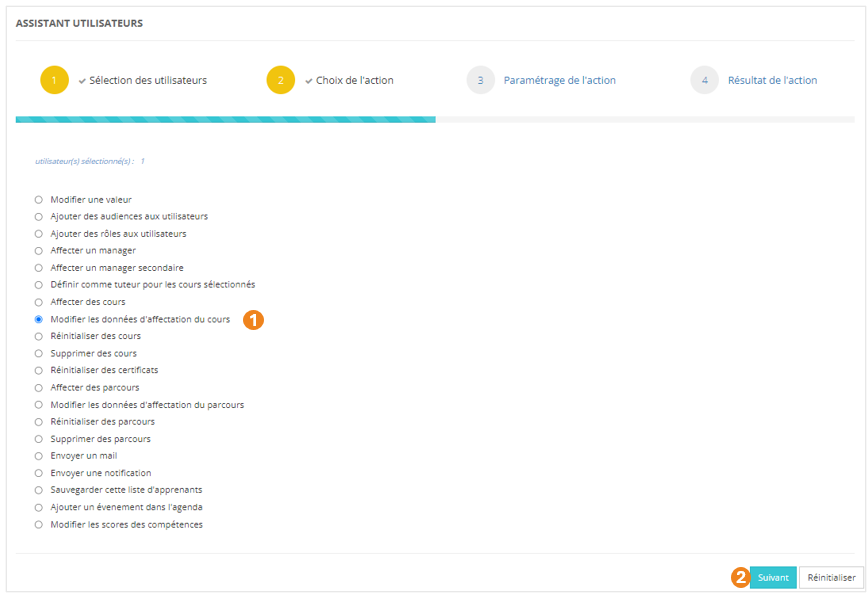
1. Sélectionnez l'action <span style="color: #ef831d;">**Modifier les données d'affectation du cours** </span>;
2. Cliquez sur <span style="color: rgb(239, 131, 29);">**Valider**</span>.

[![image.png](https://documentation.xperteam.net/uploads/images/gallery/2024-05/scaled-1680-/GRFimage.png)](https://documentation.xperteam.net/uploads/images/gallery/2024-05/GRFimage.png)

#### **Paramétrage de l'action**

La suite se déroule exactement comme pour l'option « <span style="color: rgb(239, 131, 29);">**Affecter des cours**</span> » : rendez-vous à cette section pour plus d'informations.

</details><details id="bkmrk-r%C3%A9initialiser-des-co"><summary>Réinitialiser des cours</summary>

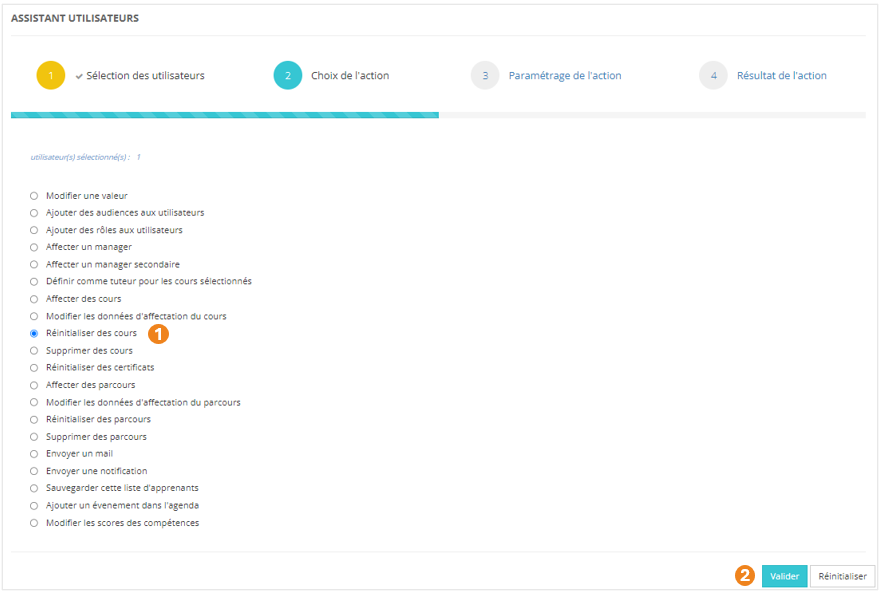
1. Sélectionnez l'action **<span style="color: rgb(239, 131, 29);">Réinitialiser des cours</span>** ;
2. Cliquez sur <span style="color: rgb(239, 131, 29);">**Valider**</span>.

[![image.png](https://documentation.xperteam.net/uploads/images/gallery/2024-05/scaled-1680-/pT2image.png)](https://documentation.xperteam.net/uploads/images/gallery/2024-05/pT2image.png)

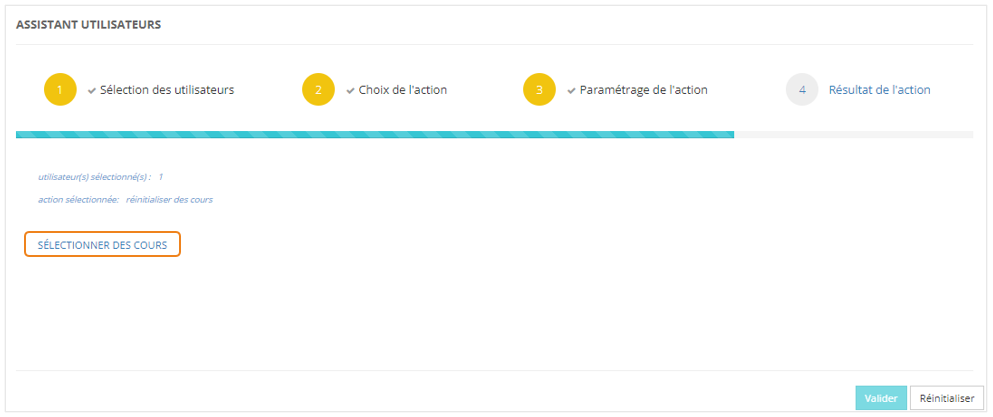
#### **Paramétrage de l'action**

Cliquez sur **<span style="color: rgb(239, 131, 29);">SÉLECTIONNER DES COURS</span>**.

[![image.png](https://documentation.xperteam.net/uploads/images/gallery/2024-05/scaled-1680-/4K4image.png)](https://documentation.xperteam.net/uploads/images/gallery/2024-05/4K4image.png)

Dans la pop-up qui s'ouvre :

1. Sélectionnez le ou les <span style="color: rgb(239, 131, 29);">**cours**</span> à réinitialiser ;
2. Cliquez sur le <span style="color: rgb(239, 131, 29);">**chariot** </span>;
3. Cliquez sur <span style="color: rgb(239, 131, 29);">**Suivant**</span>.

[![image.png](https://documentation.xperteam.net/uploads/images/gallery/2024-05/scaled-1680-/TKoimage.png)](https://documentation.xperteam.net/uploads/images/gallery/2024-05/TKoimage.png)

Dans la nouvelle pop-up :

1. Retrouvez le <span style="color: rgb(239, 131, 29);">**récapitulatif des cours**</span> que vous avez sélectionnés ; <span class="callout info">À ce niveau, vous pouvez supprimer des cours en les sélectionnant dans le tableau puis en cliquant sur le **bouton \[x\]**.</span>
2. Cochez cette case si vous souhaitez <span style="color: rgb(239, 131, 29);">**informer les apprenants qu'un cours a été réinitialisé**</span> ;
3. Si la case est cochée, un nouveau champ apparaît pour renseigner le <span style="color: rgb(239, 131, 29);">**modèle de mail**</span> qui sera envoyé ;  
    \- Cliquez sur le <span style="color: rgb(239, 131, 29);">**bouton Crayon**</span> pour sélectionner un modèle de mail ;  
     Une nouvelle pop-up s'ouvre :   
     (a) Vous pouvez utiliser le <span style="color: rgb(239, 131, 29);">**bouton Œil**</span><span style="font-family: -apple-system, BlinkMacSystemFont, 'Segoe UI', Oxygen, Ubuntu, Roboto, Cantarell, 'Fira Sans', 'Droid Sans', 'Helvetica Neue', sans-serif; font-size: 14px; font-style: normal; font-variant-ligatures: normal; font-variant-caps: normal; font-weight: 400;"> pour visualiser les modèles de mails ;</span>  
     (b) Sélectionnez le **<span style="color: rgb(239, 131, 29);">modèle de mail</span>** ;  
     (c) Cliquez sur <span style="color: rgb(239, 131, 29);">**Valider**</span>.  
    \- Cliquez sur le <span style="color: rgb(239, 131, 29);">**bouton Gomme**</span> pour supprimer le modèle de mail sélectionné.
4. Cliquez sur <span style="color: rgb(239, 131, 29);">**Valider**</span>.

[![image.png](https://documentation.xperteam.net/uploads/images/gallery/2024-05/scaled-1680-/njAimage.png)](https://documentation.xperteam.net/uploads/images/gallery/2024-05/njAimage.png)

---

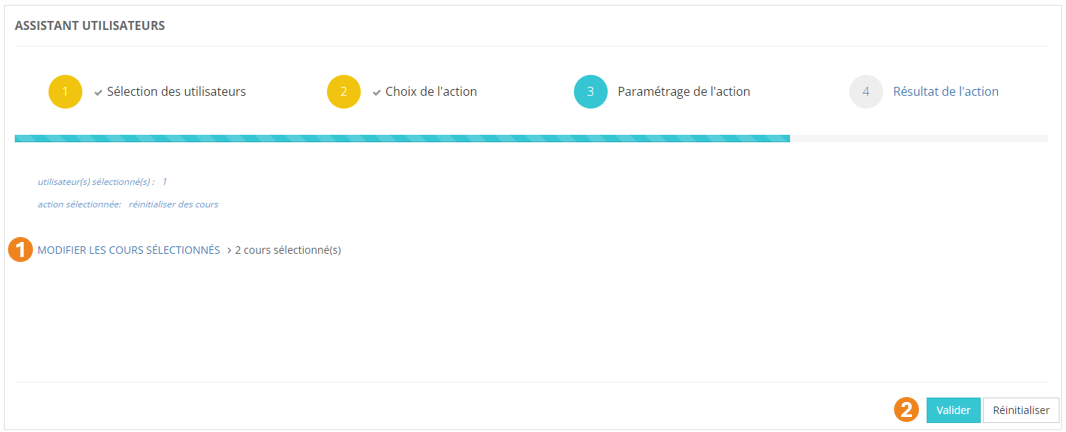
De retour sur l'écran principal, vous pouvez :

1. <span style="color: rgb(239, 131, 29);">**Modifier**</span> les cours sélectionnés ;
2. <span style="color: rgb(239, 131, 29);">**Valider** </span>l'action lorsque vous êtes satisfait de la sélection des cours.

[![image.png](https://documentation.xperteam.net/uploads/images/gallery/2024-05/scaled-1680-/83Vimage.png)](https://documentation.xperteam.net/uploads/images/gallery/2024-05/83Vimage.png)
</details><details id="bkmrk-supprimer-des-cours-"><summary>Supprimer des cours</summary>

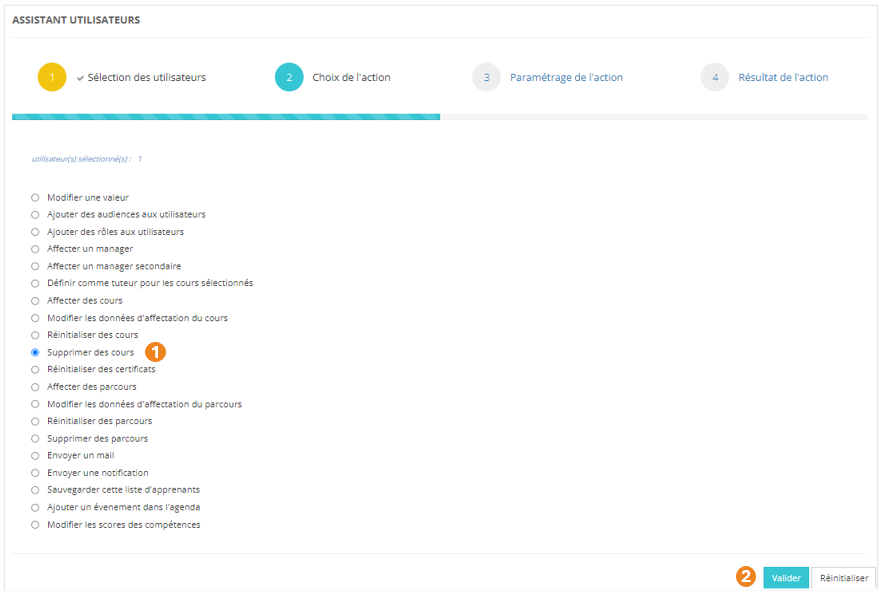
1. Sélectionnez l'action **<span style="color: rgb(239, 131, 29);">Supprimer des cours</span>** ;
2. Cliquez sur <span style="color: rgb(239, 131, 29);">**Valider**</span>.

[![image.png](https://documentation.xperteam.net/uploads/images/gallery/2024-05/scaled-1680-/vhqimage.png)](https://documentation.xperteam.net/uploads/images/gallery/2024-05/vhqimage.png)

#### **Paramétrage de l'action**

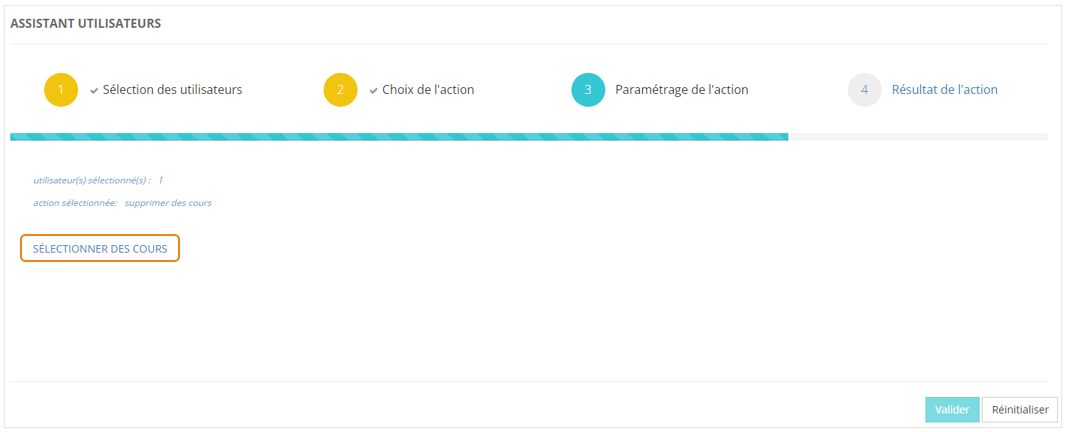
Cliquez sur **<span style="color: rgb(239, 131, 29);">SÉLECTIONNER DES COURS</span>**.

[![image.png](https://documentation.xperteam.net/uploads/images/gallery/2024-05/scaled-1680-/Kswimage.png)](https://documentation.xperteam.net/uploads/images/gallery/2024-05/Kswimage.png)

Dans la pop-up qui s'ouvre :

1. Sélectionnez le ou les <span style="color: rgb(239, 131, 29);">**cours**</span> à supprimer ;
2. Cliquez sur le <span style="color: rgb(239, 131, 29);">**chariot** </span>;
3. Cliquez sur <span style="color: rgb(239, 131, 29);">**Suivant**</span>.

[![image.png](https://documentation.xperteam.net/uploads/images/gallery/2024-05/scaled-1680-/TKoimage.png)](https://documentation.xperteam.net/uploads/images/gallery/2024-05/TKoimage.png)

Dans la nouvelle pop-up :

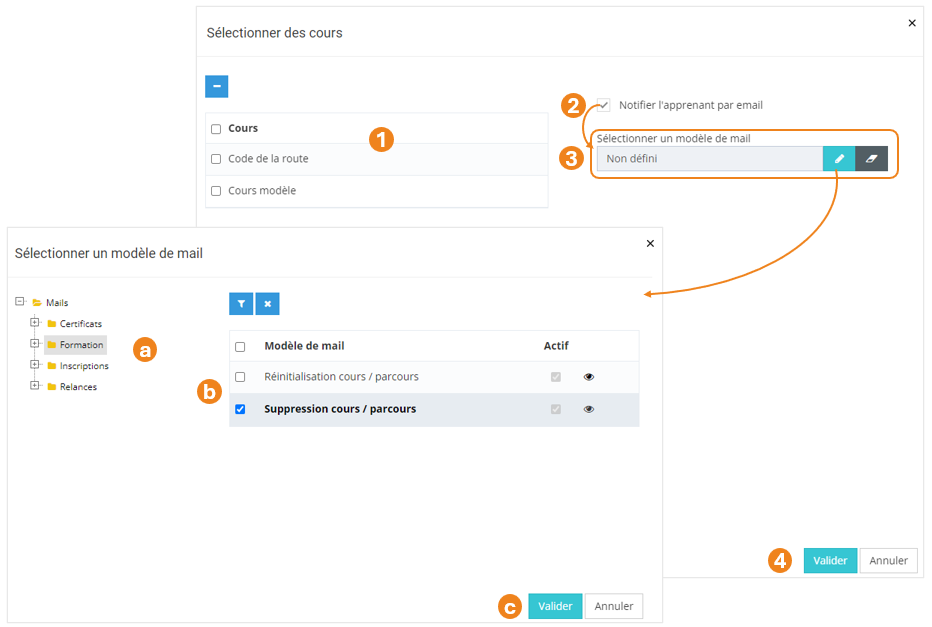
1. Retrouvez le <span style="color: rgb(239, 131, 29);">**récapitulatif des cours**</span> que vous avez sélectionnés ; <span class="callout info">À ce niveau, vous pouvez supprimer des cours en les sélectionnant dans le tableau puis en cliquant sur le **bouton \[x\]**.</span>
2. Cochez cette case si vous souhaitez <span style="color: rgb(239, 131, 29);">**informer les apprenants qu'un cours leur a été supprimé** </span>; <span class="callout warning">Ici, il s'agit de la **suppression de l'affectation d'un cours à un apprenant** et non la suppression d'un cours au catalogue.</span>
3. Si la case est cochée, un nouveau champ apparaît pour renseigner le <span style="color: rgb(239, 131, 29);">**modèle de mail**</span> qui sera envoyé ;  
    \- Cliquez sur le <span style="color: rgb(239, 131, 29);">**bouton Crayon**</span> pour sélectionner un modèle de mail ;  
     Une nouvelle pop-up s'ouvre :   
     (a) Vous pouvez utiliser le <span style="color: rgb(239, 131, 29);">**bouton Œil**</span><span style="font-family: -apple-system, BlinkMacSystemFont, 'Segoe UI', Oxygen, Ubuntu, Roboto, Cantarell, 'Fira Sans', 'Droid Sans', 'Helvetica Neue', sans-serif; font-size: 14px; font-style: normal; font-variant-ligatures: normal; font-variant-caps: normal; font-weight: 400;"> pour visualiser les modèles de mails ;</span>  
     (b) Sélectionnez le **<span style="color: rgb(239, 131, 29);">modèle de mail</span>** ;  
     (c) Cliquez sur <span style="color: rgb(239, 131, 29);">**Valider**</span>.  
    \- Cliquez sur le <span style="color: rgb(239, 131, 29);">**bouton Gomme**</span> pour supprimer le modèle de mail sélectionné.
4. Cliquez sur <span style="color: rgb(239, 131, 29);">**Valider**</span>.

[![image.png](https://documentation.xperteam.net/uploads/images/gallery/2024-05/scaled-1680-/bBjimage.png)](https://documentation.xperteam.net/uploads/images/gallery/2024-05/bBjimage.png)

---

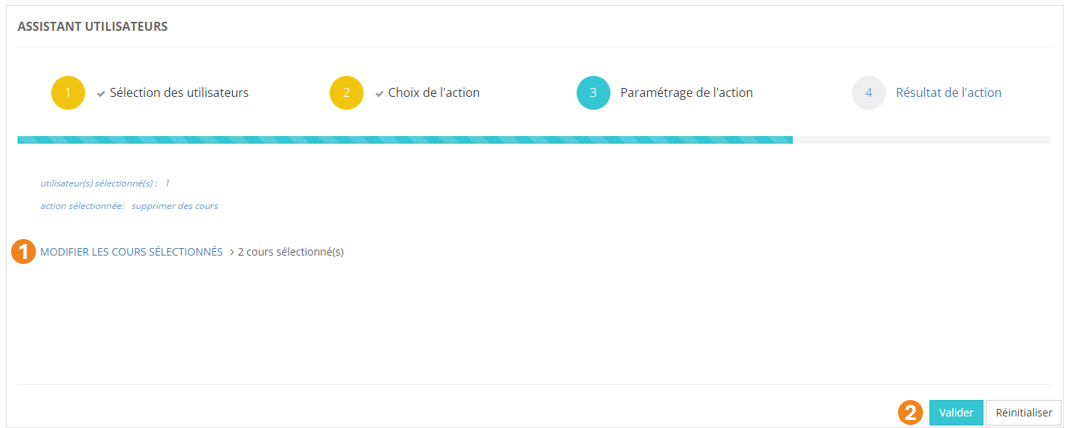
De retour sur l'écran principal, vous pouvez :

1. <span style="color: rgb(239, 131, 29);">**Modifier**</span> les cours sélectionnés ;
2. <span style="color: rgb(239, 131, 29);">**Valider** </span>l'action lorsque vous êtes satisfait de la sélection des cours.

[![image.png](https://documentation.xperteam.net/uploads/images/gallery/2024-05/scaled-1680-/uF8image.png)](https://documentation.xperteam.net/uploads/images/gallery/2024-05/uF8image.png)
</details><details id="bkmrk-r%C3%A9initialiser-des-ce"><summary>Réinitialiser des certificats</summary>

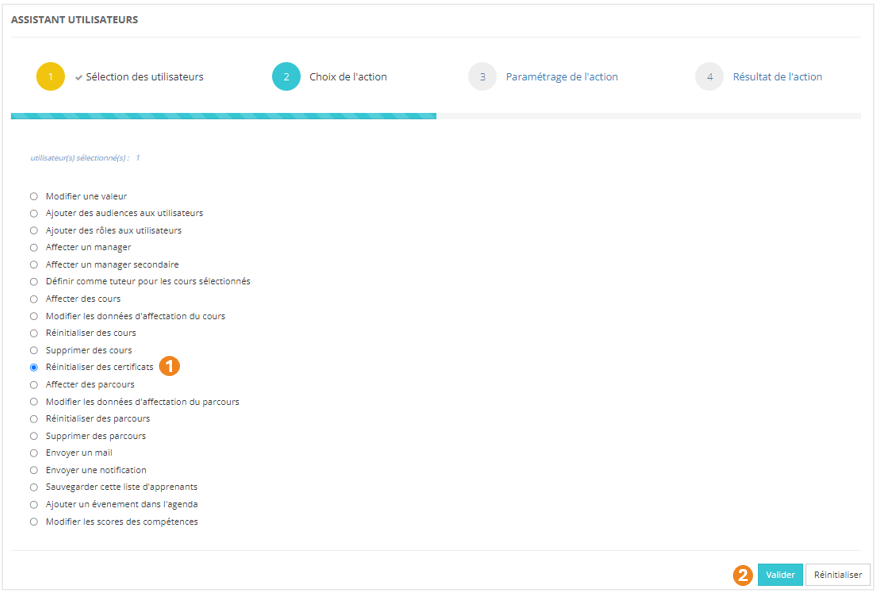
<p class="callout info">La réinitialisation des certificats a pour but de remettre à jour un certificat dont le modèle a été modifié dans les réglages du cours.</p>

1. Sélectionnez l'action <span style="color: #ef831d;">**Réinitialiser des certificats** </span>;
2. Cliquez sur <span style="color: rgb(239, 131, 29);">**Valider**</span>.

[![image.png](https://documentation.xperteam.net/uploads/images/gallery/2024-05/scaled-1680-/AQ7image.png)](https://documentation.xperteam.net/uploads/images/gallery/2024-05/AQ7image.png)

#### **Paramétrage de l'action**

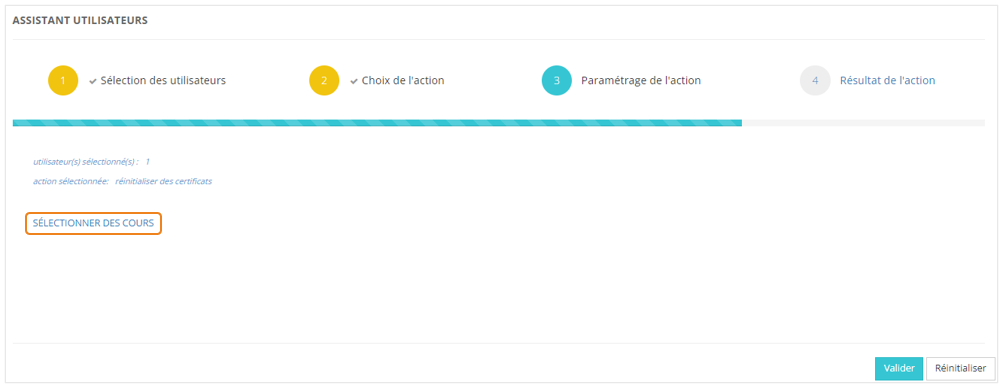
Cliquez sur **<span style="color: rgb(239, 131, 29);">SÉLECTIONNER DES COURS</span>**.

[![image.png](https://documentation.xperteam.net/uploads/images/gallery/2024-05/scaled-1680-/SpXimage.png)](https://documentation.xperteam.net/uploads/images/gallery/2024-05/SpXimage.png)

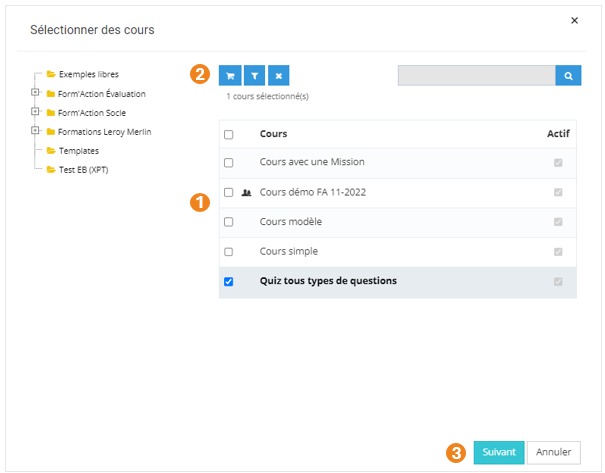
Dans la pop-up qui s'ouvre :

1. Sélectionnez le ou les <span style="color: rgb(239, 131, 29);">**cours**</span> dont le certificat doit être réinitialisé pour les utilisateurs sélectionnés à l'étape précédente ;
2. Cliquez sur le <span style="color: rgb(239, 131, 29);">**chariot** </span>;
3. Cliquez sur <span style="color: rgb(239, 131, 29);">**Suivant**<span style="color: rgb(0, 0, 0);">.</span></span>

[![image.png](https://documentation.xperteam.net/uploads/images/gallery/2024-05/scaled-1680-/POximage.png)](https://documentation.xperteam.net/uploads/images/gallery/2024-05/POximage.png)

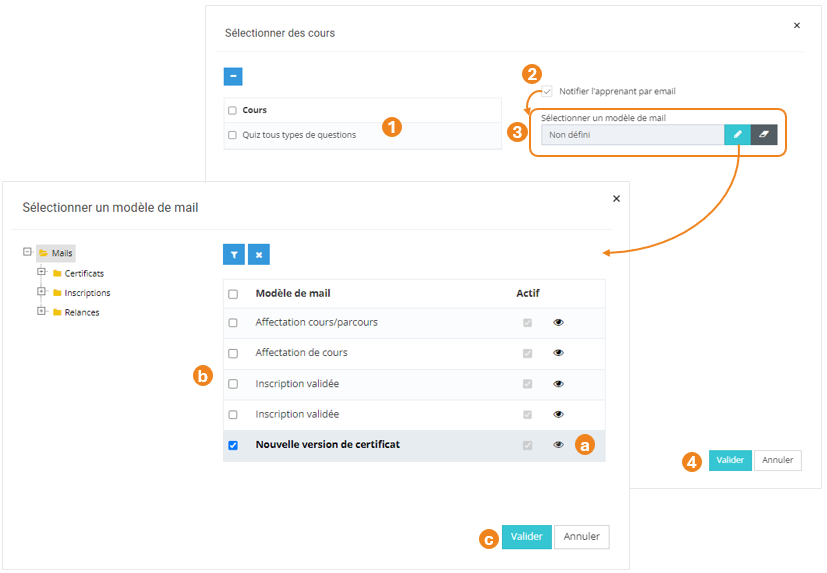
Dans la nouvelle pop-up :

1. Retrouvez le <span style="color: rgb(239, 131, 29);">**récapitulatif des cours**</span> que vous avez sélectionnés ; <span class="callout info">À ce niveau, vous pouvez supprimer des cours en les sélectionnant dans le tableau puis en cliquant sur le **bouton \[x\]**.</span>
2. Cochez cette case si vous souhaitez <span style="color: rgb(239, 131, 29);">**informer les apprenants que leur certificat a été mis à jour**</span> ;
3. Si la case est cochée, un nouveau champ apparaît pour renseigner le <span style="color: rgb(239, 131, 29);">**modèle de mail**</span> qui sera envoyé ;  
    \- Cliquez sur le <span style="color: rgb(239, 131, 29);">**bouton Crayon**</span> pour sélectionner un modèle de mail ;  
     Une nouvelle pop-up s'ouvre :   
     (a) Vous pouvez utiliser le <span style="color: rgb(239, 131, 29);">**bouton Œil**</span><span style="font-family: -apple-system, BlinkMacSystemFont, 'Segoe UI', Oxygen, Ubuntu, Roboto, Cantarell, 'Fira Sans', 'Droid Sans', 'Helvetica Neue', sans-serif; font-size: 14px; font-style: normal; font-variant-ligatures: normal; font-variant-caps: normal; font-weight: 400;"> pour visualiser les modèles de mails ;</span>  
     (b) Sélectionnez le **<span style="color: rgb(239, 131, 29);">modèle de mail</span>** ;  
     (c) Cliquez sur <span style="color: rgb(239, 131, 29);">**Valider**</span>.  
    \- Cliquez sur le <span style="color: rgb(239, 131, 29);">**bouton Gomme**</span> pour supprimer le modèle de mail sélectionné.
4. Cliquez sur <span style="color: rgb(239, 131, 29);">**Valider**</span>.

[![image.png](https://documentation.xperteam.net/uploads/images/gallery/2024-05/scaled-1680-/bi8image.png)](https://documentation.xperteam.net/uploads/images/gallery/2024-05/bi8image.png)

---

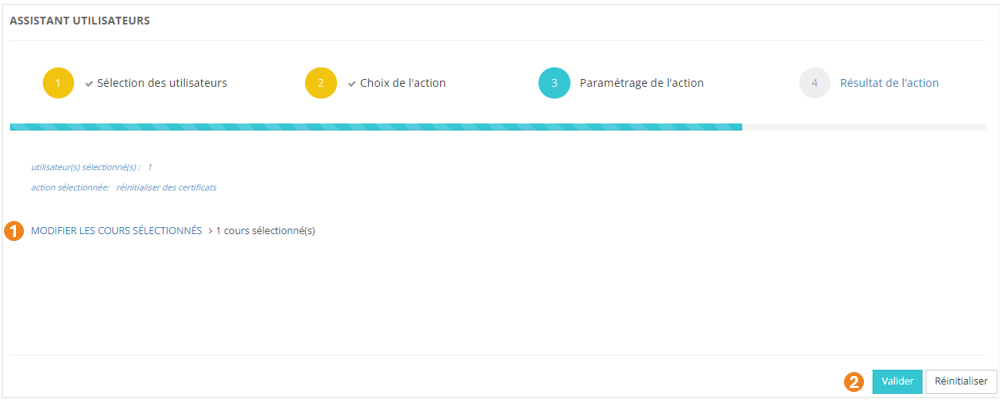
De retour sur l'écran principal, vous pouvez :

1. <span style="color: rgb(239, 131, 29);">**Modifier**</span> les cours sélectionnés ;
2. <span style="color: rgb(239, 131, 29);">**Valider** </span>l'action lorsque vous êtes satisfait de la sélection des cours.

[![image.png](https://documentation.xperteam.net/uploads/images/gallery/2024-05/scaled-1680-/hmgimage.png)](https://documentation.xperteam.net/uploads/images/gallery/2024-05/hmgimage.png)
</details><details id="bkmrk-affecter-des-parcour"><summary>Affecter des parcours</summary>

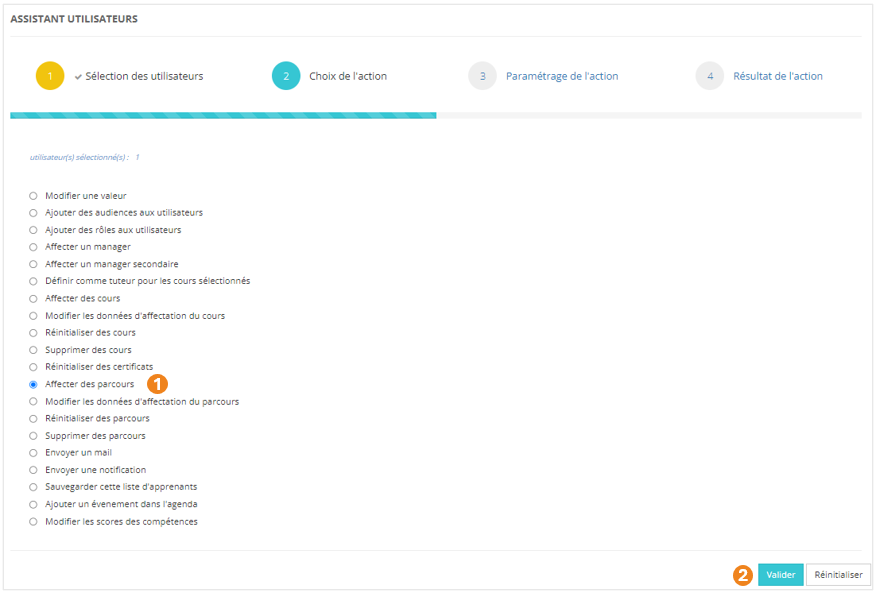
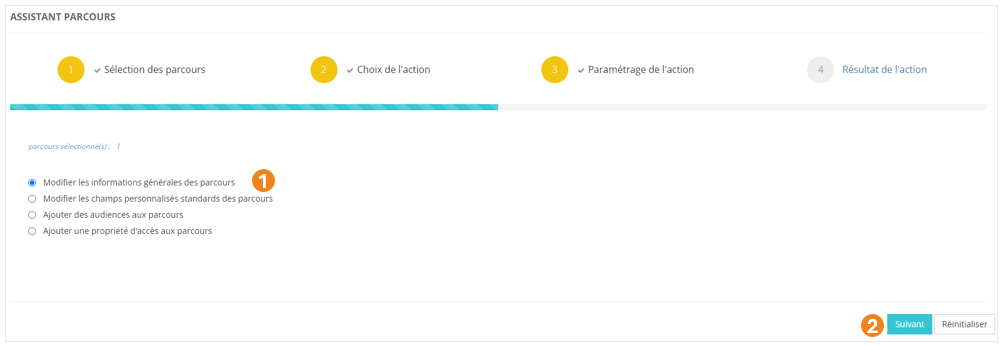
1. Sélectionnez l'action **<span style="color: rgb(239, 131, 29);">Affecter des parcours</span>** ;
2. Cliquez sur <span style="color: rgb(239, 131, 29);">**Valider**</span>.

[![image.png](https://documentation.xperteam.net/uploads/images/gallery/2024-05/scaled-1680-/fkPimage.png)](https://documentation.xperteam.net/uploads/images/gallery/2024-05/fkPimage.png)

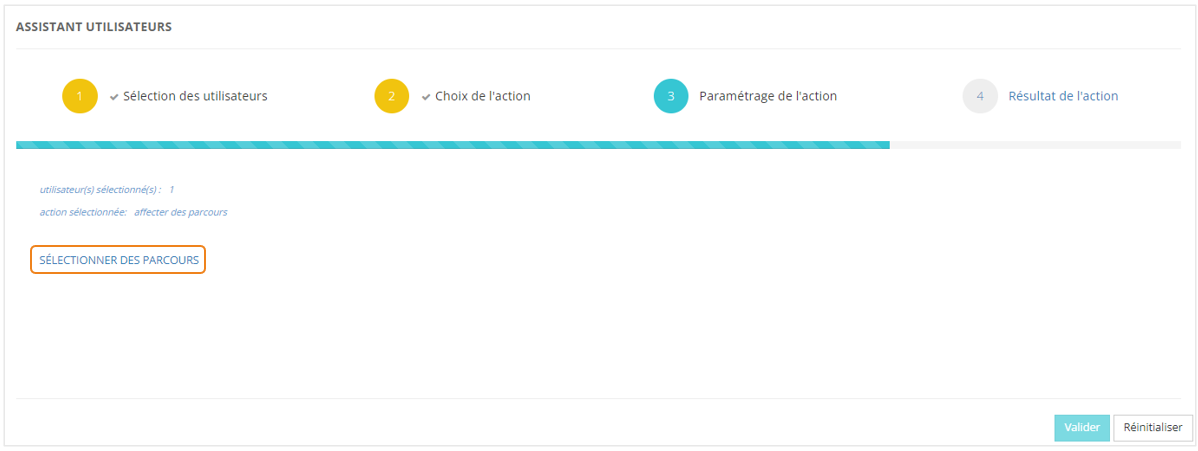
#### **Paramétrage de l'action**

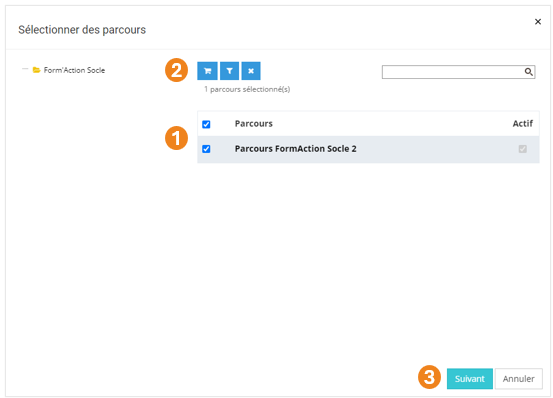
Cliquez sur **<span style="color: rgb(239, 131, 29);">SÉLECTIONNER DES PARCOURS</span>**.

[![image.png](https://documentation.xperteam.net/uploads/images/gallery/2024-05/scaled-1680-/FSKimage.png)](https://documentation.xperteam.net/uploads/images/gallery/2024-05/FSKimage.png)

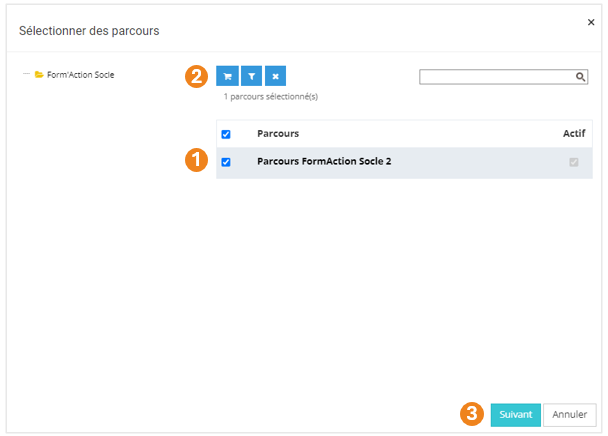
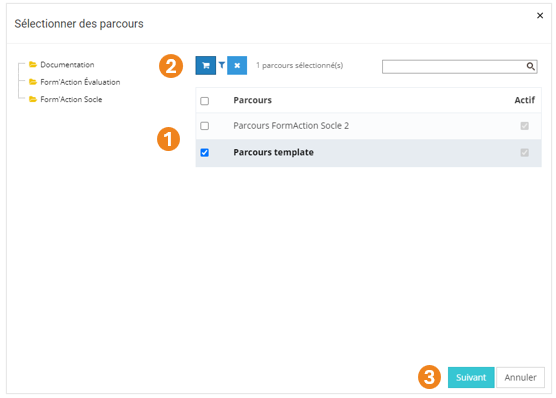
Dans la pop-up qui s'ouvre :

1. Sélectionnez le ou les <span style="color: rgb(239, 131, 29);">**parcours**</span> à ajouter aux utilisateurs ;
2. Cliquez sur le <span style="color: rgb(239, 131, 29);">**chariot** </span>;
3. Cliquez sur <span style="color: rgb(239, 131, 29);">**Suivant**</span>.

[![image.png](https://documentation.xperteam.net/uploads/images/gallery/2024-05/scaled-1680-/jRHimage.png)](https://documentation.xperteam.net/uploads/images/gallery/2024-05/jRHimage.png)

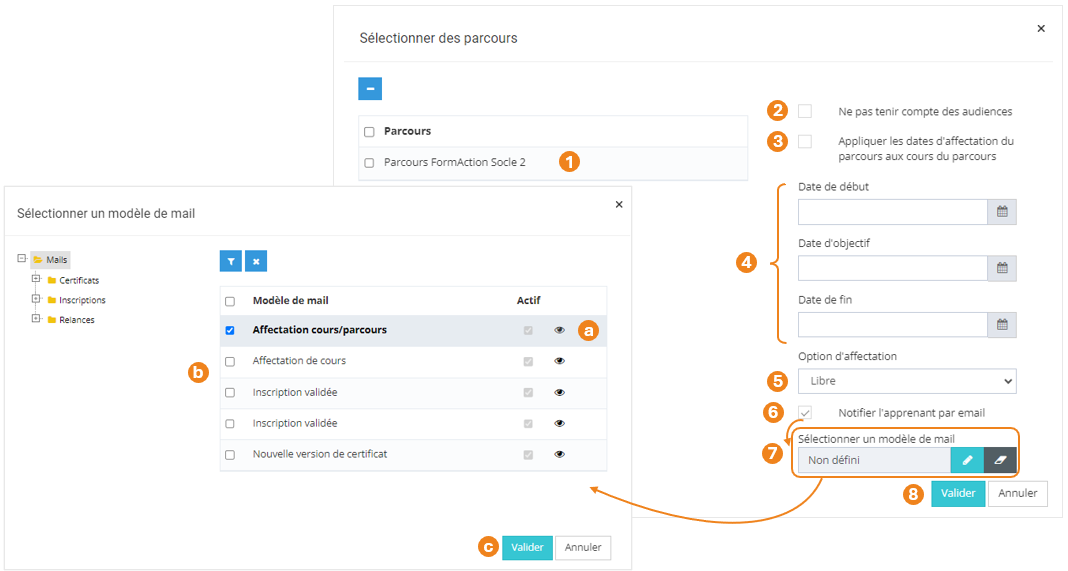
Dans la nouvelle pop-up :

1. Retrouvez le <span style="color: rgb(239, 131, 29);">**récapitulatif des parcours**</span> que vous avez sélectionnés ; <span class="callout info">À ce niveau, vous pouvez supprimer des parcours en les sélectionnant dans le tableau puis en cliquant sur le **bouton \[x\]**.</span>
2. Cochez cette case si vous souhaitez <span style="color: rgb(239, 131, 29);"><span style="color: rgb(0, 0, 0);">affecter le parcours aux apprenants </span>**même s'ils n'appartiennent pas aux éventuelles audiences**</span> rattachées au parcours ;
3. Cochez cette case si vous souhaitez que les dates d'affectation du parcours soient reportées sur les affectations des cours appartenant au parcours ;
4. Renseignez éventuellement une date de début, une date d'objectif et une date de fin d'affectation du parcours ;
5. Choisissez l'<span style="color: rgb(239, 131, 29);">**option d'affectation**</span> du cours (<span style="color: rgb(239, 131, 29);">Libre </span>/ <span style="color: rgb(239, 131, 29);">Recommandé </span>/ <span style="color: rgb(239, 131, 29);">Obligatoire</span>) ;
6. Si la case est cochée, un nouveau champ apparaît pour renseigner le <span style="color: rgb(239, 131, 29);">**modèle de mail**</span> qui sera envoyé ;  
    \- Cliquez sur le <span style="color: rgb(239, 131, 29);">**bouton Crayon**</span> pour sélectionner un modèle de mail ;  
     Une nouvelle pop-up s'ouvre :   
     (a) Vous pouvez utiliser le <span style="color: rgb(239, 131, 29);">**bouton Œil**</span><span style="font-family: -apple-system, BlinkMacSystemFont, 'Segoe UI', Oxygen, Ubuntu, Roboto, Cantarell, 'Fira Sans', 'Droid Sans', 'Helvetica Neue', sans-serif; font-size: 14px; font-style: normal; font-variant-ligatures: normal; font-variant-caps: normal; font-weight: 400;"> pour visualiser les modèles de mails ;</span>  
     (b) Sélectionnez le **<span style="color: rgb(239, 131, 29);">modèle de mail</span>** ;  
     (c) Cliquez sur <span style="color: rgb(239, 131, 29);">**Valider**</span>.  
    \- Cliquez sur le <span style="color: rgb(239, 131, 29);">**bouton Gomme**</span> pour supprimer le modèle de mail sélectionné.
7. Cliquez sur <span style="color: rgb(239, 131, 29);">**Valider**</span>.

[![image.png](https://documentation.xperteam.net/uploads/images/gallery/2024-05/scaled-1680-/9k5image.png)](https://documentation.xperteam.net/uploads/images/gallery/2024-05/9k5image.png)

---

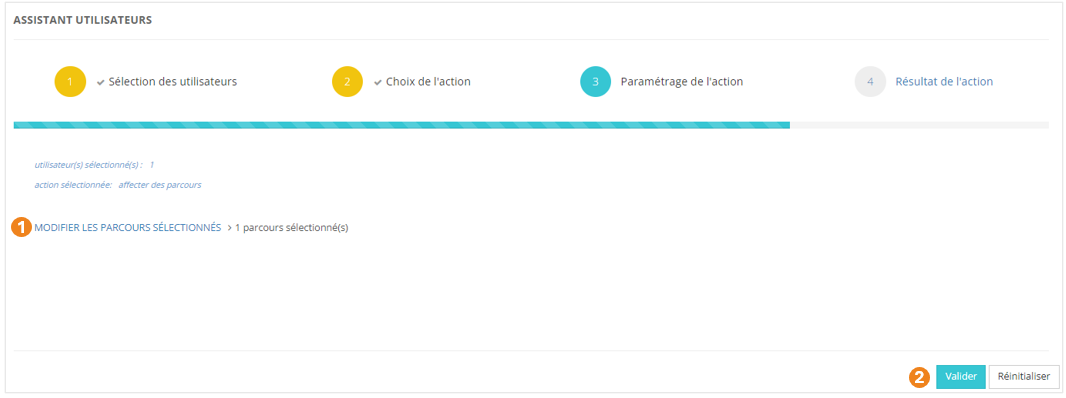
De retour sur l'écran principal, vous pouvez :

1. <span style="color: rgb(239, 131, 29);">**Modifier**</span> les parcours sélectionnés ;
2. <span style="color: rgb(239, 131, 29);">**Valider** </span>l'action lorsque vous êtes satisfait de la sélection des parcours.

[![image.png](https://documentation.xperteam.net/uploads/images/gallery/2024-05/scaled-1680-/zX0image.png)](https://documentation.xperteam.net/uploads/images/gallery/2024-05/zX0image.png)
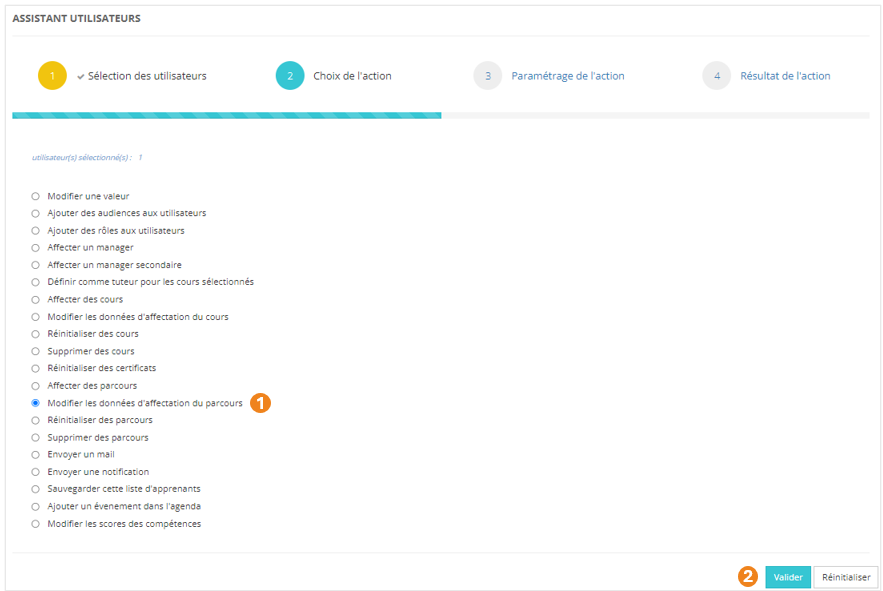
</details><details id="bkmrk-modifier-les-donn%C3%A9es-1"><summary>Modifier les données d'affectation du parcours</summary>

1. Sélectionnez l'action <span style="color: #ef831d;">**Modifier les données d'affectation du parcours** </span>;
2. Cliquez sur <span style="color: rgb(239, 131, 29);">**Valider**</span>.

[![image.png](https://documentation.xperteam.net/uploads/images/gallery/2024-05/scaled-1680-/Rxoimage.png)](https://documentation.xperteam.net/uploads/images/gallery/2024-05/Rxoimage.png)

#### **Paramétrage de l'action**

La suite se déroule exactement comme pour l'option « **<span style="color: rgb(239, 131, 29);">Affecter des parcours</span>** » : rendez-vous à cette section pour plus d'informations.

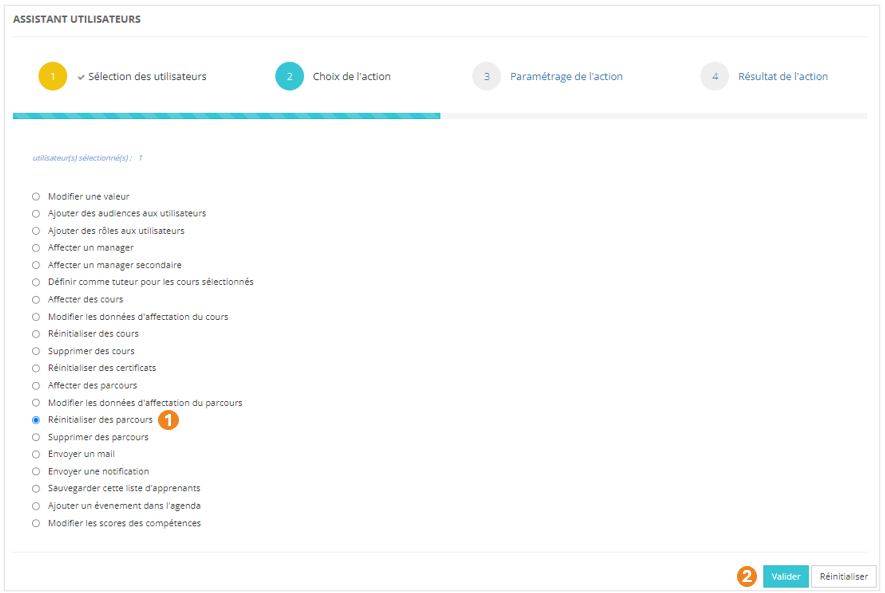
</details><details id="bkmrk-r%C3%A9initialiser-des-pa"><summary>Réinitialiser des parcours</summary>

1. Sélectionnez l'action **<span style="color: rgb(239, 131, 29);">Réinitialiser des parcours</span>** ;
2. Cliquez sur <span style="color: rgb(239, 131, 29);">**Valider**</span>.

[![image.png](https://documentation.xperteam.net/uploads/images/gallery/2024-05/scaled-1680-/Rmtimage.png)](https://documentation.xperteam.net/uploads/images/gallery/2024-05/Rmtimage.png)

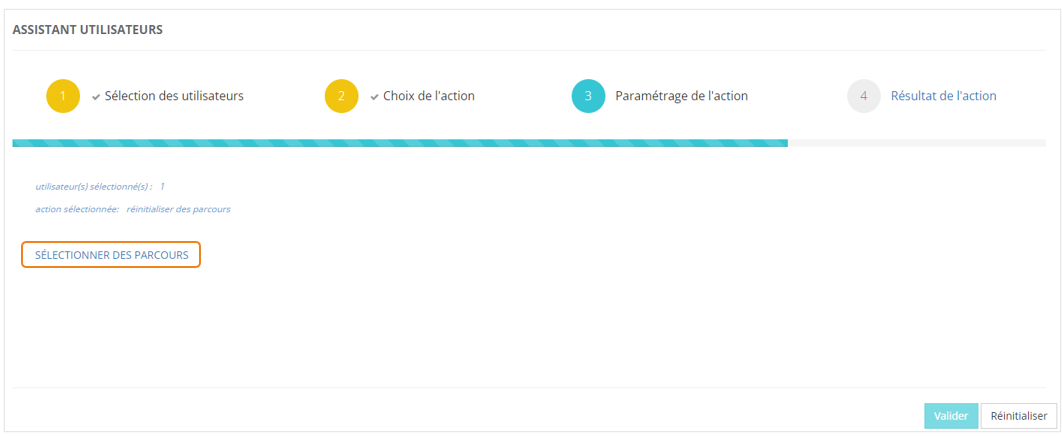
#### **Paramétrage de l'action**

Cliquez sur **<span style="color: rgb(239, 131, 29);">SÉLECTIONNER DES PARCOURS</span>**.

[![image.png](https://documentation.xperteam.net/uploads/images/gallery/2024-05/scaled-1680-/yTkimage.png)](https://documentation.xperteam.net/uploads/images/gallery/2024-05/yTkimage.png)

Dans la pop-up qui s'ouvre :

1. Sélectionnez le ou les <span style="color: rgb(239, 131, 29);">**parcours**</span> à réinitialiser ;
2. Cliquez sur le <span style="color: rgb(239, 131, 29);">**chariot** </span>;
3. Cliquez sur <span style="color: rgb(239, 131, 29);">**Suivant**</span>.

[![image.png](https://documentation.xperteam.net/uploads/images/gallery/2024-05/scaled-1680-/jRHimage.png)](https://documentation.xperteam.net/uploads/images/gallery/2024-05/jRHimage.png)

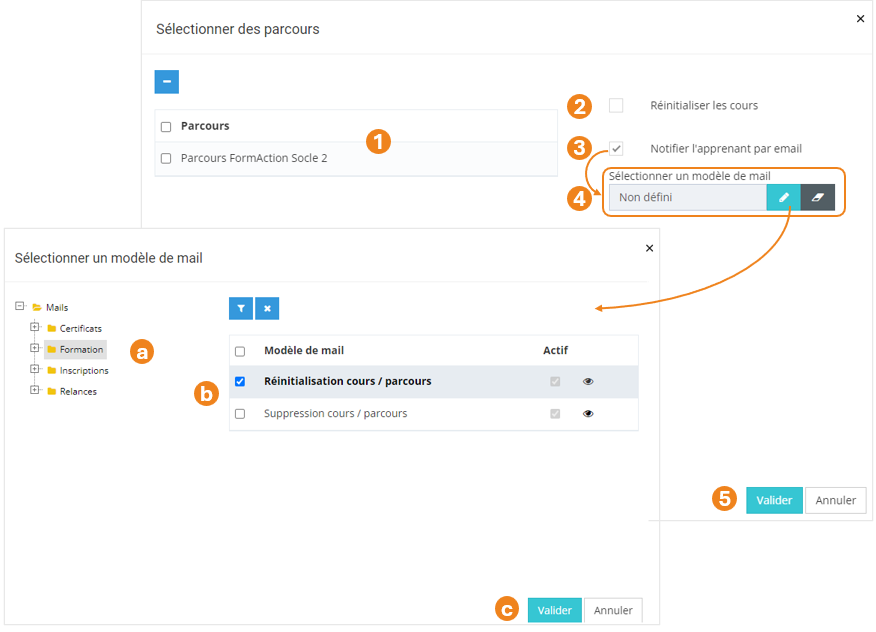
Dans la nouvelle pop-up :

1. Retrouvez le <span style="color: rgb(239, 131, 29);">**récapitulatif des parcours**</span> que vous avez sélectionnés ; <span class="callout info">À ce niveau, vous pouvez supprimer des parcours en les sélectionnant dans le tableau puis en cliquant sur le **bouton \[x\]**.</span>
2. Cochez cette case si vous souhaitez que les <span style="color: rgb(239, 131, 29);">**cours composant le parcours soient également réinitialisés**</span> ;
3. Cochez cette case si vous souhaitez <span style="color: rgb(239, 131, 29);">**informer les apprenants qu'un parcours a été réinitialisé**</span> ;
4. Si la case est cochée, un nouveau champ apparaît pour renseigner le <span style="color: rgb(239, 131, 29);">**modèle de mail**</span> qui sera envoyé ;  
    \- Cliquez sur le <span style="color: rgb(239, 131, 29);">**bouton Crayon**</span> pour sélectionner un modèle de mail ;  
     Une nouvelle pop-up s'ouvre :   
     (a) Vous pouvez utiliser le <span style="color: rgb(239, 131, 29);">**bouton Œil**</span><span style="font-family: -apple-system, BlinkMacSystemFont, 'Segoe UI', Oxygen, Ubuntu, Roboto, Cantarell, 'Fira Sans', 'Droid Sans', 'Helvetica Neue', sans-serif; font-size: 14px; font-style: normal; font-variant-ligatures: normal; font-variant-caps: normal; font-weight: 400;"> pour visualiser les modèles de mails ;</span>  
     (b) Sélectionnez le **<span style="color: rgb(239, 131, 29);">modèle de mail</span>** ;  
     (c) Cliquez sur <span style="color: rgb(239, 131, 29);">**Valider**</span>.  
    \- Cliquez sur le <span style="color: rgb(239, 131, 29);">**bouton Gomme**</span> pour supprimer le modèle de mail sélectionné.
5. Cliquez sur <span style="color: rgb(239, 131, 29);">**Valider**</span>.

[![image.png](https://documentation.xperteam.net/uploads/images/gallery/2024-05/scaled-1680-/s7Limage.png)](https://documentation.xperteam.net/uploads/images/gallery/2024-05/s7Limage.png)

---

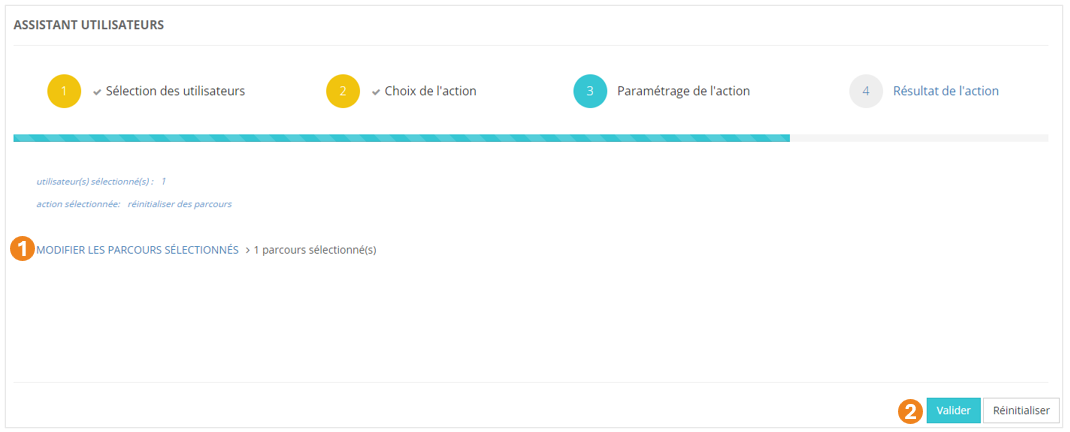
De retour sur l'écran principal, vous pouvez :

1. <span style="color: rgb(239, 131, 29);">**Modifier**</span> les parcours sélectionnés ;
2. <span style="color: rgb(239, 131, 29);">**Valider** </span>l'action lorsque vous êtes satisfait de la sélection des parcours.

[![image.png](https://documentation.xperteam.net/uploads/images/gallery/2024-05/scaled-1680-/8H6image.png)](https://documentation.xperteam.net/uploads/images/gallery/2024-05/8H6image.png)
</details><details id="bkmrk-supprimer-des-parcou"><summary>Supprimer des parcours</summary>

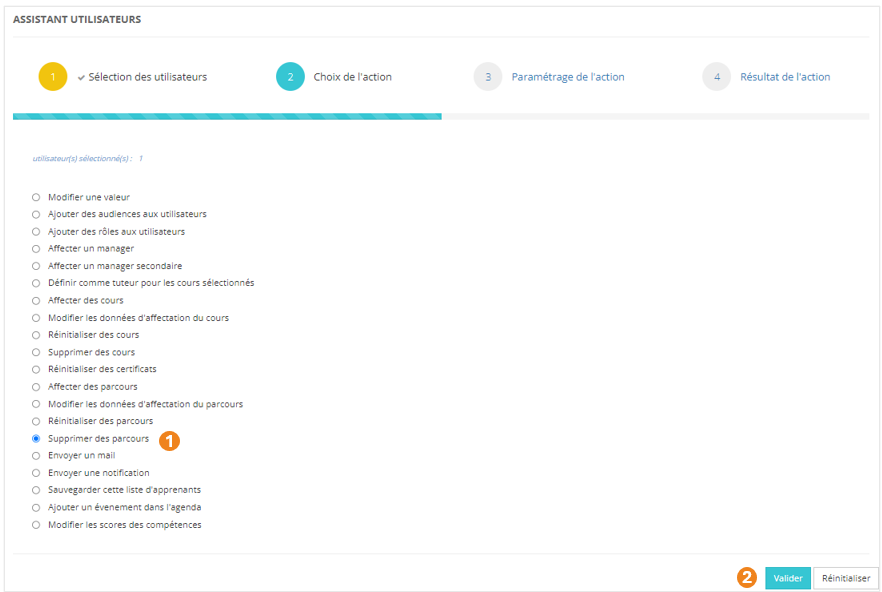
1. Sélectionnez l'action **<span style="color: rgb(239, 131, 29);">Supprimer des parcours</span>** ;
2. Cliquez sur <span style="color: rgb(239, 131, 29);">**Valider**</span>.

[![image.png](https://documentation.xperteam.net/uploads/images/gallery/2024-05/scaled-1680-/tN1image.png)](https://documentation.xperteam.net/uploads/images/gallery/2024-05/tN1image.png)

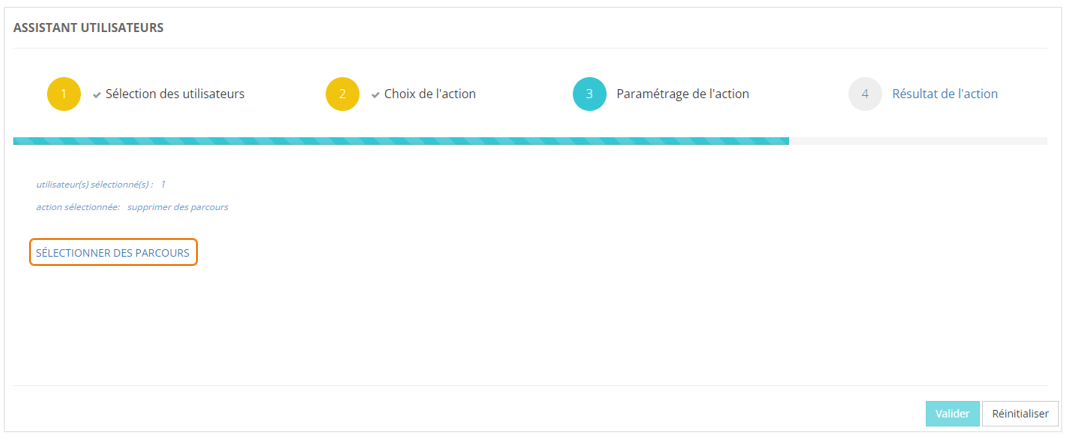
#### **Paramétrage de l'action**

Cliquez sur **<span style="color: rgb(239, 131, 29);">SÉLECTIONNER DES PARCOURS</span>**.

[![image.png](https://documentation.xperteam.net/uploads/images/gallery/2024-05/scaled-1680-/VV8image.png)](https://documentation.xperteam.net/uploads/images/gallery/2024-05/VV8image.png)

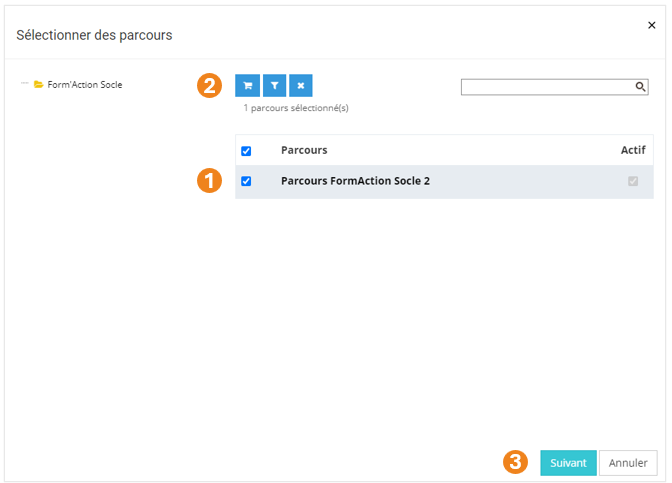
Dans la pop-up qui s'ouvre :

1. Sélectionnez le ou les <span style="color: rgb(239, 131, 29);">**parcours**</span> à supprimer ;
2. Cliquez sur le <span style="color: rgb(239, 131, 29);">**chariot** </span>;
3. Cliquez sur <span style="color: rgb(239, 131, 29);">**Suivant**</span>.

[![image.png](https://documentation.xperteam.net/uploads/images/gallery/2024-05/scaled-1680-/DJhimage.png)](https://documentation.xperteam.net/uploads/images/gallery/2024-05/DJhimage.png)

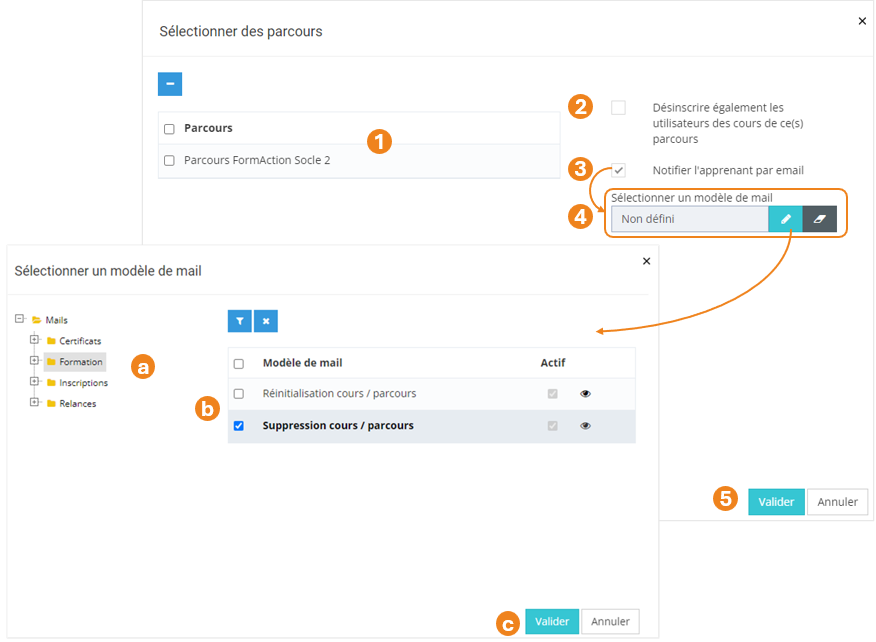
Dans la nouvelle pop-up :

1. Retrouvez le <span style="color: rgb(239, 131, 29);">**récapitulatif des parcours**</span> que vous avez sélectionnés ; <span class="callout info">À ce niveau, vous pouvez supprimer des parcours en les sélectionnant dans le tableau puis en cliquant sur le **bouton \[x\]**.</span>
2. Cochez cette case si vous souhaitez que <span style="color: rgb(239, 131, 29);">**les cours qui composent ce parcours soient aussi retirés**</span> aux apprenants.
3. Cochez cette case si vous souhaitez <span style="color: rgb(239, 131, 29);">**informer les apprenants qu'un parcours leur a été supprimé** </span>; <span class="callout warning">Ici, il s'agit de la **suppression de l'affectation d'un parcours à un apprenant** et non la suppression d'un parcours au catalogue.</span>
4. Si la case est cochée, un nouveau champ apparaît pour renseigner le <span style="color: rgb(239, 131, 29);">**modèle de mail**</span> qui sera envoyé ;  
    \- Cliquez sur le <span style="color: rgb(239, 131, 29);">**bouton Crayon**</span> pour sélectionner un modèle de mail ;  
     Une nouvelle pop-up s'ouvre :   
     (a) Vous pouvez utiliser le <span style="color: rgb(239, 131, 29);">**bouton Œil**</span><span style="font-family: -apple-system, BlinkMacSystemFont, 'Segoe UI', Oxygen, Ubuntu, Roboto, Cantarell, 'Fira Sans', 'Droid Sans', 'Helvetica Neue', sans-serif; font-size: 14px; font-style: normal; font-variant-ligatures: normal; font-variant-caps: normal; font-weight: 400;"> pour visualiser les modèles de mails ;</span>  
     (b) Sélectionnez le **<span style="color: rgb(239, 131, 29);">modèle de mail</span>** ;  
     (c) Cliquez sur <span style="color: rgb(239, 131, 29);">**Valider**</span>.  
    \- Cliquez sur le <span style="color: rgb(239, 131, 29);">**bouton Gomme**</span> pour supprimer le modèle de mail sélectionné.
5. Cliquez sur <span style="color: rgb(239, 131, 29);">**Valider**</span>.

[![image.png](https://documentation.xperteam.net/uploads/images/gallery/2024-05/scaled-1680-/u2Pimage.png)](https://documentation.xperteam.net/uploads/images/gallery/2024-05/u2Pimage.png)

---

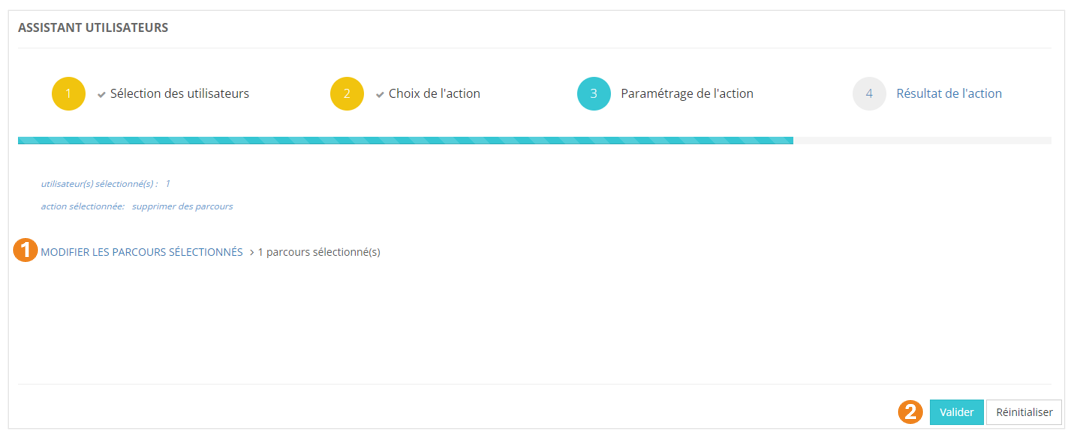
De retour sur l'écran principal, vous pouvez :

1. <span style="color: rgb(239, 131, 29);">**Modifier**</span> les parcours sélectionnés ;
2. <span style="color: rgb(239, 131, 29);">**Valider** </span>l'action lorsque vous êtes satisfait de la sélection des parcours.

[![image.png](https://documentation.xperteam.net/uploads/images/gallery/2024-05/scaled-1680-/LKYimage.png)](https://documentation.xperteam.net/uploads/images/gallery/2024-05/LKYimage.png)
</details><details id="bkmrk-envoyer-un-mail-s%C3%A9le"><summary>Envoyer un mail</summary>

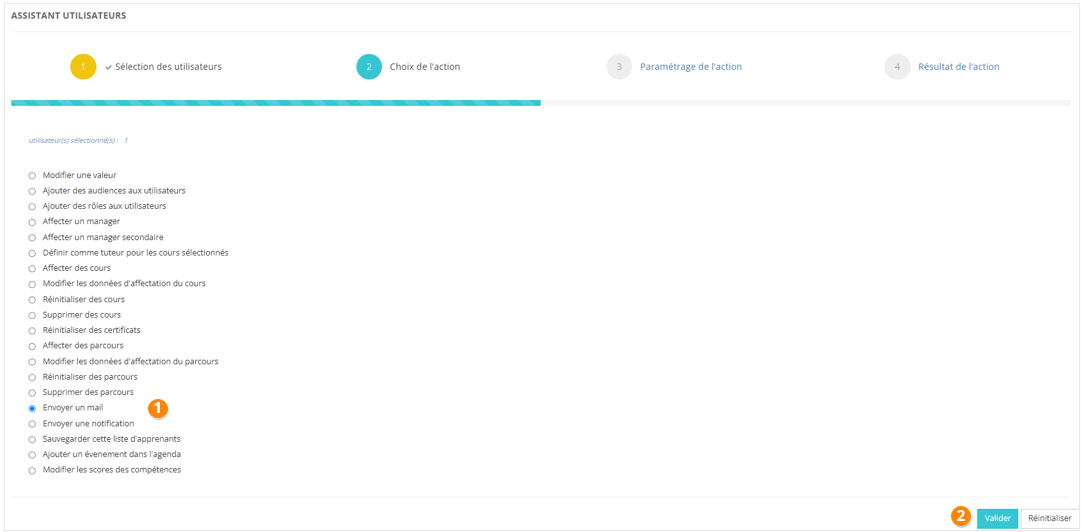
1. Sélectionnez l'action **<span style="color: rgb(239, 131, 29);">Envoyer un mail</span>** ;
2. Cliquez sur <span style="color: rgb(239, 131, 29);">**Valider**</span>.

[![image.png](https://documentation.xperteam.net/uploads/images/gallery/2024-05/scaled-1680-/Rp1image.png)](https://documentation.xperteam.net/uploads/images/gallery/2024-05/Rp1image.png)

#### **Paramétrage de l'action**

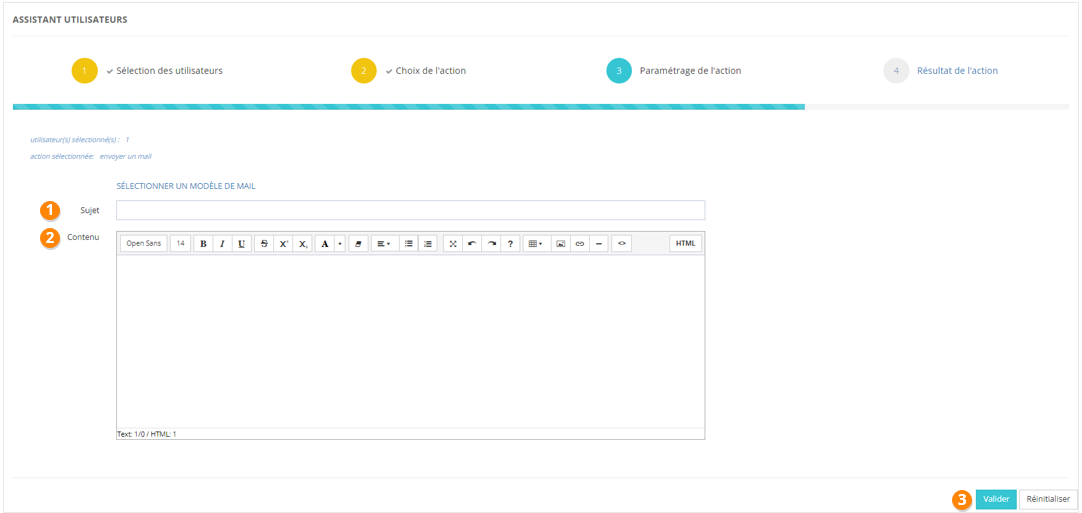
Vous avez la possibilité d’envoyer un mail unique ou un mail à partir d'un modèle.

##### **<span style="color: rgb(128, 128, 128);">Mail unique </span>**

1. <span style="color: rgb(0, 0, 0);">Remplissez le sujet et le contenu. </span>
2. <span style="color: rgb(0, 0, 0);">Vous pouvez insérer des champs dynamiques dans le contenu du mail.</span>
3. <span style="color: rgb(0, 0, 0);">Cliquez sur Valider.</span>

<p class="callout danger"><span style="color: rgb(0, 0, 0);">**Attention !** Les champs dynamiques doivent pouvoir être interprétés. Par exemple, si vous utilisez le champ dynamique "Nom du cours", le mail envoyé étant totalement décorrélé des cours, ne pourra pas contenir le nom du cours auquel vous pensez. </span></p>

[![image.png](https://documentation.xperteam.net/uploads/images/gallery/2024-05/scaled-1680-/Aj5image.png)](https://documentation.xperteam.net/uploads/images/gallery/2024-05/Aj5image.png)

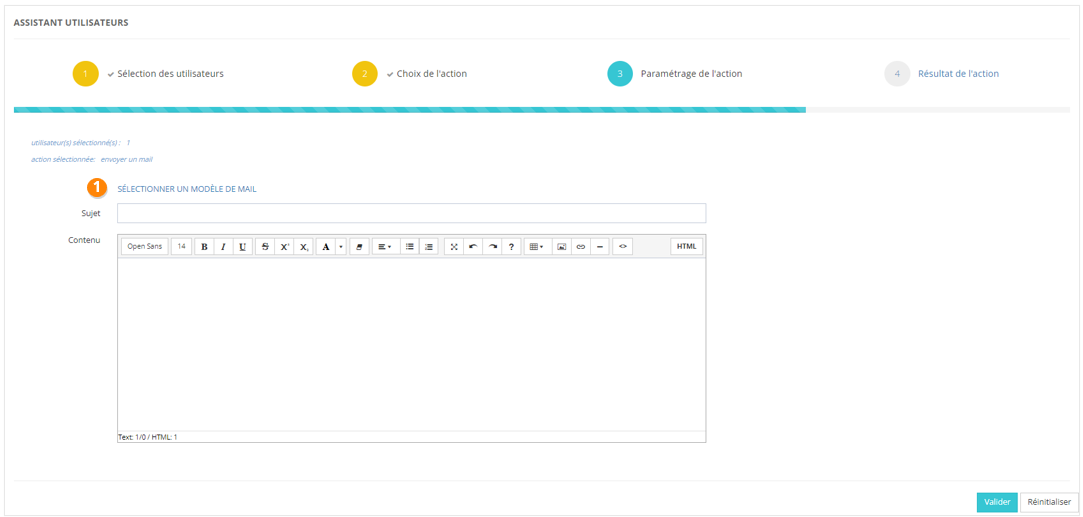
##### **<span style="color: rgb(128, 128, 128);">Modèle de mail </span>**

1. Cliquez sur Sélectionner un modèle de mail.
2. Choisissez parmi la liste des modèles de mails.
3. À la validation de votre choix, vous retournez à l'affichage précédent, avec le sujet et le contenu préremplis, que vous pouvez encore modifier à votre guise.
4. Lorsque vous avez paramétré entièrement l'envoi de votre mail, cliquez sur Valider.

[![image.png](https://documentation.xperteam.net/uploads/images/gallery/2024-05/scaled-1680-/dk3image.png)](https://documentation.xperteam.net/uploads/images/gallery/2024-05/dk3image.png)
<span style="color: rgb(0, 0, 0);">**Le filtre de mails**</span>

<span style="color: rgb(0, 0, 0);">Le filtre de mails fonctionne sur le même principe que le filtre d'utilisateurs (voir plus haut).</span>

</details><details id="bkmrk-envoyer-une-notifica"><summary>Envoyer une notification</summary>

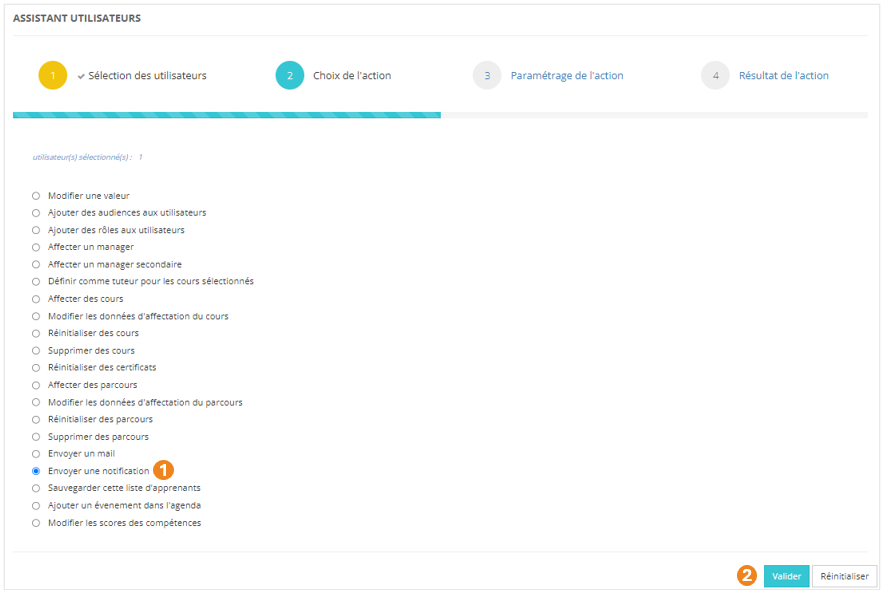
1. Sélectionnez l'action <span style="color: rgb(239, 131, 29);">**Envoyer une notification**</span> ;
2. Cliquez sur <span style="color: rgb(239, 131, 29);">**Valider**</span>.

[![image.png](https://documentation.xperteam.net/uploads/images/gallery/2024-05/scaled-1680-/1rPimage.png)](https://documentation.xperteam.net/uploads/images/gallery/2024-05/1rPimage.png)

#### **Paramétrage de l'action**

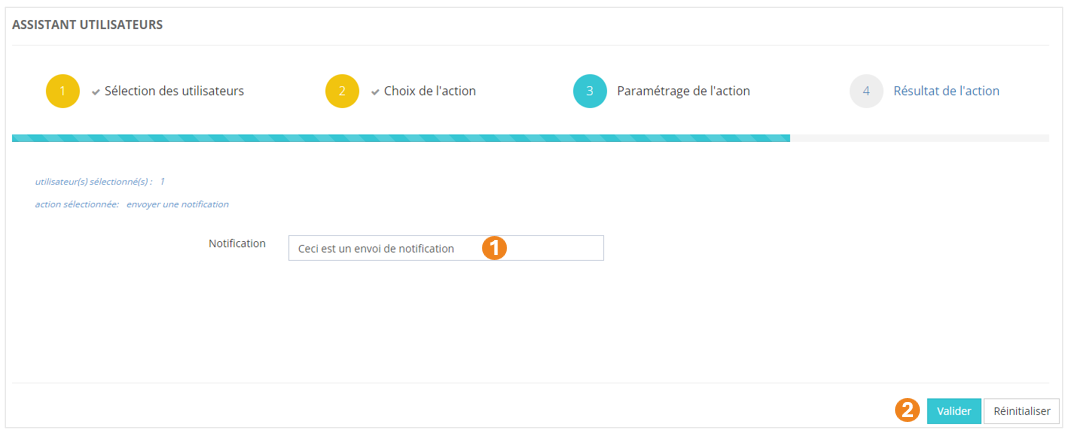
1. Écrivez le <span style="color: rgb(239, 131, 29);">**texte de la notification**</span> dans le champ texte prévu à cet effet ; <span class="callout info">Depuis l'assistant utilisateurs, une notification est un texte court sans mise en forme.</span>
2. Cliquez sur <span style="color: rgb(239, 131, 29);">**Valider**</span>.

[![image.png](https://documentation.xperteam.net/uploads/images/gallery/2024-05/scaled-1680-/IPAimage.png)](https://documentation.xperteam.net/uploads/images/gallery/2024-05/IPAimage.png)

##### <span style="color: rgb(128, 128, 128);">**Résultat en Front-Office**</span>

En cliquant sur la <span style="color: rgb(239, 131, 29);">**cloche**</span>, vous pouvez visualiser toutes vos notifications.

[![image.png](https://documentation.xperteam.net/uploads/images/gallery/2024-05/scaled-1680-/aXgimage.png)](https://documentation.xperteam.net/uploads/images/gallery/2024-05/aXgimage.png)

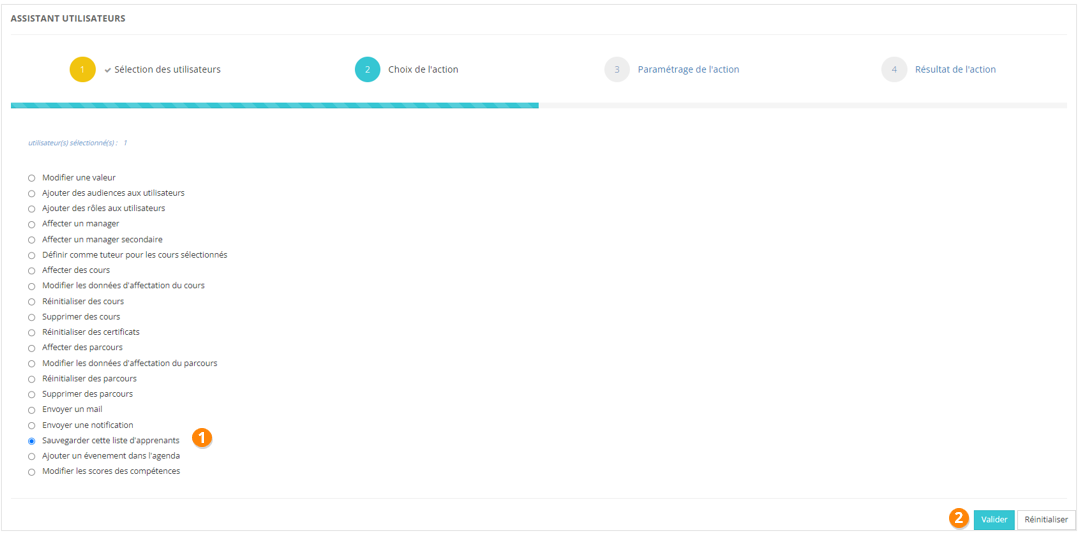
</details><details id="bkmrk-sauvegarder-une-list"><summary>Sauvegarder cette liste d'apprenants</summary>

1. Sélectionnez l'action <span style="color: rgb(239, 131, 29);">**Sauvegarder cette liste d'apprenants**</span> ;
2. Cliquez sur <span style="color: rgb(239, 131, 29);">**Valider**</span>.

[![image.png](https://documentation.xperteam.net/uploads/images/gallery/2024-05/scaled-1680-/4EZimage.png)](https://documentation.xperteam.net/uploads/images/gallery/2024-05/4EZimage.png)

#### **Paramétrage de l'action**

1. Nommez votre liste
2. Vous pouvez ajouter une description.
3. Cliquer sur Valider.

[![image.png](https://documentation.xperteam.net/uploads/images/gallery/2024-05/scaled-1680-/D75image.png)](https://documentation.xperteam.net/uploads/images/gallery/2024-05/D75image.png)
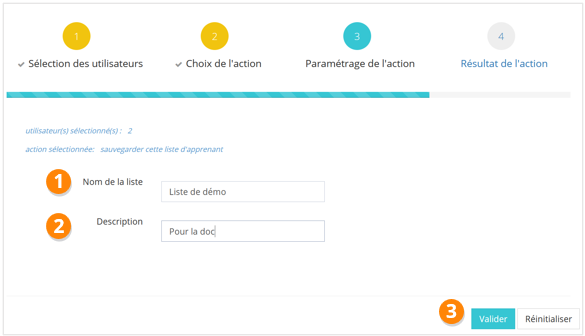
<p class="callout info"> Cette liste sera obligatoirement une liste statique, puisqu'elle est créée à partir d'utilisateurs que vous avez choisis et non à partir de critères.</p>

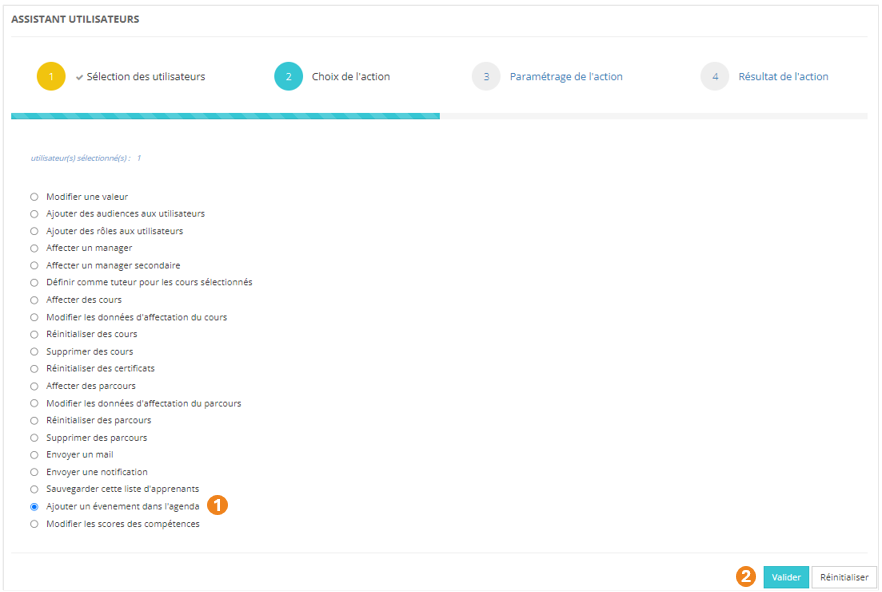
</details><details id="bkmrk-ajouter-un-%C3%A9v%C3%A9nement"><summary>Ajouter un événement dans l'agenda</summary>

1. Sélectionnez l'action <span style="color: rgb(239, 131, 29);">**Ajouter un événement dans l'agenda**</span> ;
2. Cliquez sur <span style="color: rgb(239, 131, 29);">**Valider**</span>.

[![image.png](https://documentation.xperteam.net/uploads/images/gallery/2024-05/scaled-1680-/8brimage.png)](https://documentation.xperteam.net/uploads/images/gallery/2024-05/8brimage.png)

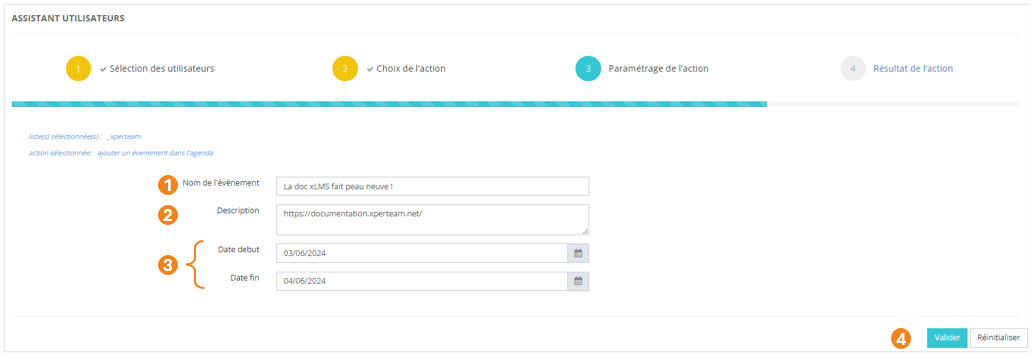
#### **Paramétrage de l'action**

1. <span style="color: rgb(239, 131, 29);">**Nommez** </span>l'événement ;
2. Ajoutez éventuellement une <span style="color: rgb(239, 131, 29);">**description** </span>de l'événement ;
3. Ajoutez une <span style="color: rgb(239, 131, 29);">**date de début**</span> et une <span style="color: rgb(239, 131, 29);">**date de fin**</span> pour l'événement ;
4. Cliquez sur <span style="color: rgb(239, 131, 29);">**Valider**</span>.

[![image.png](https://documentation.xperteam.net/uploads/images/gallery/2024-05/scaled-1680-/q70image.png)](https://documentation.xperteam.net/uploads/images/gallery/2024-05/q70image.png)

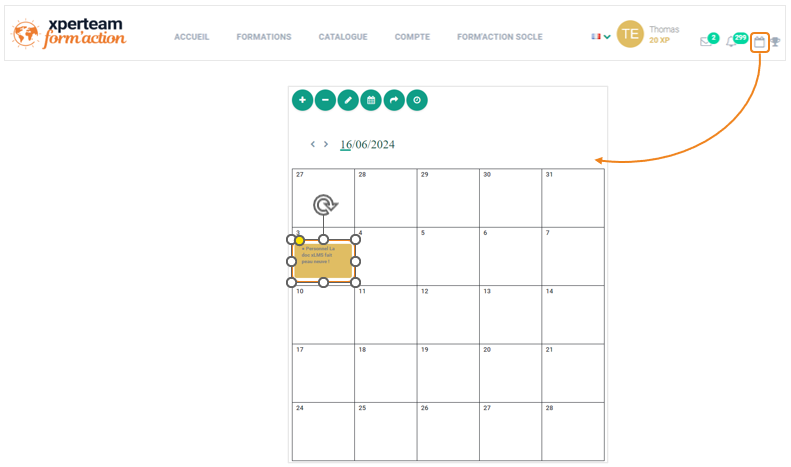
#### <span style="color: rgb(0, 0, 0);">**Inscription de l'événement à l'agenda de l'utilisateur**</span>

En cliquant sur l'icône de calendrier dans la barre de navigation, l'utilisateur pourra retrouver l'événement inscrit dans son agenda.

[![image.png](https://documentation.xperteam.net/uploads/images/gallery/2024-05/scaled-1680-/P4bimage.png)](https://documentation.xperteam.net/uploads/images/gallery/2024-05/P4bimage.png)
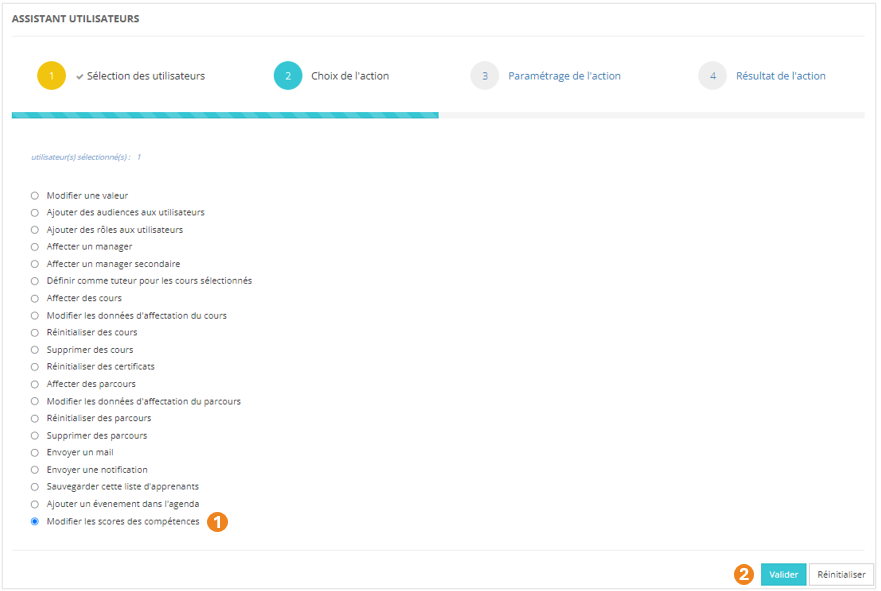
</details><details id="bkmrk-modifier-les-scores-"><summary>Modifier les scores des compétences</summary>

1. Sélectionnez l'action <span style="color: rgb(239, 131, 29);">**Modifier les scores des compétences**</span> ;
2. Cliquez sur <span style="color: rgb(239, 131, 29);">**Valider**</span>.

[![image.png](https://documentation.xperteam.net/uploads/images/gallery/2024-05/scaled-1680-/teIimage.png)](https://documentation.xperteam.net/uploads/images/gallery/2024-05/teIimage.png)

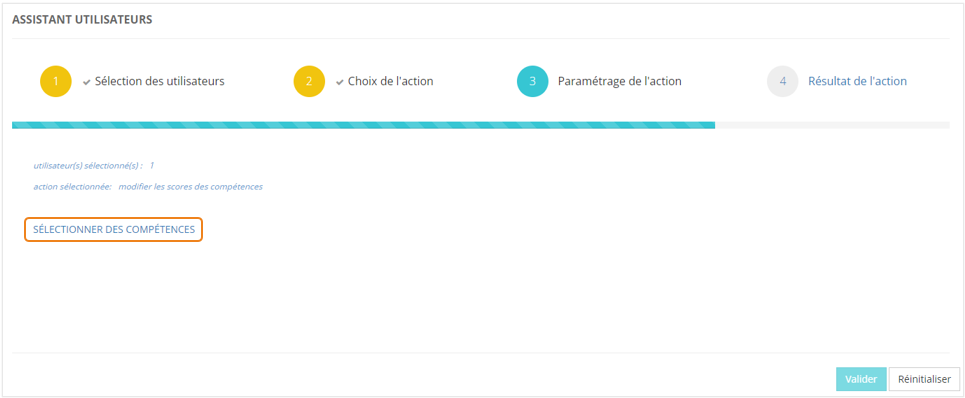
#### **Paramétrage de l'action**

Cliquez sur <span style="color: rgb(239, 131, 29);">**SÉLECTIONNER DES COMPÉTENCES**</span>.

[![image.png](https://documentation.xperteam.net/uploads/images/gallery/2024-05/scaled-1680-/lIkimage.png)](https://documentation.xperteam.net/uploads/images/gallery/2024-05/lIkimage.png)

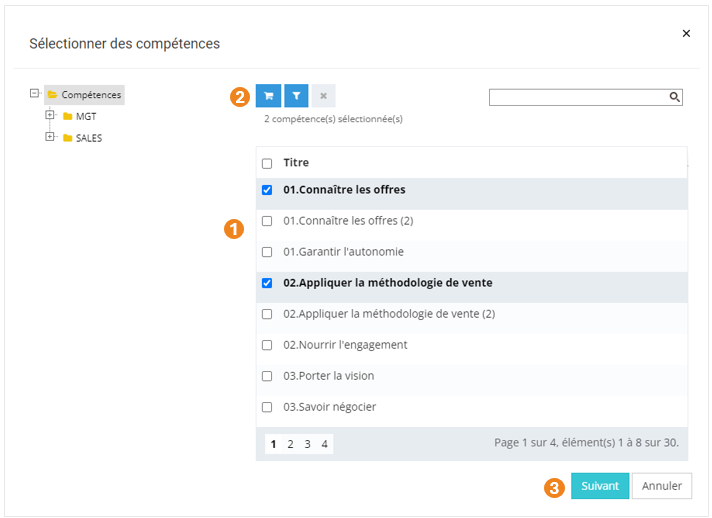
Dans la pop-up qui s'ouvre :

1. Sélectionnez la ou les <span style="color: #ef831d;">**compétences**</span> dont les scores vont être modifiés ;
2. Cliquez sur le <span style="color: rgb(239, 131, 29);">**chariot** </span>;
3. Cliquez sur <span style="color: rgb(239, 131, 29);">**Suivant**</span>.

[![image.png](https://documentation.xperteam.net/uploads/images/gallery/2024-05/scaled-1680-/Nb0image.png)](https://documentation.xperteam.net/uploads/images/gallery/2024-05/Nb0image.png)

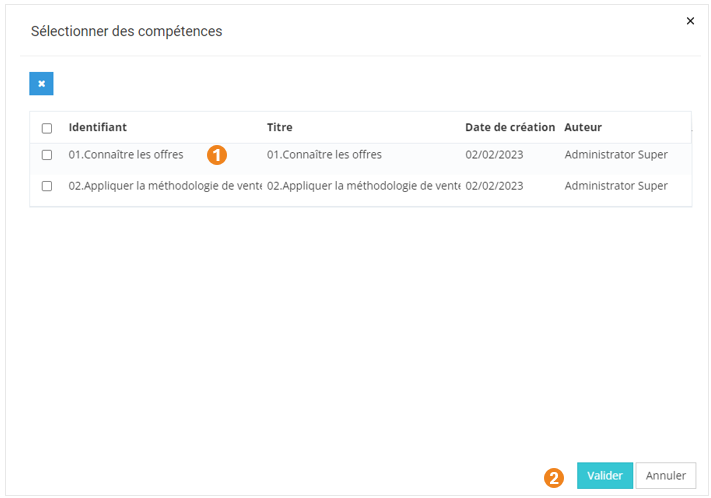
Dans la nouvelle pop-up :

1. Retrouvez le <span style="color: rgb(239, 131, 29);">**récapitulatif des compétences** </span>que vous avez sélectionnées ;  
    <span class="callout info">À ce niveau, vous pouvez supprimer des compétences en les sélectionnant dans le tableau puis en cliquant sur le **bouton \[x\]**.</span>
2. Cliquez sur <span style="color: rgb(239, 131, 29);">**Valider**</span>.

[![image.png](https://documentation.xperteam.net/uploads/images/gallery/2024-05/scaled-1680-/sCPimage.png)](https://documentation.xperteam.net/uploads/images/gallery/2024-05/sCPimage.png)

<span style="color: rgb(0, 0, 0);">**Le filtre de compétences**</span>

<span style="color: rgb(0, 0, 0);">Le filtre de compétences fonctionne sur le même principe que le filtre d'utilisateurs (voir plus haut).</span>

---

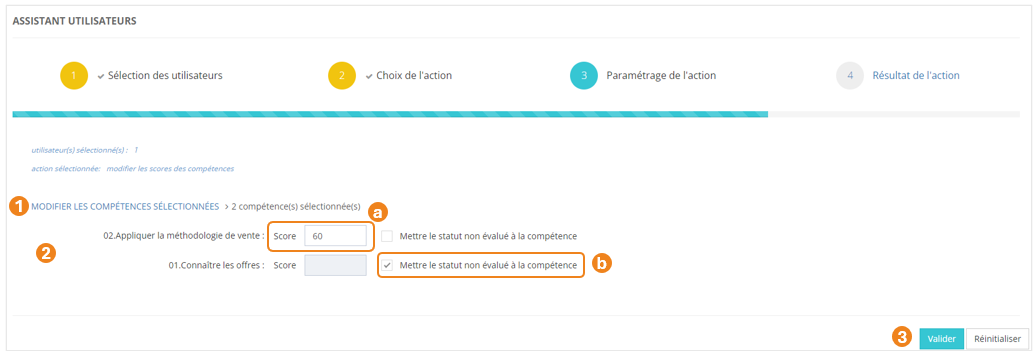
De retour sur l'écran principal, vous pouvez :

1. <span style="color: rgb(239, 131, 29);">**Modifier**</span> les compétences sélectionnées ;
2. (a) <span style="color: rgb(239, 131, 29);">**Mettre un score**</span> sur les compétences sélectionnées à l'étape précédente   
    OU  
    (b) Mettre un <span style="color: rgb(239, 131, 29);">**statut Non évalué**</span> sur les compétences sélectionnées à l'étape précédente ;  
    <p class="callout info">Lorsque vous cochez cette case, la zone de score devient alors grisée car non utilisable.</p>
3. <span style="color: rgb(239, 131, 29);">**Valider** </span>l'action lorsque vous êtes satisfait de la modification des scores de compétences.

[![image.png](https://documentation.xperteam.net/uploads/images/gallery/2024-05/scaled-1680-/MPgimage.png)](https://documentation.xperteam.net/uploads/images/gallery/2024-05/MPgimage.png)
</details>#### <span style="color: rgb(0, 0, 0);">**Résultat de l'action**</span>

[![image.png](https://documentation.xperteam.net/uploads/images/gallery/2024-05/scaled-1680-/qIoimage.png)](https://documentation.xperteam.net/uploads/images/gallery/2024-05/qIoimage.png)

Cet écran détaille les <span style="color: rgb(239, 131, 29);">**succès**</span> et les <span style="color: rgb(239, 131, 29);">**échecs** </span>de l'action demandée.

Le bouton <span style="color: rgb(239, 131, 29);">**Réinitialiser** </span>ramène à l’écran de sélection des utilisateurs de l’assistant, afin de paramétrer une nouvelle action de modification sur le même groupe ou un groupe différent, via l’assistant.

<p class="callout info">Le bouton **Réinitialiser** n’annule pas la dernière action.</p>

# L'Assistant Cours

L'assistant <span style="color: rgb(239, 131, 29);">**Cours** </span>vous permet d'effectuer, après avoir sélectionné des cours, un certains nombre de tâches d'administration. Vous trouverez la liste de toutes les actions possibles plus loin dans la fiche.

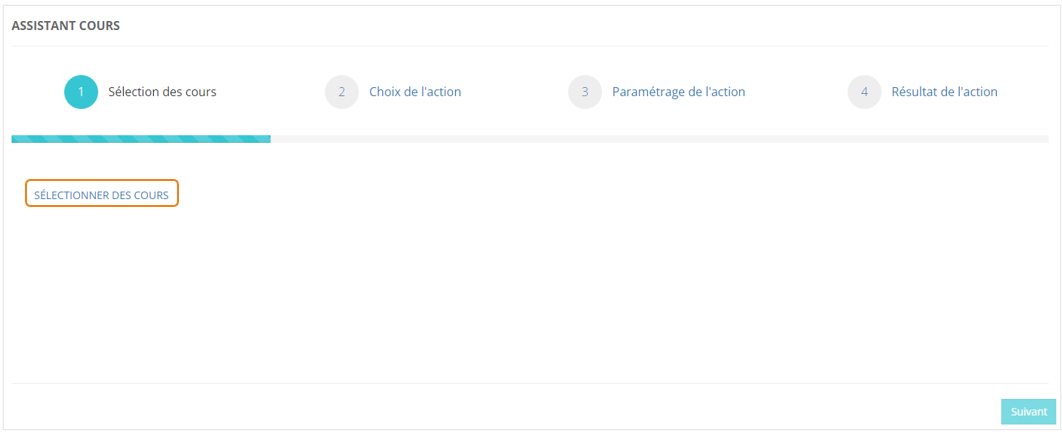
### <span style="color: rgb(128, 128, 128);">**Sélection des cours**</span>

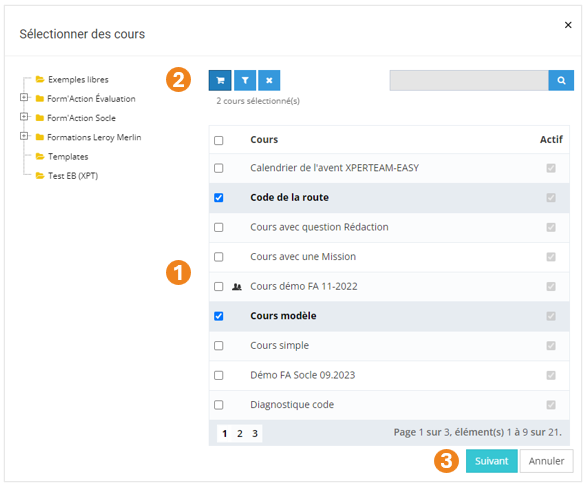
Dans le menu <span style="color: rgb(239, 131, 29);">**Assistants &gt; Assistant cours**</span>, cliquez sur <span style="color: rgb(239, 131, 29);">**SÉLECTIONNER DES COURS**</span>.

[![image.png](https://documentation.xperteam.net/uploads/images/gallery/2024-05/scaled-1680-/wNIimage.png)](https://documentation.xperteam.net/uploads/images/gallery/2024-05/wNIimage.png)

Dans la pop-up qui s'ouvre :

1. Sélectionnez les <span style="color: rgb(239, 131, 29);">**cours** </span>à modifier ;
2. Cliquez sur le <span style="color: rgb(239, 131, 29);">**chariot**</span> ;
3. Cliquez sur <span style="color: rgb(239, 131, 29);">**Suivant**</span>.

[![image.png](https://documentation.xperteam.net/uploads/images/gallery/2024-05/scaled-1680-/f7oimage.png)](https://documentation.xperteam.net/uploads/images/gallery/2024-05/f7oimage.png)

<details id="bkmrk-le-filtre-de-cours-v"><summary>Le filtre de cours</summary>

1. Vous pouvez <span style="color: rgb(239, 131, 29);">**filtrer** </span>votre recherche grâce : au <span style="color: rgb(239, 131, 29);">**nom** </span>du cours, son <span style="color: rgb(239, 131, 29);">**identifiant unique**</span>, sa <span style="color: rgb(239, 131, 29);">**description**</span>, son <span style="color: rgb(239, 131, 29);">**audience**</span>, son <span style="color: rgb(239, 131, 29);">**fournisseur**<span style="color: rgb(0, 0, 0);">, sa <span style="color: rgb(239, 131, 29);">**modalité**</span></span></span>.
2. Si vous cherchez parmi les <span style="color: rgb(239, 131, 29);">**cours désactivés**</span>, cochez cette case.
3. Vous pouvez également filtrer votre recherche à l'aide des <span style="color: rgb(239, 131, 29);">**champs personnalisés**</span> des cours.
4. Choisissez si les **<span style="color: rgb(239, 131, 29);">critères</span>** doivent tous être valides ou s'il suffit qu'un des critères soit valide pour proposer un résultat.<span class="callout success">Dans l'exemple ci-dessous, si vous choisissez :  
    **-** **Tous les critères :** vous obtiendrez toutes les cours dont le nom contient la chaîne de caractères 'DUP' et le champ personnalisé 1 contient la chaîne de caractères '2024' ;  
    **-** **Au moins un critère :** vous obtiendrez l'ensemble de tous les cours dont le nom contient la chaîne de caractères 'DUP', ainsi que tous les utilisateurs dont le champ personnalisé 1 contient la chaîne de caractères '2024'.</span>
5. Cliquez sur <span style="color: rgb(239, 131, 29);">**Valider**</span>.
6. Sélectionnez les <span style="color: rgb(239, 131, 29);">**cours** </span>qui vous intéressent parmi les cours trouvés par filtrage.

**<span style="background-color: rgb(230, 126, 35);">//Image en attente de correction de la fenêtre de filtre</span>**

</details>#### **Validation des cours**

Dans la nouvelle pop-up :

1. Retrouvez le <span style="color: rgb(239, 131, 29);">**récapitulatif des cours**</span> que vous avez sélectionnés ;<span class="callout info">À ce niveau, vous pouvez supprimer des cours en les sélectionnant dans le tableau puis en cliquant sur le **bouton \[x\]**.</span>
2. Cochez cette case si vous souhaitez <span style="color: rgb(239, 131, 29);">**informer les apprenants qu'un cours a été réinitialisé**</span> ; <span class="callout warning">Cette case ne sera utile que pour les actions « **Modifier les informations de l'affectation** » et « **Affecter des apprenants** ».</span>
3. Si la case est cochée, un nouveau champ apparaît pour renseigner le <span style="color: rgb(239, 131, 29);">**modèle de mail**</span> qui sera envoyé ;  
    \- Cliquez sur le <span style="color: rgb(239, 131, 29);">**bouton Crayon**</span> pour sélectionner un modèle de mail ;  
     Une nouvelle pop-up s'ouvre :   
     (a) Vous pouvez utiliser le **<span style="color: rgb(239, 131, 29);">bouton Œil</span>** pour visualiser les modèles de mails ;  
     (b) Sélectionnez le <span style="color: rgb(239, 131, 29);">**modèle de mail**</span> ;  
     (c) Cliquez sur <span style="color: rgb(239, 131, 29);">**Valider**</span>.  
    \- Cliquez sur le **<span style="color: rgb(239, 131, 29);">bouton Gomme</span>**<span style="color: rgb(239, 131, 29);"> </span>pour supprimer le modèle de mail sélectionné.
4. Cliquez sur <span style="color: rgb(239, 131, 29);">**Valider**</span>.

[![image.png](https://documentation.xperteam.net/uploads/images/gallery/2024-05/scaled-1680-/LARimage.png)](https://documentation.xperteam.net/uploads/images/gallery/2024-05/LARimage.png)

---

De retour sur l'écran principal, vous pouvez :

1. <span style="color: rgb(239, 131, 29);">**Modifier**</span> les cours sélectionnés ;
2. Cliquer sur <span style="color: rgb(239, 131, 29);">**Suivant** </span>lorsque vous êtes satisfait de la sélection des cours.

[![image.png](https://documentation.xperteam.net/uploads/images/gallery/2024-05/scaled-1680-/Efhimage.png)](https://documentation.xperteam.net/uploads/images/gallery/2024-05/Efhimage.png)

---

### **<span style="color: rgb(128, 128, 128);">Sélection et paramétrage de l'action</span>**

<details id="bkmrk-modifier-les-informa"><summary>Modifier les informations générales des cours</summary>

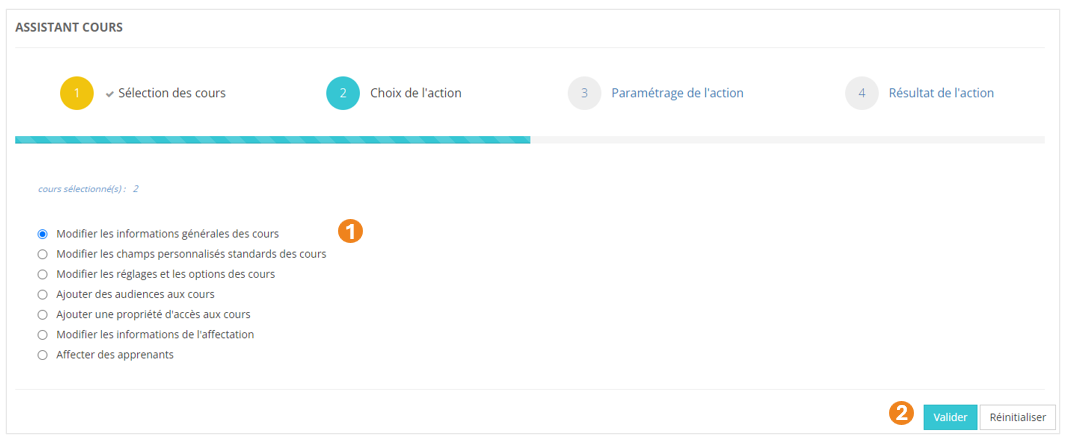
1. <span style="color: rgb(239, 131, 29);"><span style="color: rgb(0, 0, 0);">Sélectionnez l'action </span>**Modifiez les informatiques générales des cours** <span style="color: rgb(0, 0, 0);">;</span></span>
2. <span style="color: rgb(239, 131, 29);"><span style="color: rgb(0, 0, 0);">Cliquez sur </span>**Valider**<span style="color: rgb(0, 0, 0);">.</span></span>

[![image.png](https://documentation.xperteam.net/uploads/images/gallery/2024-05/scaled-1680-/NX9image.png)](https://documentation.xperteam.net/uploads/images/gallery/2024-05/NX9image.png)

#### **Paramétrage de l'action**

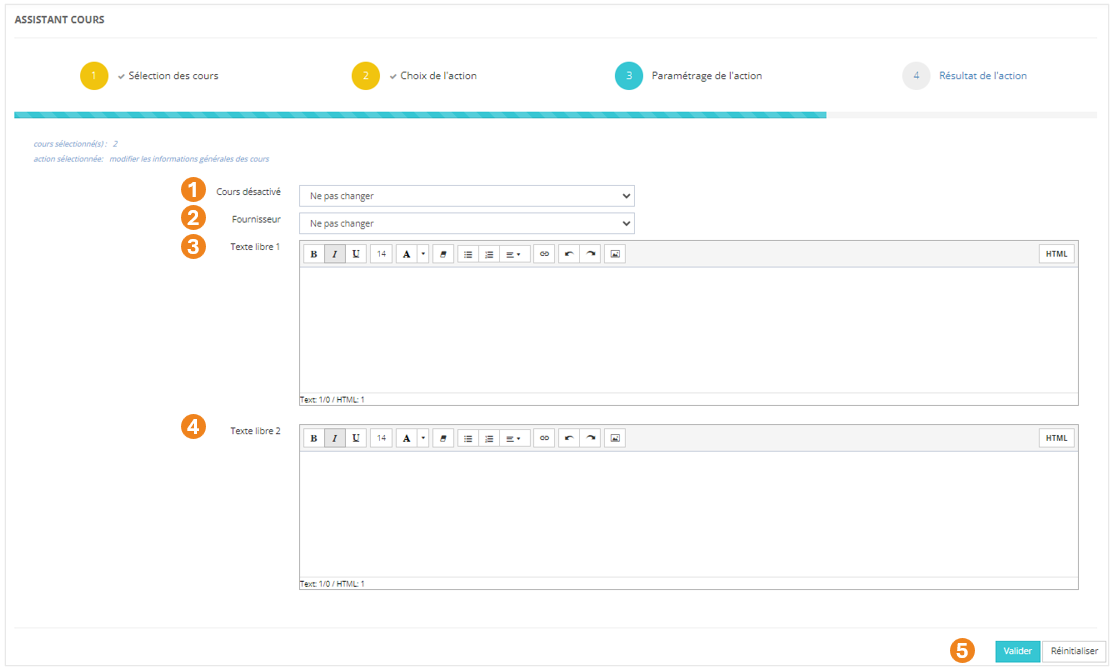
Vous avez la possibilité de modifier une ou plusieurs des valeurs ci-dessous :

1. Le <span style="color: rgb(239, 131, 29);">**statut**</span> du cours : désactivé ou non (*<span style="color: rgb(239, 131, 29);">Ne pas changer</span> / <span style="color: rgb(239, 131, 29);">Oui</span> / <span style="color: rgb(239, 131, 29);">Non</span>*) ;
2. Le <span style="color: rgb(239, 131, 29);">**fournisseur**</span> du cours ;
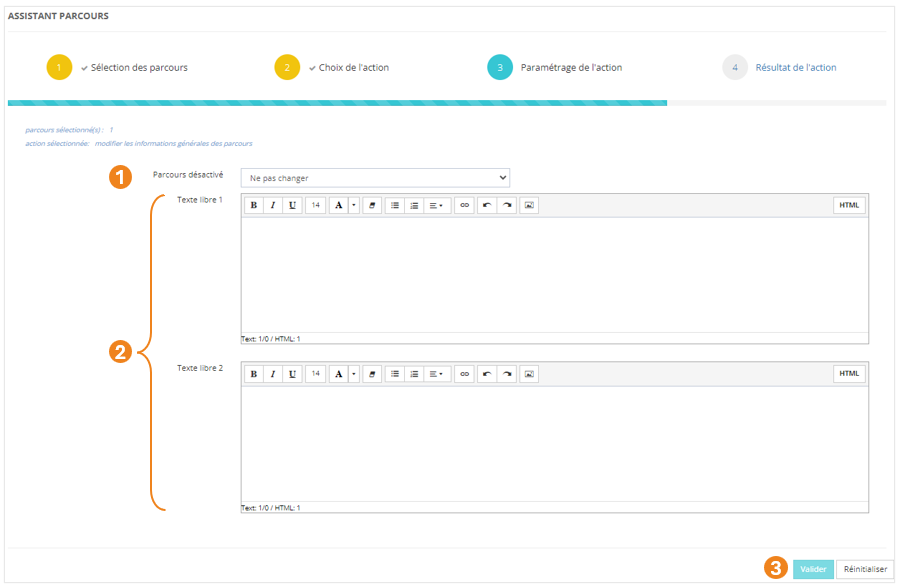
3. Le <span style="color: rgb(239, 131, 29);">**texte libre 1**</span> du cours ;
4. Le <span style="color: rgb(239, 131, 29);">**texte libre 2**</span> du cours ;
5. Lorsque vous avez effectué les modifications souhaitées, cliquez sur <span style="color: rgb(239, 131, 29);">**Valider**</span>.

[![image.png](https://documentation.xperteam.net/uploads/images/gallery/2024-05/scaled-1680-/2VNimage.png)](https://documentation.xperteam.net/uploads/images/gallery/2024-05/2VNimage.png)

<p class="callout info">Pour plus d'informations sur les informations générales du cours, voir la page ***//Créer un cours***.</p>

</details><details id="bkmrk-modifier-les-champs-"><summary>Modifier les champs personnalisés standards des cours</summary>

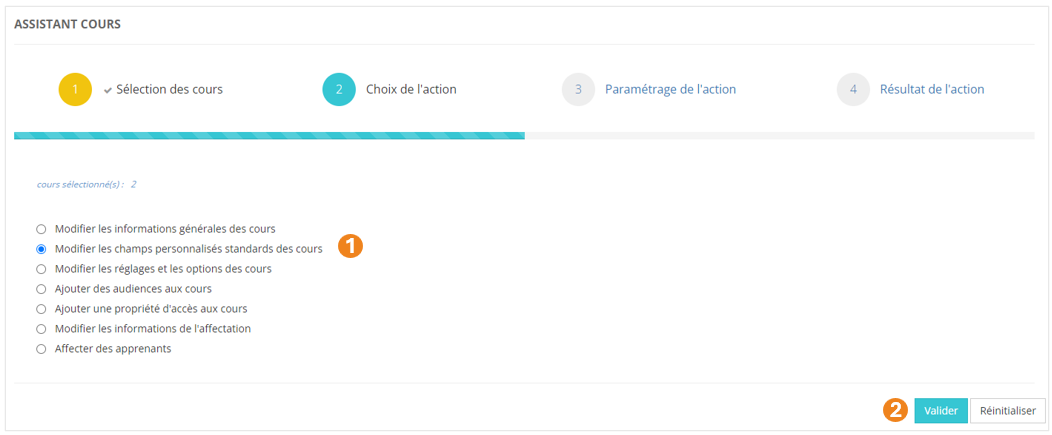
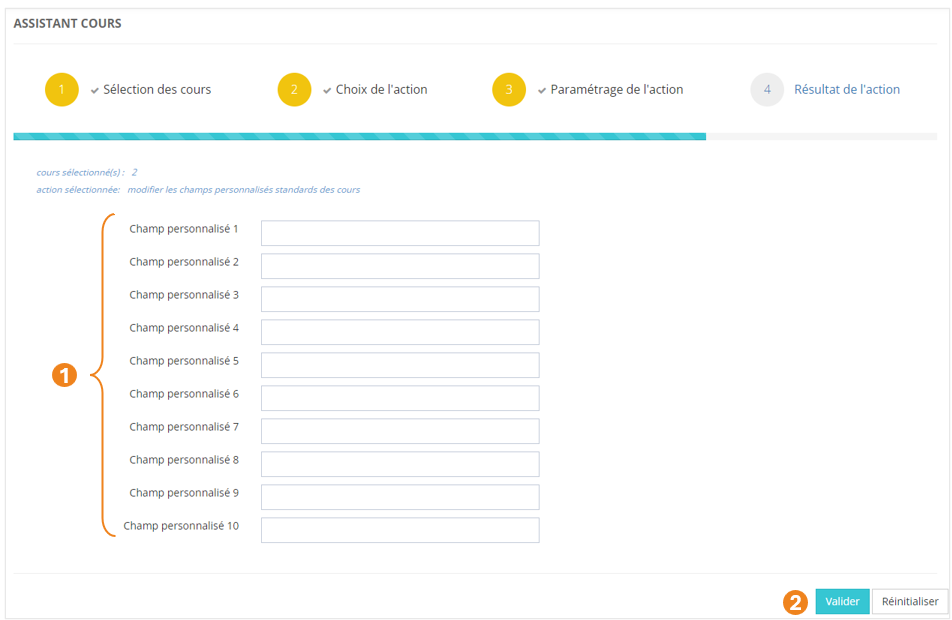
1. <span style="color: rgb(239, 131, 29);"><span style="color: rgb(0, 0, 0);">Sélectionnez l'action </span>**Modifiez les champs personnalisés standards des cours** <span style="color: rgb(0, 0, 0);">;</span></span>
2. <span style="color: rgb(239, 131, 29);"><span style="color: rgb(0, 0, 0);">Cliquez sur </span>**Valider**<span style="color: rgb(0, 0, 0);">.</span></span>

[![image.png](https://documentation.xperteam.net/uploads/images/gallery/2024-05/scaled-1680-/7oUimage.png)](https://documentation.xperteam.net/uploads/images/gallery/2024-05/7oUimage.png)

#### **Paramétrage de l'action**

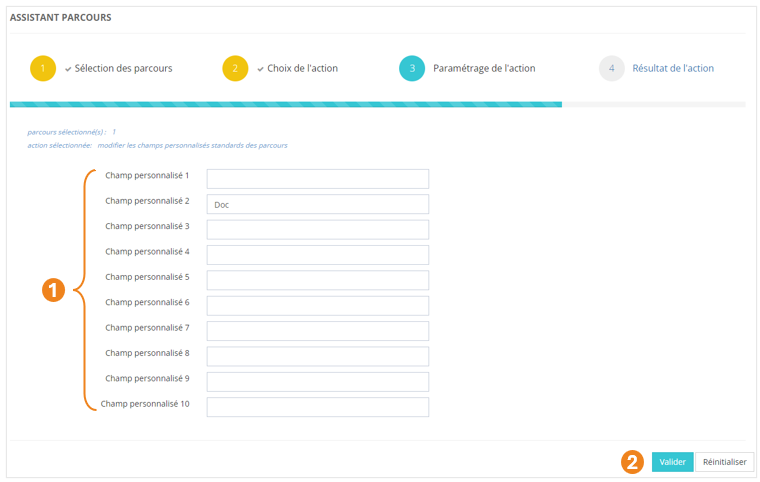
1. <span style="color: rgb(239, 131, 29);"><span style="color: rgb(0, 0, 0);">Vous avez la possibilité de modifier un ou plusieurs </span>**champs personnalisés** <span style="color: rgb(0, 0, 0);">des cours sélectionnés ;</span></span>
2. <span style="color: rgb(239, 131, 29);"><span style="color: rgb(0, 0, 0);">Lorsque vous avez effectué les modifications souhaitées, cliquez sur</span> **Valider**<span style="color: rgb(0, 0, 0);">.</span></span>

[![image.png](https://documentation.xperteam.net/uploads/images/gallery/2024-05/scaled-1680-/Urrimage.png)](https://documentation.xperteam.net/uploads/images/gallery/2024-05/Urrimage.png)

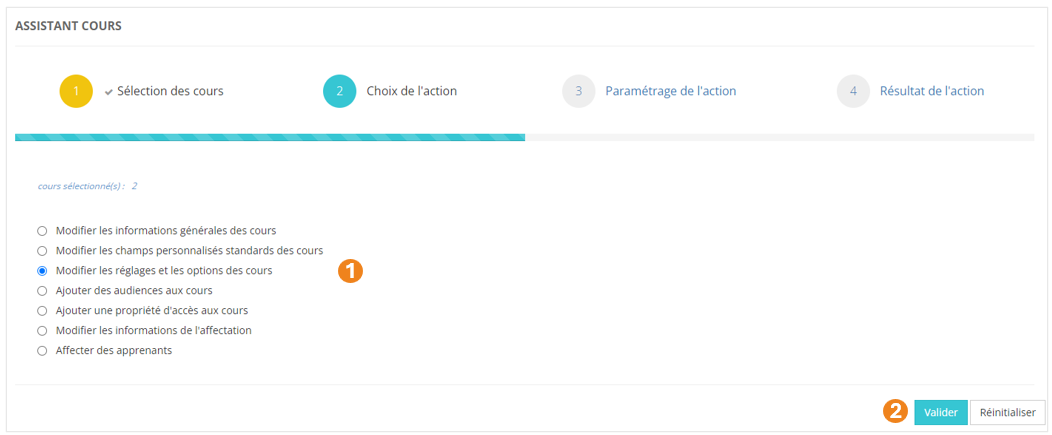
</details><details id="bkmrk-modifier-les-r%C3%A9glage"><summary>Modifier les réglages et les options de cours</summary>

1. <span style="color: rgb(239, 131, 29);"><span style="color: rgb(0, 0, 0);">Sélectionnez l'action </span>**Modifiez les réglages et les options des cours** <span style="color: rgb(0, 0, 0);">;</span></span>
2. <span style="color: rgb(239, 131, 29);"><span style="color: rgb(0, 0, 0);">Cliquez sur </span>**Valider**<span style="color: rgb(0, 0, 0);">.</span></span>

[![image.png](https://documentation.xperteam.net/uploads/images/gallery/2024-05/scaled-1680-/mh6image.png)](https://documentation.xperteam.net/uploads/images/gallery/2024-05/mh6image.png)

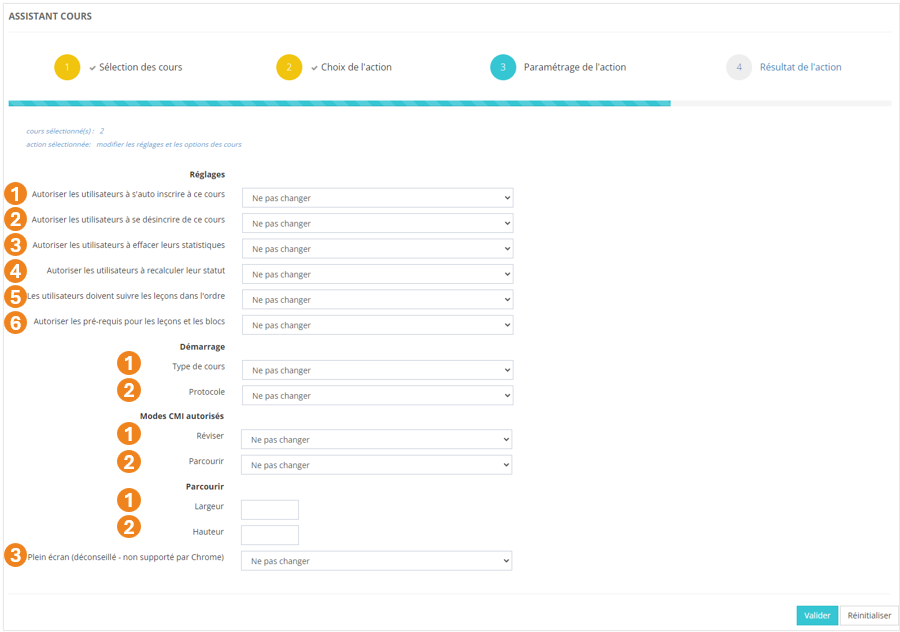
#### **Paramétrage de l'action**

Vous avez la possibilité de modifier une ou plusieurs des options ci-dessous :

- **Réglages :**

1. L'autorisation pour les utilisateurs de <span style="color: rgb(239, 131, 29);">**s'auto-inscrire**</span> au cours : *<span style="color: rgb(239, 131, 29);">Ne pas changer</span> / <span style="color: rgb(239, 131, 29);">Oui</span> / <span style="color: rgb(239, 131, 29);">Non</span>* ;
2. L'autorisation pour les utilisateurs de <span style="color: rgb(239, 131, 29);">**se désinscrire**</span> du cours : *<span style="color: rgb(239, 131, 29);">Ne pas changer</span> / <span style="color: rgb(239, 131, 29);">Oui</span> / <span style="color: rgb(239, 131, 29);">Non </span>*;
3. L'autorisation pour les utilisateurs d'<span style="color: rgb(239, 131, 29);">**effacer leurs statistiques**</span> de cours : *<span style="color: rgb(239, 131, 29);">Ne pas changer</span> / <span style="color: rgb(239, 131, 29);">Oui</span> / <span style="color: rgb(239, 131, 29);">Non</span>* ;
4. L'autorisation pour les utilisateurs de <span style="color: rgb(239, 131, 29);">**recalculer leur statut**</span> du cours : *<span style="color: rgb(239, 131, 29);">Ne pas changer</span> / <span style="color: rgb(239, 131, 29);">Oui</span> / <span style="color: rgb(239, 131, 29);">Non </span>*;
5. Le <span style="color: rgb(239, 131, 29);">**suivi séquentiel**</span> des leçons du cours : *<span style="color: rgb(239, 131, 29);">Ne pas changer</span> / <span style="color: rgb(239, 131, 29);">Oui</span> / <span style="color: rgb(239, 131, 29);">Non <span style="color: rgb(0, 0, 0);">;</span></span>*
6. L'autorisation pour les administrateurs d'<span style="color: rgb(239, 131, 29);">**ajouter des prérequis pour les leçons et les blocs**</span> du cours : *<span style="color: rgb(239, 131, 29);">Ne pas changer</span> / <span style="color: rgb(239, 131, 29);">Oui</span> / <span style="color: rgb(239, 131, 29);">Non <span style="color: rgb(0, 0, 0);">;</span></span>* <span class="callout warning">*<span style="color: rgb(239, 131, 29);"><span style="color: rgb(0, 0, 0);">Les options « **Suivi séquentiel** » et « **Ajout de prérequis** » sont **incompatibles** : vous ne pouvez pas mettre Oui à chacune de ces options, ni mettre Non à chacune de ces options.</span></span>*</span>

- **Démarrage** :

1. Le <span style="color: rgb(239, 131, 29);">**type de cours**</span> : *<span style="color: rgb(239, 131, 29);">Ne pas changer</span> / <span style="color: rgb(239, 131, 29);">Compatible AICC <span style="color: rgb(0, 0, 0);">/</span> SCORM</span> / <span style="color: rgb(239, 131, 29);">AICC uniquement <span style="color: rgb(0, 0, 0);">/ </span>Présentiel <span style="color: rgb(0, 0, 0);">;</span></span>*
2. <span style="color: rgb(239, 131, 29);"><span style="color: rgb(0, 0, 0);">Le <span style="color: rgb(239, 131, 29);">**protocole** </span>utilisé :</span></span>*<span style="color: rgb(239, 131, 29);"><span style="color: rgb(0, 0, 0);"> <span style="color: rgb(239, 131, 29);">Ne pas changer</span> / <span style="color: rgb(239, 131, 29);">AICC (HACP) <span style="color: rgb(0, 0, 0);">/</span> SCORM (API)</span><span style="color: rgb(239, 131, 29);"> <span style="color: rgb(0, 0, 0);">;</span></span></span></span>*

- **<span style="color: rgb(239, 131, 29);"><span style="color: rgb(0, 0, 0);"><span style="color: rgb(239, 131, 29);"><span style="color: rgb(0, 0, 0);">Modes CMI autorisés :</span></span></span></span>**

1. <span style="color: rgb(239, 131, 29);">**Réviser** </span>: *<span style="color: rgb(239, 131, 29);">Ne pas changer</span> / <span style="color: rgb(239, 131, 29);">Autorisé <span style="color: rgb(0, 0, 0);">/</span> Non autorisé</span> / <span style="color: rgb(239, 131, 29);">Suspendre <span style="color: rgb(0, 0, 0);">;</span></span>*
2. <span style="color: rgb(239, 131, 29);">**Parcourir** </span>: *<span style="color: rgb(239, 131, 29);">Ne pas changer</span> / <span style="color: rgb(239, 131, 29);">Autorisé <span style="color: rgb(0, 0, 0);">/</span> Non autorisé</span> / <span style="color: rgb(239, 131, 29);">Suspendre <span style="color: rgb(0, 0, 0);">;</span></span>*

- <span style="color: rgb(239, 131, 29);"><span style="color: rgb(0, 0, 0);">**Parcourir** :</span></span>

1. Définissez la <span style="color: rgb(239, 131, 29);">**largeur** </span>de la fenêtre d'affichage du cours (en pixels) ;
2. Définissez la <span style="color: rgb(239, 131, 29);">**hauteur** </span>de la fenêtre d'affichage du cours (en pixels) ;
3. Choisissez d'ouvrir ou non le cours en <span style="color: rgb(239, 131, 29);">**plein écran**</span> : *<span style="color: rgb(239, 131, 29);">Ne pas changer</span> / <span style="color: rgb(239, 131, 29);">Oui</span> / <span style="color: rgb(239, 131, 29);">Non </span>*;

[![image.png](https://documentation.xperteam.net/uploads/images/gallery/2024-05/scaled-1680-/08Aimage.png)](https://documentation.xperteam.net/uploads/images/gallery/2024-05/08Aimage.png)

Terminez l'action en cliquant sur le bouton <span style="color: rgb(239, 131, 29);">**Valider**</span>.

<p class="callout info"><span style="color: rgb(0, 0, 0);">Pour plus d'informations sur les réglages et les options du cours, voir la page ***//Créer un cours***.</span></p>

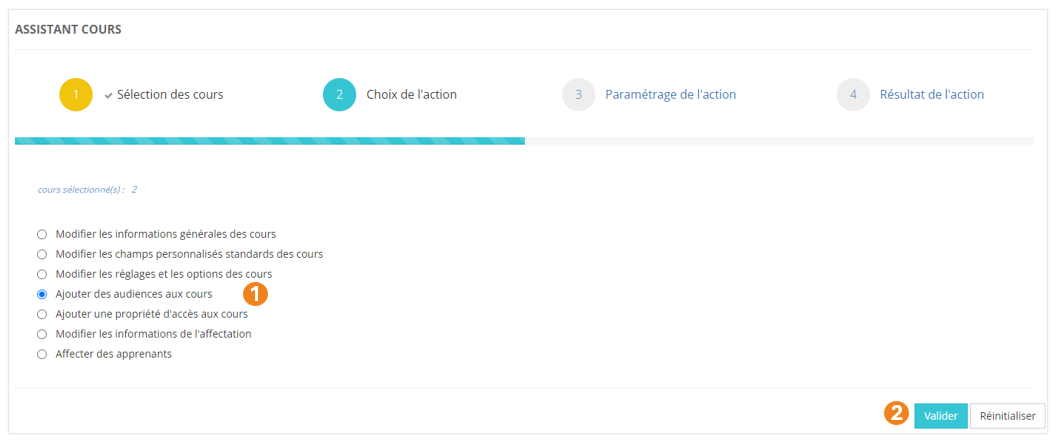
</details><details id="bkmrk-ajouter-des-audience"><summary>Ajouter des audiences aux cours</summary>

1. <span style="color: rgb(239, 131, 29);"><span style="color: rgb(0, 0, 0);">Sélectionnez l'action </span>**Ajouter des audiences aux cours** <span style="color: rgb(0, 0, 0);">;</span></span>
2. <span style="color: rgb(239, 131, 29);"><span style="color: rgb(0, 0, 0);">Cliquez sur </span>**Valider**<span style="color: rgb(0, 0, 0);">.</span></span>

[![image.png](https://documentation.xperteam.net/uploads/images/gallery/2024-05/scaled-1680-/GvRimage.png)](https://documentation.xperteam.net/uploads/images/gallery/2024-05/GvRimage.png)

#### **Paramétrage de l'action**

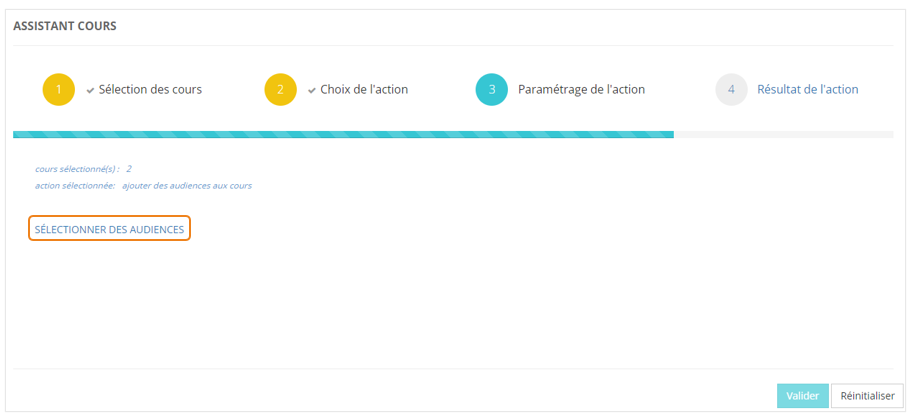
Cliquez sur **<span style="color: rgb(239, 131, 29);">SÉLECTIONNER DES AUDIENCES</span>**<span style="color: rgb(0, 0, 0);">.</span>

[![image.png](https://documentation.xperteam.net/uploads/images/gallery/2024-05/scaled-1680-/XrXimage.png)](https://documentation.xperteam.net/uploads/images/gallery/2024-05/XrXimage.png)

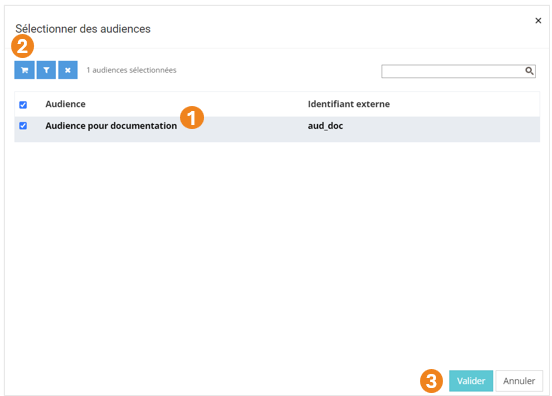
<span style="color: rgb(0, 0, 0);">Dans la pop-up qui s'ouvre :</span>

1. Sélectionnez les <span style="color: rgb(239, 131, 29);">**audiences** </span>à jouter aux cours ;
2. Cliquez sur le <span style="color: rgb(239, 131, 29);">**chariot**</span> ;
3. Cliquez sur <span style="color: rgb(239, 131, 29);">**Valider**</span>.

[![image.png](https://documentation.xperteam.net/uploads/images/gallery/2024-05/scaled-1680-/3bGimage.png)](https://documentation.xperteam.net/uploads/images/gallery/2024-05/3bGimage.png)

---

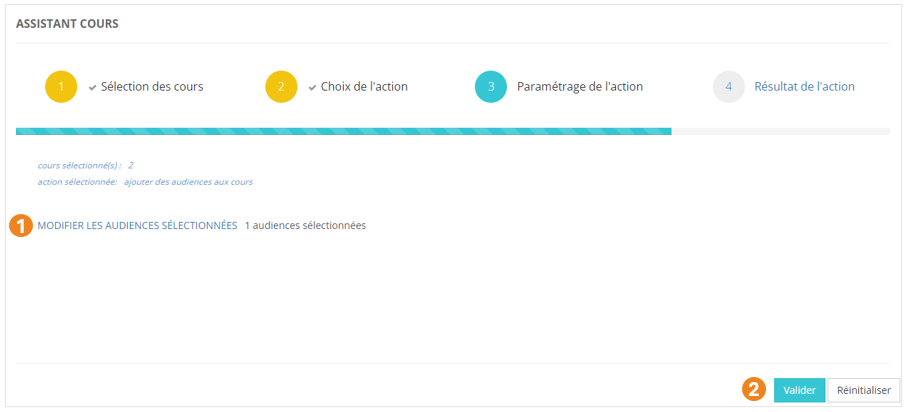
De retour sur l'écran principal, vous pouvez :

1. <span style="color: rgb(239, 131, 29);">**Modifier**</span> les audiences sélectionnées ;
2. Cliquer sur <span style="color: rgb(239, 131, 29);">**Valider** </span>lorsque vous êtes satisfait de la sélection des audiences.

[![image.png](https://documentation.xperteam.net/uploads/images/gallery/2024-05/scaled-1680-/GWlimage.png)](https://documentation.xperteam.net/uploads/images/gallery/2024-05/GWlimage.png)
</details><details id="bkmrk-ajouter-une-propri%C3%A9t"><summary>Ajouter une propriété d'accès aux cours</summary>

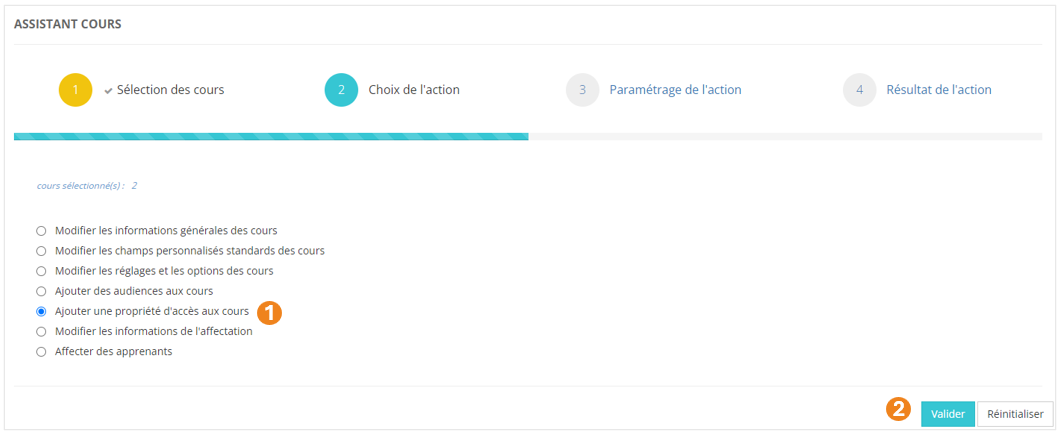
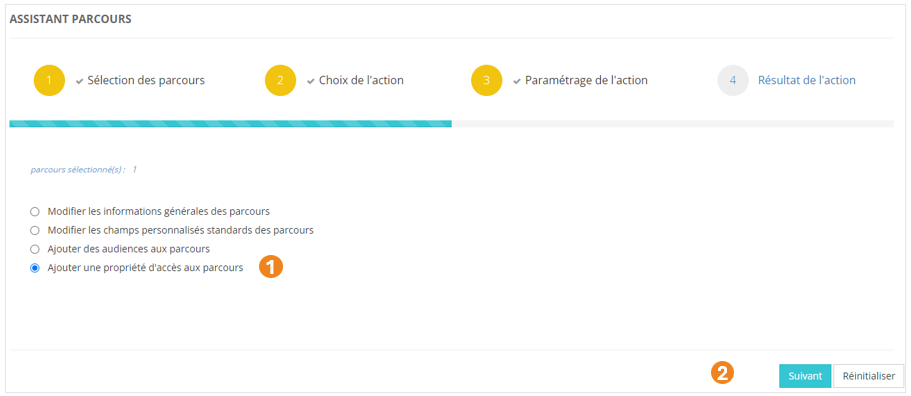
1. <span style="color: rgb(239, 131, 29);"><span style="color: rgb(0, 0, 0);">Sélectionnez l'action </span>**Ajouter une propriété d'accès aux cours** <span style="color: rgb(0, 0, 0);">;</span></span>
2. <span style="color: rgb(239, 131, 29);"><span style="color: rgb(0, 0, 0);">Cliquez sur </span>**Valider**<span style="color: rgb(0, 0, 0);">.</span></span>

[![image.png](https://documentation.xperteam.net/uploads/images/gallery/2024-05/scaled-1680-/tqNimage.png)](https://documentation.xperteam.net/uploads/images/gallery/2024-05/tqNimage.png)

#### **Paramétrage de l'action**

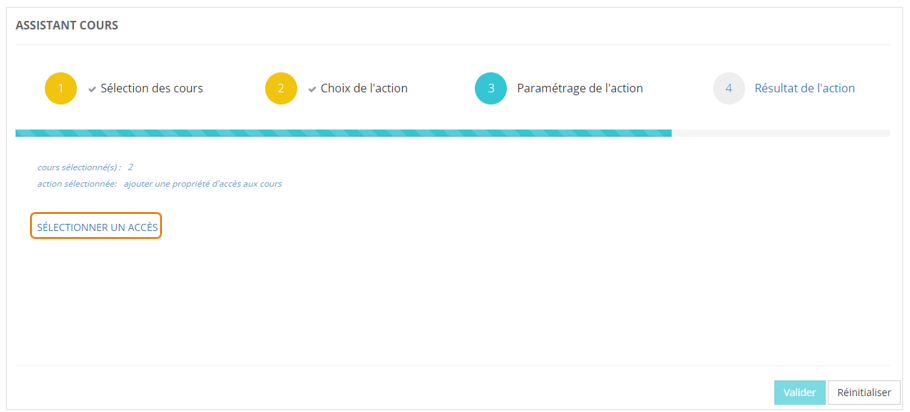
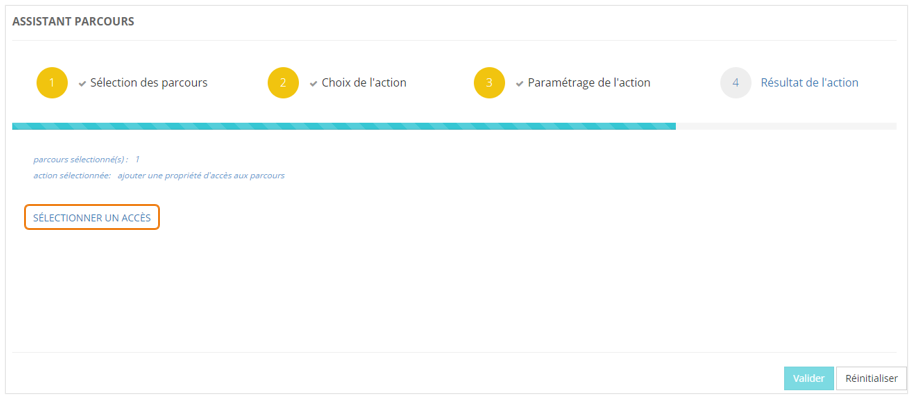
Cliquez sur **<span style="color: rgb(239, 131, 29);">SÉLECTIONNER UN ACCÈS</span>**<span style="color: rgb(0, 0, 0);">.</span>

[![image.png](https://documentation.xperteam.net/uploads/images/gallery/2024-05/scaled-1680-/TOUimage.png)](https://documentation.xperteam.net/uploads/images/gallery/2024-05/TOUimage.png)

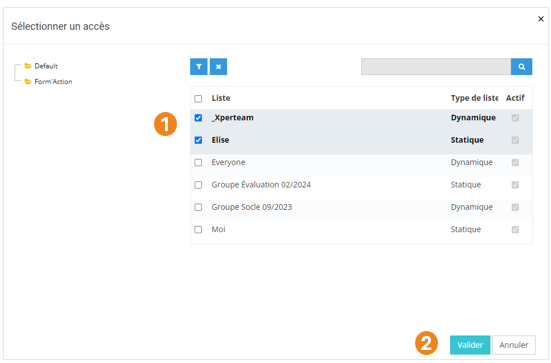
Dans la pop-up qui s'ouvre :

1. Sélectionnez des <span style="color: rgb(239, 131, 29);">**listes** </span>;
2. Cliquez sur <span style="color: rgb(239, 131, 29);">**Valider**</span>.

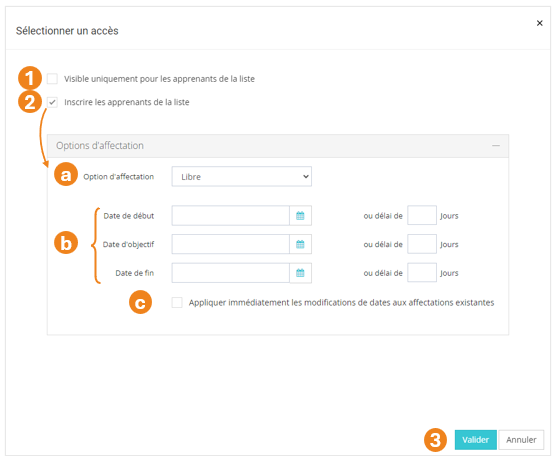
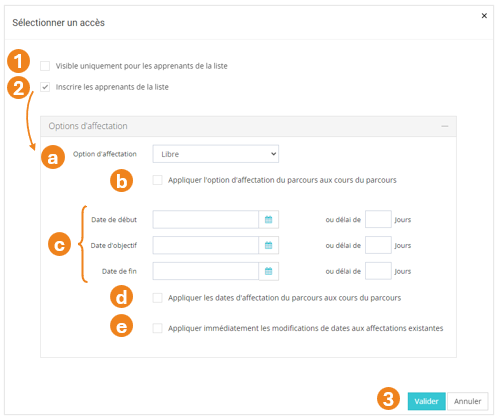
Dans la nouvelle pop-up, vous pouvez choisir de :

1. Restreindre ou non la <span style="color: rgb(239, 131, 29);">**visibilité du cours**</span> à ces listes d'utilisateurs ;
2. **<span style="color: rgb(239, 131, 29);">Inscrire</span>** ou non les utilisateurs de la liste à ce cours.  
    Si vous cochez cette case, vous pouvez modifier :  
    (a) l'<span style="color: rgb(239, 131, 29);">**option d'affectation**</span> : *<span style="color: rgb(239, 131, 29);">Libre </span>/ <span style="color: rgb(239, 131, 29);">Recommandé </span>/ <span style="color: rgb(239, 131, 29);">Obligatoire</span>* ;  
    (b) les <span style="color: rgb(239, 131, 29);">**dates de début**</span>, <span style="color: rgb(239, 131, 29);">**d'objectif**</span> et <span style="color: rgb(239, 131, 29);">**de fin**</span> : soit par **<span style="color: rgb(239, 131, 29);">date fixée</span>**, soit par <span style="color: rgb(239, 131, 29);">**délai**</span> à partir du moment où les utilisateurs sont entrés dans la liste ;  
    (c) lorsque des dates ont été renseignées, cochez cette case si vous souhaitez que les modifications soient <span style="color: rgb(239, 131, 29);">**effectives immédiatement**</span>.
3. Cliquez sur <span style="color: rgb(239, 131, 29);">**Valider**</span>.

[![image.png](https://documentation.xperteam.net/uploads/images/gallery/2024-05/scaled-1680-/El1image.png)](https://documentation.xperteam.net/uploads/images/gallery/2024-05/El1image.png)

<p class="callout info"><span style="color: rgb(0, 0, 0);">Pour plus d'informations sur les propriétés d'accès, voir la page ***//Droits d'accès***.</span></p>

</details><details id="bkmrk-modifier-les-informa-1"><summary>Modifier les informations de l'affectation</summary>

1. <span style="color: rgb(239, 131, 29);"><span style="color: rgb(0, 0, 0);">Sélectionnez l'action </span>**Modifiez les informations de l'affectation** <span style="color: rgb(0, 0, 0);">;</span></span>
2. <span style="color: rgb(239, 131, 29);"><span style="color: rgb(0, 0, 0);">Cliquez sur </span>**Valider**<span style="color: rgb(0, 0, 0);">.</span></span>

[![image.png](https://documentation.xperteam.net/uploads/images/gallery/2024-05/scaled-1680-/HH5image.png)](https://documentation.xperteam.net/uploads/images/gallery/2024-05/HH5image.png)

#### **Paramétrage de l'action**

Cliquez sur **<span style="color: rgb(239, 131, 29);">SÉLECTIONNER DES UTILISATEURS</span>**<span style="color: rgb(0, 0, 0);">.</span>

[![image.png](https://documentation.xperteam.net/uploads/images/gallery/2024-05/scaled-1680-/HoLimage.png)](https://documentation.xperteam.net/uploads/images/gallery/2024-05/HoLimage.png)

Dans la pop-up qui s'ouvre :

1. Sélectionnez des <span style="color: rgb(239, 131, 29);">**utilisateurs** </span>;
2. Cliquez sur le <span style="color: rgb(239, 131, 29);">**chariot**</span> ;
3. Cliquez sur <span style="color: rgb(239, 131, 29);">**Suivant**</span>.

[![image.png](https://documentation.xperteam.net/uploads/images/gallery/2024-05/scaled-1680-/ejvimage.png)](https://documentation.xperteam.net/uploads/images/gallery/2024-05/ejvimage.png)

Dans la nouvelle pop-up :

1. Retrouvez le <span style="color: rgb(239, 131, 29);">**récapitulatif des utilisateurs**</span> que vous avez sélectionnés ; <p class="callout info">À ce niveau, vous pouvez supprimer des utilisateurs en les sélectionnant dans le tableau puis en cliquant sur le **bouton \[x\]**.</p>
2. Cliquez sur <span style="color: rgb(239, 131, 29);">**Valider**</span>.

[![image.png](https://documentation.xperteam.net/uploads/images/gallery/2024-05/scaled-1680-/wAXimage.png)](https://documentation.xperteam.net/uploads/images/gallery/2024-05/wAXimage.png)

---

De retour sur la page principale, vous pouvez modifier :

1. Les **<span style="color: rgb(239, 131, 29);">dates de début</span>**, <span style="color: rgb(239, 131, 29);">**d'objectif**</span> et <span style="color: rgb(239, 131, 29);">**de fin**</span> d'affectation du cours ;
2. Les renseignements inhérents à la facturation du cours : <span style="color: rgb(239, 131, 29);">**Mode de paiement**</span> (<span style="color: rgb(239, 131, 29);">By Course</span> / <span style="color: rgb(239, 131, 29);">By Hour</span> / <span style="color: rgb(239, 131, 29);">Not Billed</span> / <span style="color: rgb(239, 131, 29);">Prepaid Account</span>) , **<span style="color: rgb(239, 131, 29);">Code paiement</span>** et <span style="color: rgb(239, 131, 29);">**Coût par unité**</span> ;
3. L'<span style="color: rgb(239, 131, 29);">**option d'affectation**</span> : <span style="color: rgb(239, 131, 29);">Libre</span> / <span style="color: rgb(239, 131, 29);">Recommandé </span>/ <span style="color: rgb(239, 131, 29);">Obligatoire</span>.
4. Cliquez sur <span style="color: rgb(239, 131, 29);">**Valider** </span>lorsque vous êtes satisfait de vos modifications.

[![image.png](https://documentation.xperteam.net/uploads/images/gallery/2024-05/scaled-1680-/SwBimage.png)](https://documentation.xperteam.net/uploads/images/gallery/2024-05/SwBimage.png)
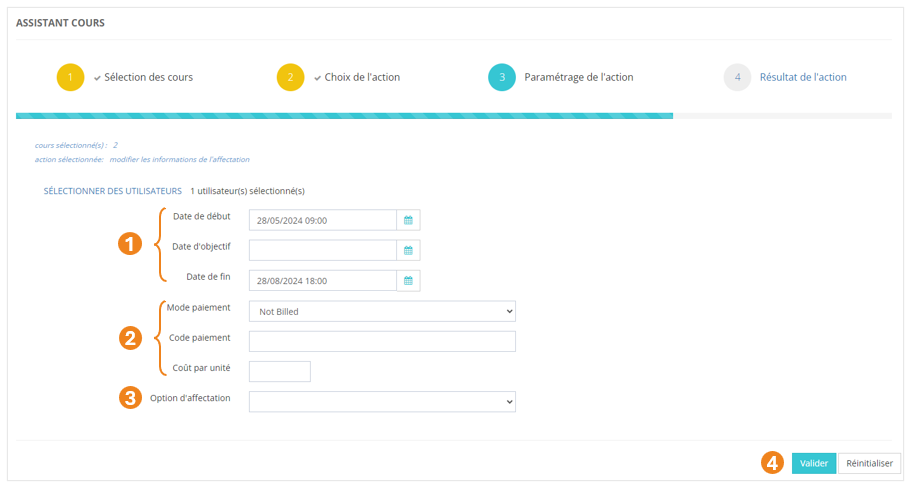
</details><details id="bkmrk-affecter-des-apprena"><summary>Affecter des apprenants</summary>

1. <span style="color: rgb(239, 131, 29);"><span style="color: rgb(0, 0, 0);">Sélectionnez l'action </span>**Affecter des apprenants** <span style="color: rgb(0, 0, 0);">;</span></span>
2. <span style="color: rgb(239, 131, 29);"><span style="color: rgb(0, 0, 0);">Cliquez sur </span>**Valider**<span style="color: rgb(0, 0, 0);">.</span></span>

[![image.png](https://documentation.xperteam.net/uploads/images/gallery/2024-05/scaled-1680-/jTIimage.png)](https://documentation.xperteam.net/uploads/images/gallery/2024-05/jTIimage.png)

#### **Paramétrage de l'action**

Cliquez sur **<span style="color: rgb(239, 131, 29);">SÉLECTIONNER DES UTILISATEURS</span>**<span style="color: rgb(0, 0, 0);">.</span>

[![image.png](https://documentation.xperteam.net/uploads/images/gallery/2024-05/scaled-1680-/Hu6image.png)](https://documentation.xperteam.net/uploads/images/gallery/2024-05/Hu6image.png)

Dans la pop-up qui s'ouvre :

1. Sélectionnez des <span style="color: rgb(239, 131, 29);">**utilisateurs** </span>;
2. Cliquez sur le <span style="color: rgb(239, 131, 29);">**chariot**</span> ;
3. Cliquez sur <span style="color: rgb(239, 131, 29);">**Suivant**</span>.

[![image.png](https://documentation.xperteam.net/uploads/images/gallery/2024-05/scaled-1680-/ejvimage.png)](https://documentation.xperteam.net/uploads/images/gallery/2024-05/ejvimage.png)

Dans la nouvelle pop-up :

1. Retrouvez le <span style="color: rgb(239, 131, 29);">**récapitulatif des utilisateurs**</span> que vous avez sélectionnés ; <p class="callout info">À ce niveau, vous pouvez supprimer des utilisateurs en les sélectionnant dans le tableau puis en cliquant sur le **bouton \[x\]**.</p>
2. Cliquez sur <span style="color: rgb(239, 131, 29);">**Valider**</span>.

[![image.png](https://documentation.xperteam.net/uploads/images/gallery/2024-05/scaled-1680-/wAXimage.png)](https://documentation.xperteam.net/uploads/images/gallery/2024-05/wAXimage.png)

---

De retour sur la page principale, vous pouvez modifier :

1. Les **<span style="color: rgb(239, 131, 29);">dates de début</span>**, <span style="color: rgb(239, 131, 29);">**d'objectif**</span> et <span style="color: rgb(239, 131, 29);">**de fin**</span> d'affectation du cours ;
2. Les renseignements inhérents à la facturation du cours : <span style="color: rgb(239, 131, 29);">**Mode de paiement**</span> (<span style="color: rgb(239, 131, 29);">By Course</span> / <span style="color: rgb(239, 131, 29);">By Hour</span> / <span style="color: rgb(239, 131, 29);">Not Billed</span> / <span style="color: rgb(239, 131, 29);">Prepaid Account</span>) , **<span style="color: rgb(239, 131, 29);">Code paiement</span>** et <span style="color: rgb(239, 131, 29);">**Coût par unité**</span> ;
3. L'<span style="color: rgb(239, 131, 29);">**option d'affectation**</span> : <span style="color: rgb(239, 131, 29);">Libre</span> / <span style="color: rgb(239, 131, 29);">Recommandé </span>/ <span style="color: rgb(239, 131, 29);">Obligatoire</span>.
4. Cliquez sur <span style="color: rgb(239, 131, 29);">**Valider** </span>lorsque vous êtes satisfait de vos modifications.

[![image.png](https://documentation.xperteam.net/uploads/images/gallery/2024-05/scaled-1680-/NjFimage.png)](https://documentation.xperteam.net/uploads/images/gallery/2024-05/NjFimage.png)
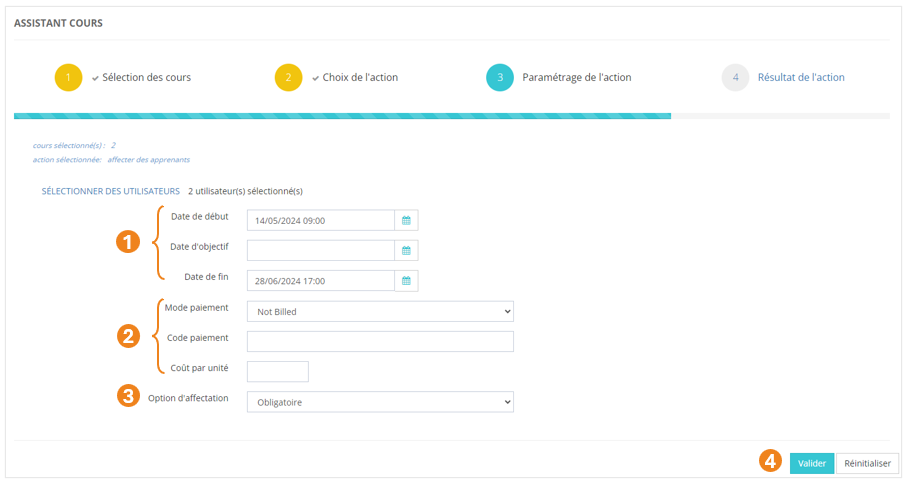
</details>#### <span style="color: rgb(0, 0, 0);">**Résultat de l'action**</span>

[![image.png](https://documentation.xperteam.net/uploads/images/gallery/2024-05/scaled-1680-/LTaimage.png)](https://documentation.xperteam.net/uploads/images/gallery/2024-05/LTaimage.png)

Cet écran détaille les <span style="color: rgb(239, 131, 29);">**succès**</span> et les <span style="color: rgb(239, 131, 29);">**échecs** </span>de l'action demandée.

Le bouton <span style="color: rgb(239, 131, 29);">**Réinitialiser** </span>ramène à l’écran de sélection des utilisateurs de l’assistant, afin de paramétrer une nouvelle action de modification sur le même groupe ou un groupe différent, via l’assistant.

<p class="callout info">Le bouton **Réinitialiser** n’annule pas la dernière action.</p>

# L'Assistant Parcours

L'assistant <span style="color: rgb(239, 131, 29);">**Parcours** </span>vous permet d'effectuer, après avoir sélectionné des parcours, un certains nombre de tâches d'administration. Vous trouverez la liste de toutes les actions possibles plus loin dans la fiche.

### <span style="color: rgb(128, 128, 128);">**Sélection des parcours**</span>

Dans le menu <span style="color: rgb(239, 131, 29);">**Assistants &gt; Assistant parcours**</span>, cliquez sur <span style="color: rgb(239, 131, 29);">**SÉLECTIONNER DES PARCOURS**</span>.

[![image.png](https://documentation.xperteam.net/uploads/images/gallery/2024-05/scaled-1680-/3tFimage.png)](https://documentation.xperteam.net/uploads/images/gallery/2024-05/3tFimage.png)

Dans la pop-up qui s'ouvre :

1. Sélectionnez les <span style="color: rgb(239, 131, 29);">**parcours** </span>à modifier ;
2. Cliquez sur le <span style="color: rgb(239, 131, 29);">**chariot**</span> ;
3. Cliquez sur <span style="color: rgb(239, 131, 29);">**Suivant**</span>.

[![image.png](https://documentation.xperteam.net/uploads/images/gallery/2024-05/scaled-1680-/6d7image.png)](https://documentation.xperteam.net/uploads/images/gallery/2024-05/6d7image.png)

<details id="bkmrk-le-filtre-de-cours-v"><summary>Le filtre de parcours</summary>

1. Vous pouvez <span style="color: rgb(239, 131, 29);">**filtrer** </span>votre recherche grâce : au <span style="color: rgb(239, 131, 29);">**nom** </span>du parcours, sa <span style="color: rgb(239, 131, 29);">**description**</span>, son <span style="color: rgb(239, 131, 29);">**audience**</span>.
2. Si vous cherchez parmi les <span style="color: rgb(239, 131, 29);">**parcours désactivés**</span>, cochez cette case.
3. Vous pouvez également filtrer votre recherche à l'aide des <span style="color: rgb(239, 131, 29);">**champs personnalisés**</span> des parcours.
4. Choisissez si les **<span style="color: rgb(239, 131, 29);">critères</span>** doivent tous être valides ou s'il suffit qu'un des critères soit valide pour proposer un résultat.<span class="callout success">Dans l'exemple ci-dessous, si vous choisissez :  
    **-** **Tous les critères :** vous obtiendrez tous les parcours dont le nom contient la chaîne de caractères 'parcours' avec l'audience "Audience pour documentation" ;  
    **-** **Au moins un critère :** vous obtiendrez l'ensemble de tous les parcours dont le nom contient la chaîne de caractères 'parcours', ainsi que tous les parcours sur lesquels est positionnée l'audience "Audience pour documentation".</span>
5. Cliquez sur <span style="color: rgb(239, 131, 29);">**Valider**<span style="color: rgb(0, 0, 0);">.</span></span>

<span style="color: rgb(239, 131, 29);"><span style="color: rgb(0, 0, 0);">[![image.png](https://documentation.xperteam.net/uploads/images/gallery/2024-05/scaled-1680-/15Nimage.png)](https://documentation.xperteam.net/uploads/images/gallery/2024-05/15Nimage.png)</span></span>

<span style="color: rgb(239, 131, 29);"><span style="color: rgb(0, 0, 0);">Dans la nouvelle pop-up :</span></span>

1. Sélectionnez les <span style="color: rgb(239, 131, 29);">**parcours** </span>qui vous intéressent parmi les cours trouvés par filtrage ;
2. Cliquez sur le <span style="color: rgb(239, 131, 29);">**chariot** </span>;
3. Cliquez sur <span style="color: rgb(239, 131, 29);">**Valider**</span>.

[![image.png](https://documentation.xperteam.net/uploads/images/gallery/2024-05/scaled-1680-/cTRimage.png)](https://documentation.xperteam.net/uploads/images/gallery/2024-05/cTRimage.png)

</details>#### **Validation des parcours**

Dans la nouvelle pop-up :

1. Retrouvez le <span style="color: rgb(239, 131, 29);">**récapitulatif des parcours**</span> que vous avez sélectionnés ;<span class="callout info">À ce niveau, vous pouvez supprimer des parcours en les sélectionnant dans le tableau puis en cliquant sur le **bouton \[x\]**.</span>
2. Cliquez sur <span style="color: rgb(239, 131, 29);">**Valider**</span>.

[![image.png](https://documentation.xperteam.net/uploads/images/gallery/2024-05/scaled-1680-/pNsimage.png)](https://documentation.xperteam.net/uploads/images/gallery/2024-05/pNsimage.png)

---

De retour sur l'écran principal, vous pouvez :

1. <span style="color: rgb(239, 131, 29);">**Modifier**</span> les parcours sélectionnés ;
2. Cliquer sur <span style="color: rgb(239, 131, 29);">**Suivant** </span>lorsque vous êtes satisfait de la sélection des parcours.

[![image.png](https://documentation.xperteam.net/uploads/images/gallery/2024-05/scaled-1680-/Mp9image.png)](https://documentation.xperteam.net/uploads/images/gallery/2024-05/Mp9image.png)

---

### **<span style="color: rgb(128, 128, 128);">Sélection et paramétrage de l'action</span>**

<details id="bkmrk-modifier-les-informa"><summary>Modifier les informations générales des parcours</summary>

1. <span style="color: rgb(239, 131, 29);"><span style="color: rgb(0, 0, 0);">Sélectionnez l'action </span>**Modifiez les informatiques générales des parcours** <span style="color: rgb(0, 0, 0);">;</span></span>
2. <span style="color: rgb(239, 131, 29);"><span style="color: rgb(0, 0, 0);">Cliquez sur </span>**Valider**<span style="color: rgb(0, 0, 0);">.</span></span>

[![image.png](https://documentation.xperteam.net/uploads/images/gallery/2024-05/scaled-1680-/77limage.png)](https://documentation.xperteam.net/uploads/images/gallery/2024-05/77limage.png)

#### **Paramétrage de l'action**

Vous avez la possibilité de modifier une ou plusieurs des valeurs ci-dessous :

1. Le <span style="color: rgb(239, 131, 29);">**statut**</span> du parcours : désactivé ou non (*<span style="color: rgb(239, 131, 29);">Ne pas changer</span> / <span style="color: rgb(239, 131, 29);">Oui</span> / <span style="color: rgb(239, 131, 29);">Non</span>*) ;
2. Le <span style="color: rgb(239, 131, 29);">**texte libre 1**</span> et le <span style="color: rgb(239, 131, 29);">**texte libre 2**</span> du parcours ;
3. Lorsque vous avez effectué les modifications souhaitées, cliquez sur <span style="color: rgb(239, 131, 29);">**Valider**</span>.

[![image.png](https://documentation.xperteam.net/uploads/images/gallery/2024-05/scaled-1680-/cvOimage.png)](https://documentation.xperteam.net/uploads/images/gallery/2024-05/cvOimage.png)

<p class="callout info">Pour plus d'informations sur les informations générales du cours, voir la page ***//Créer un parcours***.</p>

</details><details id="bkmrk-modifier-les-champs-"><summary>Modifier les champs personnalisés standards des parcours</summary>

1. <span style="color: rgb(239, 131, 29);"><span style="color: rgb(0, 0, 0);">Sélectionnez l'action </span>**Modifiez les champs personnalisés standards des parcours** <span style="color: rgb(0, 0, 0);">;</span></span>
2. <span style="color: rgb(239, 131, 29);"><span style="color: rgb(0, 0, 0);">Cliquez sur </span>**Valider**<span style="color: rgb(0, 0, 0);">.</span></span>

[![image.png](https://documentation.xperteam.net/uploads/images/gallery/2024-05/scaled-1680-/Sr2image.png)](https://documentation.xperteam.net/uploads/images/gallery/2024-05/Sr2image.png)

#### **Paramétrage de l'action**

1. <span style="color: rgb(239, 131, 29);"><span style="color: rgb(0, 0, 0);">Vous avez la possibilité de modifier un ou plusieurs </span>**champs personnalisés** <span style="color: rgb(0, 0, 0);">des parcours sélectionnés ;</span></span>
2. <span style="color: rgb(239, 131, 29);"><span style="color: rgb(0, 0, 0);">Lorsque vous avez effectué les modifications souhaitées, cliquez sur</span> **Valider**<span style="color: rgb(0, 0, 0);">.</span></span>

[![image.png](https://documentation.xperteam.net/uploads/images/gallery/2024-05/scaled-1680-/7qUimage.png)](https://documentation.xperteam.net/uploads/images/gallery/2024-05/7qUimage.png)

</details><details id="bkmrk-ajouter-des-audience"><summary>Ajouter des audiences aux cours</summary>

1. <span style="color: rgb(239, 131, 29);"><span style="color: rgb(0, 0, 0);">Sélectionnez l'action </span>**Ajouter des audiences aux parcours** <span style="color: rgb(0, 0, 0);">;</span></span>
2. <span style="color: rgb(239, 131, 29);"><span style="color: rgb(0, 0, 0);">Cliquez sur </span>**Valider**<span style="color: rgb(0, 0, 0);">.</span></span>

[![image.png](https://documentation.xperteam.net/uploads/images/gallery/2024-05/scaled-1680-/4peimage.png)](https://documentation.xperteam.net/uploads/images/gallery/2024-05/4peimage.png)

#### **Paramétrage de l'action**

Cliquez sur **<span style="color: rgb(239, 131, 29);">SÉLECTIONNER DES AUDIENCES</span>**<span style="color: rgb(0, 0, 0);">.</span>

[![image.png](https://documentation.xperteam.net/uploads/images/gallery/2024-05/scaled-1680-/V1Yimage.png)](https://documentation.xperteam.net/uploads/images/gallery/2024-05/V1Yimage.png)

<span style="color: rgb(0, 0, 0);">Dans la pop-up qui s'ouvre :</span>

1. Sélectionnez les <span style="color: rgb(239, 131, 29);">**audiences** </span>à jouter aux parcours ;
2. Cliquez sur le <span style="color: rgb(239, 131, 29);">**chariot**</span> ;
3. Cliquez sur <span style="color: rgb(239, 131, 29);">**Valider**</span>.

[![image.png](https://documentation.xperteam.net/uploads/images/gallery/2024-05/scaled-1680-/3bGimage.png)](https://documentation.xperteam.net/uploads/images/gallery/2024-05/3bGimage.png)

---

De retour sur l'écran principal, vous pouvez :

1. <span style="color: rgb(239, 131, 29);">**Modifier**</span> les audiences sélectionnées ;
2. Cliquer sur <span style="color: rgb(239, 131, 29);">**Valider** </span>lorsque vous êtes satisfait de la sélection des audiences.

[![image.png](https://documentation.xperteam.net/uploads/images/gallery/2024-05/scaled-1680-/VMtimage.png)](https://documentation.xperteam.net/uploads/images/gallery/2024-05/VMtimage.png)
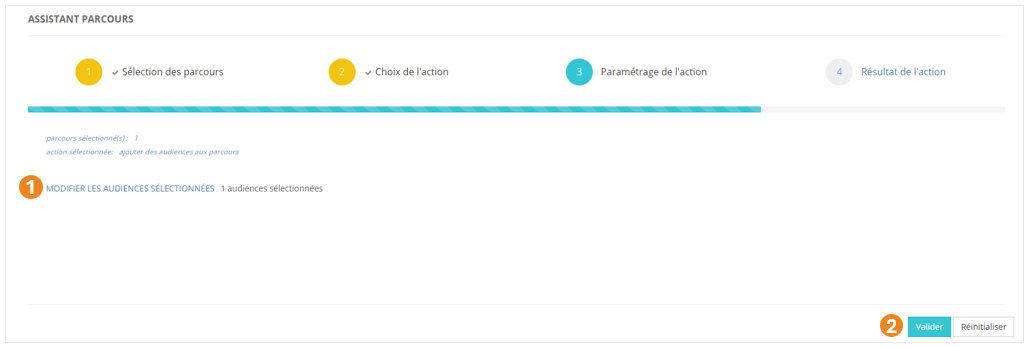
</details><details id="bkmrk-ajouter-une-propri%C3%A9t"><summary>Ajouter une propriété d'accès aux parcours</summary>

1. <span style="color: rgb(239, 131, 29);"><span style="color: rgb(0, 0, 0);">Sélectionnez l'action </span>**Ajouter une propriété d'accès aux parcours** <span style="color: rgb(0, 0, 0);">;</span></span>
2. <span style="color: rgb(239, 131, 29);"><span style="color: rgb(0, 0, 0);">Cliquez sur </span>**Valider**<span style="color: rgb(0, 0, 0);">.</span></span>

[![image.png](https://documentation.xperteam.net/uploads/images/gallery/2024-05/scaled-1680-/LSnimage.png)](https://documentation.xperteam.net/uploads/images/gallery/2024-05/LSnimage.png)

#### **Paramétrage de l'action**

Cliquez sur **<span style="color: rgb(239, 131, 29);">SÉLECTIONNER UN ACCÈS</span>**<span style="color: rgb(0, 0, 0);">.</span>

[![image.png](https://documentation.xperteam.net/uploads/images/gallery/2024-05/scaled-1680-/cZoimage.png)](https://documentation.xperteam.net/uploads/images/gallery/2024-05/cZoimage.png)

Dans la pop-up qui s'ouvre :

1. Sélectionnez une <span style="color: rgb(239, 131, 29);">**liste** </span>;
2. Cliquez sur <span style="color: rgb(239, 131, 29);">**Valider**</span>.

[![image.png](https://documentation.xperteam.net/uploads/images/gallery/2024-05/scaled-1680-/BEuimage.png)](https://documentation.xperteam.net/uploads/images/gallery/2024-05/BEuimage.png)

Dans la nouvelle pop-up, vous pouvez choisir de :

1. Restreindre ou non la <span style="color: rgb(239, 131, 29);">**visibilité du parcours**</span> à cette liste d'utilisateurs ;
2. **<span style="color: rgb(239, 131, 29);">Inscrire</span>** ou non les utilisateurs de la liste à ce parcours.  
    Si vous cochez cette case, vous pouvez modifier :  
    (a) l'<span style="color: rgb(239, 131, 29);">**option d'affectation**</span> : *<span style="color: rgb(239, 131, 29);">Libre </span>/ <span style="color: rgb(239, 131, 29);">Recommandé </span>/ <span style="color: rgb(239, 131, 29);">Obligatoire</span>* ;  
    (b) cochez cette case si vous souhaitez que l'<span style="color: rgb(239, 131, 29);">**option d'affectation des parcours soient appliquées sur les cours**</span> qui les composent ;  
    (c) les <span style="color: rgb(239, 131, 29);">**dates de début**</span>, <span style="color: rgb(239, 131, 29);">**d'objectif**</span> et <span style="color: rgb(239, 131, 29);">**de fin**</span> : soit par **<span style="color: rgb(239, 131, 29);">date fixée</span>**, soit par <span style="color: rgb(239, 131, 29);">**délai**</span> à partir du moment où les utilisateurs sont entrés dans la liste ;  
    (d) lorsque des dates ont été renseignées, cochez cette case si vous souhaitez que <span style="color: rgb(239, 131, 29);">**ces dates soient répercutées sur les cours**</span> qui composent les parcours ;  
    (e) cochez cette case si vous souhaitez que les modifications de dates soient <span style="color: rgb(239, 131, 29);">**effectives immédiatement**</span>.
3. Cliquez sur <span style="color: rgb(239, 131, 29);">**Valider**</span>.

[![image.png](https://documentation.xperteam.net/uploads/images/gallery/2024-05/scaled-1680-/AwOimage.png)](https://documentation.xperteam.net/uploads/images/gallery/2024-05/AwOimage.png)

---

De retour sur l'écran principal, vous pouvez :

1. <span style="color: rgb(239, 131, 29);">**Modifier**</span> la liste sélectionnée ;
2. Cliquer sur <span style="color: rgb(239, 131, 29);">**Valider** </span>lorsque vous êtes satisfait de la sélection de la liste d'accès.

[![image.png](https://documentation.xperteam.net/uploads/images/gallery/2024-05/scaled-1680-/05Oimage.png)](https://documentation.xperteam.net/uploads/images/gallery/2024-05/05Oimage.png)
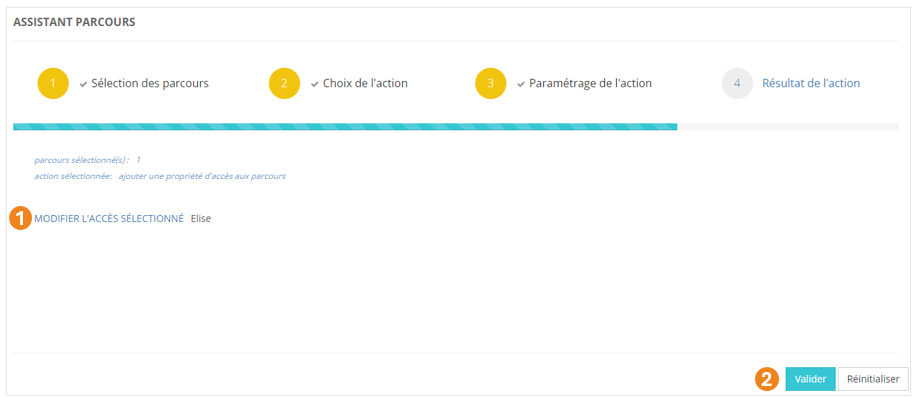
<p class="callout info"><span style="color: rgb(0, 0, 0);">Pour plus d'informations sur les propriétés d'accès, voir la page ***//Droits d'accès***.</span></p>

</details>#### <span style="color: rgb(0, 0, 0);">**Résultat de l'action**</span>

[![image.png](https://documentation.xperteam.net/uploads/images/gallery/2024-05/scaled-1680-/4wXimage.png)](https://documentation.xperteam.net/uploads/images/gallery/2024-05/4wXimage.png)

Cet écran détaille les <span style="color: rgb(239, 131, 29);">**succès**</span> et les <span style="color: rgb(239, 131, 29);">**échecs** </span>de l'action demandée.

Le bouton <span style="color: rgb(239, 131, 29);">**Réinitialiser** </span>ramène à l’écran de sélection des utilisateurs de l’assistant, afin de paramétrer une nouvelle action de modification sur le même groupe ou un groupe différent, via l’assistant.

<p class="callout info">Le bouton **Réinitialiser** n’annule pas la dernière action.</p>

# L'Assistant Épreuves

L'assistant <span style="color: rgb(239, 131, 29);">**Épreuves** </span>vous permet d'effectuer, après avoir sélectionné une épreuve, un certains nombre de tâches d'administration. Vous trouverez la liste de toutes les actions possibles plus loin dans la fiche.

### <span style="color: rgb(128, 128, 128);">**Sélection des épreuves**</span>

Dans le menu **<span style="color: rgb(239, 131, 29);">Assistants &gt; Assistant épreuves</span>**, cliquez sur <span style="color: rgb(239, 131, 29);">**SÉLECTIONNER LES ÉPREUVES**</span>.

[![image.png](https://documentation.xperteam.net/uploads/images/gallery/2024-05/scaled-1680-/WXUimage.png)](https://documentation.xperteam.net/uploads/images/gallery/2024-05/WXUimage.png)

Dans la pop-up qui s'ouvre :

1. Sélectionnez les <span style="color: rgb(239, 131, 29);">**épreuves** </span>à modifier ; <span class="callout warning">**Attention !** Selon l'action que vous sélectionnerez ensuite, vous ne pouvez pas toujours sélectionner plusieurs épreuves :  
    </span><table border="1" style="border-collapse: collapse; width: 100%; background-color: rgb(254, 227, 211); border: 1px solid rgb(106, 40, 2);"><colgroup><col style="width: 18.6577%;"></col><col style="width: 24.8317%;"></col><col style="width: 17.7187%;"></col><col style="width: 18.5235%;"></col><col style="width: 20.4027%;"></col></colgroup><tbody><tr><td class="align-center" style="border-color: rgb(106, 40, 2);">**<span style="color: rgb(106, 40, 2);">Édition des scores</span>**</td><td class="align-center" style="border-color: rgb(106, 40, 2);">**<span style="color: rgb(106, 40, 2);">Suppression des résultats</span>**</td><td class="align-center" style="border-color: rgb(106, 40, 2);">**<span style="color: rgb(106, 40, 2);">Impression</span>**</td><td class="align-center" style="border-color: rgb(106, 40, 2);">**<span style="color: rgb(106, 40, 2);">Publication LMS</span>**</td><td class="align-center" style="border-color: rgb(106, 40, 2);">**<span style="color: rgb(106, 40, 2);">Export Mobiteach</span>**</td></tr><tr><td class="align-center" style="border-color: rgb(106, 40, 2);"><span style="color: rgb(106, 40, 2);">Une épreuve</span></td><td class="align-center" style="border-color: rgb(106, 40, 2);"><span style="color: rgb(106, 40, 2);">Une épreuve</span></td><td class="align-center" style="border-color: rgb(106, 40, 2);"><span style="color: rgb(106, 40, 2);">Plusieurs épreuves</span></td><td class="align-center" style="border-color: rgb(106, 40, 2);"><span style="color: rgb(106, 40, 2);">Plusieurs épreuves</span></td><td class="align-center" style="border-color: rgb(106, 40, 2);"><span style="color: rgb(106, 40, 2);">Une épreuve</span></td></tr></tbody></table>
2. Cliquez sur le <span style="color: rgb(239, 131, 29);">**chariot** </span>;
3. Cliquez sur <span style="color: rgb(239, 131, 29);">**Suivant**</span>.

[![image.png](https://documentation.xperteam.net/uploads/images/gallery/2024-06/scaled-1680-/image.png)](https://documentation.xperteam.net/uploads/images/gallery/2024-06/image.png)

Dans la nouvelle pop-up :

1. Retrouvez le <span style="color: rgb(239, 131, 29);">**r**</span>**<span style="color: rgb(239, 131, 29);">écapitulatif des épreuves</span>** que vous avez sélectionnés ;<span class="callout info">À ce niveau, vous pouvez supprimer des épreuves en les sélectionnant dans le tableau puis en cliquant sur le **bouton \[x\]**.</span>
2. Cliquez sur **<span style="color: rgb(239, 131, 29);">Valider</span>** lorsque vous êtes satisfait de la sélection des épreuves.

[![image.png](https://documentation.xperteam.net/uploads/images/gallery/2024-06/scaled-1680-/FqVimage.png)](https://documentation.xperteam.net/uploads/images/gallery/2024-06/FqVimage.png)
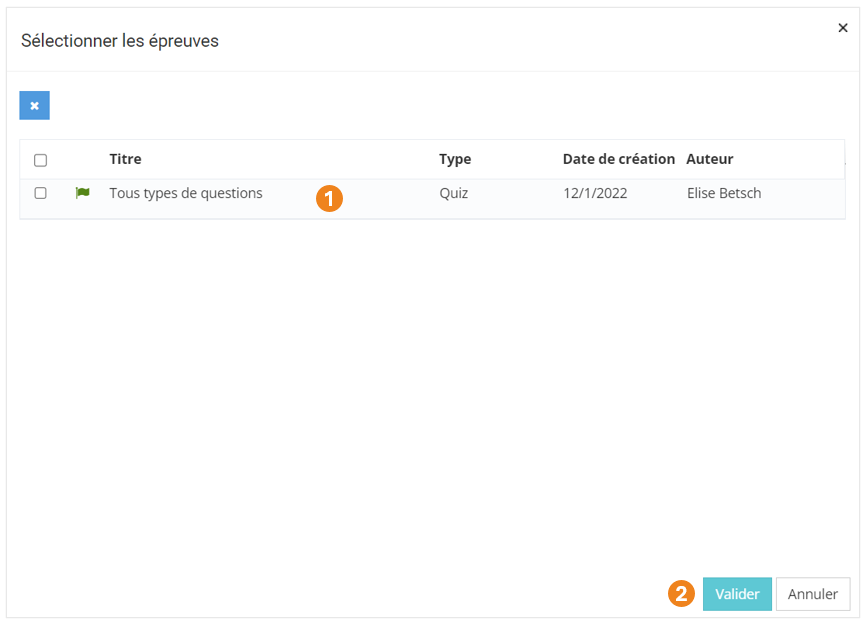
---

De retour sur l'écran principal, vous pouvez :

1. <span style="color: rgb(239, 131, 29);">**Modifier** </span>les épreuves sélectionnées ;
2. Cliquer sur <span style="color: rgb(239, 131, 29);">**Suivant** </span>lorsque vous êtes satisfait de la sélection des épreuves.

[![image.png](https://documentation.xperteam.net/uploads/images/gallery/2024-06/scaled-1680-/w7simage.png)](https://documentation.xperteam.net/uploads/images/gallery/2024-06/w7simage.png)
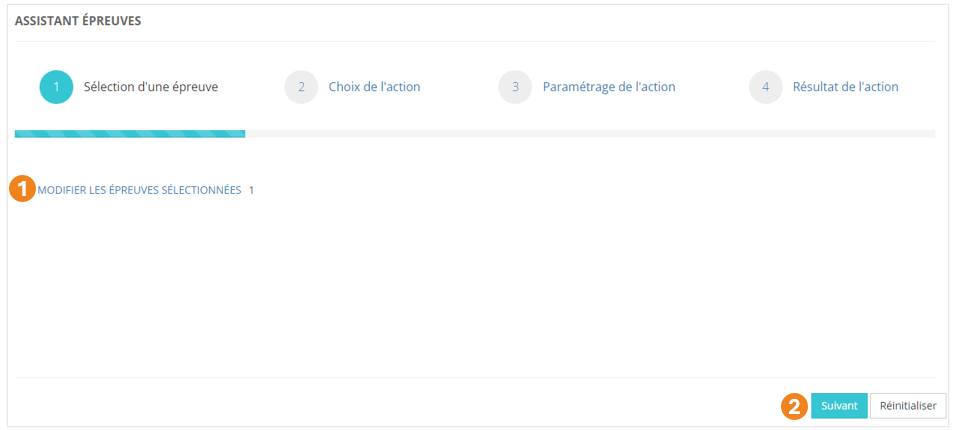
---

### <span style="color: rgb(128, 128, 128);">**Sélection et paramétrage de l'action**</span>  


<details id="bkmrk-%C3%89dition-des-scores-s"><summary>Édition des scores</summary>

1. Sélectionnez l'action **<span style="color: rgb(239, 131, 29);">Édition des scores</span>** ;
2. Cliquez sur <span style="color: rgb(239, 131, 29);">**Suivant**</span>.

[![image.png](https://documentation.xperteam.net/uploads/images/gallery/2024-06/scaled-1680-/oahimage.png)](https://documentation.xperteam.net/uploads/images/gallery/2024-06/oahimage.png)

#### **Paramétrage de l'action**

1. Sélectionnez un <span style="color: rgb(239, 131, 29);">**utilisateur** </span>;
2. Sélectionnez une **<span style="color: rgb(239, 131, 29);">session</span>**<span style="color: rgb(239, 131, 29);"> </span>;
3. Cliquez sur <span style="color: rgb(239, 131, 29);">**Suivant**</span>.

[![image.png](https://documentation.xperteam.net/uploads/images/gallery/2024-06/scaled-1680-/qPdimage.png)](https://documentation.xperteam.net/uploads/images/gallery/2024-06/qPdimage.png)

---

Sur le nouvel écran, vous trouverez :

1. les <span style="color: rgb(239, 131, 29);">**informations générales**</span> du passage de l'épreuve par l'utilisateur (titre, date, score en points et en pourcentage, durée) ;
2. le s<span style="color: rgb(239, 131, 29);">**core obtenu à chaque bloc**</span> ;
3. les <span style="color: rgb(239, 131, 29);">**informations de chaque question**</span> (type, durée, score) ;
4. les <span style="color: rgb(239, 131, 29);">**réponses justes et fausses**</span> telles que paramétrées sur la plateforme et les <span style="color: rgb(239, 131, 29);">**réponses données par l'utilisateur**</span> pour chaque question ;
5. le champ dans lequel vous pouvez <span style="color: rgb(239, 131, 29);">**entrer un nouveau score**</span>, avec le <span style="color: rgb(239, 131, 29);">**score maximal**</span> autorisé.

<p class="callout info">Vous ne pouvez pas modifier les réponses cochées par l'apprenant dans le tableau récapitulatif des réponses.</p>

[![image.png](https://documentation.xperteam.net/uploads/images/gallery/2024-06/scaled-1680-/lxOimage.png)](https://documentation.xperteam.net/uploads/images/gallery/2024-06/lxOimage.png)

Lorsque vous avez modifié les scores, cliquez sur <span style="color: rgb(239, 131, 29);">**Valider** </span>tout en bas de la page.

</details><details id="bkmrk-suppression-des-r%C3%A9su"><summary>Suppression des résultats</summary>

1. Sélectionnez l'action **<span style="color: rgb(239, 131, 29);">Suppression des résultats</span>** ;
2. Cliquez sur <span style="color: rgb(239, 131, 29);">**Suivant**</span>.

[![image.png](https://documentation.xperteam.net/uploads/images/gallery/2024-06/scaled-1680-/A30image.png)](https://documentation.xperteam.net/uploads/images/gallery/2024-06/A30image.png)

#### **Paramétrage de l'action**

1. Sélectionnez un <span style="color: rgb(239, 131, 29);">**utilisateur** </span>;
2. Sélectionnez une **<span style="color: rgb(239, 131, 29);">session</span>**<span style="color: rgb(239, 131, 29);"> </span>;
3. Cliquez sur <span style="color: rgb(239, 131, 29);">**Suivant**</span>.

[![image.png](https://documentation.xperteam.net/uploads/images/gallery/2024-06/scaled-1680-/7Yyimage.png)](https://documentation.xperteam.net/uploads/images/gallery/2024-06/7Yyimage.png)

---

Sur l'écran suivant :

1. Vérifiez que vous avez sélectionné<span style="color: rgb(239, 131, 29);"> **le bon utilisateur et la bonne session**</span> ;
2. Cliquez sur <span style="color: rgb(239, 131, 29);">**Valider** </span>lorsque vous êtes satisfait de votre sélection.

[![image.png](https://documentation.xperteam.net/uploads/images/gallery/2024-06/scaled-1680-/S3limage.png)](https://documentation.xperteam.net/uploads/images/gallery/2024-06/S3limage.png)
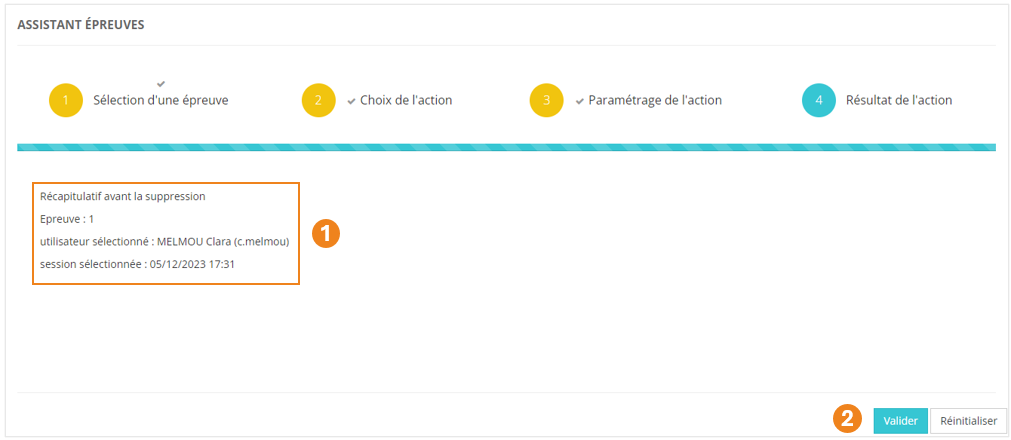
</details><details id="bkmrk-impression-s%C3%A9lection"><summary>Impression</summary>

1. Sélectionnez l'action **<span style="color: rgb(239, 131, 29);">Impression</span>** ;
2. Cliquez sur <span style="color: rgb(239, 131, 29);">**Suivant**</span>.

[![image.png](https://documentation.xperteam.net/uploads/images/gallery/2024-06/scaled-1680-/RLlimage.png)](https://documentation.xperteam.net/uploads/images/gallery/2024-06/RLlimage.png)

#### **Paramétrage de l'action**

 Pour votre impression, vous pouvez choisir de faire apparaître :

1. Les <span style="color: rgb(239, 131, 29);">**questions et réponses uniquement**</span> ;  
    Si vous choisissez cette option, vous pouvez décider de <span style="color: rgb(239, 131, 29);">**masquer**</span> ou non :  
    (a) le **<span style="color: rgb(239, 131, 29);">titre des questions</span>** ;  
    (b) les <span style="color: rgb(239, 131, 29);">**médias** </span>illustrant les questions.
2. Le <span style="color: rgb(239, 131, 29);">**minimum de détails**</span> ;
3. Le <span style="color: rgb(239, 131, 29);">**maximum de détails**</span> ;
4. Cliquez sur <span style="color: rgb(239, 131, 29);">**Suivant** </span>lorsque vous avez sélectionné le type d'impression qui vous intéresse.

<p class="callout info">**Bon à savoir :** L'option **"Questions et réponses uniquement" sans masquer ni le titre des questions ni les médias** et l'option **"Détails minimums"** donnent le même résultat.</p>

[![image.png](https://documentation.xperteam.net/uploads/images/gallery/2024-06/scaled-1680-/ExIimage.png)](https://documentation.xperteam.net/uploads/images/gallery/2024-06/ExIimage.png)

Après avoir cliqué sur <span style="color: rgb(239, 131, 29);">**Suivant**</span>, un nouvel onglet s'ouvre avec le document demandé.

</details><details id="bkmrk-publication-lms-s%C3%A9le"><summary>Publication LMS</summary>

1. Sélectionnez l'action **<span style="color: rgb(239, 131, 29);">Publication LMS</span>** ;
2. Cliquez sur <span style="color: rgb(239, 131, 29);">**Suivant**</span>.

[![image.png](https://documentation.xperteam.net/uploads/images/gallery/2024-06/scaled-1680-/A1Himage.png)](https://documentation.xperteam.net/uploads/images/gallery/2024-06/A1Himage.png)

#### **Paramétrage de l'action**

Sur l'écran suivant, vous pouvez :

1. Visualiser le <span style="color: rgb(239, 131, 29);">**nom des épreuves**</span> sélectionnées ;
2. Choisir un <span style="color: rgb(239, 131, 29);">**format d'export**</span> (<span style="color: rgb(239, 131, 29);">SCORM 1.2 (HICP)</span> / <span style="color: rgb(239, 131, 29);">SCORM 2004 (HICP)</span> / <span style="color: rgb(239, 131, 29);">TinCan</span>) ;
3. <span style="color: rgb(239, 131, 29);">**Nommer**</span> le cours qui contiendra ces épreuves <span style="color: rgb(239, 131, 29);">**(obligatoire)**</span> ;
4. Visualiser l'<span style="color: rgb(239, 131, 29);">**url**</span> correspondant au cours ;
5. Utiliser l'<span style="color: rgb(239, 131, 29);">**identifiant externe**</span> qui est généré automatiquement ou en choisir un autre ;
6. Utiliser l'<span style="color: rgb(239, 131, 29);">**auteur**</span> déjà renseigné ou le modifier ;
7. Ajouter une <span style="color: rgb(239, 131, 29);">**description** </span>;
8. Choisir le <span style="color: rgb(239, 131, 29);">**serveur d'épreuves**</span> sur lequel vous importerez ce cours (<span style="color: rgb(239, 131, 29);">Quiz Manager</span> / <span style="color: rgb(239, 131, 29);">Plateforme LMS</span>);
9. Cliquer sur <span style="color: rgb(239, 131, 29);">**Suivant** </span>lorsque tous les renseignements sont corrects.

[![image.png](https://documentation.xperteam.net/uploads/images/gallery/2024-06/scaled-1680-/Kurimage.png)](https://documentation.xperteam.net/uploads/images/gallery/2024-06/Kurimage.png)
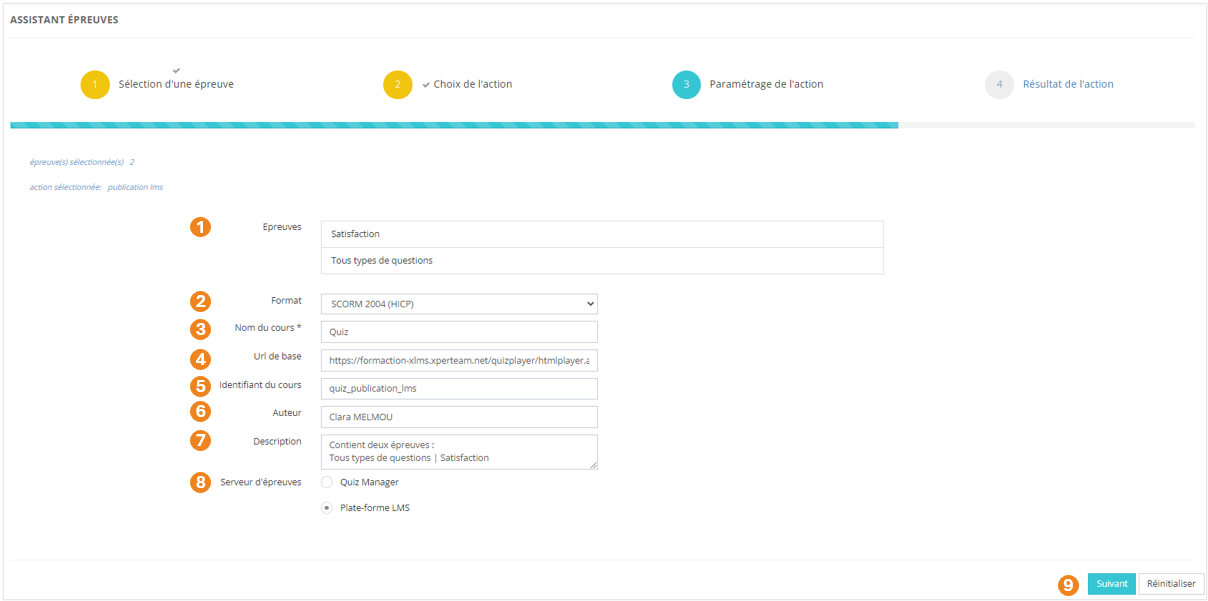
</details><details id="bkmrk-export-mobiteach-s%C3%A9l"><summary>Export Mobiteach</summary>

1. Sélectionnez l'action **<span style="color: rgb(239, 131, 29);">Export Mobiteach</span>** ;
2. Cliquez sur <span style="color: rgb(239, 131, 29);">**Suivant**</span>.

[![image.png](https://documentation.xperteam.net/uploads/images/gallery/2024-06/scaled-1680-/DcLimage.png)](https://documentation.xperteam.net/uploads/images/gallery/2024-06/DcLimage.png)

#### **Paramétrage de l'action**

Aucun paramétrage n'est demandé pour l'export Mobiteach : cliquez sur <span style="color: rgb(239, 131, 29);">**Suivant**</span>.

[![image.png](https://documentation.xperteam.net/uploads/images/gallery/2024-06/scaled-1680-/VMLimage.png)](https://documentation.xperteam.net/uploads/images/gallery/2024-06/VMLimage.png)

Cliquez sur <span style="color: rgb(239, 131, 29);">**Télécharger** </span>pour obtenir le fichier à importer sur Mobiteach.

[![image.png](https://documentation.xperteam.net/uploads/images/gallery/2024-06/scaled-1680-/Tmhimage.png)](https://documentation.xperteam.net/uploads/images/gallery/2024-06/Tmhimage.png)
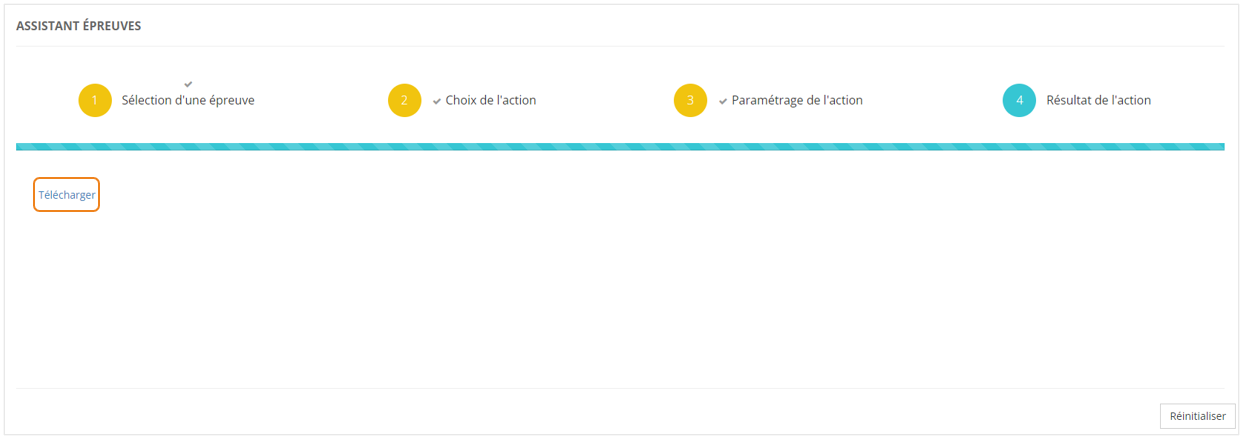
</details>

# L'Assistant Statistiques

L'Assistant Statistiques vous permet de modifier le statut, le score, la date et le temps passé sur une leçon pour un utilisateur donné.

### <span style="color: rgb(128, 128, 128);">**Sélection de l'utilisateur**</span>

Dans le menu <span style="color: rgb(239, 131, 29);">**Assistants &gt; Assistant statistiques**</span>, cliquer sur **<span style="color: rgb(239, 131, 29);">Sélectionner un utilisateur</span>**.

[![image.png](https://documentation.xperteam.net/uploads/images/gallery/2024-06/scaled-1680-/21pimage.png)](https://documentation.xperteam.net/uploads/images/gallery/2024-06/21pimage.png)

Dans la pop-up qui s'ouvre :

1. Sélectionnez un <span style="color: rgb(239, 131, 29);">**utilisateur** </span>;
2. Cliquez sur <span style="color: rgb(239, 131, 29);">**Valider**</span>.

[![image.png](https://documentation.xperteam.net/uploads/images/gallery/2024-06/scaled-1680-/Ux7image.png)](https://documentation.xperteam.net/uploads/images/gallery/2024-06/Ux7image.png)

---

De retour sur l'écran principal, vous pouvez :

1. <span style="color: rgb(239, 131, 29);">**Modifier** </span>l'utilisateur sélectionné ;
2. <span style="color: rgb(239, 131, 29);">**Valider** </span>l'action lorsque vous êtes satisfait de l'utilisateur sélectionné.

[![image.png](https://documentation.xperteam.net/uploads/images/gallery/2024-06/scaled-1680-/cxkimage.png)](https://documentation.xperteam.net/uploads/images/gallery/2024-06/cxkimage.png)

### <span style="color: rgb(128, 128, 128);">**Sélection du cours**</span>

1. <span style="color: rgb(0, 0, 0);"><span style="color: rgb(239, 131, 29);">**Sélectionnez un cours**</span> dans le menu déroulant ;</span>
2. <span style="color: rgb(0, 0, 0);">Cliquez sur <span style="color: rgb(239, 131, 29);">**Suivant**</span>.</span>

[![image.png](https://documentation.xperteam.net/uploads/images/gallery/2024-06/scaled-1680-/DKvimage.png)](https://documentation.xperteam.net/uploads/images/gallery/2024-06/DKvimage.png)

### <span style="color: rgb(128, 128, 128);">**Sélection de la leçon**</span>

1. <span style="color: rgb(0, 0, 0);"><span style="color: rgb(239, 131, 29);">**Sélectionnez une leçon**</span> dans le menu déroulant ;</span>
2. <span style="color: rgb(0, 0, 0);">Cliquez sur <span style="color: rgb(239, 131, 29);">**Suivant**</span>.</span>

[![image.png](https://documentation.xperteam.net/uploads/images/gallery/2024-06/scaled-1680-/goSimage.png)](https://documentation.xperteam.net/uploads/images/gallery/2024-06/goSimage.png)

### <span style="color: rgb(128, 128, 128);">**Modification des statistiques**</span>

À cette étape, vous pouvez :

1. Sélectionner un <span style="color: rgb(239, 131, 29);">**statut de leçon**</span> (<span style="color: rgb(239, 131, 29);">Non commencé</span> / <span style="color: rgb(239, 131, 29);">Parcouru</span> / <span style="color: rgb(239, 131, 29);">Échoué </span>/ <span style="color: rgb(239, 131, 29);">En cours</span> / <span style="color: rgb(239, 131, 29);">Réussi</span> / <span style="color: rgb(239, 131, 29);">Terminé</span>) ;
2. <span style="color: rgb(239, 131, 29);">**Réinitialiser le nombre d'essais**</span> de la leçon ;  
    <span class="callout info">Cette option n'est disponible que pour un statut Non commencé.</span>
3. <span style="color: rgb(239, 131, 29);"><span style="color: rgb(0, 0, 0);">Mettre un</span> **score**</span> de leçon (pour les leçons comportant une épreuve) ;
4. Ajouter ou modifier la <span style="color: rgb(239, 131, 29);">**date de statut**</span> de la leçon ;
5. Entrer ou modifier le <span style="color: rgb(239, 131, 29);">**temps passé**</span> sur la leçon ;
6. Cliquer sur <span style="color: rgb(239, 131, 29);">**Valider** </span>lorsque vous avez effectué toutes les modifications souhaitées.

[![image.png](https://documentation.xperteam.net/uploads/images/gallery/2024-06/scaled-1680-/OYXimage.png)](https://documentation.xperteam.net/uploads/images/gallery/2024-06/OYXimage.png)

# L'Assistant « Export csv »

L'<span style="color: rgb(239, 131, 29);">**Assistant Export csv**</span> vous permet d'obtenir une extraction de données en choisissant certains critères sur les caractéristiques suivantes :

- <span style="color: rgb(239, 131, 29);">**Utilisateurs** </span>:

1. Vous pouvez filtrer votre export sur un <span style="color: rgb(239, 131, 29);">**niveau hiérarchique**</span> et/ou sur une <span style="color: rgb(239, 131, 29);">**audience** </span>:  
    a. Cliquez sur le <span style="color: rgb(239, 131, 29);">**crayon** </span>pour <span style="color: rgb(239, 131, 29);">**ajouter une organisation** <span style="color: rgb(0, 0, 0);">/</span> **une audience**</span> (ou <span style="color: rgb(239, 131, 29);">**modifier** </span>celle sélectionnée) ;  
    b. Cliquez sur la <span style="color: rgb(239, 131, 29);">**gomme** </span>pour <span style="color: rgb(239, 131, 29);">**supprimer le filtre sur organisation** <span style="color: rgb(0, 0, 0);">/ </span>**audience**</span>.
2. Vous pouvez décider de faire afficher ou non les informations suivantes :  
    a. Les <span style="color: rgb(239, 131, 29);">**noms**</span>, <span style="color: rgb(239, 131, 29);">**prénoms**</span>, <span style="color: rgb(239, 131, 29);">**identifiants de connexion**</span>, <span style="color: rgb(239, 131, 29);">**identifiants externes**</span>, <span style="color: rgb(239, 131, 29);">**adresses email**</span>, <span style="color: rgb(239, 131, 29);">**langues** </span>des utilisateurs ;  
    b. Les <span style="color: rgb(239, 131, 29);">**dates d'activation et d'expiration**</span> du compte des utilisateurs ;  
    c. Le <span style="color: rgb(239, 131, 29);">**statut** </span>du compte des utilisateurs (<span style="color: rgb(239, 131, 29);">désactivé </span>ou non) ;  
    d. Les <span style="color: rgb(239, 131, 29);">**organisations**</span> et leur <span style="color: rgb(239, 131, 29);">**identifiant externe**</span> auxquelles sont rattachés les utilisateurs ;  
    e. Les <span style="color: rgb(239, 131, 29);">**audiences** </span>des utilisateurs ;  
    f. Les <span style="color: rgb(239, 131, 29);">**champs personnalisés**</span> des utilisateurs ;  
    g. La <span style="color: rgb(239, 131, 29);">**ville** </span>et le <span style="color: rgb(239, 131, 29);">**pays** </span>des utilisateurs ;  
    h. Les <span style="color: rgb(239, 131, 29);">**identifiants** </span>et <span style="color: rgb(239, 131, 29);">**identifiants externes**</span> des <span style="color: rgb(239, 131, 29);">**managers** </span>et <span style="color: rgb(239, 131, 29);">**managers secondaires**</span> des utilisateurs ;  
    i. La <span style="color: rgb(239, 131, 29);">**date de leur dernière connexion**</span>.

[![image.png](https://documentation.xperteam.net/uploads/images/gallery/2024-06/scaled-1680-/lFYimage.png)](https://documentation.xperteam.net/uploads/images/gallery/2024-06/lFYimage.png)

---

- <span style="color: rgb(239, 131, 29);">**Catégories** </span>: Vous pouvez filtrer l'export sur une catégorie de cours et parcours ;  
      
    [![image.png](https://documentation.xperteam.net/uploads/images/gallery/2024-06/scaled-1680-/b16image.png)](https://documentation.xperteam.net/uploads/images/gallery/2024-06/b16image.png)

---

- <span style="color: rgb(239, 131, 29);">**Parcours** </span>:

1. Vous pouvez filtrer votre export sur <span style="color: rgb(239, 131, 29);">**un dossier de parcours**</span> ou même <span style="color: rgb(239, 131, 29);">**un parcours en particulier**</span> ;  
    <p class="callout info">Cochez la case **« Inclure les sous-dossiers »** si vous souhaitez un export sur les parcours d'un dossier et de tous ses sous-dossiers.</p>
2. Vous pouvez décider de faire afficher ou non les informations suivantes :  
    a. La <span style="color: rgb(239, 131, 29);">**catégorie**</span>, le <span style="color: rgb(239, 131, 29);">**nom**</span>, le <span style="color: rgb(239, 131, 29);">**dossier** </span>et l'<span style="color: rgb(239, 131, 29);">**identifiant unique**</span> des parcours ;  
    b. Le caractère <span style="color: rgb(239, 131, 29);">**désactivé** </span>ou non des parcours ;  
    c. Le <span style="color: rgb(239, 131, 29);">**statut** </span>des utilisateurs sur les parcours ;  
    d. La <span style="color: rgb(239, 131, 29);">**date** </span>à laquelle ils ont obtenu ce statut ;  
    e. La <span style="color: rgb(239, 131, 29);">**date** </span>à laquelle les utilisateurs ont été inscrits sur les parcours ;  
    f. Les <span style="color: rgb(239, 131, 29);">**dates de début, d'objectif et de fin d'affectation**</span> des parcours aux utilisateurs ;  
    g. Les **<span style="color: rgb(239, 131, 29);">champs personnalisés</span>** des parcours.  
      
    [![image.png](https://documentation.xperteam.net/uploads/images/gallery/2024-06/scaled-1680-/2Z2image.png)](https://documentation.xperteam.net/uploads/images/gallery/2024-06/2Z2image.png)

---

- <span style="color: rgb(239, 131, 29);">**Cours** </span>:

1. Vous pouvez filtrer votre export sur <span style="color: rgb(239, 131, 29);">**un dossier de cours**</span> ou même <span style="color: rgb(239, 131, 29);">**un cours en particulier**</span> ;  
    a. Cochez la case <span style="color: rgb(239, 131, 29);">**« Inclure les formations externes »** </span>si vous souhaitez faire apparaître les cours qui sont estampillés « externes » dans les informations générales du cours.  
    b. Cochez la case <span style="color: rgb(239, 131, 29);">**« Inclure les sous-dossiers »**</span> si vous souhaitez un export sur les cours d'un dossier et de tous ses sous-dossiers.
2. Vous pouvez décider de faire afficher ou non les informations suivantes :  
    a. La <span style="color: rgb(239, 131, 29);">**catégorie**</span>, le <span style="color: rgb(239, 131, 29);">**nom**</span>, le <span style="color: rgb(239, 131, 29);">**dossier** </span>et l'<span style="color: rgb(239, 131, 29);">**identifiant unique**</span> des cours ;  
    b. Le caractère <span style="color: rgb(239, 131, 29);">**désactivé** </span>ou non des cours ;  
    c. Le <span style="color: rgb(239, 131, 29);">**statut** </span>des utilisateurs sur les cours ;  
    d. La <span style="color: rgb(239, 131, 29);">**date** </span>à laquelle ils ont obtenu ce statut ;  
    e. La <span style="color: rgb(239, 131, 29);">**date** </span>à laquelle les utilisateurs ont été inscrits sur les cours ;  
    f. Les <span style="color: rgb(239, 131, 29);">**dates de début, d'objectif, de fin d'affectation**</span> ainsi que l'<span style="color: rgb(239, 131, 29);">**option d'affectation**</span> des cours aux utilisateurs ;  
    g. Les <span style="color: rgb(239, 131, 29);">**champs personnalisés**</span> des cours.  
      
    [![image.png](https://documentation.xperteam.net/uploads/images/gallery/2024-06/scaled-1680-/GqGimage.png)](https://documentation.xperteam.net/uploads/images/gallery/2024-06/GqGimage.png)

---

- <span style="color: rgb(239, 131, 29);">**Leçons** </span>:  
    Vous pouvez décider de faire afficher ou non les informations suivantes :  
    a. Le <span style="color: rgb(239, 131, 29);">**nom** </span>et l'<span style="color: rgb(239, 131, 29);">**identifiant unique**</span> des leçons ;  
    b. Le <span style="color: rgb(239, 131, 29);">**statut**</span>, la <span style="color: rgb(239, 131, 29);">**date de statut**</span>, le <span style="color: rgb(239, 131, 29);">**score** </span>et le <span style="color: rgb(239, 131, 29);">**temps passé**</span> des utilisateurs sur les leçons ;   
    c. Les <span style="color: rgb(239, 131, 29);">**champs personnalisés**</span> de leçons.

[![image.png](https://documentation.xperteam.net/uploads/images/gallery/2024-06/scaled-1680-/0Yuimage.png)](https://documentation.xperteam.net/uploads/images/gallery/2024-06/0Yuimage.png)

---

- <span style="color: rgb(239, 131, 29);">**Divers** </span>:  
    
    1. Vous pouvez sélectionner un **<span style="color: rgb(239, 131, 29);">séparateur </span>**(<span style="color: rgb(239, 131, 29);">point-virgule</span> / <span style="color: rgb(239, 131, 29);">virgule</span>) ;
    2. Vous pouvez filtrer vos résultats sur les **<span style="color: rgb(239, 131, 29);">dates de début et de fin d'affectation</span>** de cours ou de parcours, ainsi que sur le **<span style="color: rgb(239, 131, 29);">statut</span>** des utilisateurs sur <span style="color: rgb(239, 131, 29);">**le plus haut niveau de formation**</span> pour lequel vous avez demandé des informations (Niveau <span style="color: rgb(239, 131, 29);">Parcours </span>/ <span style="color: rgb(239, 131, 29);">Cours </span>/ <span style="color: rgb(239, 131, 29);">Leçon </span>- Statut <span style="color: rgb(239, 131, 29);">Non commencé</span> / <span style="color: rgb(239, 131, 29);">En cours</span> / <span style="color: rgb(239, 131, 29);">Terminé</span>)
    
      
    [![image.png](https://documentation.xperteam.net/uploads/images/gallery/2024-06/scaled-1680-/k2Yimage.png)](https://documentation.xperteam.net/uploads/images/gallery/2024-06/k2Yimage.png)

# L'Assistant Fusion utilisateur

L'Assistant Fusion vous permet de fusionner deux utilisateurs en conservant les meilleures statistiques de chacun.

### <span style="color: rgb(128, 128, 128);">**Distinction des utilisateurs à fusionner**</span>

<span style="color: rgb(0, 0, 0);">Dans un premier temps, nous vous recommandons de vous rendre sur la fiche utilisateurs des deux comptes à fusionner et de repérer un caractère distinctif afin de bien définir quel compte sera à conserver, et quel compte devra être supprimé.</span>

<span style="color: rgb(0, 0, 0);">Ce caractère distinctif peut être son patronyme, son adresse email, son identifiant externe unique, un champ personnalisé.</span>

<p class="callout success"><span style="color: rgb(0, 0, 0);">Dans cette fiche, nous nommerons :  
- **User A** l'utilisateur à garder ;  
- **User Z** l'utilisateur à supprimer.  
</span></p>

### <span style="color: rgb(128, 128, 128);">**Principe de l'Assistant Fusion**</span>

<span style="color: rgb(128, 128, 128);"><span style="color: rgb(0, 0, 0);">En théorie, si la fusion est faite correctement, les <span style="color: rgb(239, 131, 29);">**données liées aux cours et parcours**</span> de l’utilisateur à supprimer *(<span style="color: rgb(239, 131, 29);">User Z</span>)* <span style="color: rgb(239, 131, 29);">**apparaitront dans les statistiques de l’utilisateur à conserver**</span> *(<span style="color: rgb(239, 131, 29);">User A</span>)*. </span></span>

<span style="color: rgb(128, 128, 128);"><span style="color: rgb(0, 0, 0);">Si un même cours a été réalisé par les deux utilisateurs, ce sont <span style="color: rgb(239, 131, 29);">**les meilleurs résultats**</span> qui seront conservés.</span>  
</span>

<p class="callout info"><span style="color: rgb(128, 128, 128);"><span style="color: rgb(0, 0, 0);">Nous vous recommandons tout de même de faire une **sauvegarde des données** de chaque utilisateur.   
Pour ce faire, vous pouvez éditer un **rapport détaillé 0303 ou 0304** pour chacun d'eux. Dans le paramétrage du rapport, sélectionnez l'utilisateur dans l'onglet « Critères » afin de générer des rapports moins lourds et plus facilement exploitables.</span></span></p>

### **<span style="color: rgb(128, 128, 128);">Fusion des comptes</span>**

#### <span style="color: rgb(0, 0, 0);">**Sélection de l'utilisateur à supprimer**</span>

Dans le menu <span style="color: rgb(239, 131, 29);">**Assistants &gt; Assistant fusion** <span style="color: rgb(0, 0, 0);">:</span></span>

1. <span style="color: rgb(0, 0, 0);">Cliquez sur <span style="color: rgb(239, 131, 29);">**SÉLECTIONNER L'UTILISATEUR À FUSIONNER (IL SERA SUPPRIMÉ)**</span> ;</span>
2. <span style="color: rgb(0, 0, 0);">Dans la pop-up qui s'ouvre, sélectionnez l'**<span style="color: rgb(239, 131, 29);">utilisateur</span>** (ici, *<span style="color: rgb(239, 131, 29);">User Z</span>*) ;</span>
3. <span style="color: rgb(0, 0, 0);">Cliquez sur <span style="color: rgb(239, 131, 29);">**Valider**<span style="color: rgb(0, 0, 0);"> ;</span></span></span>
4. <span style="color: rgb(0, 0, 0);">De retour sur l'écran principal, vous obtenez un **<span style="color: rgb(239, 131, 29);">récapitulatif des **i**nformations</span>** sur l'utilisateur à supprimer.</span> <span class="callout info"><span style="color: rgb(0, 0, 0);">À ce stade, vous pouvez modifier l'utilisateur sélectionné en cas d'erreur.</span></span>

[![image.png](https://documentation.xperteam.net/uploads/images/gallery/2024-06/scaled-1680-/NWzimage.png)](https://documentation.xperteam.net/uploads/images/gallery/2024-06/NWzimage.png)

[![image.png](https://documentation.xperteam.net/uploads/images/gallery/2024-06/scaled-1680-/2Jlimage.png)](https://documentation.xperteam.net/uploads/images/gallery/2024-06/2Jlimage.png)
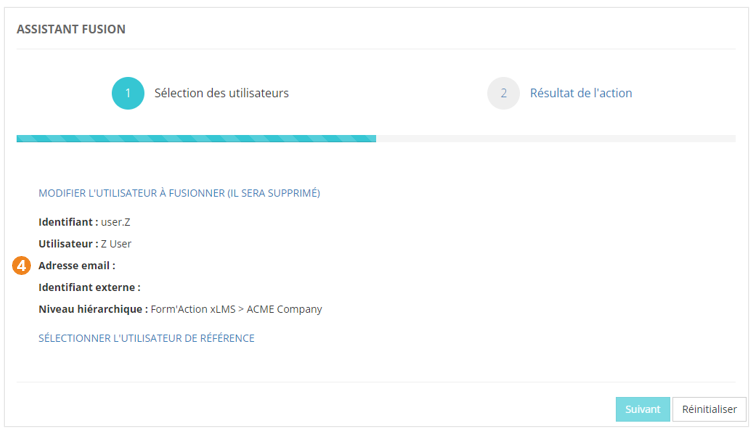
#### <span style="color: rgb(0, 0, 0);">**Sélection de l'utilisateur à conserver**</span>

1. <span style="color: rgb(0, 0, 0);">Cliquez sur <span style="color: rgb(239, 131, 29);">**SÉLECTIONNER L'UTILISATEUR DE RÉFÉRENCE**</span> ;</span>
2. <span style="color: rgb(0, 0, 0);">Dans la pop-up qui s'ouvre, sélectionnez l'**<span style="color: rgb(239, 131, 29);">utilisateur</span>** (ici, *<span style="color: rgb(239, 131, 29);">User A</span>*) ;</span>
3. <span style="color: rgb(0, 0, 0);">Cliquez sur <span style="color: rgb(239, 131, 29);">**Valider** <span style="color: rgb(0, 0, 0);">;</span></span></span>
4. <span style="color: rgb(0, 0, 0);">De retour sur l'écran principal, vous obtenez un **<span style="color: rgb(239, 131, 29);">récapitulatif des **i**nformations</span>** sur l'utilisateur à conserver.</span> <span class="callout info"><span style="color: rgb(0, 0, 0);">À ce stade, vous pouvez modifier chacun des utilisateurs sélectionnés en cas d'erreur.</span></span>

[![image.png](https://documentation.xperteam.net/uploads/images/gallery/2024-06/scaled-1680-/3cdimage.png)](https://documentation.xperteam.net/uploads/images/gallery/2024-06/3cdimage.png)

[![image.png](https://documentation.xperteam.net/uploads/images/gallery/2024-06/scaled-1680-/3VNimage.png)](https://documentation.xperteam.net/uploads/images/gallery/2024-06/3VNimage.png)
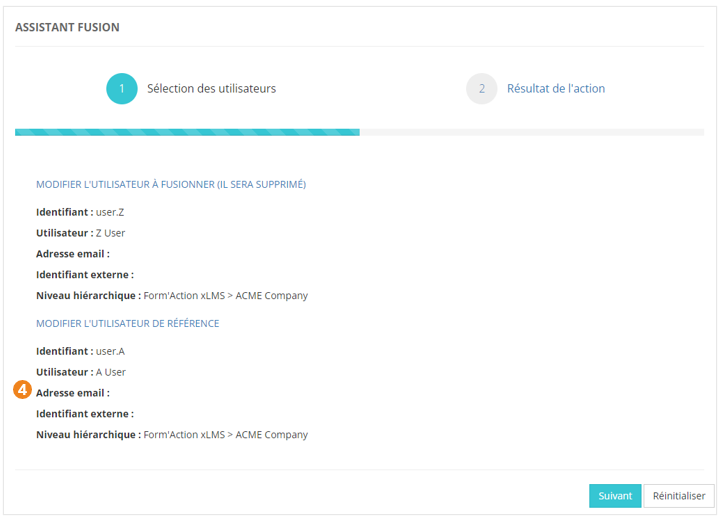
#### **Fusion**

Lorsque vous êtes satisfait des utilisateurs sélectionnés :

1. Cliquez sur **<span style="color: rgb(239, 131, 29);">Suivant </span>**;
2. Dans la pop-up qui s'ouvre, cliquez sur <span style="color: rgb(239, 131, 29);">**Oui**</span>.

[![image.png](https://documentation.xperteam.net/uploads/images/gallery/2024-06/scaled-1680-/csjimage.png)](https://documentation.xperteam.net/uploads/images/gallery/2024-06/csjimage.png)

#### **Résultat de l'action**
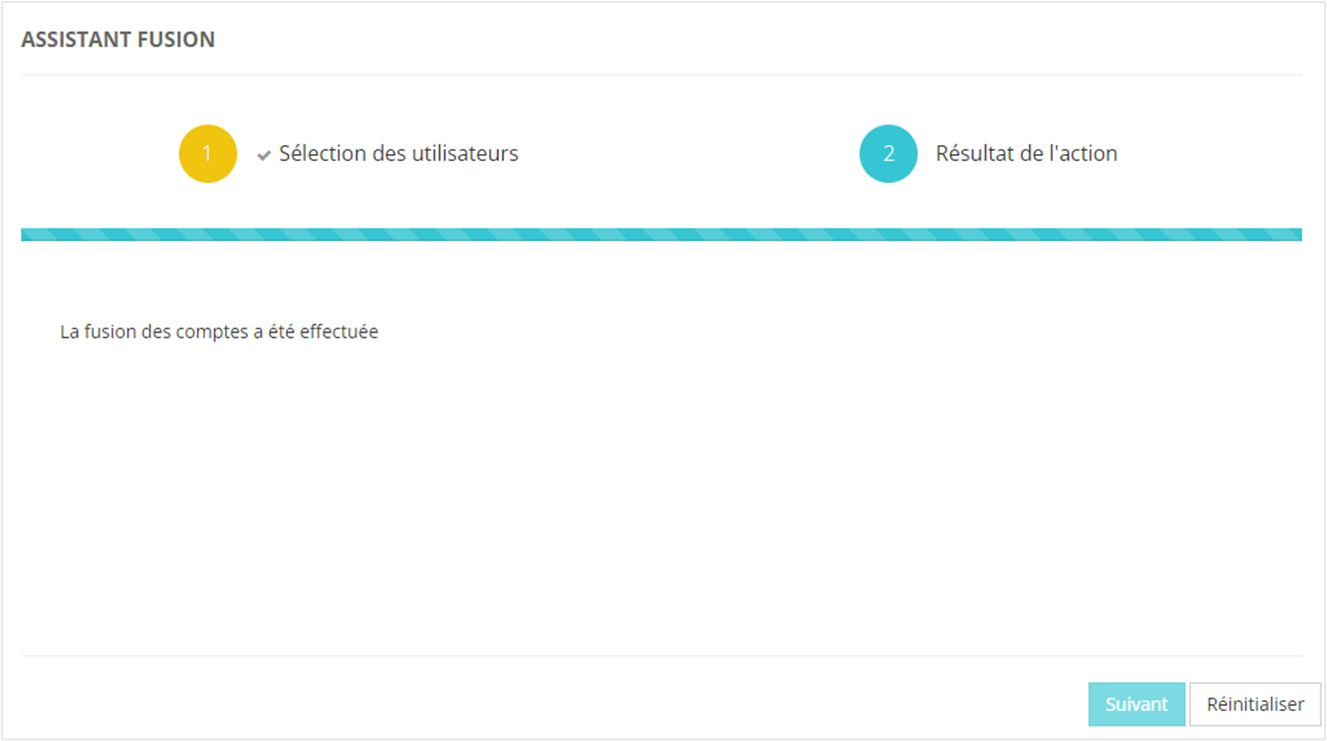
![](https://documentation.xperteam.net/uploads/images/gallery/2024-06/embedded-image-7vejsaam.png)

Cet écran vous indique si la fusion a été <span style="color: rgb(239, 131, 29);">**correctement effectuée ou non**</span>.

Le bouton <span style="color: rgb(239, 131, 29);">**Réinitialiser** </span>ramène à l’écran de sélection des utilisateurs de l’assistant, afin de procéder à une nouvelle fusion, via l’assistant.

<p class="callout info">Le bouton **Réinitialiser** n’annule pas la dernière action.</p>

# Les différents imports

Ce chapitre détaille comment faire des imports, entre autres :
- d'organisations ;
- d'utilisateurs ;
- de statistiques ;
- de fichiers SCORMS...

# L'Assistant Import Utilisateurs

L'Assistant Import Utilisateurs vous permet de faire des imports en masse :

- d'organisations ;
- d'utilisateurs.

<details id="bkmrk-import-d%27organisatio"><summary>Import d'organisations</summary>

Rendez-vous dans <span style="color: rgb(239, 131, 29);">**Assistants &gt; Import &gt; Utilisateurs &gt; Organisation**</span>.

#### **Le fichier d'import**

Le fichier d'import doit respecter certaines règles. Afin d'avoir un fichier valide, il est recommandé dans un premier temps de **<span style="color: rgb(239, 131, 29);">télécharger un fichier d'exemple</span>**.

[![image.png](https://documentation.xperteam.net/uploads/images/gallery/2024-06/scaled-1680-/MMbimage.png)](https://documentation.xperteam.net/uploads/images/gallery/2024-06/MMbimage.png)

Ce fichier d'exemple devra remplir les conditions suivantes :

- être enregistré au format <span style="color: rgb(239, 131, 29);">**csv (séparateur point-virgule)**</span> ;
- comporter <span style="color: rgb(239, 131, 29);">**14 colonnes**</span> exactement ;
- pour chaque ligne, les informations dans les 2 premières colonnes sont <span style="color: rgb(239, 131, 29);">**obligatoires** </span>(*<span style="color: rgb(239, 131, 29);">org\_label</span>* et *<span style="color: rgb(239, 131, 29);">org\_extid</span>*)

Liste des informations du fichier :

1. <span style="color: rgb(239, 131, 29);">**Nom** </span>de l'organisation ;
2. <span style="color: rgb(239, 131, 29);">**Identifiant externe**</span> de l'organisation ;
3. **<span style="color: rgb(239, 131, 29);">Identifiant externe</span>**<span style="color: rgb(0, 0, 0);"> de l'</span>**<span style="color: rgb(239, 131, 29);">organisation parente</span>** ;
4. Organisation <span style="color: rgb(239, 131, 29);">**désactivée ou non**</span> (1 = désactivée ; 0 ou vide = active) ;
5. <span style="color: rgb(239, 131, 29);">**Description** </span>de l'organisation ;
6. <span style="color: rgb(239, 131, 29);">**Langue** </span>de l'organisation ;
7. <span style="color: rgb(239, 131, 29);">**Adresse** </span>de l'organisation (<span style="color: rgb(239, 131, 29);">*ligne 1*</span>, <span style="color: rgb(239, 131, 29);">*ligne 2*</span>, *<span style="color: rgb(239, 131, 29);">code postal</span>*, <span style="color: rgb(239, 131, 29);">*ville*</span>, *<span style="color: rgb(239, 131, 29);">pays</span>*) ;
8. <span style="color: rgb(239, 131, 29);">**Code** </span>de l'organisation ;
9. <span style="color: rgb(239, 131, 29);">**Budget** </span>de l'organisation ;
10. <span style="color: rgb(239, 131, 29);">**Identifiant externe**</span> du <span style="color: rgb(239, 131, 29);">**superviseur** </span>de l'organisation.

[![image.png](https://documentation.xperteam.net/uploads/images/gallery/2024-06/scaled-1680-/jc7image.png)](https://documentation.xperteam.net/uploads/images/gallery/2024-06/jc7image.png)

Ce sont ces mêmes informations que vous retrouvez en back-office sur une**<span style="color: rgb(239, 131, 29);"> fiche d'organisation</span>** :

[![image.png](https://documentation.xperteam.net/uploads/images/gallery/2024-06/scaled-1680-/5Tmimage.png)](https://documentation.xperteam.net/uploads/images/gallery/2024-06/5Tmimage.png)

#### **Vérification du fichier**

Une fois votre fichier d'import déposé sur la plateforme, vous obtenez un récapitulatif de la façon dont va être interprétée la première ligne de votre fichier.

[![image.png](https://documentation.xperteam.net/uploads/images/gallery/2024-07/scaled-1680-/image.png)](https://documentation.xperteam.net/uploads/images/gallery/2024-07/image.png)

Cliquez sur le bouton <span style="color: rgb(239, 131, 29);">**Suivant**</span>.

#### **Options d'import et réglages**

C'est à cette étape que vous définissez si l'import doit ou non :

1. **<span style="color: rgb(239, 131, 29);">Mettre à jour le nom</span>** des organisations : la correspondance se fait sur l'<span style="color: rgb(239, 131, 29);">**identifiant externe**</span> de l'organisation ;
2. <span style="color: rgb(239, 131, 29);">**Mettre à jour la hiérarchie**</span> des organisations ;
3. <span style="color: rgb(239, 131, 29);">**Mettre à jour les informations additionnelles**</span> uniquement dans le cas où celles-ci sont présentes dans le fichier d'import. En particulier, si une information existe déjà sur une organisation et que la cellule est vide dans le fichier d'import, l'information initiale ne sera pas écrasée.
4. Cliquez sur <span style="color: rgb(239, 131, 29);">**Suivant** </span>lorsque vous avez fait vos choix.

[![image.png](https://documentation.xperteam.net/uploads/images/gallery/2024-07/scaled-1680-/eWZimage.png)](https://documentation.xperteam.net/uploads/images/gallery/2024-07/eWZimage.png)

</details><details id="bkmrk-explication-des-cham"><summary>Explication des champs du fichier d'import apprenants</summary>

Le fichier exemple d'import apprenants comporte 37 de colonnes.  
Seules 5 sont obligatoires

![](https://documentation.xperteam.net/uploads/images/gallery/2025-10/embedded-image-1wka1ykt.png)

#### Les colonnes obligatoires

**user\_lname** = Nom  
**user\_fname** = Prénom  
**user\_login** = Login  
**user\_password** = Mot de passe (à moins de choisir que la plateforme génère le mot de passe lors de l’import)  
**org\_extid** = Identifiant de l'organisation à laquelle sera rattachée l'apprenant

#### Les colonnes expliquées

<table border="1" style="border-collapse: collapse; width: 99.9487%; height: 1371.2px;"><colgroup><col style="width: 50%;"></col><col style="width: 50%;"></col></colgroup><tbody><tr style="height: 26.6px;"><td style="height: 26.6px;">user\_lname\*  
</td><td style="height: 26.6px;">nom de famille</td></tr><tr style="height: 29.6px;"><td style="height: 29.6px;">user\_fname\*</td><td style="height: 29.6px;">prénom</td></tr><tr style="height: 29.6px;"><td style="height: 29.6px;">user\_tname</td><td style="height: 29.6px;">M.,Mme,Mlle,Dr.,Pr.</td></tr><tr style="height: 29.6px;"><td style="height: 29.6px;">user\_login\*</td><td style="height: 29.6px;">Identifiant unique de l’apprenant</td></tr><tr style="height: 29.6px;"><td style="height: 29.6px;">user\_password\*</td><td style="height: 29.6px;">Mot de passe de l’apprenant. </td></tr><tr style="height: 46.4px;"><td style="height: 46.4px;">org\_extid\*</td><td style="height: 46.4px;">identifiant de l’organisation dans laquelle l’apprenant doit être affecté.</td></tr><tr style="height: 29.6px;"><td style="height: 29.6px;">user\_email </td><td style="height: 29.6px;">mail de l’apprenant</td></tr><tr style="height: 29.6px;"><td style="height: 29.6px;">user\_extid</td><td style="height: 29.6px;">second identifiant unique, facultatif</td></tr><tr style="height: 46.4px;"><td style="height: 46.4px;">user\_disable  
</td><td style="height: 46.4px;">1 si l’apprenant doit être inactif, 0 ou vide pour les apprenants actifs</td></tr><tr style="height: 39px;"><td style="height: 39px;">user\_culture  
</td><td style="height: 39px;">Langue de l’apprenant (en-EN, fr-FR, es-ES)</td></tr><tr style="height: 33.4px;"><td style="height: 33.4px;">birth\_date  
</td><td style="height: 33.4px;">date de naissance de l’apprenant au format YYYY/MM/DD</td></tr><tr style="height: 32.6px;"><td style="height: 32.6px;">user\_activation\_date  
</td><td style="height: 32.6px;">date d’activation du compte au format YYYY/MM/DD</td></tr><tr style="height: 34.8px;"><td style="height: 34.8px;">user\_expiration\_date  
</td><td style="height: 34.8px;">date d’expiration du compte au format YYYY/MM/DD</td></tr><tr style="height: 46.4px;"><td style="height: 46.4px;">user\_manager\_extid</td><td style="height: 46.4px;">User extid du manager de l’apprenant</td></tr><tr style="height: 46.4px;"><td style="height: 46.4px;">user\_alternate\_manager\_extid</td><td style="height: 46.4px;">User extid du manager alternatif (mêmes droits que le manager direct)</td></tr><tr style="height: 46.4px;"><td style="height: 46.4px;">user\_address1  
  
</td><td style="height: 46.4px;">Adresse de l’apprenant</td></tr><tr style="height: 46.4px;"><td style="height: 46.4px;">user\_address2  
  
</td><td style="height: 46.4px;">Complément d’adresse</td></tr><tr style="height: 29.6px;"><td style="height: 29.6px;">user\_zip</td><td style="height: 29.6px;">Code postal</td></tr><tr style="height: 29.6px;"><td style="height: 29.6px;">user\_city</td><td style="height: 29.6px;">Ville</td></tr><tr style="height: 29.6px;"><td style="height: 29.6px;">user\_country</td><td style="height: 29.6px;">Pays</td></tr><tr style="height: 29.6px;"><td style="height: 29.6px;">user\_phone</td><td style="height: 29.6px;">Téléphone fixe</td></tr><tr style="height: 29.6px;"><td style="height: 29.6px;">user\_cellphone</td><td style="height: 29.6px;">Téléphone portable</td></tr><tr style="height: 29.6px;"><td style="height: 29.6px;">user\_hourly\_cost  
</td><td style="height: 29.6px;">Coût horaire</td></tr><tr style="height: 29.6px;"><td style="height: 29.6px;">user\_udtf1</td><td style="height: 29.6px;">champ texte libre 1</td></tr><tr style="height: 29.6px;"><td style="height: 29.6px;">user\_udtf2</td><td style="height: 29.6px;">champ texte libre 2</td></tr><tr style="height: 29.6px;"><td style="height: 29.6px;">user\_udtf3</td><td style="height: 29.6px;">champ texte libre 3</td></tr><tr style="height: 29.6px;"><td style="height: 29.6px;">user\_udtf4</td><td style="height: 29.6px;">champ texte libre 4</td></tr><tr style="height: 29.6px;"><td style="height: 29.6px;">user\_udtf5  
</td><td style="height: 29.6px;">champ texte libre 5</td></tr><tr style="height: 29.6px;"><td style="height: 29.6px;">user\_udtf6</td><td style="height: 29.6px;">champ texte libre 6</td></tr><tr style="height: 29.6px;"><td style="height: 29.6px;">user\_udtf7</td><td style="height: 29.6px;">champ texte libre 7</td></tr><tr style="height: 29.6px;"><td style="height: 29.6px;">user\_udtf8</td><td style="height: 29.6px;">champ texte libre 8</td></tr><tr style="height: 29.6px;"><td style="height: 29.6px;">user\_udtf9   
</td><td style="height: 29.6px;">champ texte libre 9</td></tr><tr style="height: 29.6px;"><td style="height: 29.6px;">user\_udtf10  
</td><td style="height: 29.6px;">champ texte libre 10</td></tr><tr style="height: 46.4px;"><td style="height: 46.4px;">user\_audiences  
</td><td style="height: 46.4px;">audience(s) de l’apprenant. Il est possible mettre plusieurs audiences séparées par ||</td></tr><tr style="height: 96.8px;"><td style="height: 96.8px;">user\_roles</td><td style="height: 96.8px;">identifiant(s) du/ des role(s) de l’apprenant. Il est possible mettre plusieurs rôles séparées par ||. Pour définir le périmètre du rôle, mettre : puis l’identifiant de l’organisation.  
Exemple : Role1:Org1||Role2:Org2)</td></tr><tr style="height: 29.6px;"><td style="height: 29.6px;">job\_position\_id</td><td style="height: 29.6px;">ID de l'emploi de l'apprenant</td></tr><tr style="height: 102.4px;"><td style="height: 102.4px;">List\_name</td><td style="height: 102.4px;">Noms de la liste ou des listes statiques auxquels l'apprenant doit être inscrit. S'il y'a plusieurs listes, elles seront séparées par ||.

Exemple groupeA||groupeB

</td></tr></tbody></table>

</details><details id="bkmrk-import-d%27utilisateur"><summary>Import d'utilisateurs</summary>

#### Accéder à l'import

L'import des apprenants se fait dans Assistants/ Imports/ Import Utilisateur/ Utilisateur

[![image.png](https://documentation.xperteam.net/uploads/images/gallery/2025-10/scaled-1680-/JzKimage.png)](https://documentation.xperteam.net/uploads/images/gallery/2025-10/JzKimage.png)

#### Import du fichier

A près avoir télécharger et modifier le fichier Exemple, on le dépose dans la zone prévue à cette effet.

[![image.png](https://documentation.xperteam.net/uploads/images/gallery/2025-10/scaled-1680-/ORzimage.png)](https://documentation.xperteam.net/uploads/images/gallery/2025-10/ORzimage.png)

Lors de l'import, un écran affiche la première ligne et permet de contrôler que les informations sont dans les bonnes colonnes

[![image.png](https://documentation.xperteam.net/uploads/images/gallery/2025-10/scaled-1680-/UAbimage.png)](https://documentation.xperteam.net/uploads/images/gallery/2025-10/UAbimage.png)

L'écran suivant permet de préciser les actions lors de l'import

[![image.png](https://documentation.xperteam.net/uploads/images/gallery/2025-10/scaled-1680-/v1fimage.png)](https://documentation.xperteam.net/uploads/images/gallery/2025-10/v1fimage.png)

Lors de cette étape, on définit les règles qui vont s’appliquer lors de l’import du fichier apprenant.  
Par défaut, l’import se base sur l’**identifiant de l’apprenant** (qui est unique) pour effectuer les mises à jour. Il est possible de se baser sur l’**identifiant externe** de l’apprenant (également unique), notamment si on souhaite modifier les identifiants.

Vous pouvez ensuite cocher :

- **Mettre à jour les utilisateurs existants**. Si non coché, alors l’import ne fera que créer de nouveaux utilisateurs.
- **Ne pas mettre à jour le mot de passe**. Si décoché, vous pourrez indiquer un nouveau mot de passe.
- **Générer un mot de passe si il n'est pas fourni**. Cela vous permet d’importer un fichier sans mot de passe. Il sera généré automatiquement.
- **Forcer le changement de mot de passe à la première connexion pour les nouveaux utilisateurs.**
- **Remplacer les audiences existantes par celles importées**
- **Remplacer les rôles existants par ceux importés**
- **Mettre à jour les informations des utilisateurs seulement si renseignées** (email, champs personnalisés, ...). Cela concerne les 10 champs personnalisés des utilisateurs.
- **Limiter les modifications des apprenants importés**. Dans ce cas, pour modifier les informations, il sera nécessaire d'avoir la permission de modification des utilisateurs gérés en externe (voir la fiche apprenant). Cela est utilisé notamment lorsque l'import des apprenants est automatisé, afin de ne pas permettre de modifier les apprenants qui seront mis à jour lors du prochain import automatique.
- **Envoyer un mail aux nouveaux utilisateurs**. Un mail standard sera envoyé avec les informations de login et de mot de passe.

#### Analyse du résultat de l'import

**Si l’import est réussi**, le nombre d’enregistrement sera à 0 et le nombre d’utilisateurs ajoutés et mis à jour seront indiqués.  
Les erreurs seront à 0.  
**Si l’import n’est pas complétement réussi**, le nombre d’erreurs et d’avertissements seront indiqués. Les erreurs empêche l’import de l’apprenant (exemple Organisation de l’apprenant non trouvé), l’avertissement n’est pas bloquant (exemple : manager non trouvée).

[![image.png](https://documentation.xperteam.net/uploads/images/gallery/2025-10/scaled-1680-/SLLimage.png)](https://documentation.xperteam.net/uploads/images/gallery/2025-10/SLLimage.png)

**Le fichier journal** vous indique les erreurs et les avertissements.

[![image.png](https://documentation.xperteam.net/uploads/images/gallery/2025-10/scaled-1680-/22Pimage.png)](https://documentation.xperteam.net/uploads/images/gallery/2025-10/22Pimage.png)

**Le fichier des rejets** indique les imports rejetés.

[![image.png](https://documentation.xperteam.net/uploads/images/gallery/2025-10/scaled-1680-/yBoimage.png)](https://documentation.xperteam.net/uploads/images/gallery/2025-10/yBoimage.png)

</details>

# L'assistant Import Affectation

L'Assistant Import Affectation vous permet de faire des imports en masse :

- d'affectation de cours
- d'affectation de parcours

<details id="bkmrk-import-de-cours-rend"><summary>Import d'affectation de cours</summary>

Rendez-vous dans **<span style="color: rgb(230, 126, 35);">Assistants &gt; Import &gt;Affectation</span>**

#### **Le fichier d'import**

Le fichier d'import doit respecter certaines règles. Afin d'avoir un fichier valide, il est recommandé dans un premier temps de **télécharger un fichier d'exemple**.

[![image.png](https://documentation.xperteam.net/uploads/images/gallery/2025-10/scaled-1680-/cRdimage.png)](https://documentation.xperteam.net/uploads/images/gallery/2025-10/cRdimage.png)
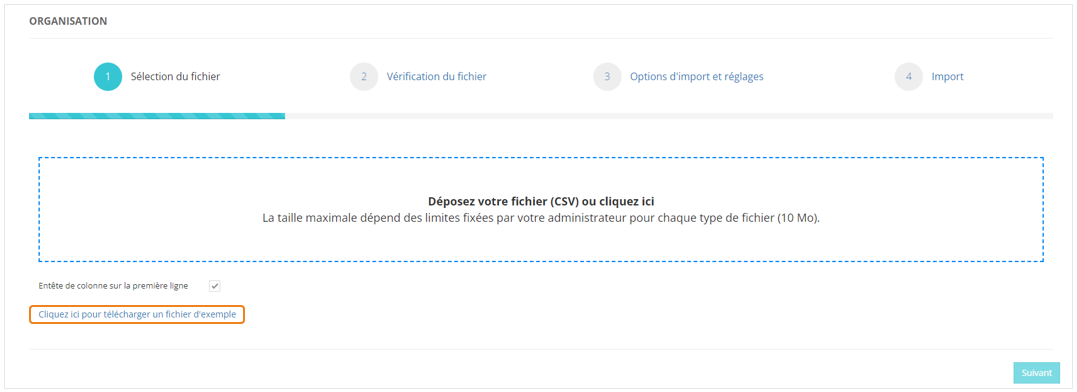
Ce fichier d'exemple devra remplir les conditions suivantes :

- être enregistré au format **csv (séparateur point-virgule)** ;
- comporter **11 colonnes** exactement ;
- pour chaque ligne, les informations dans les 2 premières colonnes sont **obligatoires** (*user\_loginid* et *crsvname*)

Liste des informations du fichier :

1. **<span style="color: rgb(230, 126, 35);">Identifiant</span>** unique de l'apprenant ;
2. **<span style="color: rgb(230, 126, 35);">Identifiant</span>** unique du cours
3. <span style="color: rgb(230, 126, 35);">**Date** </span>de début
4. <span style="color: rgb(230, 126, 35);">**Date**</span> de fin
5. <span style="color: rgb(230, 126, 35);">**Date**</span> d'objectif
6. <span style="color: rgb(230, 126, 35);">**Identifiant**</span> de session externe
7. **<span style="color: rgb(230, 126, 35);">Option</span>** d'attribution
8. **<span style="color: rgb(230, 126, 35);">Mode</span>** de facturation
9. **<span style="color: rgb(230, 126, 35);">Code</span>** de facturation
10. **<span style="color: rgb(230, 126, 35);">Statut</span>** d'inscription à la session

#### **L'import du fichier**

Après avoir télécharger et modifier le fichier Exemple, on le dépose dans la zone prévue à cette effet. Vous obtenez un récapitulatif de la façon dont va être interprétée la première ligne de votre fichier.

[![image.png](https://documentation.xperteam.net/uploads/images/gallery/2025-10/scaled-1680-/nDAimage.png)](https://documentation.xperteam.net/uploads/images/gallery/2025-10/nDAimage.png)
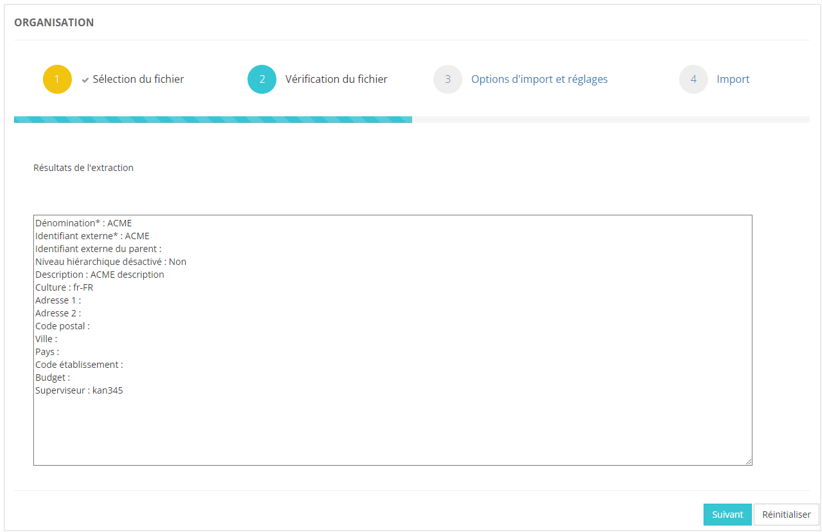
Cliquez sur le bouton <span style="color: rgb(230, 126, 35);">**Suivant**.</span>

 L'écran suivant permet de préciser les actions lors de l'import

[![image.png](https://documentation.xperteam.net/uploads/images/gallery/2025-10/scaled-1680-/W0Rimage.png)](https://documentation.xperteam.net/uploads/images/gallery/2025-10/W0Rimage.png)
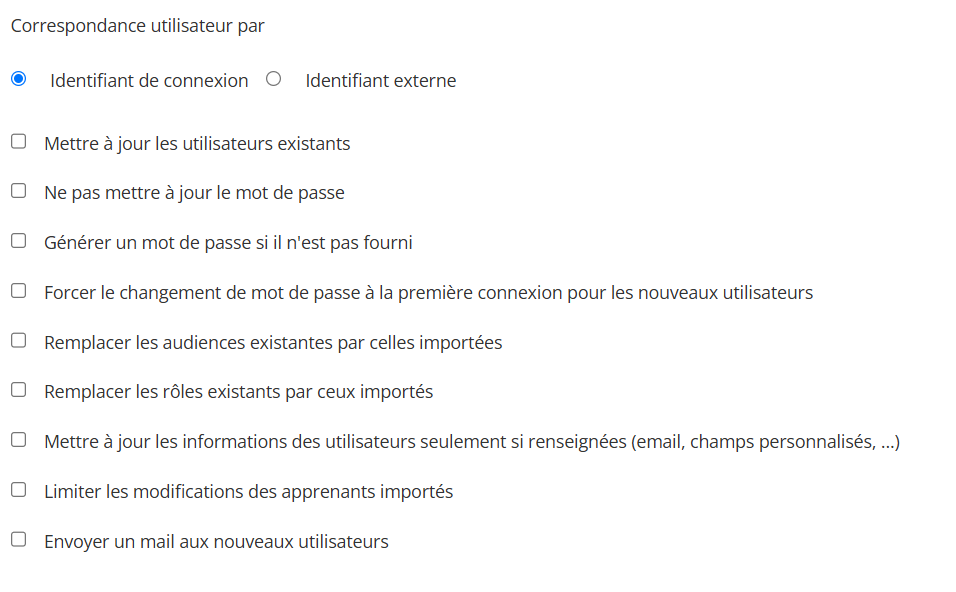
Vous pouvez cocher :

- **Tenir compte des audiences.** Si décoché, elle ne prendre pas en compte les audiences.
- **Mettre à jour les affectations existantes.** Si coché, vous pourrez modifier les dates et/ou modifier le statut du cours.

#### **Analyse du résultat de l'import** 

**Si l’import est réussi**, le nombre d’enregistrement et le nombre d’affectation ajoutés et mises à jour seront indiqués.  
Les erreurs seront à 0.

**Si l’import n’est pas complétement réussi**, le nombre d’erreurs et d’avertissements seront indiqués. Les erreurs empêche l’import, l’avertissement n’est pas bloquant.

[![image.png](https://documentation.xperteam.net/uploads/images/gallery/2025-10/scaled-1680-/6qdimage.png)](https://documentation.xperteam.net/uploads/images/gallery/2025-10/6qdimage.png)

</details><details id="bkmrk-import-d%27affectation"><summary>Import d'affectation de parcours</summary>

<span style="color: rgb(230, 126, 35);"><span style="color: rgb(0, 0, 0);">Rendez-vous dans</span></span>**<span style="color: rgb(230, 126, 35);"> Assistants &gt; Import &gt;Affectation</span>**

#### **Le fichier d'import**

Le fichier d'import doit respecter certaines règles. Afin d'avoir un fichier valide, il est recommandé dans un premier temps de **télécharger un fichier d'exemple**.

[![image.png](https://documentation.xperteam.net/uploads/images/gallery/2025-10/scaled-1680-/YBYimage.png)](https://documentation.xperteam.net/uploads/images/gallery/2025-10/YBYimage.png)
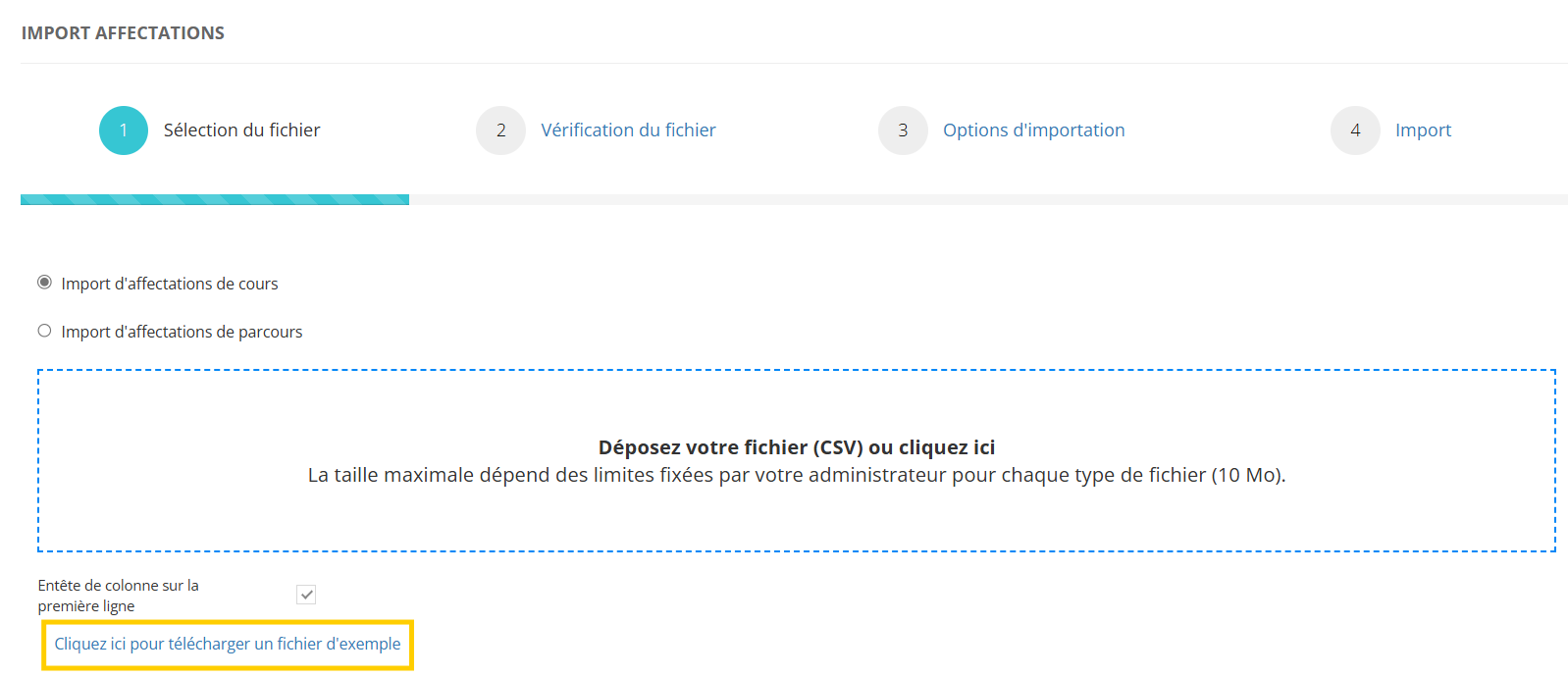
Ce fichier d'exemple devra remplir les conditions suivantes :

- être enregistré au format **csv (séparateur point-virgule)** ;
- comporter **6 colonnes** exactement ;
- pour chaque ligne, les informations dans les 2 premières colonnes sont **obligatoires** (*user\_loginid* et *curriculum\_extid*)

Liste des informations du fichier :

1. **<span style="color: rgb(230, 126, 35);">Identifiant</span>** unique de l'apprenant ;
2. **<span style="color: rgb(230, 126, 35);">Identifiant</span>** unique du parcours
3. <span style="color: rgb(230, 126, 35);">**Date** </span>de début
4. <span style="color: rgb(230, 126, 35);">**Date**</span> de fin
5. <span style="color: rgb(230, 126, 35);">**Date**</span> d'objectif
6. **<span style="color: rgb(230, 126, 35);">Option</span>** d'attribution

#### **L'import du fichier**

Après avoir télécharger et modifier le fichier Exemple, on le dépose dans la zone prévue à cette effet. Vous obtenez un récapitulatif de la façon dont va être interprétée la première ligne de votre fichier.

[![image.png](https://documentation.xperteam.net/uploads/images/gallery/2025-10/scaled-1680-/IVpimage.png)](https://documentation.xperteam.net/uploads/images/gallery/2025-10/IVpimage.png)
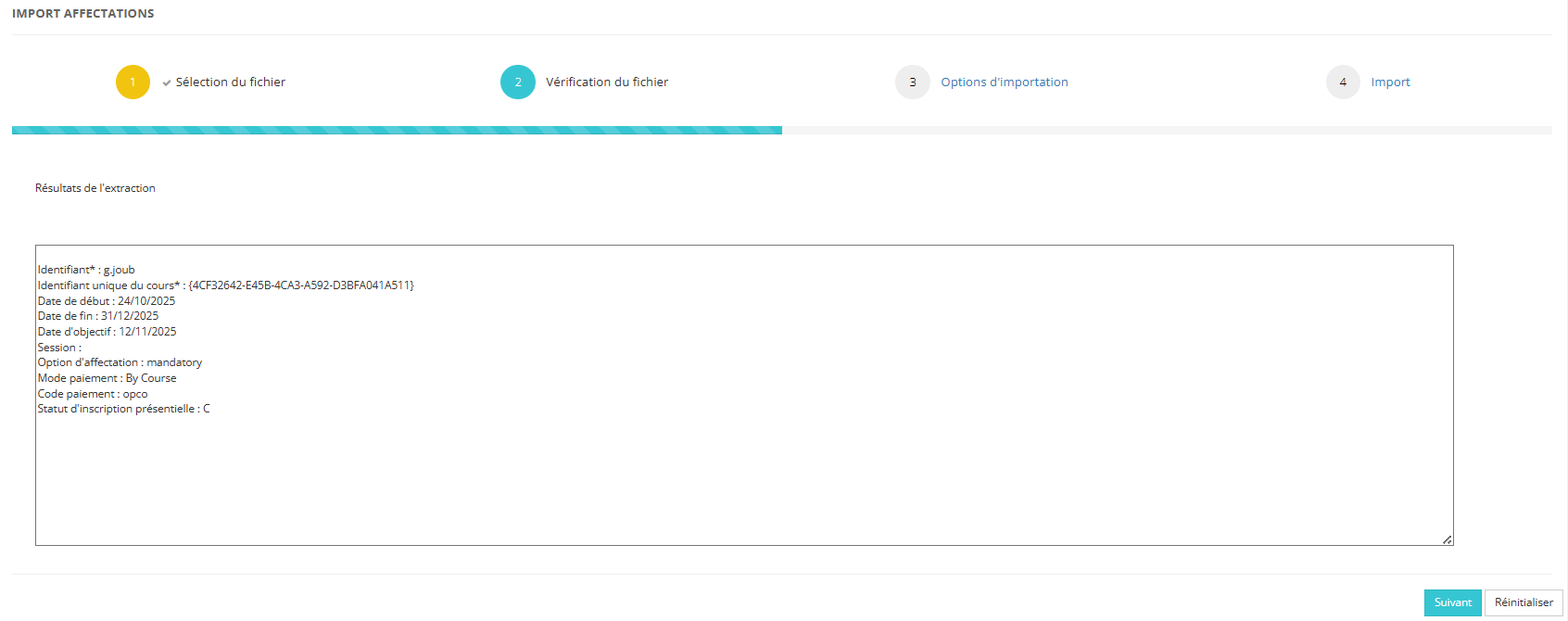
Cliquez sur le bouton <span style="color: rgb(230, 126, 35);">**Suivant**.</span>

L'écran suivant permet de préciser les actions lors de l'import

[![image.png](https://documentation.xperteam.net/uploads/images/gallery/2025-10/scaled-1680-/OKrimage.png)](https://documentation.xperteam.net/uploads/images/gallery/2025-10/OKrimage.png)
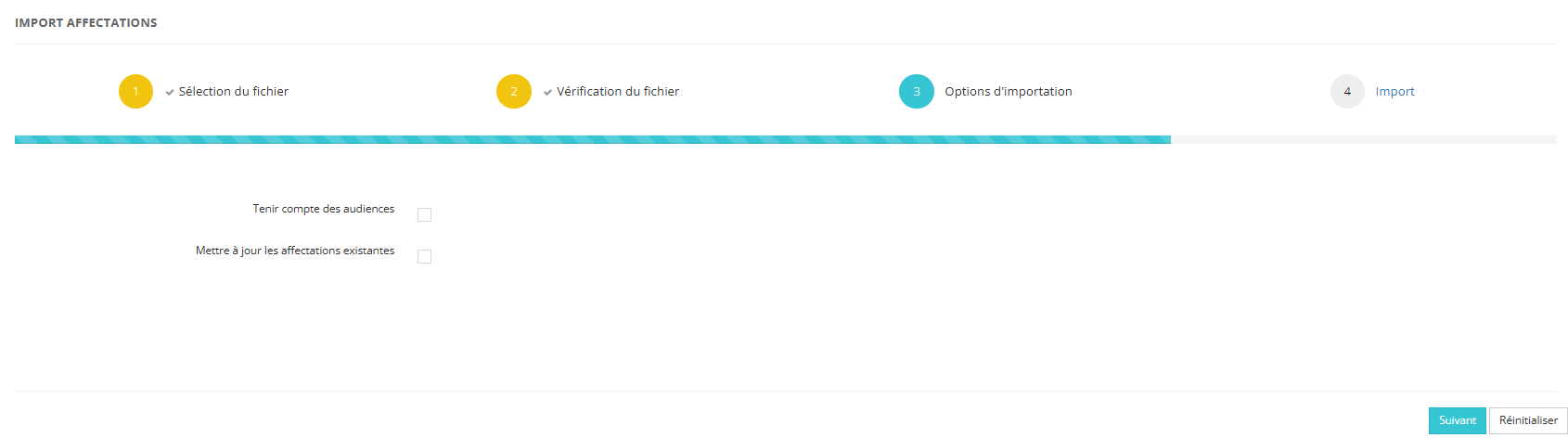
Vous pouvez cocher :

- **Tenir compte des audiences.** Si décoché, elle ne prendre pas en compte les audiences.
- **Mettre à jour les affectations existantes.** Si coché, vous pourrez modifier les dates et/ou modifier le statut du cours.

#### **Analyse du résultat de l'import** 

**Si l’import est réussi**, le nombre d’enregistrement et le nombre d’affectation ajoutés et mises à jour seront indiqués.  
Les erreurs seront à 0.

**Si l’import n’est pas complétement réussi**, le nombre d’erreurs et d’avertissements seront indiqués. Les erreurs empêche l’import, l’avertissement n’est pas bloquant.

[![image.png](https://documentation.xperteam.net/uploads/images/gallery/2025-10/scaled-1680-/6qdimage.png)](https://documentation.xperteam.net/uploads/images/gallery/2025-10/6qdimage.png)
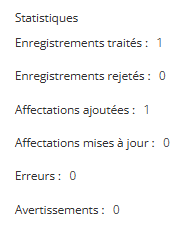
L'Assistant Import Affectation vous permet de faire des affectation en masse :

- de cours
- de parcours

</details>

# L'assistant Import Statistiques

L'import statistique permet de modifier/ créer les statistiques pour les leçons et les cours des apprenants.

<details id="bkmrk-o%C3%B9-importer-les-stat"><summary>Où importer les statistiques de cours ou de leçons</summary>

<table border="1" style="border-collapse: collapse; width: 100%;"><colgroup><col style="width: 50.0618%;"></col><col style="width: 50.0618%;"></col></colgroup><tbody><tr><td>L'import de statistiques se fait dans Assistants/ Import/ Statistiques</td><td>[![image.png](https://documentation.xperteam.net/uploads/images/gallery/2025-11/scaled-1680-/Bvkimage.png)](https://documentation.xperteam.net/uploads/images/gallery/2025-11/Bvkimage.png)

</td></tr></tbody></table>

Il est possible de mettre à jour :

- Les statistiques des cours : statut du cours, date de statut du cour. Dans ce cas, un cours pourra avoir un statut terminé même si les leçons du cours ne sont pas toutes terminées.
- Les statistiques de leçons des cours (recommandé) : statut de la leçon, score de la leçon, date de statut, temps passée

[![image.png](https://documentation.xperteam.net/uploads/images/gallery/2025-11/scaled-1680-/tkSimage.png)](https://documentation.xperteam.net/uploads/images/gallery/2025-11/tkSimage.png)

Il est possible de télécharge les fichiers Exemple

</details><details id="bkmrk-l%27import-statistique-1"><summary>L'import statistique de leçons</summary>

Le fichier d'import statistiques de leçons est composé de 9 colonnes

[![image.png](https://documentation.xperteam.net/uploads/images/gallery/2025-11/scaled-1680-/1Y0image.png)](https://documentation.xperteam.net/uploads/images/gallery/2025-11/1Y0image.png)

- user\_loginid\* = Login apprenant
- crsvname\* = Identifiant unique du cours
- lsnvname\* = Identifiant unique de la leçon  
    lnk\_type\* = Type de leçon 
    - A (Assignement/ Mission),
    - L (lesson/ leçon),
    - W (Webinaire),
    - T (Lti activity/ Leçon présentielle),
    - E (educational resource/ Ressource pédagogique)
- lesson\_status\* = statut de la leçon 
    - C pour Completed/ Terminé
    - P pour Passed/ Réussi
    - F pour Failed / Echoué
    - I pour Incomplete/ En cours
    - N pour Not Started/ Non commencé
- lesson\_status\_date = Date du statut au format AAAA/MM/JJ
- lesson\_score = Score sur 100
- lesson\_time = Temps passé en secondes
- ilt\_status = Pour les leçons présentielles, P si l'apprenant était présent.

Lors de l'import, il est nécessaire d'indiquer ce qu'il se passe si l'apprenant a déjà des statistiques

[![image.png](https://documentation.xperteam.net/uploads/images/gallery/2025-11/scaled-1680-/rfAimage.png)](https://documentation.xperteam.net/uploads/images/gallery/2025-11/rfAimage.png)

- Soit l'import enregistre la statistiques (option Créer une nouvelle session si un statut existe déjà)
- Soit l'import rejette la ligne (Rejeter la ligne si un statut existe déjà)
- Enfin, les apprenants qui ne seraient pas inscrits au cours peuvent être inscrits lors de l'import si "Affecter le cours à l'utilisateur si nécessaire" est coché.

A l'issu de l'import, le résultat vous est indiqué.   
En cas d'erreurs, vous pouvez consulter le fichier journal qui vous indique les erreurs et le fichier des rejets qui vous indique les statistiques qui n'ont pu être mises à jour.

[![image.png](https://documentation.xperteam.net/uploads/images/gallery/2025-11/scaled-1680-/1cjimage.png)](https://documentation.xperteam.net/uploads/images/gallery/2025-11/1cjimage.png)

</details><details id="bkmrk-l%27import-statistique-2"><summary>L'import statistique de cours</summary>

Le fichier d'import statistiques de cours contient 5 colonnes

[![image.png](https://documentation.xperteam.net/uploads/images/gallery/2025-11/scaled-1680-/zUkimage.png)](https://documentation.xperteam.net/uploads/images/gallery/2025-11/zUkimage.png)

- user\_loginid\* = Login apprenant
- crsvname\* = Identifiant unique du cours
- course\_status\* = Statut du cours 
    - N pour Not started/ Non commencé
    - I pour Incomplete/ En cours
    - C pour Completed/ Terminé
- course\_status\_date = Date de statut au format AAAA/MM/JJ
- course\_enrollement\_date = Date d'inscription au format AAAA/MM/JJ

Lors de l'import, il est nécessaire d'indiquer ce qu'il se passe si l'apprenant a déjà des statistiques

[![image.png](https://documentation.xperteam.net/uploads/images/gallery/2025-11/scaled-1680-/rfAimage.png)](https://documentation.xperteam.net/uploads/images/gallery/2025-11/rfAimage.png)

- Soit l'import enregistre la statistiques (option Créer une nouvelle session si un statut existe déjà)
- Soit l'import rejette la ligne (Rejeter la ligne si un statut existe déjà)
- Enfin, les apprenants qui ne seraient pas inscrits au cours peuvent être inscrits lors de l'import si "Affecter le cours à l'utilisateur si nécessaire" est coché.

A l'issu de l'import, le résultat vous est indiqué.   
En cas d'erreurs, vous pouvez consulter le fichier journal qui vous indique les erreurs et le fichier des rejets qui vous indique les statistiques qui n'ont pu être mises à jour.

[![image.png](https://documentation.xperteam.net/uploads/images/gallery/2025-11/scaled-1680-/1cjimage.png)](https://documentation.xperteam.net/uploads/images/gallery/2025-11/1cjimage.png)

</details>

# L'assistant Import Listes Statistiques

<table border="1" id="bkmrk-l%27import-des-utilisa" style="border-collapse: collapse; width: 100%;"><colgroup><col style="width: 50.0618%;"></col><col style="width: 50.0618%;"></col></colgroup><tbody><tr><td>L'import des utilisateur dans une liste statique se fait dans

Assistants/ Import/ Listes statiques

</td><td>[![image.png](https://documentation.xperteam.net/uploads/images/gallery/2025-11/scaled-1680-/image.png)](https://documentation.xperteam.net/uploads/images/gallery/2025-11/image.png)

</td></tr></tbody></table>

[![image.png](https://documentation.xperteam.net/uploads/images/gallery/2025-11/scaled-1680-/PNqimage.png)](https://documentation.xperteam.net/uploads/images/gallery/2025-11/PNqimage.png)

**Il est possible de télécharger un fichier Exemple**

[![image.png](https://documentation.xperteam.net/uploads/images/gallery/2025-11/scaled-1680-/3ZNimage.png)](https://documentation.xperteam.net/uploads/images/gallery/2025-11/3ZNimage.png)

Le fichier d'import de liste statique comporte deux colonnes uniquement :

- La colonne USER\* avec l'identifiant externe ou le login
- La colonne LISTE\_NAME\* avec le nom de la liste

**- Si la liste n'existe pas, elle sera créée dans le dossier Default**  
**- Par défaut la première ligne est considérée comme un en tête et n'est pas prise en compte**  
**- Par défaut, l'import se base sur l'identifiant externe. Il est possible de choisir de se baser sur le login.**

# L'assistant Import Formation en présentiel

<details id="bkmrk-o%C3%B9-importer-les-form"><summary>Où importer les formations en présentiel</summary>

<table border="1" style="border-collapse: collapse; width: 100.036%;"><colgroup><col style="width: 49.936%;"></col><col style="width: 49.936%;"></col></colgroup><tbody><tr><td>L'import de formation en présentiel se fait dans Assistants/ Import/Formation en présentiel</td><td>[![image.png](https://documentation.xperteam.net/uploads/images/gallery/2025-11/scaled-1680-/PrGimage.png)](https://documentation.xperteam.net/uploads/images/gallery/2025-11/PrGimage.png)

</td></tr></tbody></table>

</details><details id="bkmrk-l%27import-formation-p"><summary>L'import formation présentielle</summary>

#### **Le fichier d'import**

  
Le fichier d'import doit respecter certaines règles. Afin d'avoir un fichier valide, il est recommandé dans un premier temps de télécharger un fichier d'exemple.

[![image.png](https://documentation.xperteam.net/uploads/images/gallery/2025-11/scaled-1680-/u1Limage.png)](https://documentation.xperteam.net/uploads/images/gallery/2025-11/u1Limage.png)

Ce fichier d'exemple devra remplir les conditions suivantes :

- être enregistré au format **csv (séparateur point-virgule)** ;
- comporter **13 colonnes** exactement ;
- pour chaque ligne, les informations dans les colonnes comportant un \* sont obligatoires.

Liste des informations du fichier :

1. <span style="color: rgb(230, 126, 35);">**Identifiant** </span>unique du cours \*
2. **<span style="color: rgb(230, 126, 35);">Session</span>** Informations sur les sessions des leçons, exemple du format à suivre : Identifiant Unique de la Leçon1|DateetheureDebutSessionLeçon1|DateetheureFinSessionLeçon1$IdUniqueLeçon2|DateetheureDebutSessionLeçon2|DateetheureFinSessionLeçon2
3. **<span style="color: rgb(230, 126, 35);">Date et heure </span>**<span style="color: rgb(230, 126, 35);"><span style="color: rgb(0, 0, 0);">de début \*</span></span> au format AAAA/MM/JJ
4. **<span style="color: rgb(230, 126, 35);">Identifiant </span>**de la session \* (il sera créé lors de l'import)
5. **<span style="color: rgb(230, 126, 35);">Statut</span>** de la session (N = en préparation, 0 = ouverte, C = fermée, D = fermée, X = Annulée)
6. **<span style="color: rgb(230, 126, 35);">Nombre </span>**maximum de participants \*
7. **<span style="color: rgb(230, 126, 35);">Confirmation</span>** de la réservation immédiate (Y/N)
8. **<span style="color: rgb(230, 126, 35);">Liste d'attente</span>** mettre en liste d'attente si le nombre max est atteint (Y: pour Yes, N:Pour No)
9. **<span style="color: rgb(230, 126, 35);">Identifiant</span>** du formateur \*
10. **<span style="color: rgb(230, 126, 35);">Identifiant </span>**<span style="color: rgb(0, 0, 0);">formateurs additionnels séparés par des virgules</span>
11. **<span style="color: rgb(230, 126, 35);">Identifiant externe </span>**de la salle ou MBT
12. **<span style="color: rgb(230, 126, 35);">Identifiant </span>**du gestionnaire
13. <span style="color: rgb(230, 126, 35);">**Liste**</span> des organisations séparés par un |

#### **L'import du fichier**

Après avoir télécharger et modifier le fichier Exemple, on le dépose dans la zone prévue à cette effet. Vous obtenez un récapitulatif de la façon dont va être interprétée la première ligne de votre fichier.

![](https://documentation.xperteam.net/uploads/images/gallery/2025-11/embedded-image-zaslelcv.png)

Cliquez sur le bouton **Suivant**.

![](https://documentation.xperteam.net/uploads/images/gallery/2025-11/embedded-image-vdhcqzfj.png)

#### **Analyse du résultat de l'import** 

**Si l’import est réussi**, le nombre d’enregistrement et le nombre de formations ajoutés et mises à jour seront indiqués.  
Les erreurs seront à 0.

**Si l’import n’est pas complétement réussi**, le nombre d’erreurs et d’avertissements seront indiqués. Les erreurs empêche l’import, l’avertissement n’est pas bloquant.

[![image.png](https://documentation.xperteam.net/uploads/images/gallery/2025-10/scaled-1680-/6qdimage.png)](https://documentation.xperteam.net/uploads/images/gallery/2025-10/6qdimage.png)

Les sessions importées se retrouvent dans Gestion&gt;Session

[![image.png](https://documentation.xperteam.net/uploads/images/gallery/2025-11/scaled-1680-/pSBimage.png)](https://documentation.xperteam.net/uploads/images/gallery/2025-11/pSBimage.png)

</details>.

# L'assistant Import Formations externes passeport En cours

<details id="bkmrk-o%C3%B9-importer-les-form"><summary>Où importer les formations externes</summary>

<table border="1" style="border-collapse: collapse; width: 100.036%;"><colgroup><col style="width: 49.936%;"></col><col style="width: 49.936%;"></col></colgroup><tbody><tr><td>L'import de formation en présentiel se fait dans Assistants/ Import/Formation en présentiel</td><td>[![image.png](https://documentation.xperteam.net/uploads/images/gallery/2025-11/scaled-1680-/4vIimage.png)](https://documentation.xperteam.net/uploads/images/gallery/2025-11/4vIimage.png)

</td></tr></tbody></table>

</details><details id="bkmrk-l%27import-formations-"><summary>L'import formations externes passeport</summary>

#### **Le fichier d'import**

  
Le fichier d'import doit respecter certaines règles. Afin d'avoir un fichier valide, il est recommandé dans un premier temps de télécharger un fichier d'exemple.

[![image.png](https://documentation.xperteam.net/uploads/images/gallery/2025-11/scaled-1680-/Dgtimage.png)](https://documentation.xperteam.net/uploads/images/gallery/2025-11/Dgtimage.png)

Ce fichier d'exemple devra remplir les conditions suivantes :

- être enregistré au format **csv (séparateur point-virgule)** ;
- comporter **12 colonnes** exactement ;
- pour chaque ligne, les informations dans les colonnes comportant un \* sont obligatoires.

Liste des informations du fichier :

1. **<span style="color: rgb(230, 126, 35);">Nom</span>** du cours \*
2. **<span style="color: rgb(230, 126, 35);">Identifiant</span>** unique du cours
3. Type de passeport
4. <span style="color: rgb(230, 126, 35);">**Date**</span> de début \*
5. <span style="color: rgb(230, 126, 35);">**Date**</span> de fin \*
6. <span style="color: rgb(230, 126, 35);">**Fournisseur**</span>
7. <span style="color: rgb(230, 126, 35);">**Durée**</span>
8. <span style="color: rgb(230, 126, 35);">**Modalité**</span>
9. **<span style="color: rgb(230, 126, 35);">Identifiant</span>** de l'apprenant\*
10. <span style="color: rgb(230, 126, 35);">**Nom**</span> de l'apprenant
11. <span style="color: rgb(230, 126, 35);">**Prénom**</span> de l'apprenant
12. **Action**

#### **L'import du fichier**

Après avoir télécharger et modifier le fichier Exemple, on le dépose dans la zone prévue à cette effet. Vous obtenez un récapitulatif de la façon dont va être interprétée la première ligne de votre fichier.

[![image.png](https://documentation.xperteam.net/uploads/images/gallery/2025-11/scaled-1680-/aGVimage.png)](https://documentation.xperteam.net/uploads/images/gallery/2025-11/aGVimage.png)
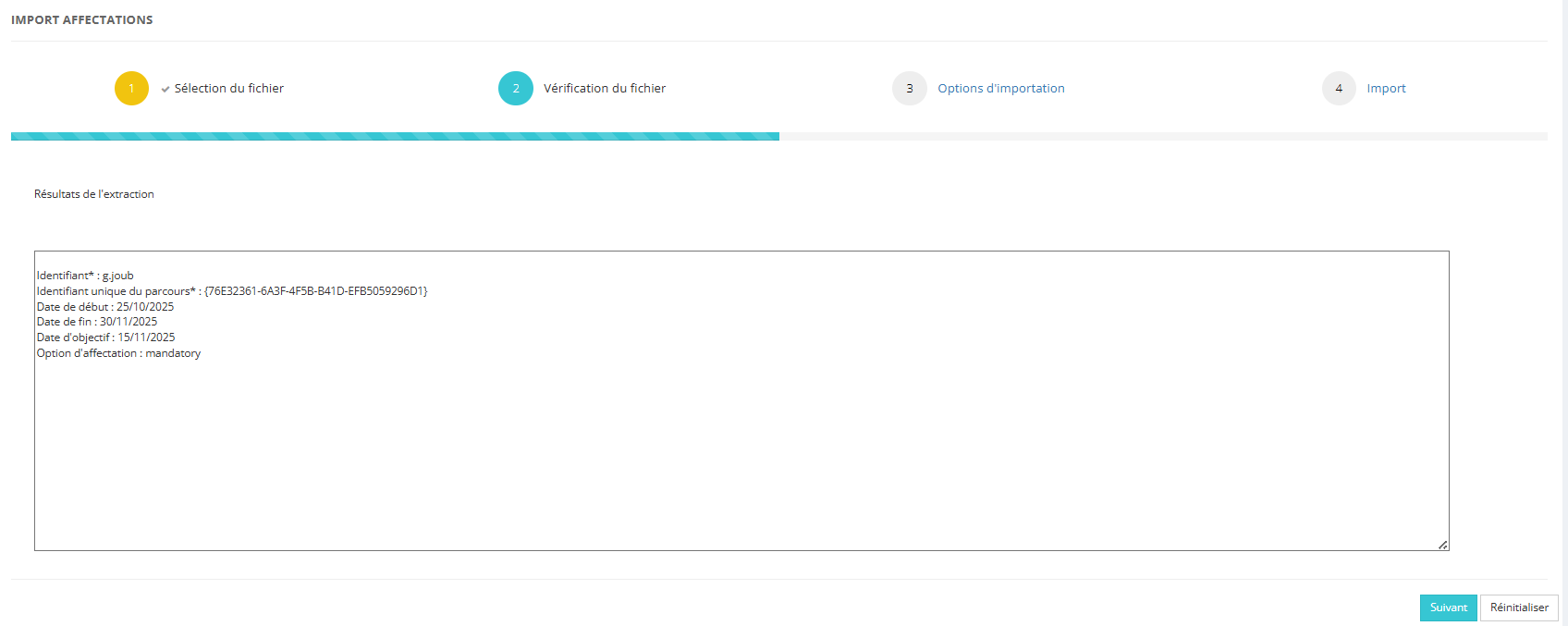
 Cliquez sur le bouton **Suivant**.

#### **Analyse du résultat de l'import** 

**Si l’import est réussi**, le nombre d’enregistrement et le nombre de formations ajoutés et mises à jour seront indiqués.  
Les erreurs seront à 0.

**Si l’import n’est pas complétement réussi**, le nombre d’erreurs et d’avertissements seront indiqués. Les erreurs empêche l’import, l’avertissement n’est pas bloquant.

[![image.png](https://documentation.xperteam.net/uploads/images/gallery/2025-10/scaled-1680-/6qdimage.png)](https://documentation.xperteam.net/uploads/images/gallery/2025-10/6qdimage.png)

</details>