# L'Assistant Cours

L'assistant <span style="color: rgb(239, 131, 29);">**Cours** </span>vous permet d'effectuer, après avoir sélectionné des cours, un certains nombre de tâches d'administration. Vous trouverez la liste de toutes les actions possibles plus loin dans la fiche.

### <span style="color: rgb(128, 128, 128);">**Sélection des cours**</span>

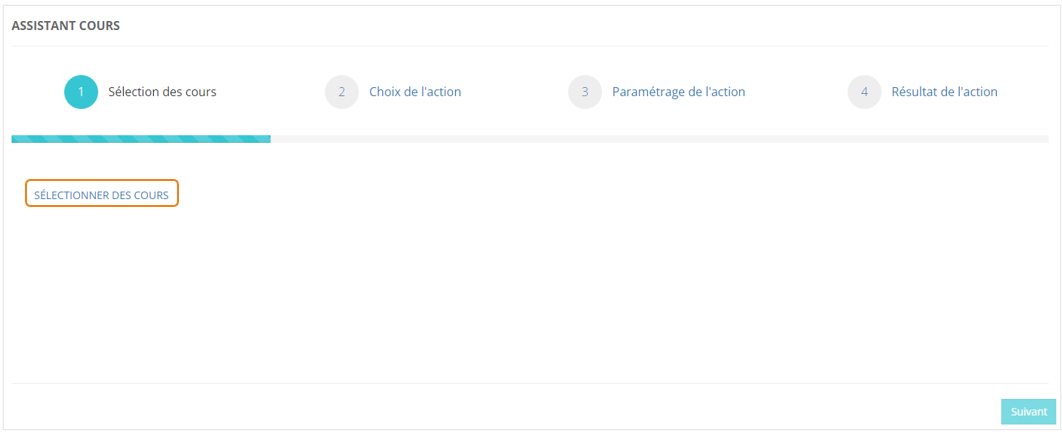
Dans le menu <span style="color: rgb(239, 131, 29);">**Assistants &gt; Assistant cours**</span>, cliquez sur <span style="color: rgb(239, 131, 29);">**SÉLECTIONNER DES COURS**</span>.

[![image.png](https://documentation.xperteam.net/uploads/images/gallery/2024-05/scaled-1680-/wNIimage.png)](https://documentation.xperteam.net/uploads/images/gallery/2024-05/wNIimage.png)

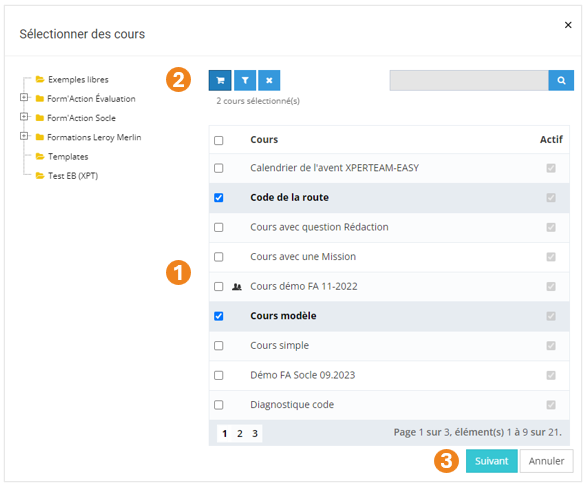
Dans la pop-up qui s'ouvre :

1. Sélectionnez les <span style="color: rgb(239, 131, 29);">**cours** </span>à modifier ;
2. Cliquez sur le <span style="color: rgb(239, 131, 29);">**chariot**</span> ;
3. Cliquez sur <span style="color: rgb(239, 131, 29);">**Suivant**</span>.

[![image.png](https://documentation.xperteam.net/uploads/images/gallery/2024-05/scaled-1680-/f7oimage.png)](https://documentation.xperteam.net/uploads/images/gallery/2024-05/f7oimage.png)

<details id="bkmrk-le-filtre-de-cours-v"><summary>Le filtre de cours</summary>

1. Vous pouvez <span style="color: rgb(239, 131, 29);">**filtrer** </span>votre recherche grâce : au <span style="color: rgb(239, 131, 29);">**nom** </span>du cours, son <span style="color: rgb(239, 131, 29);">**identifiant unique**</span>, sa <span style="color: rgb(239, 131, 29);">**description**</span>, son <span style="color: rgb(239, 131, 29);">**audience**</span>, son <span style="color: rgb(239, 131, 29);">**fournisseur**<span style="color: rgb(0, 0, 0);">, sa <span style="color: rgb(239, 131, 29);">**modalité**</span></span></span>.
2. Si vous cherchez parmi les <span style="color: rgb(239, 131, 29);">**cours désactivés**</span>, cochez cette case.
3. Vous pouvez également filtrer votre recherche à l'aide des <span style="color: rgb(239, 131, 29);">**champs personnalisés**</span> des cours.
4. Choisissez si les **<span style="color: rgb(239, 131, 29);">critères</span>** doivent tous être valides ou s'il suffit qu'un des critères soit valide pour proposer un résultat.<span class="callout success">Dans l'exemple ci-dessous, si vous choisissez :  
    **-** **Tous les critères :** vous obtiendrez toutes les cours dont le nom contient la chaîne de caractères 'DUP' et le champ personnalisé 1 contient la chaîne de caractères '2024' ;  
    **-** **Au moins un critère :** vous obtiendrez l'ensemble de tous les cours dont le nom contient la chaîne de caractères 'DUP', ainsi que tous les utilisateurs dont le champ personnalisé 1 contient la chaîne de caractères '2024'.</span>
5. Cliquez sur <span style="color: rgb(239, 131, 29);">**Valider**</span>.
6. Sélectionnez les <span style="color: rgb(239, 131, 29);">**cours** </span>qui vous intéressent parmi les cours trouvés par filtrage.

**<span style="background-color: rgb(230, 126, 35);">//Image en attente de correction de la fenêtre de filtre</span>**

</details>#### **Validation des cours**

Dans la nouvelle pop-up :

1. Retrouvez le <span style="color: rgb(239, 131, 29);">**récapitulatif des cours**</span> que vous avez sélectionnés ;<span class="callout info">À ce niveau, vous pouvez supprimer des cours en les sélectionnant dans le tableau puis en cliquant sur le **bouton \[x\]**.</span>
2. Cochez cette case si vous souhaitez <span style="color: rgb(239, 131, 29);">**informer les apprenants qu'un cours a été réinitialisé**</span> ; <span class="callout warning">Cette case ne sera utile que pour les actions « **Modifier les informations de l'affectation** » et « **Affecter des apprenants** ».</span>
3. Si la case est cochée, un nouveau champ apparaît pour renseigner le <span style="color: rgb(239, 131, 29);">**modèle de mail**</span> qui sera envoyé ;  
    \- Cliquez sur le <span style="color: rgb(239, 131, 29);">**bouton Crayon**</span> pour sélectionner un modèle de mail ;  
     Une nouvelle pop-up s'ouvre :   
     (a) Vous pouvez utiliser le **<span style="color: rgb(239, 131, 29);">bouton Œil</span>** pour visualiser les modèles de mails ;  
     (b) Sélectionnez le <span style="color: rgb(239, 131, 29);">**modèle de mail**</span> ;  
     (c) Cliquez sur <span style="color: rgb(239, 131, 29);">**Valider**</span>.  
    \- Cliquez sur le **<span style="color: rgb(239, 131, 29);">bouton Gomme</span>**<span style="color: rgb(239, 131, 29);"> </span>pour supprimer le modèle de mail sélectionné.
4. Cliquez sur <span style="color: rgb(239, 131, 29);">**Valider**</span>.

[![image.png](https://documentation.xperteam.net/uploads/images/gallery/2024-05/scaled-1680-/LARimage.png)](https://documentation.xperteam.net/uploads/images/gallery/2024-05/LARimage.png)

---

De retour sur l'écran principal, vous pouvez :

1. <span style="color: rgb(239, 131, 29);">**Modifier**</span> les cours sélectionnés ;
2. Cliquer sur <span style="color: rgb(239, 131, 29);">**Suivant** </span>lorsque vous êtes satisfait de la sélection des cours.

[![image.png](https://documentation.xperteam.net/uploads/images/gallery/2024-05/scaled-1680-/Efhimage.png)](https://documentation.xperteam.net/uploads/images/gallery/2024-05/Efhimage.png)

---

### **<span style="color: rgb(128, 128, 128);">Sélection et paramétrage de l'action</span>**

<details id="bkmrk-modifier-les-informa"><summary>Modifier les informations générales des cours</summary>

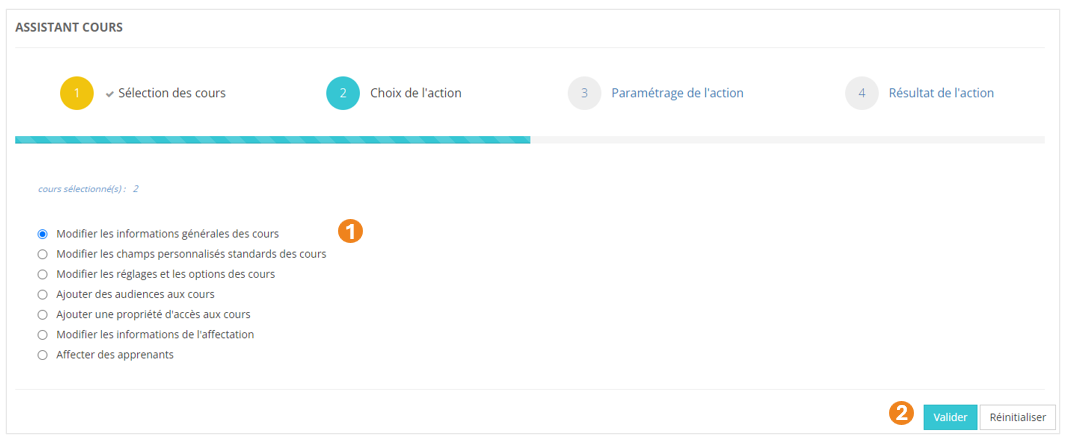
1. <span style="color: rgb(239, 131, 29);"><span style="color: rgb(0, 0, 0);">Sélectionnez l'action </span>**Modifiez les informatiques générales des cours** <span style="color: rgb(0, 0, 0);">;</span></span>
2. <span style="color: rgb(239, 131, 29);"><span style="color: rgb(0, 0, 0);">Cliquez sur </span>**Valider**<span style="color: rgb(0, 0, 0);">.</span></span>

[![image.png](https://documentation.xperteam.net/uploads/images/gallery/2024-05/scaled-1680-/NX9image.png)](https://documentation.xperteam.net/uploads/images/gallery/2024-05/NX9image.png)

#### **Paramétrage de l'action**

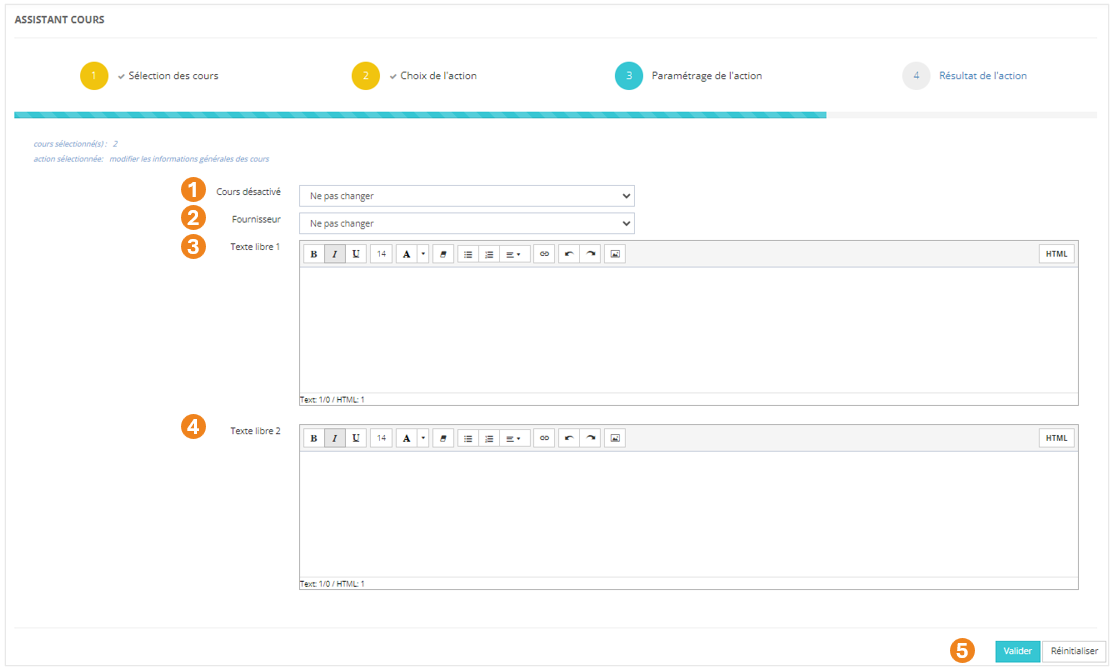
Vous avez la possibilité de modifier une ou plusieurs des valeurs ci-dessous :

1. Le <span style="color: rgb(239, 131, 29);">**statut**</span> du cours : désactivé ou non (*<span style="color: rgb(239, 131, 29);">Ne pas changer</span> / <span style="color: rgb(239, 131, 29);">Oui</span> / <span style="color: rgb(239, 131, 29);">Non</span>*) ;
2. Le <span style="color: rgb(239, 131, 29);">**fournisseur**</span> du cours ;
3. Le <span style="color: rgb(239, 131, 29);">**texte libre 1**</span> du cours ;
4. Le <span style="color: rgb(239, 131, 29);">**texte libre 2**</span> du cours ;
5. Lorsque vous avez effectué les modifications souhaitées, cliquez sur <span style="color: rgb(239, 131, 29);">**Valider**</span>.

[![image.png](https://documentation.xperteam.net/uploads/images/gallery/2024-05/scaled-1680-/2VNimage.png)](https://documentation.xperteam.net/uploads/images/gallery/2024-05/2VNimage.png)

<p class="callout info">Pour plus d'informations sur les informations générales du cours, voir la page ***//Créer un cours***.</p>

</details><details id="bkmrk-modifier-les-champs-"><summary>Modifier les champs personnalisés standards des cours</summary>

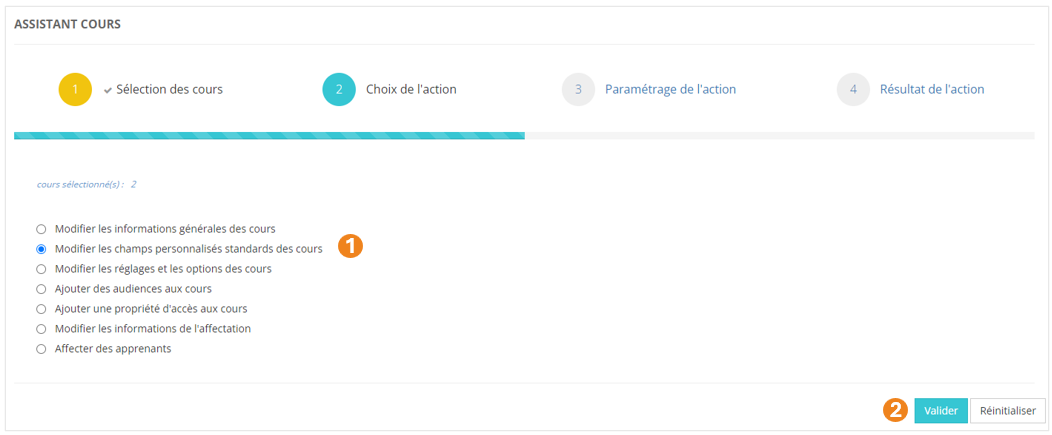
1. <span style="color: rgb(239, 131, 29);"><span style="color: rgb(0, 0, 0);">Sélectionnez l'action </span>**Modifiez les champs personnalisés standards des cours** <span style="color: rgb(0, 0, 0);">;</span></span>
2. <span style="color: rgb(239, 131, 29);"><span style="color: rgb(0, 0, 0);">Cliquez sur </span>**Valider**<span style="color: rgb(0, 0, 0);">.</span></span>

[![image.png](https://documentation.xperteam.net/uploads/images/gallery/2024-05/scaled-1680-/7oUimage.png)](https://documentation.xperteam.net/uploads/images/gallery/2024-05/7oUimage.png)

#### **Paramétrage de l'action**

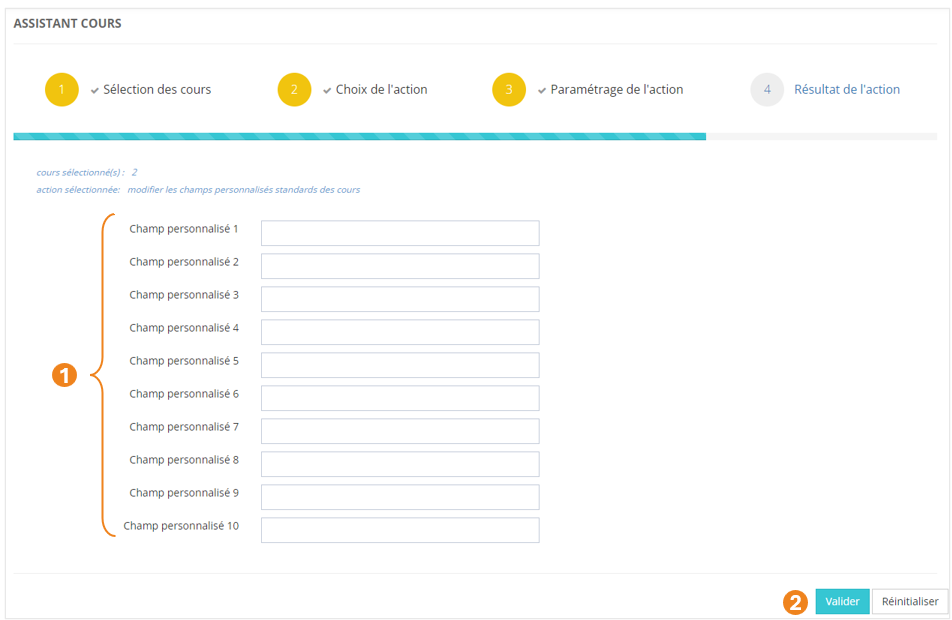
1. <span style="color: rgb(239, 131, 29);"><span style="color: rgb(0, 0, 0);">Vous avez la possibilité de modifier un ou plusieurs </span>**champs personnalisés** <span style="color: rgb(0, 0, 0);">des cours sélectionnés ;</span></span>
2. <span style="color: rgb(239, 131, 29);"><span style="color: rgb(0, 0, 0);">Lorsque vous avez effectué les modifications souhaitées, cliquez sur</span> **Valider**<span style="color: rgb(0, 0, 0);">.</span></span>

[![image.png](https://documentation.xperteam.net/uploads/images/gallery/2024-05/scaled-1680-/Urrimage.png)](https://documentation.xperteam.net/uploads/images/gallery/2024-05/Urrimage.png)

</details><details id="bkmrk-modifier-les-r%C3%A9glage"><summary>Modifier les réglages et les options de cours</summary>

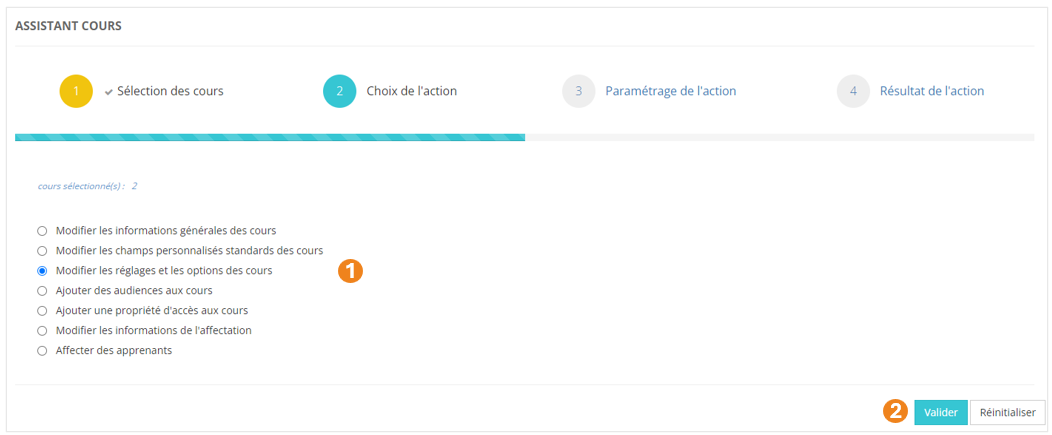
1. <span style="color: rgb(239, 131, 29);"><span style="color: rgb(0, 0, 0);">Sélectionnez l'action </span>**Modifiez les réglages et les options des cours** <span style="color: rgb(0, 0, 0);">;</span></span>
2. <span style="color: rgb(239, 131, 29);"><span style="color: rgb(0, 0, 0);">Cliquez sur </span>**Valider**<span style="color: rgb(0, 0, 0);">.</span></span>

[![image.png](https://documentation.xperteam.net/uploads/images/gallery/2024-05/scaled-1680-/mh6image.png)](https://documentation.xperteam.net/uploads/images/gallery/2024-05/mh6image.png)

#### **Paramétrage de l'action**

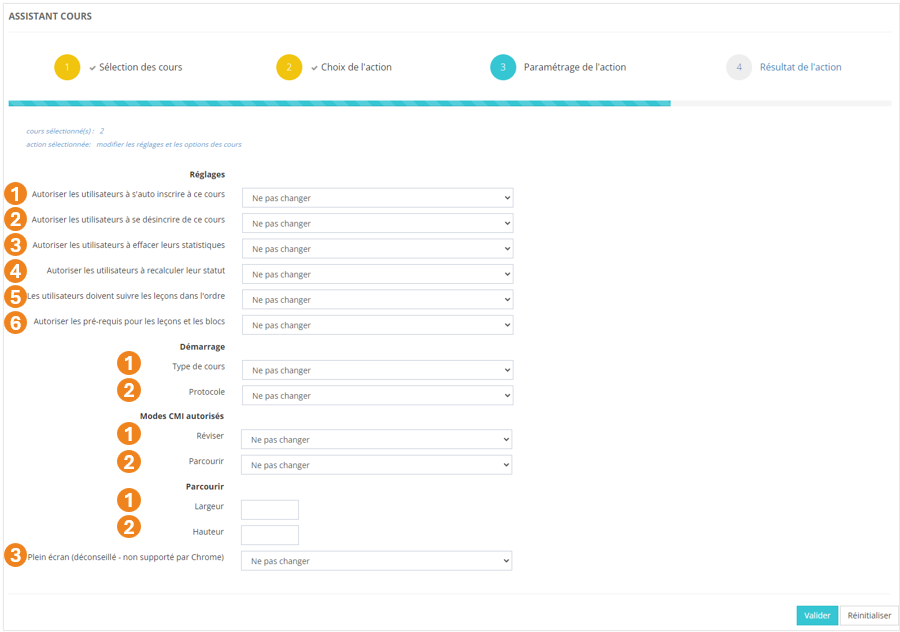
Vous avez la possibilité de modifier une ou plusieurs des options ci-dessous :

- **Réglages :**

1. L'autorisation pour les utilisateurs de <span style="color: rgb(239, 131, 29);">**s'auto-inscrire**</span> au cours : *<span style="color: rgb(239, 131, 29);">Ne pas changer</span> / <span style="color: rgb(239, 131, 29);">Oui</span> / <span style="color: rgb(239, 131, 29);">Non</span>* ;
2. L'autorisation pour les utilisateurs de <span style="color: rgb(239, 131, 29);">**se désinscrire**</span> du cours : *<span style="color: rgb(239, 131, 29);">Ne pas changer</span> / <span style="color: rgb(239, 131, 29);">Oui</span> / <span style="color: rgb(239, 131, 29);">Non </span>*;
3. L'autorisation pour les utilisateurs d'<span style="color: rgb(239, 131, 29);">**effacer leurs statistiques**</span> de cours : *<span style="color: rgb(239, 131, 29);">Ne pas changer</span> / <span style="color: rgb(239, 131, 29);">Oui</span> / <span style="color: rgb(239, 131, 29);">Non</span>* ;
4. L'autorisation pour les utilisateurs de <span style="color: rgb(239, 131, 29);">**recalculer leur statut**</span> du cours : *<span style="color: rgb(239, 131, 29);">Ne pas changer</span> / <span style="color: rgb(239, 131, 29);">Oui</span> / <span style="color: rgb(239, 131, 29);">Non </span>*;
5. Le <span style="color: rgb(239, 131, 29);">**suivi séquentiel**</span> des leçons du cours : *<span style="color: rgb(239, 131, 29);">Ne pas changer</span> / <span style="color: rgb(239, 131, 29);">Oui</span> / <span style="color: rgb(239, 131, 29);">Non <span style="color: rgb(0, 0, 0);">;</span></span>*
6. L'autorisation pour les administrateurs d'<span style="color: rgb(239, 131, 29);">**ajouter des prérequis pour les leçons et les blocs**</span> du cours : *<span style="color: rgb(239, 131, 29);">Ne pas changer</span> / <span style="color: rgb(239, 131, 29);">Oui</span> / <span style="color: rgb(239, 131, 29);">Non <span style="color: rgb(0, 0, 0);">;</span></span>* <span class="callout warning">*<span style="color: rgb(239, 131, 29);"><span style="color: rgb(0, 0, 0);">Les options « **Suivi séquentiel** » et « **Ajout de prérequis** » sont **incompatibles** : vous ne pouvez pas mettre Oui à chacune de ces options, ni mettre Non à chacune de ces options.</span></span>*</span>

- **Démarrage** :

1. Le <span style="color: rgb(239, 131, 29);">**type de cours**</span> : *<span style="color: rgb(239, 131, 29);">Ne pas changer</span> / <span style="color: rgb(239, 131, 29);">Compatible AICC <span style="color: rgb(0, 0, 0);">/</span> SCORM</span> / <span style="color: rgb(239, 131, 29);">AICC uniquement <span style="color: rgb(0, 0, 0);">/ </span>Présentiel <span style="color: rgb(0, 0, 0);">;</span></span>*
2. <span style="color: rgb(239, 131, 29);"><span style="color: rgb(0, 0, 0);">Le <span style="color: rgb(239, 131, 29);">**protocole** </span>utilisé :</span></span>*<span style="color: rgb(239, 131, 29);"><span style="color: rgb(0, 0, 0);"> <span style="color: rgb(239, 131, 29);">Ne pas changer</span> / <span style="color: rgb(239, 131, 29);">AICC (HACP) <span style="color: rgb(0, 0, 0);">/</span> SCORM (API)</span><span style="color: rgb(239, 131, 29);"> <span style="color: rgb(0, 0, 0);">;</span></span></span></span>*

- **<span style="color: rgb(239, 131, 29);"><span style="color: rgb(0, 0, 0);"><span style="color: rgb(239, 131, 29);"><span style="color: rgb(0, 0, 0);">Modes CMI autorisés :</span></span></span></span>**

1. <span style="color: rgb(239, 131, 29);">**Réviser** </span>: *<span style="color: rgb(239, 131, 29);">Ne pas changer</span> / <span style="color: rgb(239, 131, 29);">Autorisé <span style="color: rgb(0, 0, 0);">/</span> Non autorisé</span> / <span style="color: rgb(239, 131, 29);">Suspendre <span style="color: rgb(0, 0, 0);">;</span></span>*
2. <span style="color: rgb(239, 131, 29);">**Parcourir** </span>: *<span style="color: rgb(239, 131, 29);">Ne pas changer</span> / <span style="color: rgb(239, 131, 29);">Autorisé <span style="color: rgb(0, 0, 0);">/</span> Non autorisé</span> / <span style="color: rgb(239, 131, 29);">Suspendre <span style="color: rgb(0, 0, 0);">;</span></span>*

- <span style="color: rgb(239, 131, 29);"><span style="color: rgb(0, 0, 0);">**Parcourir** :</span></span>

1. Définissez la <span style="color: rgb(239, 131, 29);">**largeur** </span>de la fenêtre d'affichage du cours (en pixels) ;
2. Définissez la <span style="color: rgb(239, 131, 29);">**hauteur** </span>de la fenêtre d'affichage du cours (en pixels) ;
3. Choisissez d'ouvrir ou non le cours en <span style="color: rgb(239, 131, 29);">**plein écran**</span> : *<span style="color: rgb(239, 131, 29);">Ne pas changer</span> / <span style="color: rgb(239, 131, 29);">Oui</span> / <span style="color: rgb(239, 131, 29);">Non </span>*;

[![image.png](https://documentation.xperteam.net/uploads/images/gallery/2024-05/scaled-1680-/08Aimage.png)](https://documentation.xperteam.net/uploads/images/gallery/2024-05/08Aimage.png)

Terminez l'action en cliquant sur le bouton <span style="color: rgb(239, 131, 29);">**Valider**</span>.

<p class="callout info"><span style="color: rgb(0, 0, 0);">Pour plus d'informations sur les réglages et les options du cours, voir la page ***//Créer un cours***.</span></p>

</details><details id="bkmrk-ajouter-des-audience"><summary>Ajouter des audiences aux cours</summary>

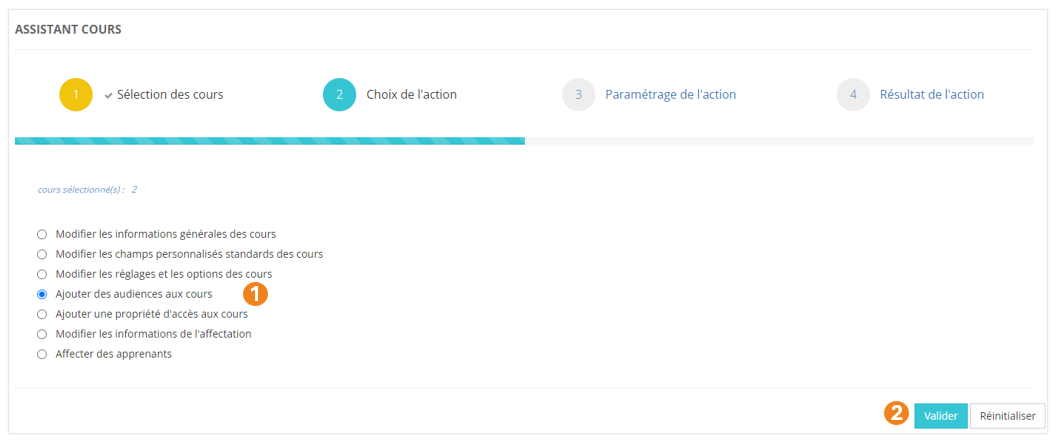
1. <span style="color: rgb(239, 131, 29);"><span style="color: rgb(0, 0, 0);">Sélectionnez l'action </span>**Ajouter des audiences aux cours** <span style="color: rgb(0, 0, 0);">;</span></span>
2. <span style="color: rgb(239, 131, 29);"><span style="color: rgb(0, 0, 0);">Cliquez sur </span>**Valider**<span style="color: rgb(0, 0, 0);">.</span></span>

[![image.png](https://documentation.xperteam.net/uploads/images/gallery/2024-05/scaled-1680-/GvRimage.png)](https://documentation.xperteam.net/uploads/images/gallery/2024-05/GvRimage.png)

#### **Paramétrage de l'action**

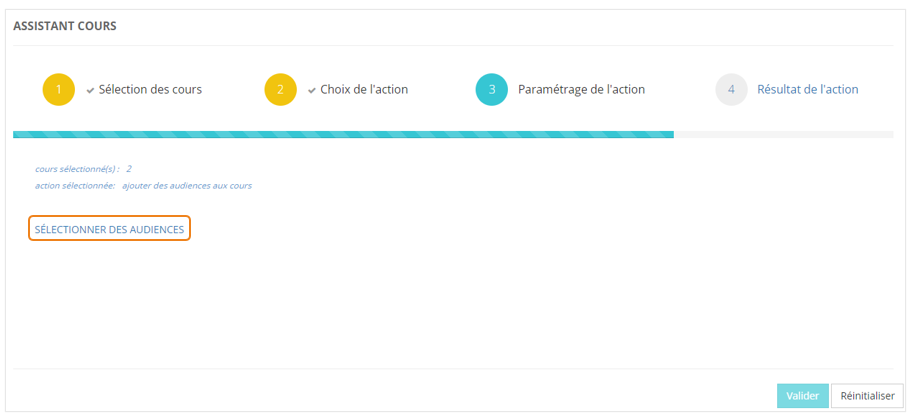
Cliquez sur **<span style="color: rgb(239, 131, 29);">SÉLECTIONNER DES AUDIENCES</span>**<span style="color: rgb(0, 0, 0);">.</span>

[![image.png](https://documentation.xperteam.net/uploads/images/gallery/2024-05/scaled-1680-/XrXimage.png)](https://documentation.xperteam.net/uploads/images/gallery/2024-05/XrXimage.png)

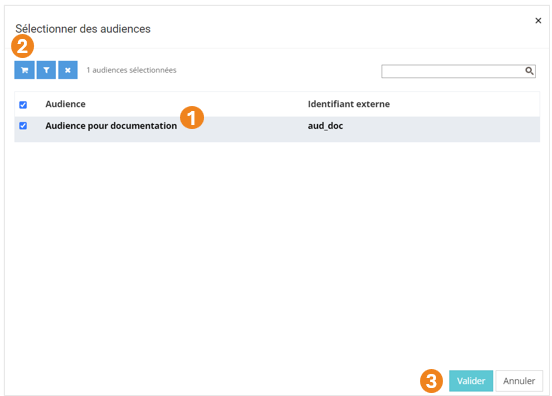
<span style="color: rgb(0, 0, 0);">Dans la pop-up qui s'ouvre :</span>

1. Sélectionnez les <span style="color: rgb(239, 131, 29);">**audiences** </span>à jouter aux cours ;
2. Cliquez sur le <span style="color: rgb(239, 131, 29);">**chariot**</span> ;
3. Cliquez sur <span style="color: rgb(239, 131, 29);">**Valider**</span>.

[![image.png](https://documentation.xperteam.net/uploads/images/gallery/2024-05/scaled-1680-/3bGimage.png)](https://documentation.xperteam.net/uploads/images/gallery/2024-05/3bGimage.png)

---

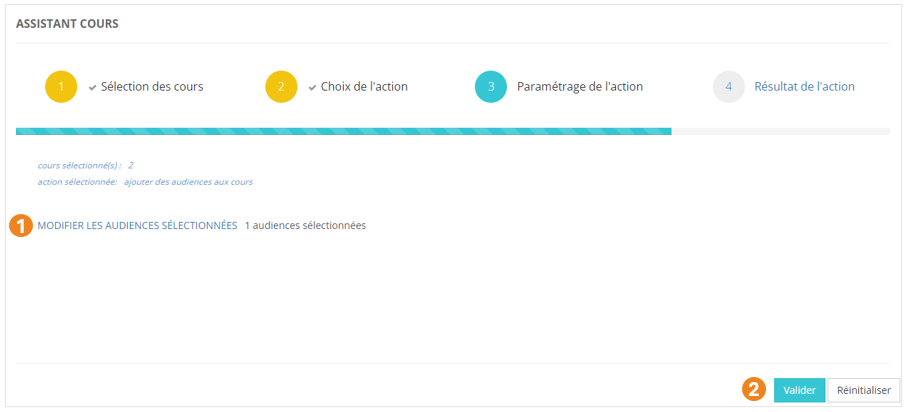
De retour sur l'écran principal, vous pouvez :

1. <span style="color: rgb(239, 131, 29);">**Modifier**</span> les audiences sélectionnées ;
2. Cliquer sur <span style="color: rgb(239, 131, 29);">**Valider** </span>lorsque vous êtes satisfait de la sélection des audiences.

[![image.png](https://documentation.xperteam.net/uploads/images/gallery/2024-05/scaled-1680-/GWlimage.png)](https://documentation.xperteam.net/uploads/images/gallery/2024-05/GWlimage.png)
</details><details id="bkmrk-ajouter-une-propri%C3%A9t"><summary>Ajouter une propriété d'accès aux cours</summary>

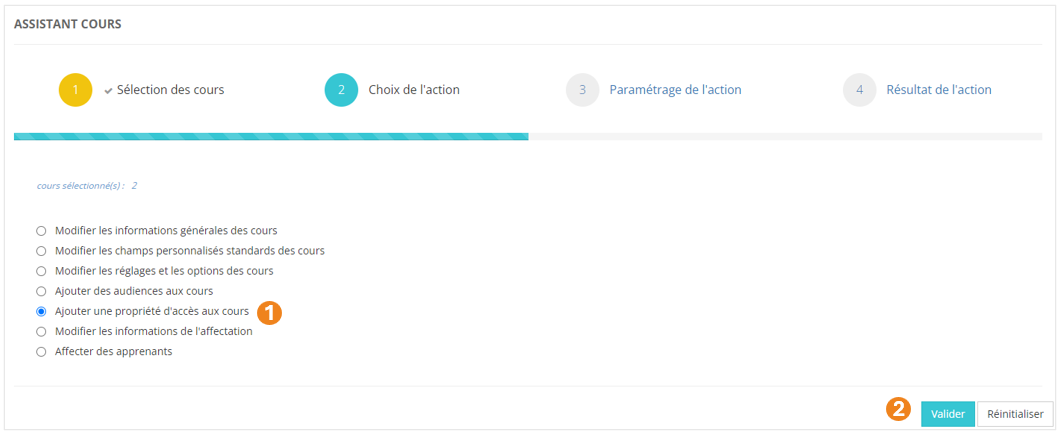
1. <span style="color: rgb(239, 131, 29);"><span style="color: rgb(0, 0, 0);">Sélectionnez l'action </span>**Ajouter une propriété d'accès aux cours** <span style="color: rgb(0, 0, 0);">;</span></span>
2. <span style="color: rgb(239, 131, 29);"><span style="color: rgb(0, 0, 0);">Cliquez sur </span>**Valider**<span style="color: rgb(0, 0, 0);">.</span></span>

[![image.png](https://documentation.xperteam.net/uploads/images/gallery/2024-05/scaled-1680-/tqNimage.png)](https://documentation.xperteam.net/uploads/images/gallery/2024-05/tqNimage.png)

#### **Paramétrage de l'action**

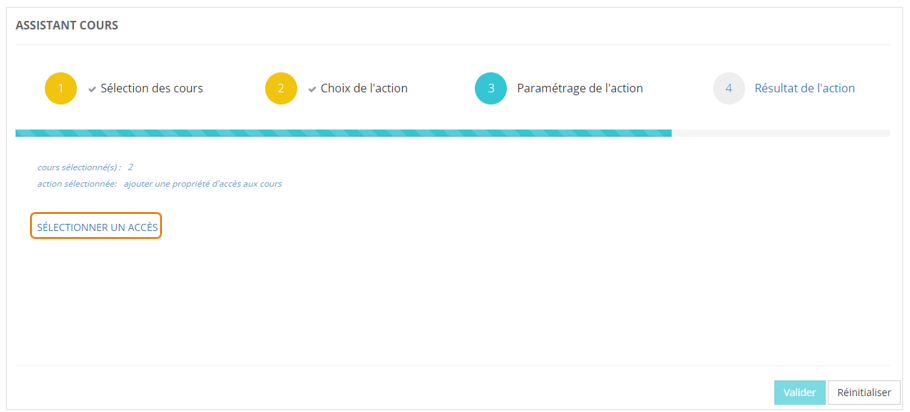
Cliquez sur **<span style="color: rgb(239, 131, 29);">SÉLECTIONNER UN ACCÈS</span>**<span style="color: rgb(0, 0, 0);">.</span>

[![image.png](https://documentation.xperteam.net/uploads/images/gallery/2024-05/scaled-1680-/TOUimage.png)](https://documentation.xperteam.net/uploads/images/gallery/2024-05/TOUimage.png)

Dans la pop-up qui s'ouvre :

1. Sélectionnez des <span style="color: rgb(239, 131, 29);">**listes** </span>;
2. Cliquez sur <span style="color: rgb(239, 131, 29);">**Valider**</span>.

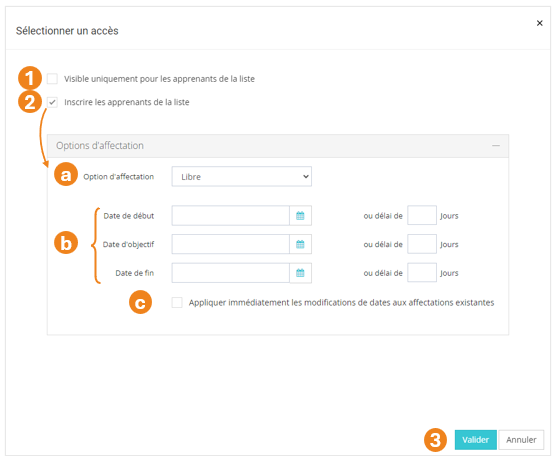
Dans la nouvelle pop-up, vous pouvez choisir de :

1. Restreindre ou non la <span style="color: rgb(239, 131, 29);">**visibilité du cours**</span> à ces listes d'utilisateurs ;
2. **<span style="color: rgb(239, 131, 29);">Inscrire</span>** ou non les utilisateurs de la liste à ce cours.  
    Si vous cochez cette case, vous pouvez modifier :  
    (a) l'<span style="color: rgb(239, 131, 29);">**option d'affectation**</span> : *<span style="color: rgb(239, 131, 29);">Libre </span>/ <span style="color: rgb(239, 131, 29);">Recommandé </span>/ <span style="color: rgb(239, 131, 29);">Obligatoire</span>* ;  
    (b) les <span style="color: rgb(239, 131, 29);">**dates de début**</span>, <span style="color: rgb(239, 131, 29);">**d'objectif**</span> et <span style="color: rgb(239, 131, 29);">**de fin**</span> : soit par **<span style="color: rgb(239, 131, 29);">date fixée</span>**, soit par <span style="color: rgb(239, 131, 29);">**délai**</span> à partir du moment où les utilisateurs sont entrés dans la liste ;  
    (c) lorsque des dates ont été renseignées, cochez cette case si vous souhaitez que les modifications soient <span style="color: rgb(239, 131, 29);">**effectives immédiatement**</span>.
3. Cliquez sur <span style="color: rgb(239, 131, 29);">**Valider**</span>.

[![image.png](https://documentation.xperteam.net/uploads/images/gallery/2024-05/scaled-1680-/El1image.png)](https://documentation.xperteam.net/uploads/images/gallery/2024-05/El1image.png)

<p class="callout info"><span style="color: rgb(0, 0, 0);">Pour plus d'informations sur les propriétés d'accès, voir la page ***//Droits d'accès***.</span></p>

</details><details id="bkmrk-modifier-les-informa-1"><summary>Modifier les informations de l'affectation</summary>

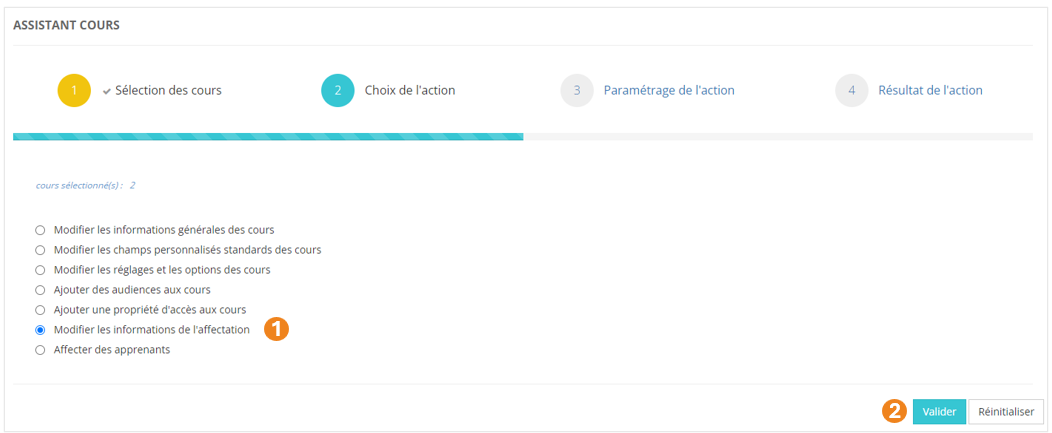
1. <span style="color: rgb(239, 131, 29);"><span style="color: rgb(0, 0, 0);">Sélectionnez l'action </span>**Modifiez les informations de l'affectation** <span style="color: rgb(0, 0, 0);">;</span></span>
2. <span style="color: rgb(239, 131, 29);"><span style="color: rgb(0, 0, 0);">Cliquez sur </span>**Valider**<span style="color: rgb(0, 0, 0);">.</span></span>

[![image.png](https://documentation.xperteam.net/uploads/images/gallery/2024-05/scaled-1680-/HH5image.png)](https://documentation.xperteam.net/uploads/images/gallery/2024-05/HH5image.png)

#### **Paramétrage de l'action**

Cliquez sur **<span style="color: rgb(239, 131, 29);">SÉLECTIONNER DES UTILISATEURS</span>**<span style="color: rgb(0, 0, 0);">.</span>

[![image.png](https://documentation.xperteam.net/uploads/images/gallery/2024-05/scaled-1680-/HoLimage.png)](https://documentation.xperteam.net/uploads/images/gallery/2024-05/HoLimage.png)

Dans la pop-up qui s'ouvre :

1. Sélectionnez des <span style="color: rgb(239, 131, 29);">**utilisateurs** </span>;
2. Cliquez sur le <span style="color: rgb(239, 131, 29);">**chariot**</span> ;
3. Cliquez sur <span style="color: rgb(239, 131, 29);">**Suivant**</span>.

[![image.png](https://documentation.xperteam.net/uploads/images/gallery/2024-05/scaled-1680-/ejvimage.png)](https://documentation.xperteam.net/uploads/images/gallery/2024-05/ejvimage.png)

Dans la nouvelle pop-up :

1. Retrouvez le <span style="color: rgb(239, 131, 29);">**récapitulatif des utilisateurs**</span> que vous avez sélectionnés ; <p class="callout info">À ce niveau, vous pouvez supprimer des utilisateurs en les sélectionnant dans le tableau puis en cliquant sur le **bouton \[x\]**.</p>
2. Cliquez sur <span style="color: rgb(239, 131, 29);">**Valider**</span>.

[![image.png](https://documentation.xperteam.net/uploads/images/gallery/2024-05/scaled-1680-/wAXimage.png)](https://documentation.xperteam.net/uploads/images/gallery/2024-05/wAXimage.png)

---

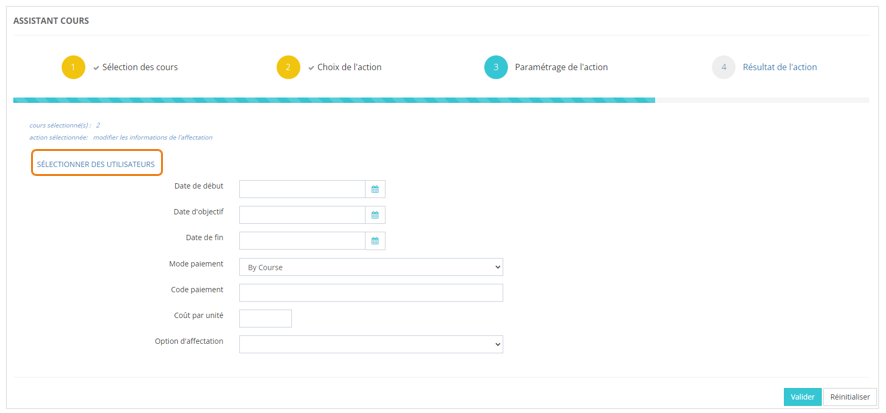
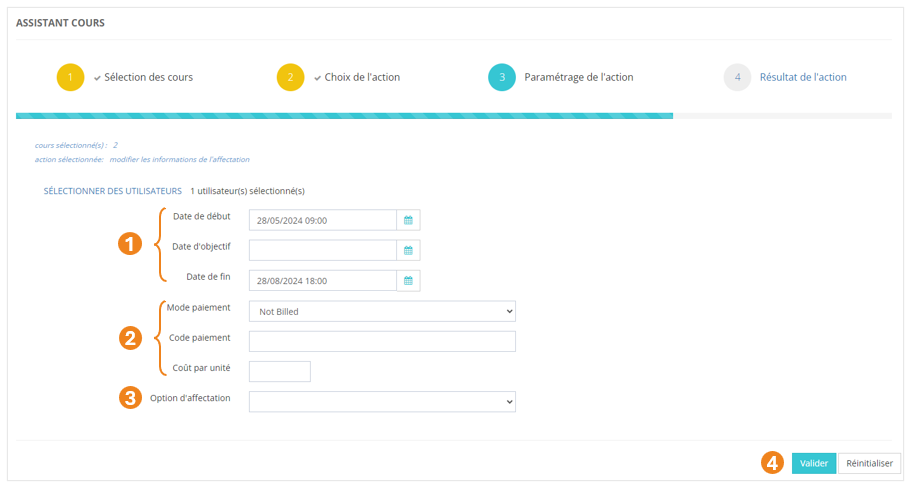
De retour sur la page principale, vous pouvez modifier :

1. Les **<span style="color: rgb(239, 131, 29);">dates de début</span>**, <span style="color: rgb(239, 131, 29);">**d'objectif**</span> et <span style="color: rgb(239, 131, 29);">**de fin**</span> d'affectation du cours ;
2. Les renseignements inhérents à la facturation du cours : <span style="color: rgb(239, 131, 29);">**Mode de paiement**</span> (<span style="color: rgb(239, 131, 29);">By Course</span> / <span style="color: rgb(239, 131, 29);">By Hour</span> / <span style="color: rgb(239, 131, 29);">Not Billed</span> / <span style="color: rgb(239, 131, 29);">Prepaid Account</span>) , **<span style="color: rgb(239, 131, 29);">Code paiement</span>** et <span style="color: rgb(239, 131, 29);">**Coût par unité**</span> ;
3. L'<span style="color: rgb(239, 131, 29);">**option d'affectation**</span> : <span style="color: rgb(239, 131, 29);">Libre</span> / <span style="color: rgb(239, 131, 29);">Recommandé </span>/ <span style="color: rgb(239, 131, 29);">Obligatoire</span>.
4. Cliquez sur <span style="color: rgb(239, 131, 29);">**Valider** </span>lorsque vous êtes satisfait de vos modifications.

[![image.png](https://documentation.xperteam.net/uploads/images/gallery/2024-05/scaled-1680-/SwBimage.png)](https://documentation.xperteam.net/uploads/images/gallery/2024-05/SwBimage.png)
</details><details id="bkmrk-affecter-des-apprena"><summary>Affecter des apprenants</summary>

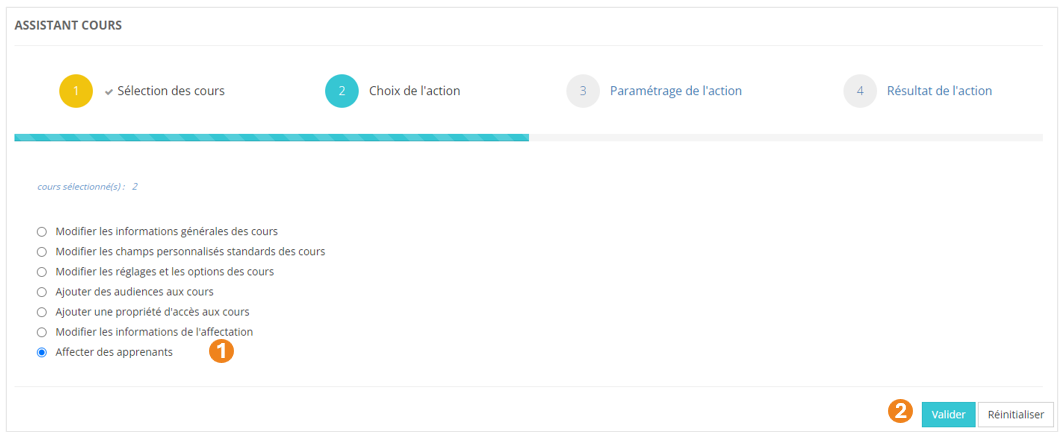
1. <span style="color: rgb(239, 131, 29);"><span style="color: rgb(0, 0, 0);">Sélectionnez l'action </span>**Affecter des apprenants** <span style="color: rgb(0, 0, 0);">;</span></span>
2. <span style="color: rgb(239, 131, 29);"><span style="color: rgb(0, 0, 0);">Cliquez sur </span>**Valider**<span style="color: rgb(0, 0, 0);">.</span></span>

[![image.png](https://documentation.xperteam.net/uploads/images/gallery/2024-05/scaled-1680-/jTIimage.png)](https://documentation.xperteam.net/uploads/images/gallery/2024-05/jTIimage.png)

#### **Paramétrage de l'action**

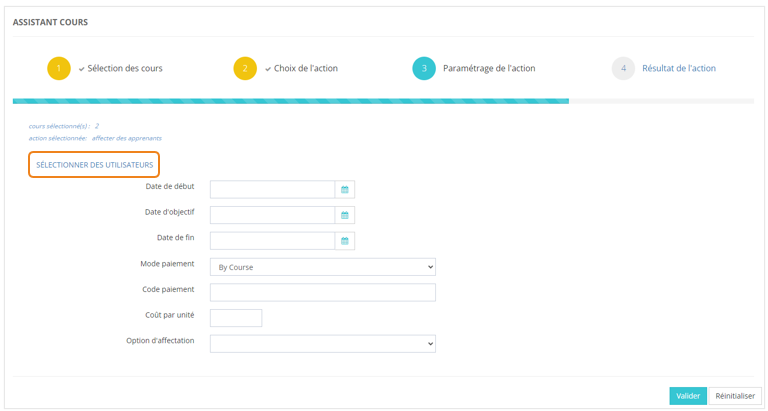
Cliquez sur **<span style="color: rgb(239, 131, 29);">SÉLECTIONNER DES UTILISATEURS</span>**<span style="color: rgb(0, 0, 0);">.</span>

[![image.png](https://documentation.xperteam.net/uploads/images/gallery/2024-05/scaled-1680-/Hu6image.png)](https://documentation.xperteam.net/uploads/images/gallery/2024-05/Hu6image.png)

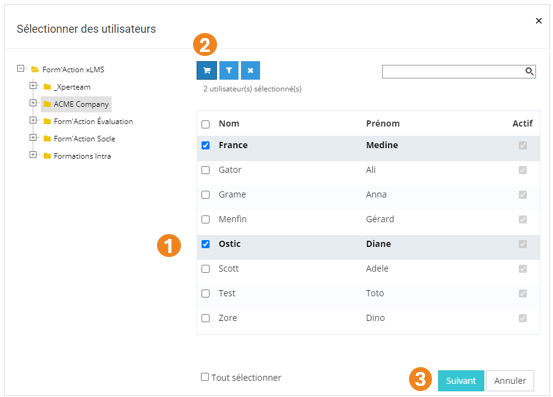
Dans la pop-up qui s'ouvre :

1. Sélectionnez des <span style="color: rgb(239, 131, 29);">**utilisateurs** </span>;
2. Cliquez sur le <span style="color: rgb(239, 131, 29);">**chariot**</span> ;
3. Cliquez sur <span style="color: rgb(239, 131, 29);">**Suivant**</span>.

[![image.png](https://documentation.xperteam.net/uploads/images/gallery/2024-05/scaled-1680-/ejvimage.png)](https://documentation.xperteam.net/uploads/images/gallery/2024-05/ejvimage.png)

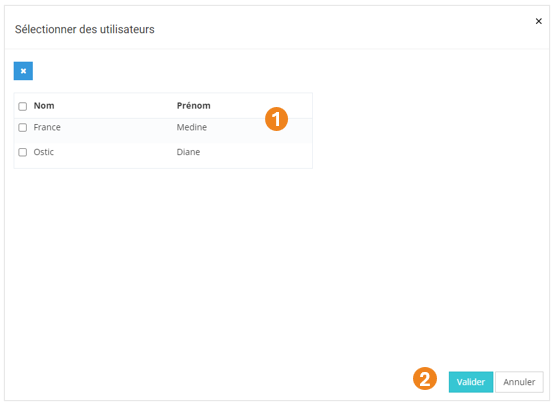
Dans la nouvelle pop-up :

1. Retrouvez le <span style="color: rgb(239, 131, 29);">**récapitulatif des utilisateurs**</span> que vous avez sélectionnés ; <p class="callout info">À ce niveau, vous pouvez supprimer des utilisateurs en les sélectionnant dans le tableau puis en cliquant sur le **bouton \[x\]**.</p>
2. Cliquez sur <span style="color: rgb(239, 131, 29);">**Valider**</span>.

[![image.png](https://documentation.xperteam.net/uploads/images/gallery/2024-05/scaled-1680-/wAXimage.png)](https://documentation.xperteam.net/uploads/images/gallery/2024-05/wAXimage.png)

---

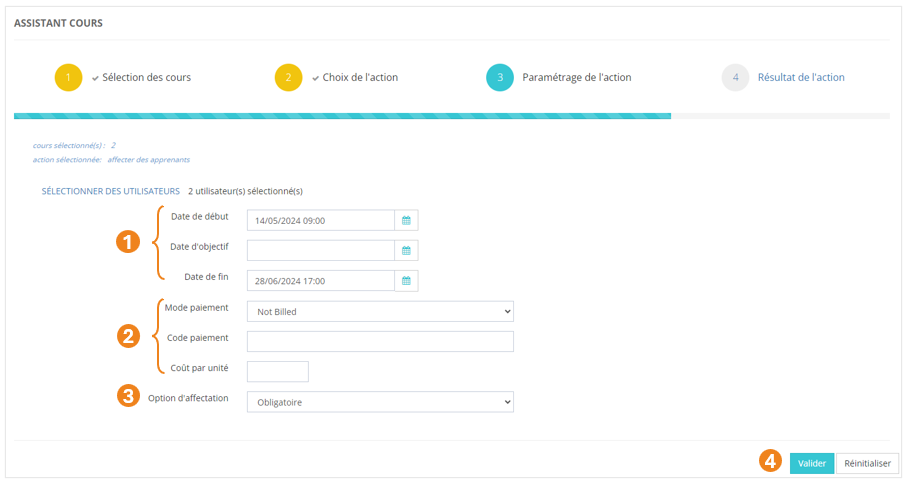
De retour sur la page principale, vous pouvez modifier :

1. Les **<span style="color: rgb(239, 131, 29);">dates de début</span>**, <span style="color: rgb(239, 131, 29);">**d'objectif**</span> et <span style="color: rgb(239, 131, 29);">**de fin**</span> d'affectation du cours ;
2. Les renseignements inhérents à la facturation du cours : <span style="color: rgb(239, 131, 29);">**Mode de paiement**</span> (<span style="color: rgb(239, 131, 29);">By Course</span> / <span style="color: rgb(239, 131, 29);">By Hour</span> / <span style="color: rgb(239, 131, 29);">Not Billed</span> / <span style="color: rgb(239, 131, 29);">Prepaid Account</span>) , **<span style="color: rgb(239, 131, 29);">Code paiement</span>** et <span style="color: rgb(239, 131, 29);">**Coût par unité**</span> ;
3. L'<span style="color: rgb(239, 131, 29);">**option d'affectation**</span> : <span style="color: rgb(239, 131, 29);">Libre</span> / <span style="color: rgb(239, 131, 29);">Recommandé </span>/ <span style="color: rgb(239, 131, 29);">Obligatoire</span>.
4. Cliquez sur <span style="color: rgb(239, 131, 29);">**Valider** </span>lorsque vous êtes satisfait de vos modifications.

[![image.png](https://documentation.xperteam.net/uploads/images/gallery/2024-05/scaled-1680-/NjFimage.png)](https://documentation.xperteam.net/uploads/images/gallery/2024-05/NjFimage.png)
</details>#### <span style="color: rgb(0, 0, 0);">**Résultat de l'action**</span>

[![image.png](https://documentation.xperteam.net/uploads/images/gallery/2024-05/scaled-1680-/LTaimage.png)](https://documentation.xperteam.net/uploads/images/gallery/2024-05/LTaimage.png)

Cet écran détaille les <span style="color: rgb(239, 131, 29);">**succès**</span> et les <span style="color: rgb(239, 131, 29);">**échecs** </span>de l'action demandée.

Le bouton <span style="color: rgb(239, 131, 29);">**Réinitialiser** </span>ramène à l’écran de sélection des utilisateurs de l’assistant, afin de paramétrer une nouvelle action de modification sur le même groupe ou un groupe différent, via l’assistant.

<p class="callout info">Le bouton **Réinitialiser** n’annule pas la dernière action.</p>