# L'Assistant Épreuves

L'assistant <span style="color: rgb(239, 131, 29);">**Épreuves** </span>vous permet d'effectuer, après avoir sélectionné une épreuve, un certains nombre de tâches d'administration. Vous trouverez la liste de toutes les actions possibles plus loin dans la fiche.

### <span style="color: rgb(128, 128, 128);">**Sélection des épreuves**</span>

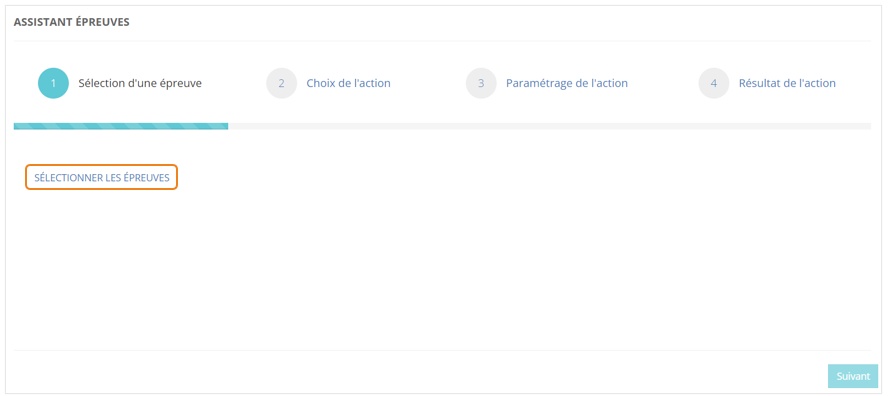
Dans le menu **<span style="color: rgb(239, 131, 29);">Assistants &gt; Assistant épreuves</span>**, cliquez sur <span style="color: rgb(239, 131, 29);">**SÉLECTIONNER LES ÉPREUVES**</span>.

[![image.png](https://documentation.xperteam.net/uploads/images/gallery/2024-05/scaled-1680-/WXUimage.png)](https://documentation.xperteam.net/uploads/images/gallery/2024-05/WXUimage.png)

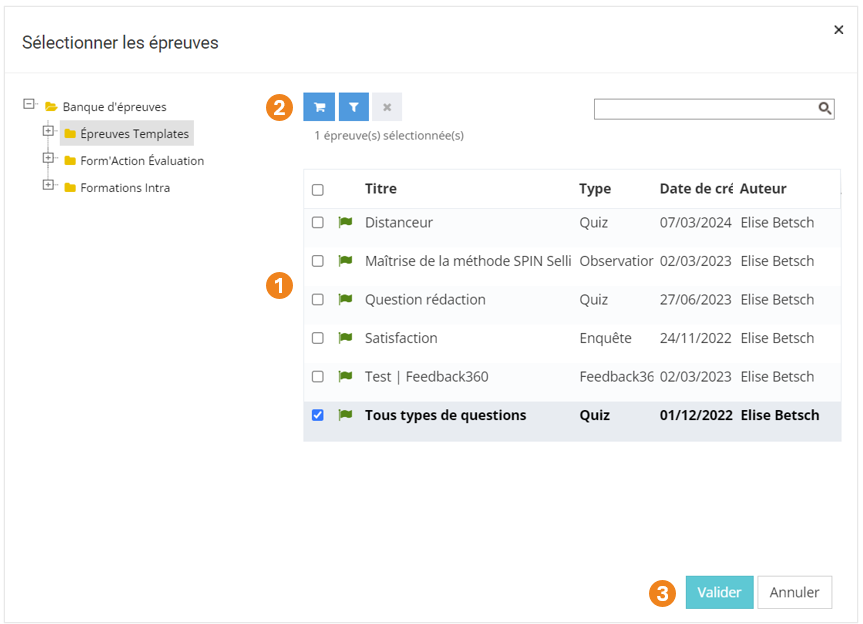
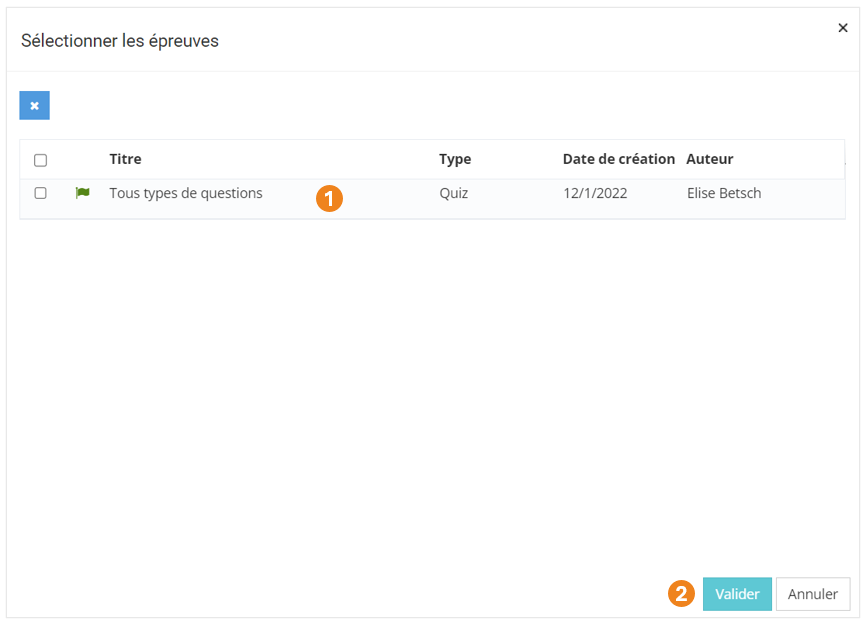
Dans la pop-up qui s'ouvre :

1. Sélectionnez les <span style="color: rgb(239, 131, 29);">**épreuves** </span>à modifier ; <span class="callout warning">**Attention !** Selon l'action que vous sélectionnerez ensuite, vous ne pouvez pas toujours sélectionner plusieurs épreuves :  
    </span><table border="1" style="border-collapse: collapse; width: 100%; background-color: rgb(254, 227, 211); border: 1px solid rgb(106, 40, 2);"><colgroup><col style="width: 18.6577%;"></col><col style="width: 24.8317%;"></col><col style="width: 17.7187%;"></col><col style="width: 18.5235%;"></col><col style="width: 20.4027%;"></col></colgroup><tbody><tr><td class="align-center" style="border-color: rgb(106, 40, 2);">**<span style="color: rgb(106, 40, 2);">Édition des scores</span>**</td><td class="align-center" style="border-color: rgb(106, 40, 2);">**<span style="color: rgb(106, 40, 2);">Suppression des résultats</span>**</td><td class="align-center" style="border-color: rgb(106, 40, 2);">**<span style="color: rgb(106, 40, 2);">Impression</span>**</td><td class="align-center" style="border-color: rgb(106, 40, 2);">**<span style="color: rgb(106, 40, 2);">Publication LMS</span>**</td><td class="align-center" style="border-color: rgb(106, 40, 2);">**<span style="color: rgb(106, 40, 2);">Export Mobiteach</span>**</td></tr><tr><td class="align-center" style="border-color: rgb(106, 40, 2);"><span style="color: rgb(106, 40, 2);">Une épreuve</span></td><td class="align-center" style="border-color: rgb(106, 40, 2);"><span style="color: rgb(106, 40, 2);">Une épreuve</span></td><td class="align-center" style="border-color: rgb(106, 40, 2);"><span style="color: rgb(106, 40, 2);">Plusieurs épreuves</span></td><td class="align-center" style="border-color: rgb(106, 40, 2);"><span style="color: rgb(106, 40, 2);">Plusieurs épreuves</span></td><td class="align-center" style="border-color: rgb(106, 40, 2);"><span style="color: rgb(106, 40, 2);">Une épreuve</span></td></tr></tbody></table>
2. Cliquez sur le <span style="color: rgb(239, 131, 29);">**chariot** </span>;
3. Cliquez sur <span style="color: rgb(239, 131, 29);">**Suivant**</span>.

[![image.png](https://documentation.xperteam.net/uploads/images/gallery/2024-06/scaled-1680-/image.png)](https://documentation.xperteam.net/uploads/images/gallery/2024-06/image.png)

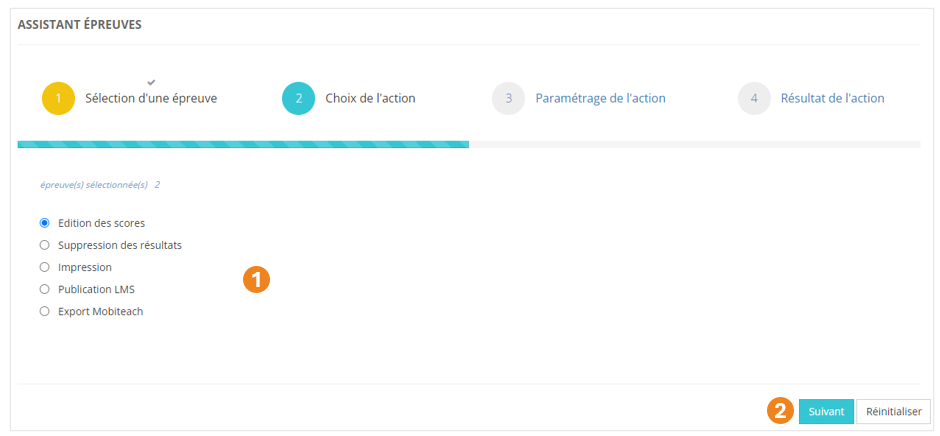
Dans la nouvelle pop-up :

1. Retrouvez le <span style="color: rgb(239, 131, 29);">**r**</span>**<span style="color: rgb(239, 131, 29);">écapitulatif des épreuves</span>** que vous avez sélectionnés ;<span class="callout info">À ce niveau, vous pouvez supprimer des épreuves en les sélectionnant dans le tableau puis en cliquant sur le **bouton \[x\]**.</span>
2. Cliquez sur **<span style="color: rgb(239, 131, 29);">Valider</span>** lorsque vous êtes satisfait de la sélection des épreuves.

[![image.png](https://documentation.xperteam.net/uploads/images/gallery/2024-06/scaled-1680-/FqVimage.png)](https://documentation.xperteam.net/uploads/images/gallery/2024-06/FqVimage.png)
---

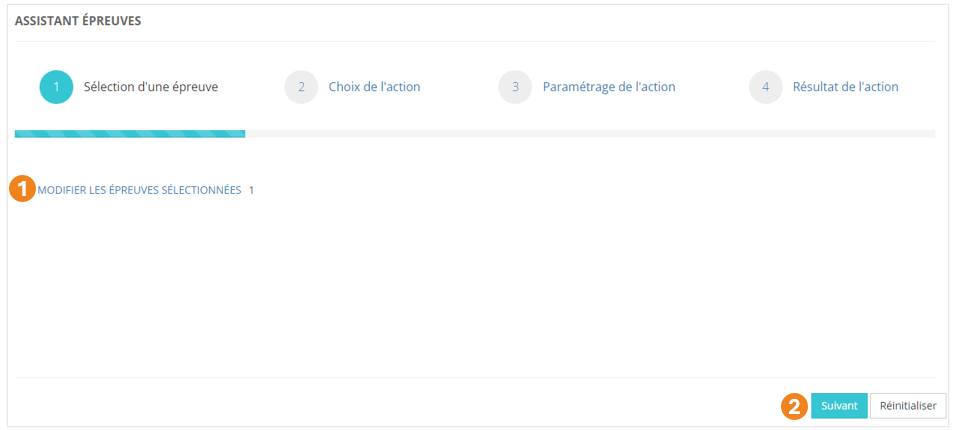
De retour sur l'écran principal, vous pouvez :

1. <span style="color: rgb(239, 131, 29);">**Modifier** </span>les épreuves sélectionnées ;
2. Cliquer sur <span style="color: rgb(239, 131, 29);">**Suivant** </span>lorsque vous êtes satisfait de la sélection des épreuves.

[![image.png](https://documentation.xperteam.net/uploads/images/gallery/2024-06/scaled-1680-/w7simage.png)](https://documentation.xperteam.net/uploads/images/gallery/2024-06/w7simage.png)
---

### <span style="color: rgb(128, 128, 128);">**Sélection et paramétrage de l'action**</span>  


<details id="bkmrk-%C3%89dition-des-scores-s"><summary>Édition des scores</summary>

1. Sélectionnez l'action **<span style="color: rgb(239, 131, 29);">Édition des scores</span>** ;
2. Cliquez sur <span style="color: rgb(239, 131, 29);">**Suivant**</span>.

[![image.png](https://documentation.xperteam.net/uploads/images/gallery/2024-06/scaled-1680-/oahimage.png)](https://documentation.xperteam.net/uploads/images/gallery/2024-06/oahimage.png)

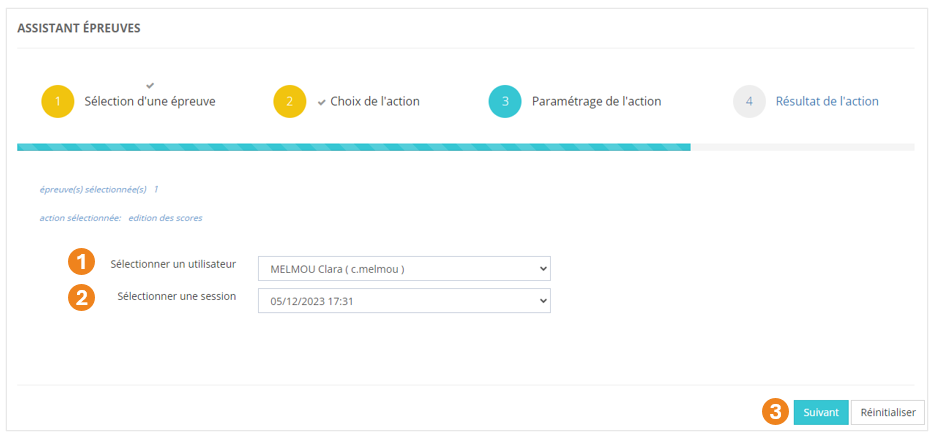
#### **Paramétrage de l'action**

1. Sélectionnez un <span style="color: rgb(239, 131, 29);">**utilisateur** </span>;
2. Sélectionnez une **<span style="color: rgb(239, 131, 29);">session</span>**<span style="color: rgb(239, 131, 29);"> </span>;
3. Cliquez sur <span style="color: rgb(239, 131, 29);">**Suivant**</span>.

[![image.png](https://documentation.xperteam.net/uploads/images/gallery/2024-06/scaled-1680-/qPdimage.png)](https://documentation.xperteam.net/uploads/images/gallery/2024-06/qPdimage.png)

---

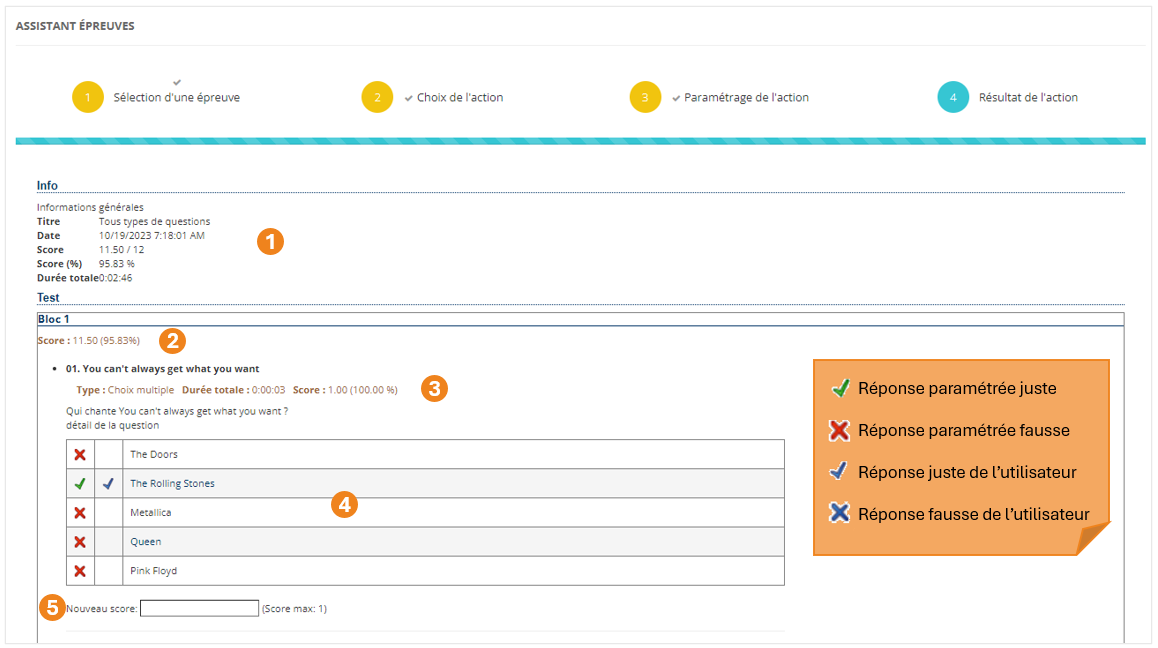
Sur le nouvel écran, vous trouverez :

1. les <span style="color: rgb(239, 131, 29);">**informations générales**</span> du passage de l'épreuve par l'utilisateur (titre, date, score en points et en pourcentage, durée) ;
2. le s<span style="color: rgb(239, 131, 29);">**core obtenu à chaque bloc**</span> ;
3. les <span style="color: rgb(239, 131, 29);">**informations de chaque question**</span> (type, durée, score) ;
4. les <span style="color: rgb(239, 131, 29);">**réponses justes et fausses**</span> telles que paramétrées sur la plateforme et les <span style="color: rgb(239, 131, 29);">**réponses données par l'utilisateur**</span> pour chaque question ;
5. le champ dans lequel vous pouvez <span style="color: rgb(239, 131, 29);">**entrer un nouveau score**</span>, avec le <span style="color: rgb(239, 131, 29);">**score maximal**</span> autorisé.

<p class="callout info">Vous ne pouvez pas modifier les réponses cochées par l'apprenant dans le tableau récapitulatif des réponses.</p>

[![image.png](https://documentation.xperteam.net/uploads/images/gallery/2024-06/scaled-1680-/lxOimage.png)](https://documentation.xperteam.net/uploads/images/gallery/2024-06/lxOimage.png)

Lorsque vous avez modifié les scores, cliquez sur <span style="color: rgb(239, 131, 29);">**Valider** </span>tout en bas de la page.

</details><details id="bkmrk-suppression-des-r%C3%A9su"><summary>Suppression des résultats</summary>

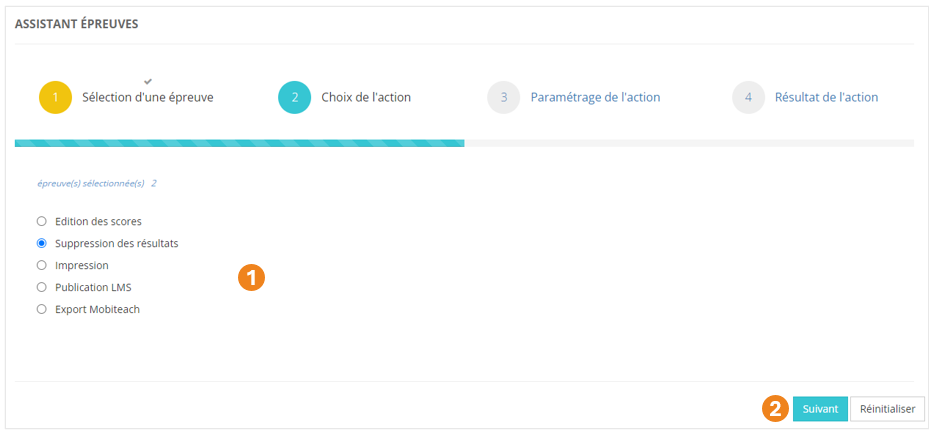
1. Sélectionnez l'action **<span style="color: rgb(239, 131, 29);">Suppression des résultats</span>** ;
2. Cliquez sur <span style="color: rgb(239, 131, 29);">**Suivant**</span>.

[![image.png](https://documentation.xperteam.net/uploads/images/gallery/2024-06/scaled-1680-/A30image.png)](https://documentation.xperteam.net/uploads/images/gallery/2024-06/A30image.png)

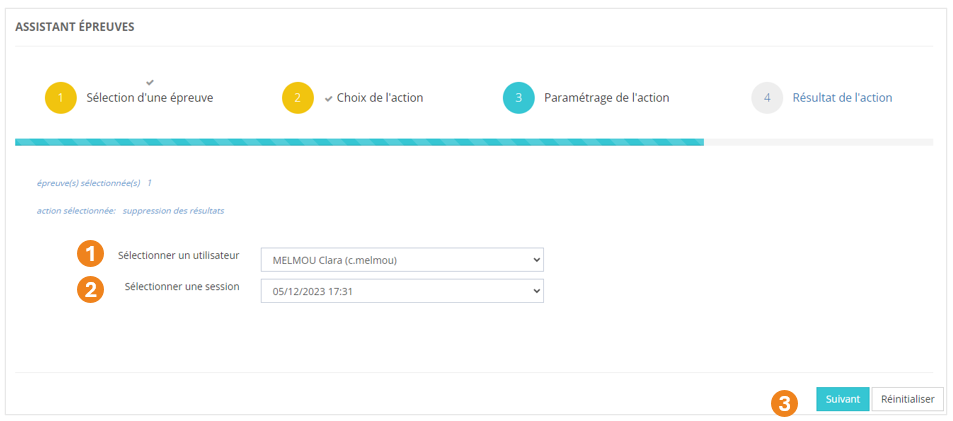
#### **Paramétrage de l'action**

1. Sélectionnez un <span style="color: rgb(239, 131, 29);">**utilisateur** </span>;
2. Sélectionnez une **<span style="color: rgb(239, 131, 29);">session</span>**<span style="color: rgb(239, 131, 29);"> </span>;
3. Cliquez sur <span style="color: rgb(239, 131, 29);">**Suivant**</span>.

[![image.png](https://documentation.xperteam.net/uploads/images/gallery/2024-06/scaled-1680-/7Yyimage.png)](https://documentation.xperteam.net/uploads/images/gallery/2024-06/7Yyimage.png)

---

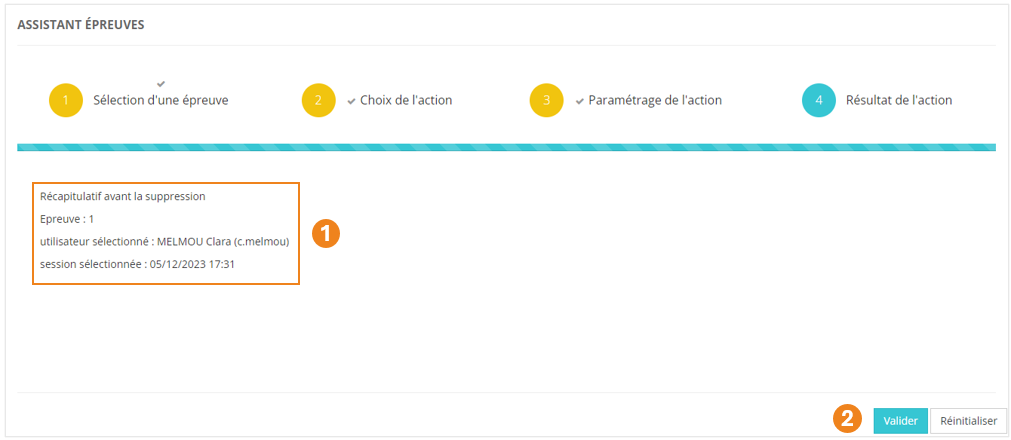
Sur l'écran suivant :

1. Vérifiez que vous avez sélectionné<span style="color: rgb(239, 131, 29);"> **le bon utilisateur et la bonne session**</span> ;
2. Cliquez sur <span style="color: rgb(239, 131, 29);">**Valider** </span>lorsque vous êtes satisfait de votre sélection.

[![image.png](https://documentation.xperteam.net/uploads/images/gallery/2024-06/scaled-1680-/S3limage.png)](https://documentation.xperteam.net/uploads/images/gallery/2024-06/S3limage.png)
</details><details id="bkmrk-impression-s%C3%A9lection"><summary>Impression</summary>

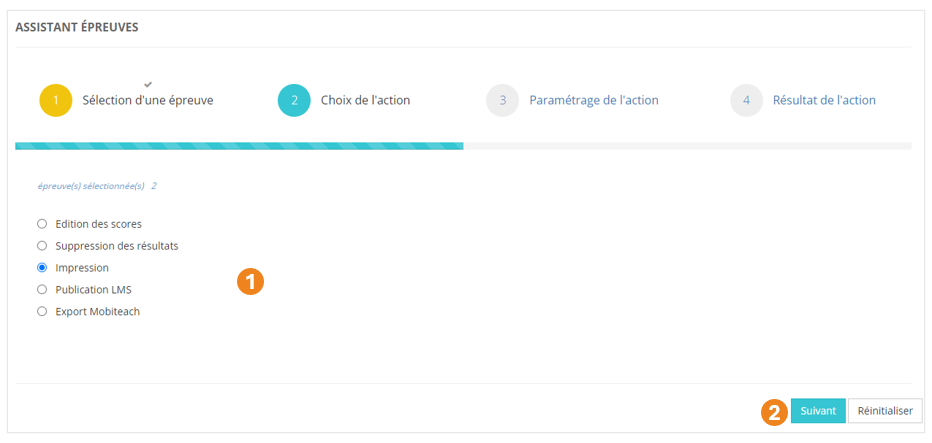
1. Sélectionnez l'action **<span style="color: rgb(239, 131, 29);">Impression</span>** ;
2. Cliquez sur <span style="color: rgb(239, 131, 29);">**Suivant**</span>.

[![image.png](https://documentation.xperteam.net/uploads/images/gallery/2024-06/scaled-1680-/RLlimage.png)](https://documentation.xperteam.net/uploads/images/gallery/2024-06/RLlimage.png)

#### **Paramétrage de l'action**

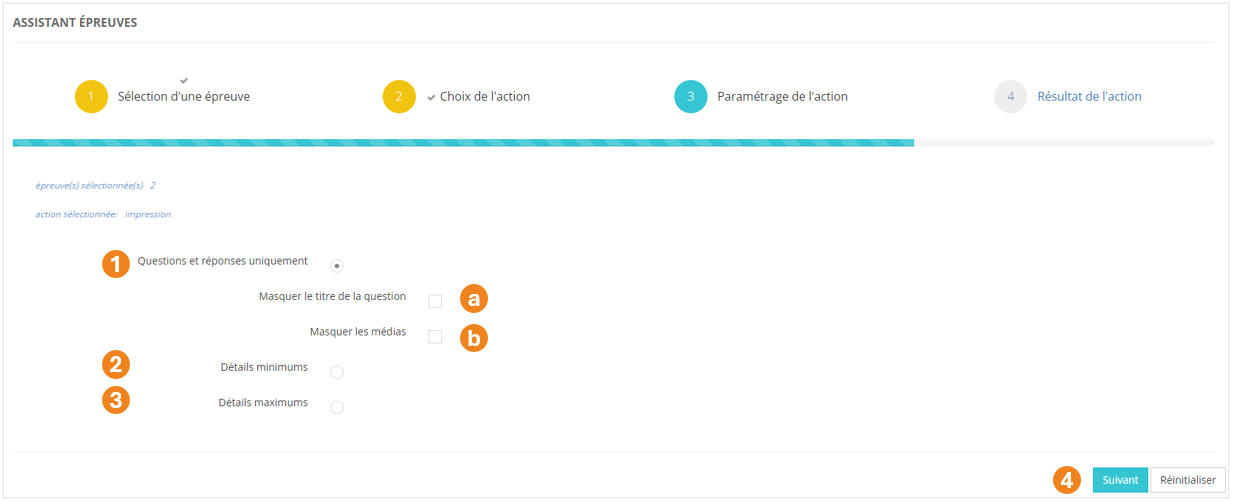
 Pour votre impression, vous pouvez choisir de faire apparaître :

1. Les <span style="color: rgb(239, 131, 29);">**questions et réponses uniquement**</span> ;  
    Si vous choisissez cette option, vous pouvez décider de <span style="color: rgb(239, 131, 29);">**masquer**</span> ou non :  
    (a) le **<span style="color: rgb(239, 131, 29);">titre des questions</span>** ;  
    (b) les <span style="color: rgb(239, 131, 29);">**médias** </span>illustrant les questions.
2. Le <span style="color: rgb(239, 131, 29);">**minimum de détails**</span> ;
3. Le <span style="color: rgb(239, 131, 29);">**maximum de détails**</span> ;
4. Cliquez sur <span style="color: rgb(239, 131, 29);">**Suivant** </span>lorsque vous avez sélectionné le type d'impression qui vous intéresse.

<p class="callout info">**Bon à savoir :** L'option **"Questions et réponses uniquement" sans masquer ni le titre des questions ni les médias** et l'option **"Détails minimums"** donnent le même résultat.</p>

[![image.png](https://documentation.xperteam.net/uploads/images/gallery/2024-06/scaled-1680-/ExIimage.png)](https://documentation.xperteam.net/uploads/images/gallery/2024-06/ExIimage.png)

Après avoir cliqué sur <span style="color: rgb(239, 131, 29);">**Suivant**</span>, un nouvel onglet s'ouvre avec le document demandé.

</details><details id="bkmrk-publication-lms-s%C3%A9le"><summary>Publication LMS</summary>

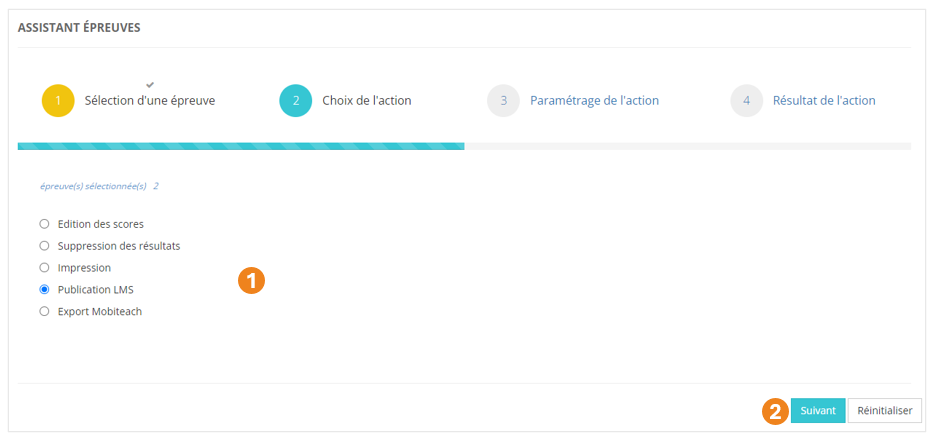
1. Sélectionnez l'action **<span style="color: rgb(239, 131, 29);">Publication LMS</span>** ;
2. Cliquez sur <span style="color: rgb(239, 131, 29);">**Suivant**</span>.

[![image.png](https://documentation.xperteam.net/uploads/images/gallery/2024-06/scaled-1680-/A1Himage.png)](https://documentation.xperteam.net/uploads/images/gallery/2024-06/A1Himage.png)

#### **Paramétrage de l'action**

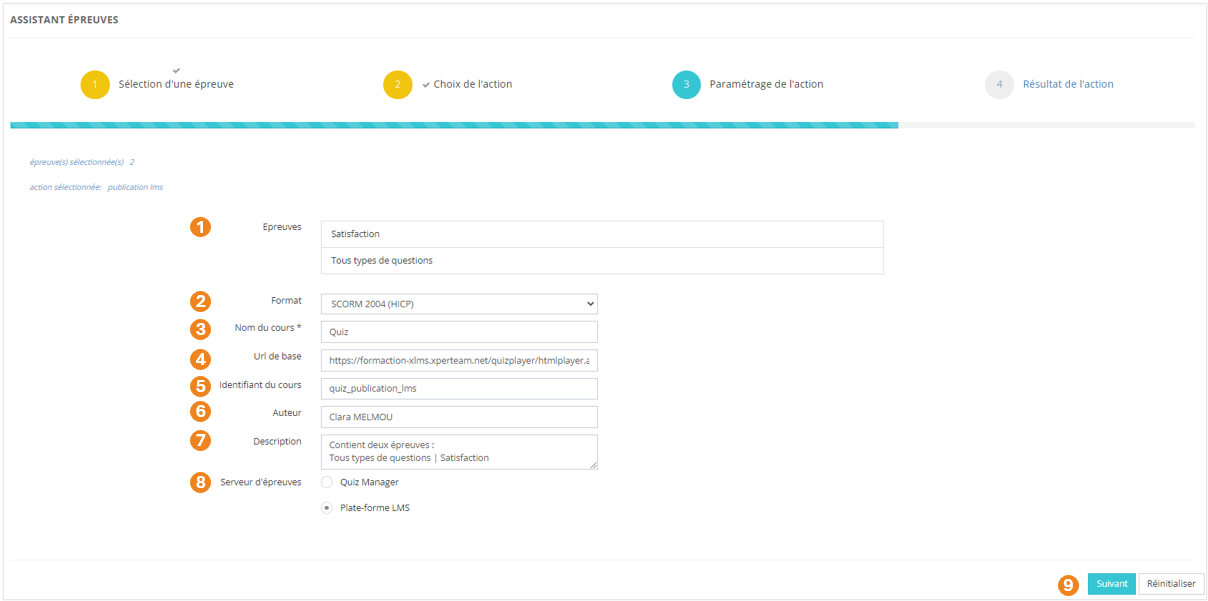
Sur l'écran suivant, vous pouvez :

1. Visualiser le <span style="color: rgb(239, 131, 29);">**nom des épreuves**</span> sélectionnées ;
2. Choisir un <span style="color: rgb(239, 131, 29);">**format d'export**</span> (<span style="color: rgb(239, 131, 29);">SCORM 1.2 (HICP)</span> / <span style="color: rgb(239, 131, 29);">SCORM 2004 (HICP)</span> / <span style="color: rgb(239, 131, 29);">TinCan</span>) ;
3. <span style="color: rgb(239, 131, 29);">**Nommer**</span> le cours qui contiendra ces épreuves <span style="color: rgb(239, 131, 29);">**(obligatoire)**</span> ;
4. Visualiser l'<span style="color: rgb(239, 131, 29);">**url**</span> correspondant au cours ;
5. Utiliser l'<span style="color: rgb(239, 131, 29);">**identifiant externe**</span> qui est généré automatiquement ou en choisir un autre ;
6. Utiliser l'<span style="color: rgb(239, 131, 29);">**auteur**</span> déjà renseigné ou le modifier ;
7. Ajouter une <span style="color: rgb(239, 131, 29);">**description** </span>;
8. Choisir le <span style="color: rgb(239, 131, 29);">**serveur d'épreuves**</span> sur lequel vous importerez ce cours (<span style="color: rgb(239, 131, 29);">Quiz Manager</span> / <span style="color: rgb(239, 131, 29);">Plateforme LMS</span>);
9. Cliquer sur <span style="color: rgb(239, 131, 29);">**Suivant** </span>lorsque tous les renseignements sont corrects.

[![image.png](https://documentation.xperteam.net/uploads/images/gallery/2024-06/scaled-1680-/Kurimage.png)](https://documentation.xperteam.net/uploads/images/gallery/2024-06/Kurimage.png)
</details><details id="bkmrk-export-mobiteach-s%C3%A9l"><summary>Export Mobiteach</summary>

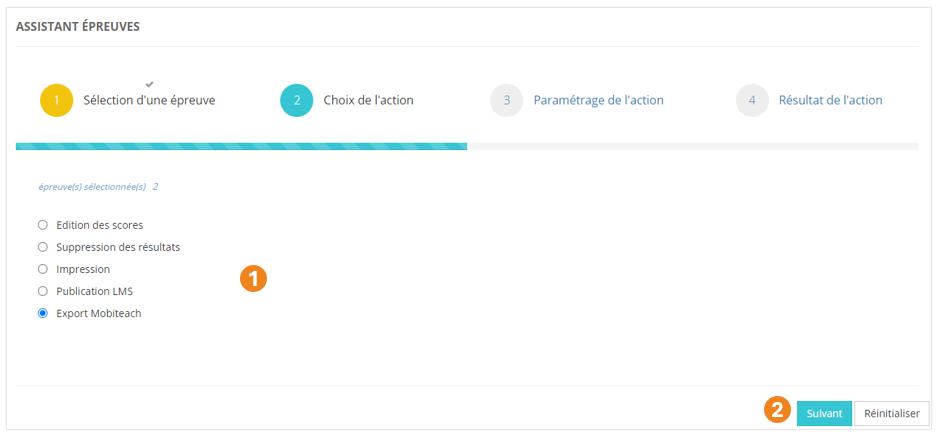
1. Sélectionnez l'action **<span style="color: rgb(239, 131, 29);">Export Mobiteach</span>** ;
2. Cliquez sur <span style="color: rgb(239, 131, 29);">**Suivant**</span>.

[![image.png](https://documentation.xperteam.net/uploads/images/gallery/2024-06/scaled-1680-/DcLimage.png)](https://documentation.xperteam.net/uploads/images/gallery/2024-06/DcLimage.png)

#### **Paramétrage de l'action**

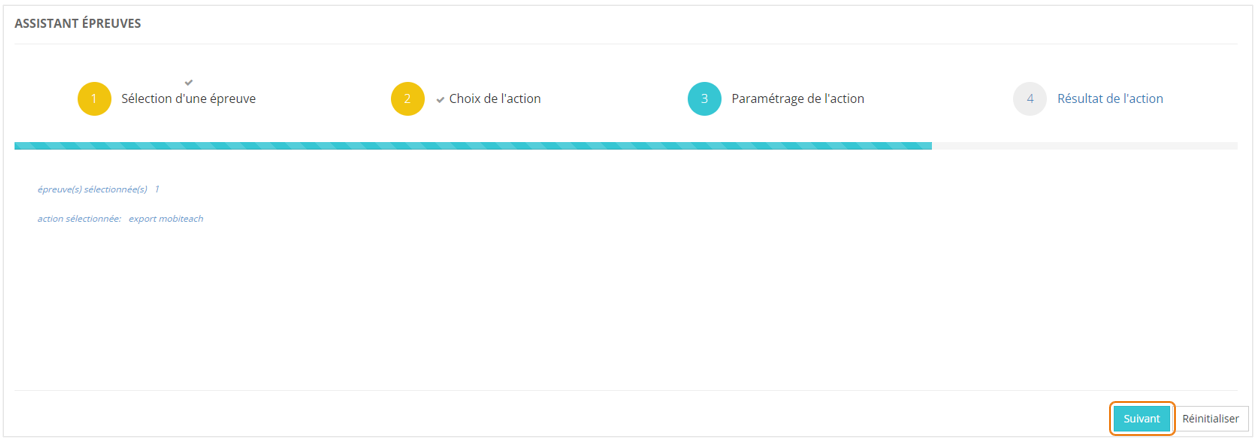
Aucun paramétrage n'est demandé pour l'export Mobiteach : cliquez sur <span style="color: rgb(239, 131, 29);">**Suivant**</span>.

[![image.png](https://documentation.xperteam.net/uploads/images/gallery/2024-06/scaled-1680-/VMLimage.png)](https://documentation.xperteam.net/uploads/images/gallery/2024-06/VMLimage.png)

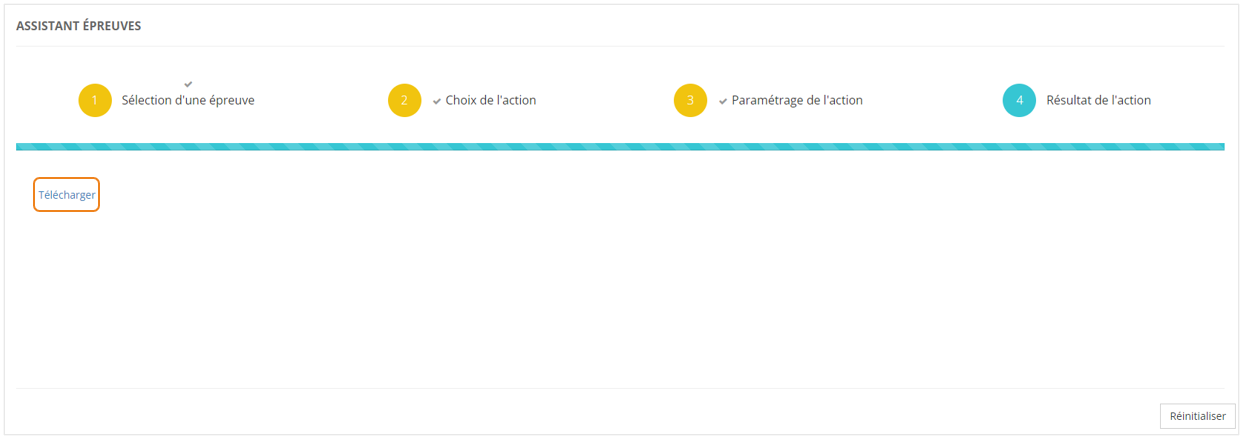
Cliquez sur <span style="color: rgb(239, 131, 29);">**Télécharger** </span>pour obtenir le fichier à importer sur Mobiteach.

[![image.png](https://documentation.xperteam.net/uploads/images/gallery/2024-06/scaled-1680-/Tmhimage.png)](https://documentation.xperteam.net/uploads/images/gallery/2024-06/Tmhimage.png)
</details>