# L'Assistant « Export csv »

L'<span style="color: rgb(239, 131, 29);">**Assistant Export csv**</span> vous permet d'obtenir une extraction de données en choisissant certains critères sur les caractéristiques suivantes :

- <span style="color: rgb(239, 131, 29);">**Utilisateurs** </span>:

1. Vous pouvez filtrer votre export sur un <span style="color: rgb(239, 131, 29);">**niveau hiérarchique**</span> et/ou sur une <span style="color: rgb(239, 131, 29);">**audience** </span>:  
    a. Cliquez sur le <span style="color: rgb(239, 131, 29);">**crayon** </span>pour <span style="color: rgb(239, 131, 29);">**ajouter une organisation** <span style="color: rgb(0, 0, 0);">/</span> **une audience**</span> (ou <span style="color: rgb(239, 131, 29);">**modifier** </span>celle sélectionnée) ;  
    b. Cliquez sur la <span style="color: rgb(239, 131, 29);">**gomme** </span>pour <span style="color: rgb(239, 131, 29);">**supprimer le filtre sur organisation** <span style="color: rgb(0, 0, 0);">/ </span>**audience**</span>.
2. Vous pouvez décider de faire afficher ou non les informations suivantes :  
    a. Les <span style="color: rgb(239, 131, 29);">**noms**</span>, <span style="color: rgb(239, 131, 29);">**prénoms**</span>, <span style="color: rgb(239, 131, 29);">**identifiants de connexion**</span>, <span style="color: rgb(239, 131, 29);">**identifiants externes**</span>, <span style="color: rgb(239, 131, 29);">**adresses email**</span>, <span style="color: rgb(239, 131, 29);">**langues** </span>des utilisateurs ;  
    b. Les <span style="color: rgb(239, 131, 29);">**dates d'activation et d'expiration**</span> du compte des utilisateurs ;  
    c. Le <span style="color: rgb(239, 131, 29);">**statut** </span>du compte des utilisateurs (<span style="color: rgb(239, 131, 29);">désactivé </span>ou non) ;  
    d. Les <span style="color: rgb(239, 131, 29);">**organisations**</span> et leur <span style="color: rgb(239, 131, 29);">**identifiant externe**</span> auxquelles sont rattachés les utilisateurs ;  
    e. Les <span style="color: rgb(239, 131, 29);">**audiences** </span>des utilisateurs ;  
    f. Les <span style="color: rgb(239, 131, 29);">**champs personnalisés**</span> des utilisateurs ;  
    g. La <span style="color: rgb(239, 131, 29);">**ville** </span>et le <span style="color: rgb(239, 131, 29);">**pays** </span>des utilisateurs ;  
    h. Les <span style="color: rgb(239, 131, 29);">**identifiants** </span>et <span style="color: rgb(239, 131, 29);">**identifiants externes**</span> des <span style="color: rgb(239, 131, 29);">**managers** </span>et <span style="color: rgb(239, 131, 29);">**managers secondaires**</span> des utilisateurs ;  
    i. La <span style="color: rgb(239, 131, 29);">**date de leur dernière connexion**</span>.

[![image.png](https://documentation.xperteam.net/uploads/images/gallery/2024-06/scaled-1680-/lFYimage.png)](https://documentation.xperteam.net/uploads/images/gallery/2024-06/lFYimage.png)

---

- <span style="color: rgb(239, 131, 29);">**Catégories** </span>: Vous pouvez filtrer l'export sur une catégorie de cours et parcours ;  
      
    [![image.png](https://documentation.xperteam.net/uploads/images/gallery/2024-06/scaled-1680-/b16image.png)](https://documentation.xperteam.net/uploads/images/gallery/2024-06/b16image.png)

---

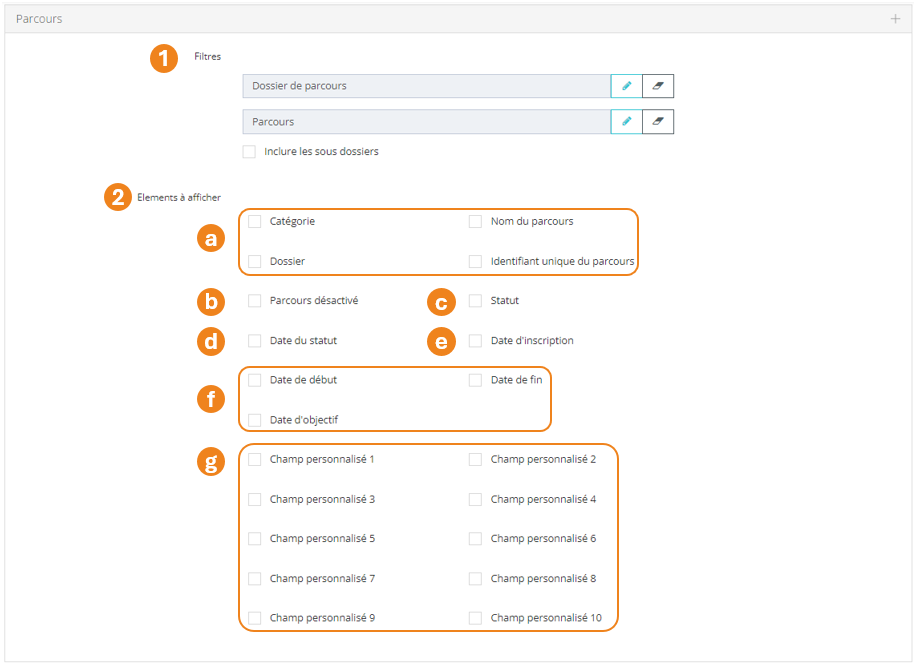
- <span style="color: rgb(239, 131, 29);">**Parcours** </span>:

1. Vous pouvez filtrer votre export sur <span style="color: rgb(239, 131, 29);">**un dossier de parcours**</span> ou même <span style="color: rgb(239, 131, 29);">**un parcours en particulier**</span> ;  
    <p class="callout info">Cochez la case **« Inclure les sous-dossiers »** si vous souhaitez un export sur les parcours d'un dossier et de tous ses sous-dossiers.</p>
2. Vous pouvez décider de faire afficher ou non les informations suivantes :  
    a. La <span style="color: rgb(239, 131, 29);">**catégorie**</span>, le <span style="color: rgb(239, 131, 29);">**nom**</span>, le <span style="color: rgb(239, 131, 29);">**dossier** </span>et l'<span style="color: rgb(239, 131, 29);">**identifiant unique**</span> des parcours ;  
    b. Le caractère <span style="color: rgb(239, 131, 29);">**désactivé** </span>ou non des parcours ;  
    c. Le <span style="color: rgb(239, 131, 29);">**statut** </span>des utilisateurs sur les parcours ;  
    d. La <span style="color: rgb(239, 131, 29);">**date** </span>à laquelle ils ont obtenu ce statut ;  
    e. La <span style="color: rgb(239, 131, 29);">**date** </span>à laquelle les utilisateurs ont été inscrits sur les parcours ;  
    f. Les <span style="color: rgb(239, 131, 29);">**dates de début, d'objectif et de fin d'affectation**</span> des parcours aux utilisateurs ;  
    g. Les **<span style="color: rgb(239, 131, 29);">champs personnalisés</span>** des parcours.  
      
    [![image.png](https://documentation.xperteam.net/uploads/images/gallery/2024-06/scaled-1680-/2Z2image.png)](https://documentation.xperteam.net/uploads/images/gallery/2024-06/2Z2image.png)

---

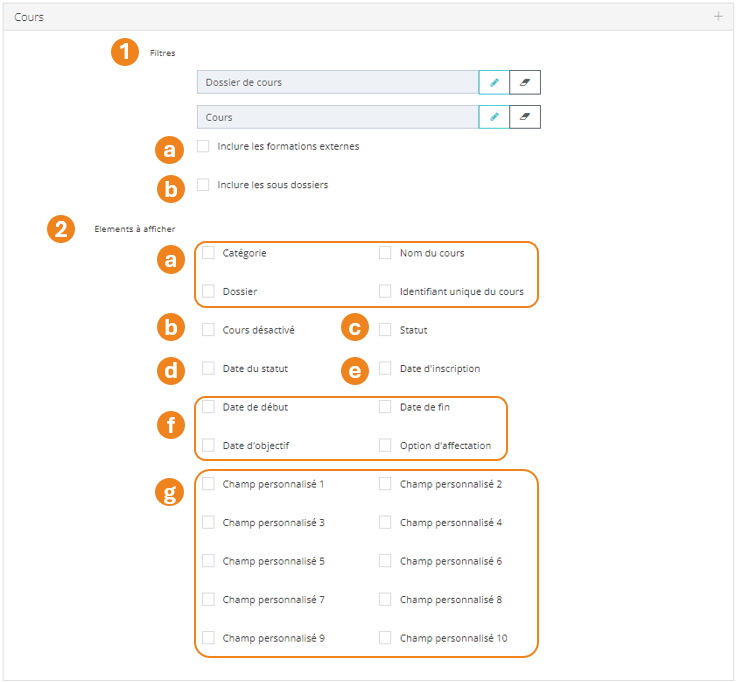
- <span style="color: rgb(239, 131, 29);">**Cours** </span>:

1. Vous pouvez filtrer votre export sur <span style="color: rgb(239, 131, 29);">**un dossier de cours**</span> ou même <span style="color: rgb(239, 131, 29);">**un cours en particulier**</span> ;  
    a. Cochez la case <span style="color: rgb(239, 131, 29);">**« Inclure les formations externes »** </span>si vous souhaitez faire apparaître les cours qui sont estampillés « externes » dans les informations générales du cours.  
    b. Cochez la case <span style="color: rgb(239, 131, 29);">**« Inclure les sous-dossiers »**</span> si vous souhaitez un export sur les cours d'un dossier et de tous ses sous-dossiers.
2. Vous pouvez décider de faire afficher ou non les informations suivantes :  
    a. La <span style="color: rgb(239, 131, 29);">**catégorie**</span>, le <span style="color: rgb(239, 131, 29);">**nom**</span>, le <span style="color: rgb(239, 131, 29);">**dossier** </span>et l'<span style="color: rgb(239, 131, 29);">**identifiant unique**</span> des cours ;  
    b. Le caractère <span style="color: rgb(239, 131, 29);">**désactivé** </span>ou non des cours ;  
    c. Le <span style="color: rgb(239, 131, 29);">**statut** </span>des utilisateurs sur les cours ;  
    d. La <span style="color: rgb(239, 131, 29);">**date** </span>à laquelle ils ont obtenu ce statut ;  
    e. La <span style="color: rgb(239, 131, 29);">**date** </span>à laquelle les utilisateurs ont été inscrits sur les cours ;  
    f. Les <span style="color: rgb(239, 131, 29);">**dates de début, d'objectif, de fin d'affectation**</span> ainsi que l'<span style="color: rgb(239, 131, 29);">**option d'affectation**</span> des cours aux utilisateurs ;  
    g. Les <span style="color: rgb(239, 131, 29);">**champs personnalisés**</span> des cours.  
      
    [![image.png](https://documentation.xperteam.net/uploads/images/gallery/2024-06/scaled-1680-/GqGimage.png)](https://documentation.xperteam.net/uploads/images/gallery/2024-06/GqGimage.png)

---

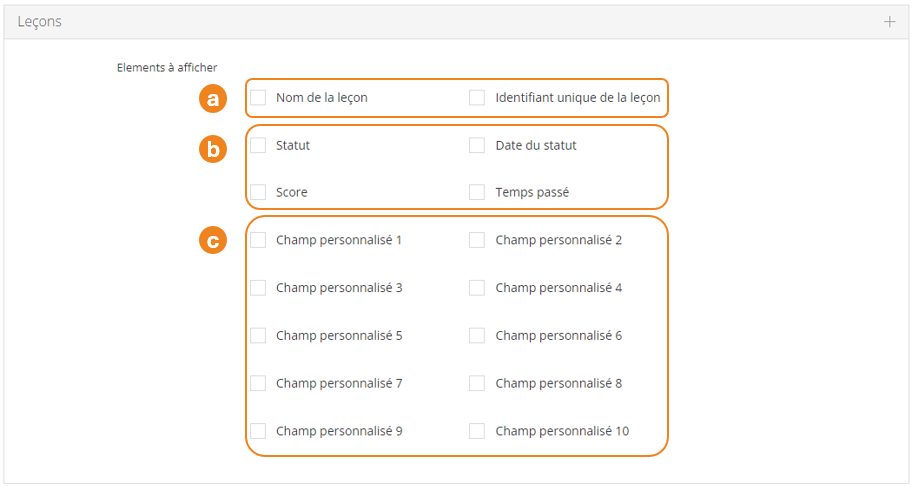
- <span style="color: rgb(239, 131, 29);">**Leçons** </span>:  
    Vous pouvez décider de faire afficher ou non les informations suivantes :  
    a. Le <span style="color: rgb(239, 131, 29);">**nom** </span>et l'<span style="color: rgb(239, 131, 29);">**identifiant unique**</span> des leçons ;  
    b. Le <span style="color: rgb(239, 131, 29);">**statut**</span>, la <span style="color: rgb(239, 131, 29);">**date de statut**</span>, le <span style="color: rgb(239, 131, 29);">**score** </span>et le <span style="color: rgb(239, 131, 29);">**temps passé**</span> des utilisateurs sur les leçons ;   
    c. Les <span style="color: rgb(239, 131, 29);">**champs personnalisés**</span> de leçons.

[![image.png](https://documentation.xperteam.net/uploads/images/gallery/2024-06/scaled-1680-/0Yuimage.png)](https://documentation.xperteam.net/uploads/images/gallery/2024-06/0Yuimage.png)

---

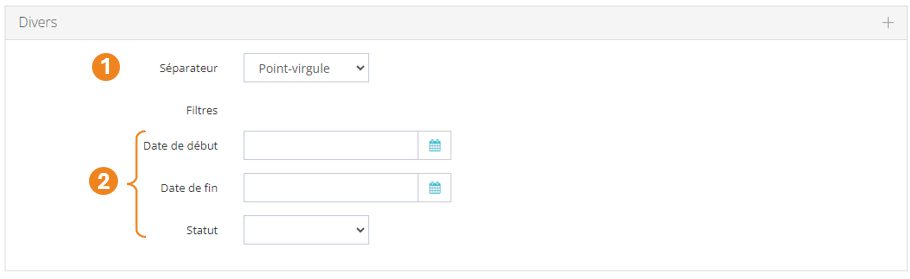
- <span style="color: rgb(239, 131, 29);">**Divers** </span>:  
    
    1. Vous pouvez sélectionner un **<span style="color: rgb(239, 131, 29);">séparateur </span>**(<span style="color: rgb(239, 131, 29);">point-virgule</span> / <span style="color: rgb(239, 131, 29);">virgule</span>) ;
    2. Vous pouvez filtrer vos résultats sur les **<span style="color: rgb(239, 131, 29);">dates de début et de fin d'affectation</span>** de cours ou de parcours, ainsi que sur le **<span style="color: rgb(239, 131, 29);">statut</span>** des utilisateurs sur <span style="color: rgb(239, 131, 29);">**le plus haut niveau de formation**</span> pour lequel vous avez demandé des informations (Niveau <span style="color: rgb(239, 131, 29);">Parcours </span>/ <span style="color: rgb(239, 131, 29);">Cours </span>/ <span style="color: rgb(239, 131, 29);">Leçon </span>- Statut <span style="color: rgb(239, 131, 29);">Non commencé</span> / <span style="color: rgb(239, 131, 29);">En cours</span> / <span style="color: rgb(239, 131, 29);">Terminé</span>)
    
      
    [![image.png](https://documentation.xperteam.net/uploads/images/gallery/2024-06/scaled-1680-/k2Yimage.png)](https://documentation.xperteam.net/uploads/images/gallery/2024-06/k2Yimage.png)