# L'Assistant Statistiques

L'Assistant Statistiques vous permet de modifier le statut, le score, la date et le temps passé sur une leçon pour un utilisateur donné.

### <span style="color: rgb(128, 128, 128);">**Sélection de l'utilisateur**</span>

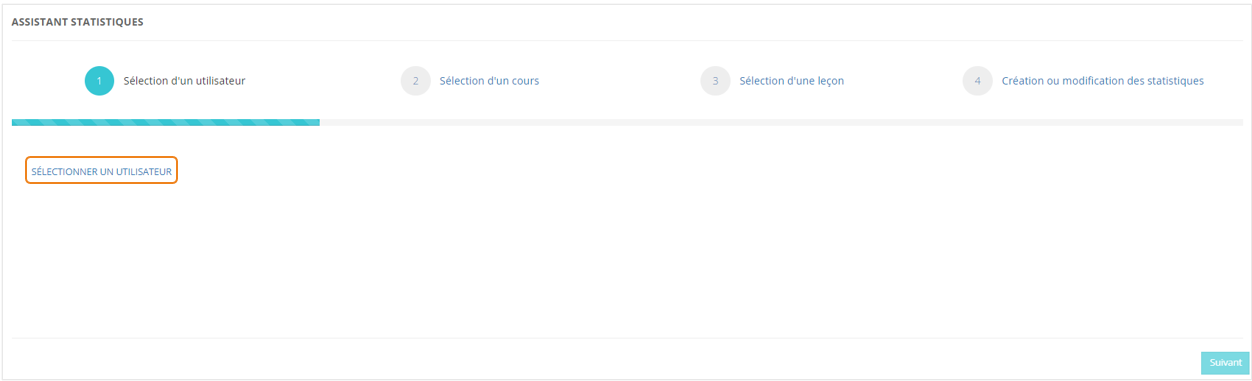
Dans le menu <span style="color: rgb(239, 131, 29);">**Assistants &gt; Assistant statistiques**</span>, cliquer sur **<span style="color: rgb(239, 131, 29);">Sélectionner un utilisateur</span>**.

[![image.png](https://documentation.xperteam.net/uploads/images/gallery/2024-06/scaled-1680-/21pimage.png)](https://documentation.xperteam.net/uploads/images/gallery/2024-06/21pimage.png)

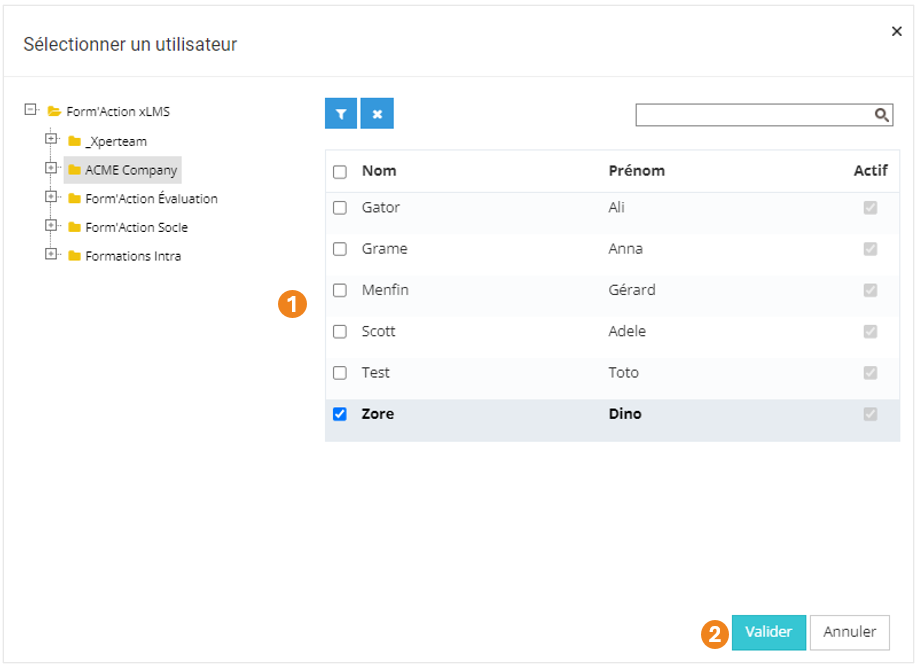
Dans la pop-up qui s'ouvre :

1. Sélectionnez un <span style="color: rgb(239, 131, 29);">**utilisateur** </span>;
2. Cliquez sur <span style="color: rgb(239, 131, 29);">**Valider**</span>.

[![image.png](https://documentation.xperteam.net/uploads/images/gallery/2024-06/scaled-1680-/Ux7image.png)](https://documentation.xperteam.net/uploads/images/gallery/2024-06/Ux7image.png)

---

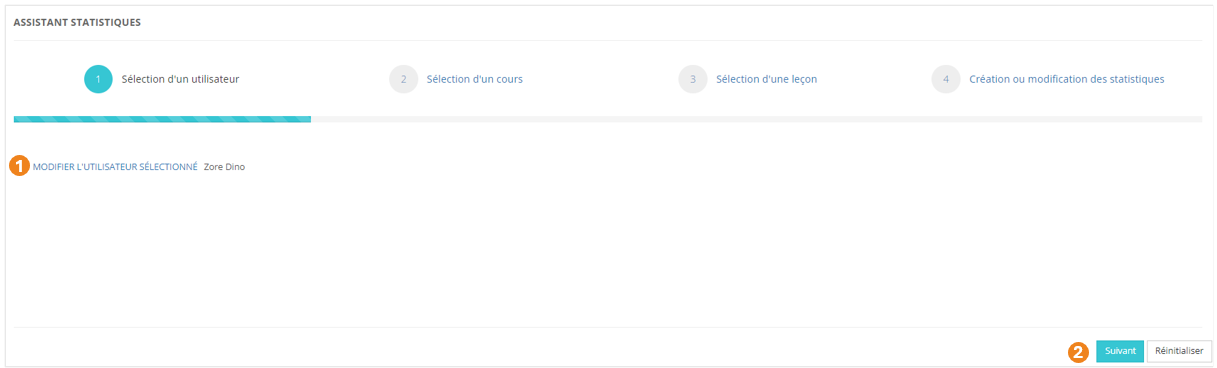
De retour sur l'écran principal, vous pouvez :

1. <span style="color: rgb(239, 131, 29);">**Modifier** </span>l'utilisateur sélectionné ;
2. <span style="color: rgb(239, 131, 29);">**Valider** </span>l'action lorsque vous êtes satisfait de l'utilisateur sélectionné.

[![image.png](https://documentation.xperteam.net/uploads/images/gallery/2024-06/scaled-1680-/cxkimage.png)](https://documentation.xperteam.net/uploads/images/gallery/2024-06/cxkimage.png)
### <span style="color: rgb(128, 128, 128);">**Sélection du cours**</span>

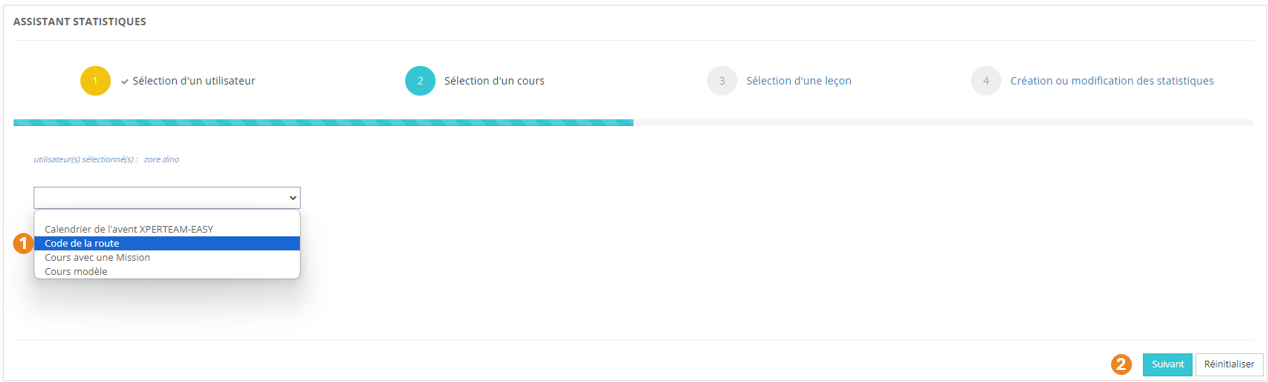
1. <span style="color: rgb(0, 0, 0);"><span style="color: rgb(239, 131, 29);">**Sélectionnez un cours**</span> dans le menu déroulant ;</span>
2. <span style="color: rgb(0, 0, 0);">Cliquez sur <span style="color: rgb(239, 131, 29);">**Suivant**</span>.</span>

[![image.png](https://documentation.xperteam.net/uploads/images/gallery/2024-06/scaled-1680-/DKvimage.png)](https://documentation.xperteam.net/uploads/images/gallery/2024-06/DKvimage.png)

### <span style="color: rgb(128, 128, 128);">**Sélection de la leçon**</span>

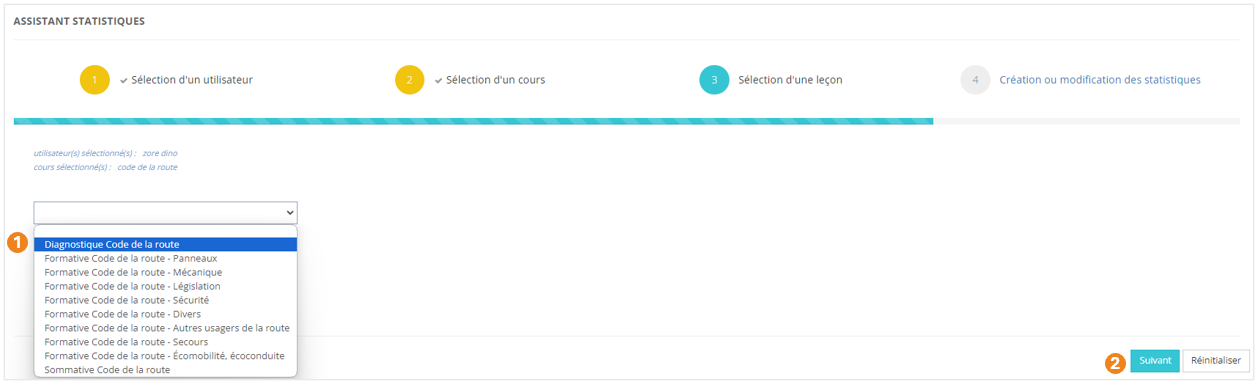
1. <span style="color: rgb(0, 0, 0);"><span style="color: rgb(239, 131, 29);">**Sélectionnez une leçon**</span> dans le menu déroulant ;</span>
2. <span style="color: rgb(0, 0, 0);">Cliquez sur <span style="color: rgb(239, 131, 29);">**Suivant**</span>.</span>

[![image.png](https://documentation.xperteam.net/uploads/images/gallery/2024-06/scaled-1680-/goSimage.png)](https://documentation.xperteam.net/uploads/images/gallery/2024-06/goSimage.png)

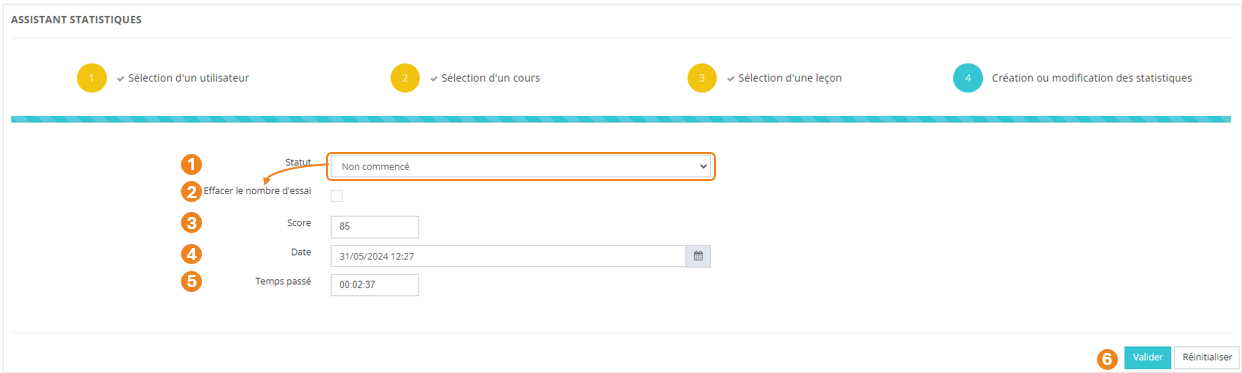
### <span style="color: rgb(128, 128, 128);">**Modification des statistiques**</span>

À cette étape, vous pouvez :

1. Sélectionner un <span style="color: rgb(239, 131, 29);">**statut de leçon**</span> (<span style="color: rgb(239, 131, 29);">Non commencé</span> / <span style="color: rgb(239, 131, 29);">Parcouru</span> / <span style="color: rgb(239, 131, 29);">Échoué </span>/ <span style="color: rgb(239, 131, 29);">En cours</span> / <span style="color: rgb(239, 131, 29);">Réussi</span> / <span style="color: rgb(239, 131, 29);">Terminé</span>) ;
2. <span style="color: rgb(239, 131, 29);">**Réinitialiser le nombre d'essais**</span> de la leçon ;  
    <span class="callout info">Cette option n'est disponible que pour un statut Non commencé.</span>
3. <span style="color: rgb(239, 131, 29);"><span style="color: rgb(0, 0, 0);">Mettre un</span> **score**</span> de leçon (pour les leçons comportant une épreuve) ;
4. Ajouter ou modifier la <span style="color: rgb(239, 131, 29);">**date de statut**</span> de la leçon ;
5. Entrer ou modifier le <span style="color: rgb(239, 131, 29);">**temps passé**</span> sur la leçon ;
6. Cliquer sur <span style="color: rgb(239, 131, 29);">**Valider** </span>lorsque vous avez effectué toutes les modifications souhaitées.

[![image.png](https://documentation.xperteam.net/uploads/images/gallery/2024-06/scaled-1680-/OYXimage.png)](https://documentation.xperteam.net/uploads/images/gallery/2024-06/OYXimage.png)